
Understanding Notion’s Core for Productivity
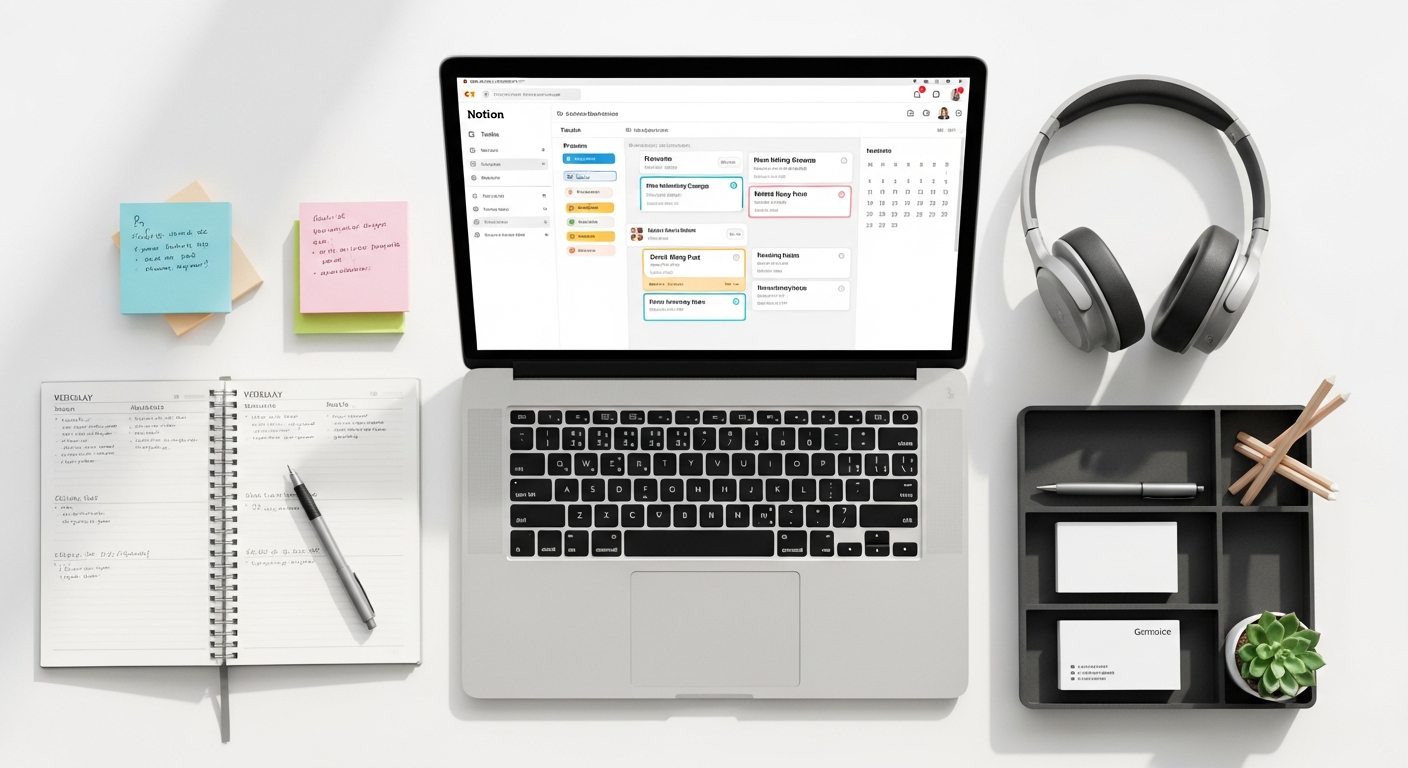
At its heart, Notion is a hybrid workspace, blurring the lines between disparate productivity tools. It offers a unique blend of flexibility and structure, making it an ideal candidate for anyone looking to consolidate their digital life. Unlike rigid, single-purpose applications, Notion provides a blank slate, allowing you to construct virtually any system you can imagine. This adaptability is precisely why it’s often lauded as one of the most compelling contenders in discussions about the Best Productivity Apps 2026.
The Fundamental Building Blocks: Blocks, Pages, and Databases
To effectively use Notion for productivity, it’s crucial to grasp its foundational elements:
- Blocks: These are the atomic units of Notion. Everything you add to a Notion page is a block. This includes text (paragraphs, headings, bullet points), images, videos, code snippets, embedded files, and even other Notion pages. The block-based editor offers unparalleled flexibility, allowing you to drag, drop, and rearrange content effortlessly. This modularity means you can combine different types of information seamlessly within a single page, creating rich, multimedia documents that go far beyond plain text.
- Pages: A page is where blocks reside. Pages can be as simple as a quick note or as complex as a detailed project plan containing dozens of sub-pages and linked databases. Pages can be nested infinitely, allowing you to create a hierarchical structure that mirrors your thought processes or organizational needs. This nesting capability is crucial for building a robust knowledge management system, akin to creating a digital library where related information is always just a click away. Each page can also have a unique icon and cover image, adding a personal touch and making navigation more intuitive.
- Databases: This is where Notion truly distinguishes itself from simpler note-taking tools. Notion databases are collections of pages that share common properties. Think of them as supercharged spreadsheets where each row is a full Notion page. Databases can be viewed in multiple layouts (tables, boards, calendars, galleries, lists, timelines), offering different perspectives on the same data. The power of databases lies in their ability to organize, filter, sort, and relate information in incredibly dynamic ways, making them indispensable for task management, project tracking, content calendars, CRM systems, and much more. Understanding databases is key to unlocking Notion’s advanced productivity potential.
Why Notion Stands Out as a Productivity Powerhouse
Notion’s allure stems from several key characteristics:
- All-in-One Workspace: It aims to consolidate your digital tools, reducing context switching and the mental overhead of managing multiple subscriptions and interfaces. You can manage tasks, take notes, plan projects, build wikis, track habits, and even run a small business – all within Notion.
- Unrivaled Flexibility: The block-based architecture and database system allow for an astonishing degree of customization. There are no predefined limits to how you can structure your information, enabling you to design workflows that perfectly fit your unique requirements rather than conforming to a rigid software’s design.
- Collaboration Capabilities: Notion facilitates seamless teamwork, allowing multiple users to edit pages simultaneously, leave comments, assign tasks, and share information securely. This makes it an excellent choice for distributed teams and collaborative projects.
- Accessibility: As a cloud-native platform, Notion is accessible from any device with an internet connection, be it a desktop, laptop, tablet, or smartphone. This pervasive access ensures your information is always at your fingertips, a testament to the benefits of modern Cloud Computing Explained Simply, ensuring data synchronization and availability across all your platforms.
By understanding these fundamental components and Notion’s core philosophy, you’re well-equipped to begin building a productivity system that truly serves your needs.
Setting Up Your Notion Workspace for Optimal Productivity
The blank canvas of Notion can be both exhilarating and daunting. The key to maximizing your productivity lies in thoughtful initial setup and ongoing organization. A well-structured workspace reduces friction, makes information discoverable, and encourages consistent usage.
Designing Your Personal Dashboard: Your Productivity Command Center
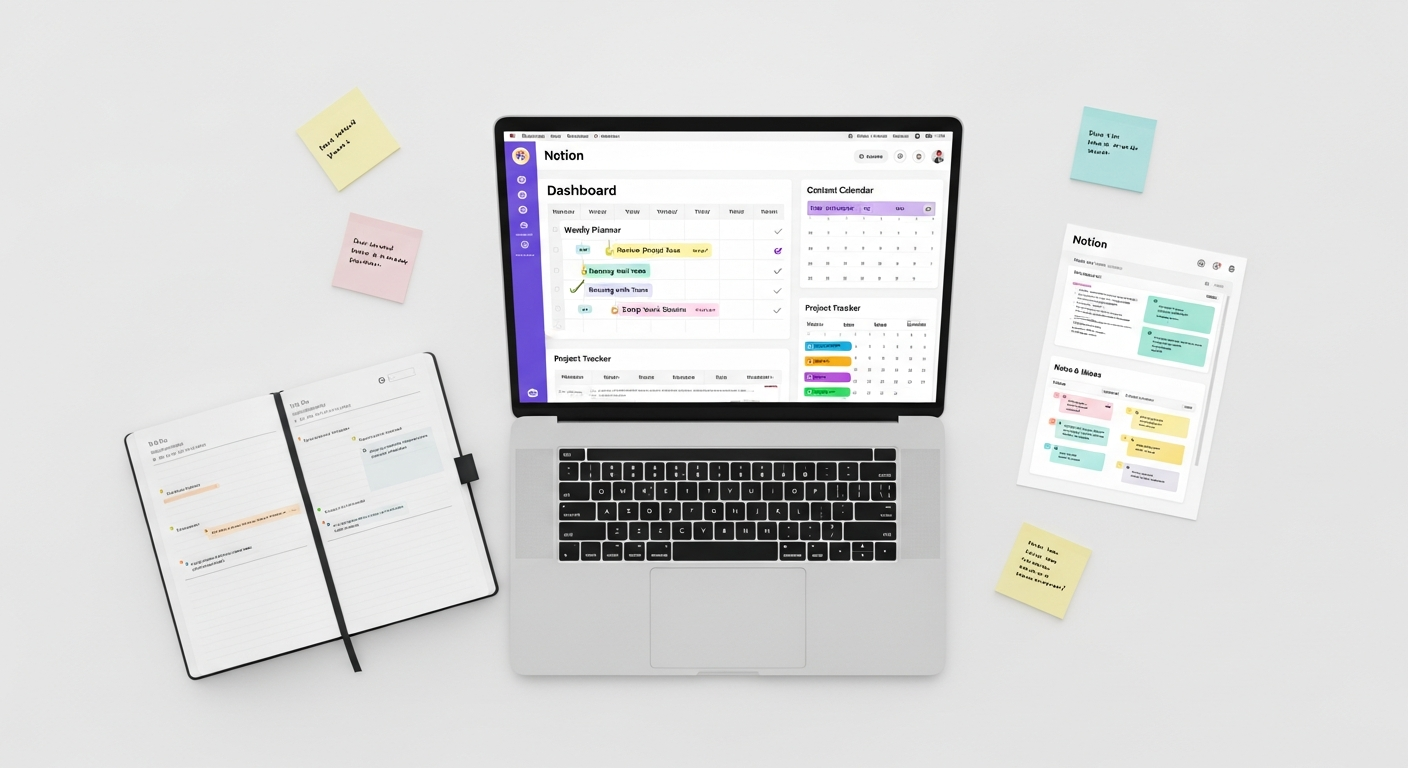
Every effective Notion workspace benefits from a central dashboard. This page should be your go-to hub, providing quick access to your most important information, tasks, and projects. Here’s how to build an effective one:
- Prioritize Accessibility: Place links to your active projects, daily task lists, important notes, and frequently accessed databases directly on your dashboard. Use columns to arrange blocks visually and make the page aesthetically pleasing.
- Widgets and Embeds: Enhance your dashboard with widgets. Notion supports embedding various external tools like Google Calendar, weather widgets, Spotify playlists, or even motivational quotes. These can add functionality and personalization.
- Quick Capture Zones: Include a small section for quick notes or a ‘daily journal’ entry. This allows you to jot down ideas without navigating away from your central hub, fostering a habit of immediate information capture.
- Visual Cues: Use icons and cover images for your dashboard and linked pages. These visual cues make navigation quicker and your workspace more engaging. A well-designed dashboard isn’t just functional; it’s also a pleasant environment to work in, encouraging you to return to it throughout your day.
Leveraging Templates: Jumpstarting Your Productivity
Notion offers a vast library of pre-built templates for almost any use case imaginable – from personal habit trackers and content calendars to project management systems and CRM databases. These templates are invaluable for several reasons:
- Learning Tool: By exploring how existing templates are constructed, you can quickly grasp Notion’s capabilities and design patterns. You can see how databases are set up, how properties are used, and how pages are linked.
- Starting Point: Don’t reinvent the wheel. If you need a task manager, start with a task template and customize it. It’s often easier to modify an existing structure than to build one from scratch.
- Inspiration: Even if a template doesn’t perfectly fit your needs, it can spark ideas for how you might organize your own information or streamline a particular workflow.
Remember, templates are meant to be customized. Duplicate them into your workspace and then tweak them to match your specific requirements, adding or removing properties, changing views, and personalizing the content.
Organizing Your Pages: Hierarchy and Nesting for Clarity
As your Notion workspace grows, effective organization becomes paramount. A clear hierarchy prevents information overload and ensures everything is easy to find:
- Top-Level Pages: Create broad categories for your main areas of life or work (e.g., “Work,” “Personal,” “Projects,” “Knowledge Base”). These should reside in your Notion sidebar.
- Nested Pages: Within these top-level pages, create sub-pages to further categorize information. For instance, under “Work,” you might have “Team Wiki,” “Client Projects,” and “Meeting Notes.” Under “Personal,” you could have “Goals,” “Habit Tracker,” and “Journal.”
- Linked Pages vs. Sub-Pages: Understand the difference. A sub-page lives directly within its parent page. A linked page is simply a mention or a link to another page that might live elsewhere. Use sub-pages for directly related content and linked pages for cross-referencing.
- Consistent Naming Conventions: Adopt a clear and consistent naming strategy for your pages and databases. This makes searching and navigating much more efficient.
By investing time in setting up a logical and intuitive structure, you create a frictionless environment that supports, rather than hinders, your productivity goals.
Leveraging Notion’s Database Power for Task Management and Project Tracking
Understanding Database Views and Properties
Every Notion database is a collection of pages, each representing an item within that database (e.g., a task, a project, a client). These pages share common attributes called properties, which define the characteristics of each item.
- Properties: These are the columns in a table view, but they exist across all views. Common property types include:
- Text: For names, descriptions, or short notes.
- Number: For quantities, costs, or priorities.
- Date: For deadlines, start dates, or completion dates.
- Checkbox: For simple yes/no states (e.g., “Done”).
- Select & Multi-select: For predefined categories or tags (e.g., “Priority: High,” “Status: In Progress,” “Tags: #Marketing, #Urgent”).
- Person: To assign tasks or responsibilities to team members.
- URL, Email, Phone: For contact information or links.
- Files & Media: To attach documents or images.
- Relation: To link items in one database to items in another (e.g., link tasks to projects).
- Rollup: To display aggregated information from a related database (e.g., show all tasks associated with a project).
- Formula: To perform calculations or logical operations based on other properties (e.g., calculate days until a deadline).
- Database Views: The beauty of Notion databases is that you can view the same underlying data in multiple ways, each optimized for a different purpose:
- Table View: A classic spreadsheet-like layout, excellent for detailed data entry and viewing many properties at once.
- Board View: Ideal for Kanban-style project management, visualizing workflow stages (e.g., To Do, In Progress, Done).
- Calendar View: Perfect for scheduling tasks with deadlines or planning content calendars.
- Gallery View: Visually rich, great for portfolios, mood boards, or showing items with cover images.
- List View: A minimalist list, good for quick overviews or simple task lists.
- Timeline View: Excellent for project planning, showing tasks and phases over time with dependencies.
Practical Applications: Building Your Productivity Systems
With a solid understanding of properties and views, you can construct powerful productivity systems:
1. Personal Task Manager:
- Create a database called “Tasks.”
- Add properties: Name (title), Status (Select: To Do, In Progress, Waiting, Done), Priority (Select: High, Medium, Low), Due Date (Date), Area (Multi-select: Work, Personal, Learning), Notes (Text).
- Create different views:
- A Board View grouped by Status for a Kanban flow.
- A Calendar View for deadlines.
- A List View filtered to show only “To Do” tasks sorted by Priority.
- You can even implement GTD (Getting Things Done) principles by adding properties like “Context” or “Project” and filtering accordingly.
2. Project Tracker:
- Create a “Projects” database with properties like Project Name, Status (Select: Planning, Active, On Hold, Completed), Start Date, End Date, Owner (Person), Client (Text or Relation to a “Clients” database).
- Create a separate “Tasks” database (or use your existing one).
- Add a Relation property in the “Tasks” database called “Project” that links to your “Projects” database. This allows you to assign each task to a specific project.
- In your “Projects” database, add a Rollup property to show all tasks related to that project and even calculate their completion status.
- Use a Timeline View for an Gantt-chart-like overview of project phases and deadlines.
3. Content Calendar:
- Database properties: Title, Status (Select: Idea, Draft, Editing, Published), Publish Date (Date), Platform (Multi-select: Blog, YouTube, Social Media), Author (Person), Keywords (Text).
- Use a Calendar View to plan your content schedule.
- Use a Gallery View to see your content ideas with cover images.
The beauty of Notion’s databases is their interconnectedness. While other note-taking solutions like How To Use Obsidian For Note Taking excel at interconnected plain-text notes, Notion offers a structured database layer that provides unparalleled power for managing complex, relational information. This distinction is crucial when choosing the right tool for different aspects of your digital life.
Advanced Notion Strategies for Peak Productivity
Once you’ve mastered the basics of blocks, pages, and databases, you can elevate your Notion setup with more sophisticated techniques. These advanced strategies can automate workflows, provide deeper insights, and create truly interconnected systems that boost your productivity to new heights.
Linked Databases: Creating Interconnected Systems
One of Notion’s most powerful features is the ability to create linked databases (also known as linked views of a database). This allows you to display a filtered or sorted version of an existing database on any other page, without duplicating the data itself. This is critical for building a “single source of truth” while providing contextual access to information.
- Dashboard Integration: On your main dashboard, you can embed linked views of your “Tasks” database, filtered to show only tasks due today or tasks assigned to you. This means you don’t have to navigate to a separate tasks page to see your immediate priorities.
- Project-Specific Task Lists: Within a specific “Project” page, you can embed a linked view of your “Tasks” database, filtered to show only tasks related to that particular project. This keeps all relevant information consolidated within the project’s context.
- Goal Tracking: If you have a “Goals” database, you can link it to your “Projects” database using a Relation property. Then, on a goal’s page, you can embed a linked view of projects related to that goal, seeing at a glance which projects contribute to its achievement.
Linked databases ensure data consistency and reduce the need to jump between pages, making your workflow smoother and more efficient.
Templates within Databases: Streamlining Repetitive Tasks
Database templates allow you to define a pre-structured page for new entries within a database. This is immensely useful for recurring tasks, standard meeting notes, or consistent project setups.
- Meeting Notes Template: In a “Meetings” database, create a template that automatically includes sections for “Attendees,” “Agenda,” “Discussion Points,” “Decisions,” and “Action Items” (perhaps with a linked view of your “Tasks” database, filtered to show tasks assigned during the meeting). Every time you create a new meeting note, this structure is automatically applied.
- Project Brief Template: For a “Projects” database, a template could include standard headings for “Project Goals,” “Deliverables,” “Stakeholders,” “Timeline,” and a linked view of its associated tasks.
Database templates save significant time and ensure consistency across your documentation, reducing the cognitive load of starting from scratch each time.
Formulas and Rollups: Automating Data and Gaining Insights
These properties are the backbone of Notion’s analytical and automation capabilities:
- Formulas: Similar to spreadsheet formulas, Notion formulas allow you to perform calculations, manipulate text, and apply conditional logic based on other properties in your database.
- Example: Calculate the number of days remaining until a deadline (
dateBetween(prop("Due Date"), now(), "days")). - Example: Display a “Status” emoji based on the text value (
if(prop("Status") == "Done", "✅", "⏳")). - Example: Combine first and last names into a full name.
Formulas can automate tedious calculations and provide immediate visual feedback, making your databases more intelligent and responsive.
- Example: Calculate the number of days remaining until a deadline (
- Rollups: Rollups pull information from related databases and aggregate it. They are incredibly powerful for summarizing data across linked items.
- Example: In a “Projects” database, a Rollup property connected to the “Tasks” database can show the count of all tasks for that project, the percentage of tasks completed, or the latest due date among all tasks.
- Example: In a “Clients” database, a Rollup could show the total revenue generated from all projects related to that client.
Rollups provide a high-level overview without needing to drill down into every related page, offering crucial insights for decision-making.
Relations: Building a Web of Interconnected Information
Relations are the glue that connects different databases, allowing you to build a sophisticated network of information. This is essential for creating a truly integrated productivity system.
- Tasks to Projects: As mentioned, relating tasks to projects allows you to see all tasks belonging to a project and vice-versa.
- Meetings to Projects/Clients: Link meeting notes to the relevant project or client, ensuring all communication and decisions are easily accessible within their respective contexts.
- Goals to Projects to Tasks: Create a hierarchy where tasks contribute to projects, and projects contribute to larger goals. This provides clarity on how your daily work aligns with your long-term objectives.
By thoughtfully designing your relations, you transform Notion from a collection of isolated lists into a powerful, interconnected knowledge graph, enabling you to trace information flows and understand the bigger picture of your work and life.
Integrating Notion into Your Workflow and Beyond
Notion’s true potential for productivity isn’t just in its features, but in how seamlessly it integrates into your daily habits and broader digital ecosystem. Making Notion a central part of your workflow involves more than just setting up pages; it’s about embedding it into your routine.
Daily Habits and Routines: Making Notion Your Go-To
For Notion to truly enhance your productivity, it needs to be the first place you go for planning, execution, and reflection:
- Morning Routine Dashboard: Start your day with a Notion page that outlines your morning routine, displays your daily tasks (via a linked database), and perhaps includes a quick journaling prompt or a habit tracker. This sets a productive tone.
- Meeting Hub: Centralize all your meeting notes. Use a database template for consistency and link notes to relevant projects or people. Before a meeting, quickly review past notes within Notion; after, capture action items directly into your task database.
- Decision Log: Create a simple database to log important decisions, including the date, context, options considered, the final decision, and its rationale. This serves as a valuable historical record and prevents revisiting old debates.
- Journaling and Reflection: A dedicated journal page or database can be incredibly powerful. Use templates for daily, weekly, or monthly reviews. Reflect on accomplishments, challenges, and future plans. This self-assessment loop is crucial for continuous improvement in productivity.
Knowledge Management: Building Your Second Brain
Notion excels as a personal knowledge management system (PKMS) or “second brain.” Its hierarchical page structure, search capabilities, and rich block types make it ideal for storing, organizing, and retrieving information.
- Evernote Replacement: Use Notion’s web clipper to save articles, recipes, or research papers directly into a “Reading List” or “Research” database. You can then tag, categorize, and add your own notes.
- Digital Library/Wiki: Create a dedicated section for your personal wiki. This could include summaries of books you’ve read, online courses you’re taking, useful resources, or personal SOPs (Standard Operating Procedures) for repetitive tasks.
- Learning Hub: If you’re learning a new skill, create a page dedicated to it. Embed videos, link to articles, take notes in different formats, and even track your progress.
By consolidating your knowledge in Notion, you create a searchable, interconnected repository that augments your natural memory and provides immediate access to information when you need it most. This comprehensive approach positions Notion strongly among the Best Productivity Apps 2026, offering a more integrated solution than many specialized tools.
Team Collaboration: Streamlining Shared Workflows
Notion’s collaborative features are robust, making it an excellent tool for teams of all sizes:
- Shared Workspaces: Invite team members to your workspace with different permission levels (full access, can edit, can comment, can view).
- Project Portals: Create dedicated project pages that serve as a central hub for all project-related documentation, tasks, meeting notes, and communication.
- Team Wiki/Knowledge Base: Build a shared repository of company policies, onboarding guides, FAQs, and best practices. This ensures everyone has access to the latest information, reducing repeated questions and improving efficiency.
- Assigning Tasks & Comments: Use the “Person” property in databases to assign tasks to team members. The comment feature allows for direct communication on specific blocks or pages, keeping discussions contextual.
Effective team collaboration in Notion minimizes email clutter and ensures everyone is on the same page, fostering transparency and accountability.
Beyond the Core: Integrations and Mobile Use
- Web Clipper: The Notion Web Clipper browser extension is indispensable for saving web content directly into your Notion pages or databases, making research and content curation effortless.
- Mobile App: The Notion mobile app provides full functionality on the go. You can capture ideas, check your task list, and access any page from your phone or tablet, ensuring productivity isn’t confined to your desk.
- API and External Tools: Notion’s API opens up possibilities for custom integrations with other services like Zapier or Make (formerly Integromat). This allows for advanced automations, such as syncing tasks with Google Calendar, sending Notion updates to Slack, or populating databases from forms.
By leveraging these integrations and capabilities, Notion becomes not just a standalone app, but a central component of a larger, interconnected digital workflow.
Future-Proofing Your Productivity with Notion
In the ever-evolving digital landscape, choosing a productivity tool that can adapt and grow with your needs is paramount. Notion’s design philosophy and underlying technology make it a strong candidate for future-proofing your productivity system, ensuring your investment in learning and building within the platform will continue to pay dividends for years to come.
Scalability: From Personal Hobbyist to Enterprise Solution
One of Notion’s most compelling attributes is its remarkable scalability. What starts as a simple personal workspace for managing daily tasks can effortlessly evolve into a sophisticated system for a growing startup or a large enterprise:
- Personal Use: For individuals, Notion serves as a powerful personal organizer, note-taker, and habit tracker. Its free tier is generous, allowing solo users to build extensive systems without cost.
- Small Teams & Startups: As teams grow, Notion’s collaborative features, shared workspaces, and granular permissions become invaluable. It can act as a centralized hub for project management, internal wikis, and CRM.
- Large Organizations: For larger enterprises, Notion offers advanced security features, SCIM provisioning, and dedicated support, proving its capability to handle complex organizational structures and data governance requirements. Its flexibility means departments can tailor their workspaces while still operating under a unified platform.
This inherent scalability means you won’t outgrow Notion, allowing your productivity system to mature alongside your personal or professional growth.
Continual Learning and Adaptation: The Notion Ecosystem
Notion isn’t a static product; it’s a dynamic platform that receives frequent updates, new features, and performance enhancements. To truly future-proof your productivity with Notion, embracing a mindset of continuous learning is essential:
- Stay Updated: Follow Notion’s official blog, social media channels, and community forums. New features, like improved automations or enhanced mobile functionality, can significantly impact your workflow.
- Explore Community Resources: The Notion community is incredibly vibrant and active. There are countless templates, tutorials, YouTube channels, and online communities dedicated to sharing Notion setups and best practices. Learning from others’ innovations can inspire improvements to your own system.
- Iterate and Refine: Your productivity needs will change over time. Regularly review your Notion workspace. What’s working? What’s redundant? How can you streamline processes? Don’t be afraid to experiment with new layouts, properties, or integrations. The beauty of Notion is its malleability, allowing you to constantly refine your “second brain.”
By actively engaging with the Notion ecosystem, you ensure your productivity system remains cutting-edge and perfectly aligned with your evolving requirements.
The Power of Cloud Computing: Underlying Tech for Seamless Productivity
Notion’s robust functionality and seamless experience are underpinned by its cloud-native architecture. Understanding this aspect helps appreciate its reliability and accessibility:
- Always Accessible: Because Notion is built entirely in the cloud, your data is accessible from any device, anywhere, as long as you have an internet connection. This eliminates concerns about local file storage, backups, and device compatibility.
- Real-time Synchronization: Changes made on one device are instantly reflected across all others, and collaborative edits happen in real-time. This is a hallmark benefit of Cloud Computing Explained Simply, ensuring that you and your team are always working with the most up-to-date information.
- Data Security and Redundancy: Cloud providers offer sophisticated security measures and data redundancy protocols far beyond what most individuals or small businesses could implement on their own. This means your valuable productivity data is generally more secure and less prone to loss in Notion’s cloud environment.
- Automatic Updates: As a cloud service, Notion updates seamlessly in the background, without requiring manual downloads or installations. You always have access to the latest version and features, without any effort on your part.
This reliance on cloud computing not only makes Notion incredibly convenient but also ensures a stable, secure, and continuously improving platform for your productivity needs well into 2026 and beyond. By embracing Notion, you’re not just adopting a tool; you’re investing in a future-ready system designed to empower your productivity journey.
Frequently Asked Questions
Recommended Resources
Check out Motion Graphics Basics For Beginners on Layout Scene for a deeper dive.
Explore What Is A Business Model Canvas And How To Use It for additional insights.