

Understanding Your Home Network Needs
Before diving into hardware purchases and configurations, the most critical first step is to accurately assess your current and future home networking requirements. A network tailored to your specific demands will perform significantly better and prove more reliable than a generic setup. Consider the following factors to build a clear picture of your ideal network:
- Internet Service Provider (ISP) and Plan Speed: What internet speed are you currently paying for? Is it sufficient for your daily activities? For high-bandwidth tasks like 4K streaming, large file uploads/downloads, or extensive video conferencing, a faster plan might be necessary. Your network hardware must be capable of supporting your ISP’s maximum speeds.
- Number of Users and Devices: How many people regularly use your internet connection? How many devices (laptops, smartphones, tablets, smart TVs, gaming consoles, smart home gadgets) will be simultaneously connected? A household with multiple users and numerous devices demands a more powerful router and potentially a mesh Wi-Fi system to ensure consistent performance across all connections.
- Primary Activities:
- Remote Work/Study: If you frequently work from home, a stable and fast connection is non-negotiable. This often means prioritizing wired connections for your primary workstation and implementing Quality of Service (QoS) settings to prioritize your work applications. A reliable network ensures that your Best Productivity Apps 2026 run without interruption, allowing for seamless collaboration and efficient task management.
- Streaming and Entertainment: Multiple simultaneous streams of high-definition or 4K video require significant bandwidth.
- Online Gaming: Low latency and high speeds are crucial for a smooth, competitive gaming experience. Wired connections are often preferred for gaming consoles and PCs.
- Smart Home Devices: Do you have smart lights, thermostats, security cameras, or voice assistants? These devices add to the network load and require consistent connectivity.
- Large File Transfers/Cloud Backups: If you regularly move large files between devices or upload extensive data to cloud storage, your network’s internal speed (LAN) and external speed (WAN) are both important.
- Home Size and Layout: The physical dimensions and construction materials of your home significantly impact Wi-Fi signal propagation. Large homes, multi-story houses, or those with thick walls (e.g., brick, concrete) may require multiple access points or a mesh Wi-Fi system to eliminate dead zones.
- Future-Proofing: Technology evolves rapidly. Consider purchasing hardware that supports the latest standards (e.g., Wi-Fi 6/6E/7, Gigabit or 2.5 Gigabit Ethernet ports) to ensure your network remains relevant and efficient for years to come. This foresight prevents the need for immediate upgrades as your digital demands grow.
By thoroughly evaluating these points, you’ll gain clarity on the type of network infrastructure that will best serve your household, laying a solid foundation for an efficient and productive digital environment.
Essential Hardware Components for Your Home Network
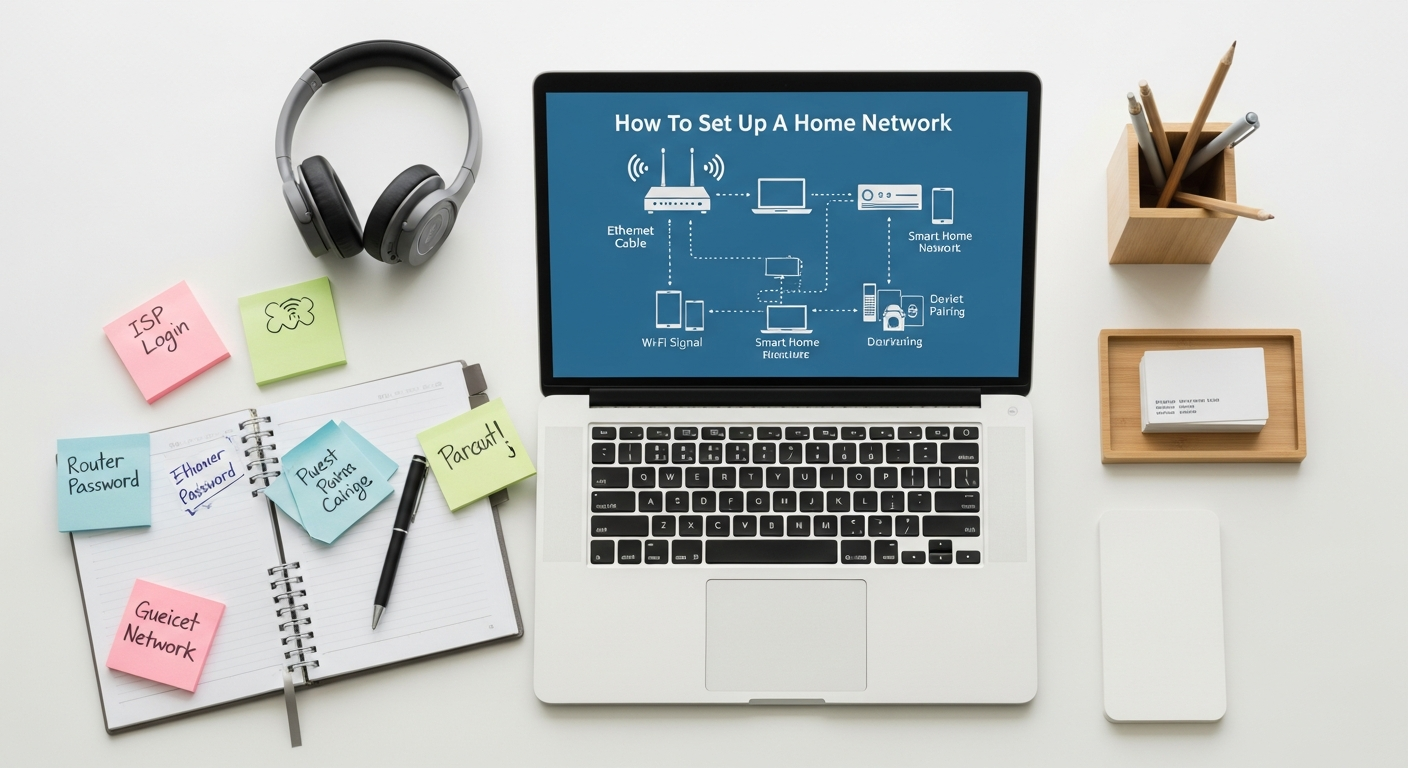
Setting up a robust home network requires a few key pieces of hardware, each playing a distinct role in connecting you to the internet and distributing that connection throughout your home. Understanding these components is crucial for making informed purchasing decisions.
The Modem: Your Gateway to the Internet
The modem is the device that connects your home network to your Internet Service Provider’s (ISP) network. It modulates and demodulates signals, translating the digital data from your devices into a format that can be transmitted over your ISP’s infrastructure (and vice versa). Different types of ISPs require different types of modems:
- Cable Modem: Connects to coaxial cable lines, typically used with cable internet providers.
- DSL Modem: Connects to traditional telephone lines (Digital Subscriber Line).
- Fiber Optic Modem (ONT – Optical Network Terminal): Used with fiber-to-the-home connections, offering the fastest speeds.
- Cellular Modem: Utilizes 4G or 5G cellular networks, often found in mobile hotspots or as a primary internet source in areas without traditional broadband.
Your ISP usually provides a modem, or a modem/router combo unit. While convenient, a dedicated modem often offers better performance and flexibility than a combo unit, allowing you to choose a high-quality, separate router.
The Router: The Heart of Your Home Network
The router is arguably the most important piece of your home network, acting as the central hub that directs traffic between your devices and the internet. It also creates your local network (LAN), allowing devices within your home to communicate with each other. Key considerations when choosing a router:
- Wireless Standards (Wi-Fi):
- Wi-Fi 5 (802.11ac): Still common, good for most uses.
- Wi-Fi 6 (802.11ax): Offers significant speed improvements, better performance in congested environments, and improved battery life for connected devices. Highly recommended for modern homes.
- Wi-Fi 6E: Extends Wi-Fi 6 into the 6 GHz band, providing even more bandwidth and less interference.
- Wi-Fi 7 (802.11be – Extremely High Throughput): The latest standard, offering even greater speeds and lower latency, ideal for future-proofing and demanding applications.
- Bands: Most modern routers are dual-band (2.4 GHz and 5 GHz) or tri-band (adding a second 5 GHz or 6 GHz band).
- 2.4 GHz: Offers wider coverage and better penetration through walls but is slower and more prone to interference.
- 5 GHz: Provides faster speeds and less interference but has a shorter range and struggles more with obstacles.
- Ethernet Ports: Look for Gigabit Ethernet (10/100/1000 Mbps) or faster (e.g., 2.5 Gbps) ports for wired connections, especially for devices like desktop PCs, gaming consoles, or Network Attached Storage (NAS).
- Security Features: WPA2/WPA3 encryption, built-in firewalls, and guest network capabilities are essential.
- Quality of Service (QoS): Allows you to prioritize network traffic for specific applications (e.g., video calls for remote work, streaming). This is vital for maintaining productivity, ensuring your Best Email Management Tools 2026 function flawlessly during critical communications.
Switches: Expanding Wired Connections
If your router doesn’t have enough Ethernet ports for all your wired devices, a network switch can expand your wired connectivity. Switches allow multiple devices to share a single Ethernet port on your router efficiently, without significantly impacting speed.
Ethernet Cables: The Backbone of Wired Connectivity
For wired connections, the quality and category of your Ethernet cables matter.
- Cat5e: Supports speeds up to 1 Gigabit per second (Gbps) over distances up to 100 meters.
- Cat6: Supports up to 10 Gbps over shorter distances (up to 55 meters) and 1 Gbps over longer distances.
- Cat6a: Supports 10 Gbps over the full 100 meters.
Always opt for at least Cat5e, and preferably Cat6 or Cat6a, especially for devices requiring high bandwidth or low latency.
Wi-Fi Extenders, Access Points, and Mesh Systems: Expanding Wireless Coverage
- Wi-Fi Extenders (Repeaters): Rebroadcast an existing Wi-Fi signal, extending coverage but often at the cost of speed.
- Wireless Access Points (WAPs): Connects to your router via an Ethernet cable and broadcasts a new Wi-Fi signal. Offers better performance than extenders.
- Mesh Wi-Fi Systems: A network of interconnected satellite units that communicate with each other to create a single, seamless Wi-Fi network across your entire home. Ideal for large homes or those with dead zones, offering superior coverage and performance compared to extenders.
Network Attached Storage (NAS): Centralized Data Hub (Optional but Recommended)
A NAS device is a dedicated storage server connected to your network, allowing multiple users and devices to store and access files centrally. This is invaluable for collaborative work, media streaming, and automated backups, significantly boosting overall digital productivity.
Selecting the right combination of these components based on your assessed needs will lay the groundwork for a high-performing and reliable home network.
Planning Your Network Layout and Connectivity
Effective network planning goes beyond simply plugging in devices; it involves strategic placement and thoughtful consideration of connectivity types to maximize performance and coverage. A well-planned layout can make all the difference in achieving a seamless digital experience.
Strategic Router Placement for Optimal Wi-Fi Coverage
The placement of your wireless router is critical for maximizing Wi-Fi signal strength and coverage throughout your home.
- Central Location: Position the router as close to the center of your home as possible. Wi-Fi signals radiate outwards in all directions, so a central location ensures the most even distribution.
- Elevated Position: Place the router on a high shelf or desk, rather than on the floor. Signals can be absorbed by furniture and walls, so elevating the router helps it clear common obstacles.
- Away from Obstacles and Interference: Keep the router away from large metal objects (filing cabinets, refrigerators), concrete walls, and appliances that emit electromagnetic waves (microwaves, cordless phones, baby monitors). These can significantly degrade Wi-Fi signal quality.
- Avoid Cabinets and Enclosures: While tempting for aesthetics, enclosing your router in a cabinet can trap heat and block signals, hindering performance.
For larger homes or multi-story buildings, even optimal router placement might not be enough. This is where mesh Wi-Fi systems or strategically placed wireless access points become invaluable, extending coverage without sacrificing speed or creating multiple separate networks.
Wired vs. Wireless: Choosing the Right Connection
While Wi-Fi offers unparalleled convenience, wired Ethernet connections still hold significant advantages for certain devices and scenarios:
- Wired Connections (Ethernet):
- Pros: Offer maximum speed, lowest latency, and superior stability and reliability. Less susceptible to interference.
- Best for: Desktop computers, gaming consoles, smart TVs (especially for 4K streaming), Network Attached Storage (NAS) devices, and any device where consistent performance and speed are paramount. For professionals, a wired connection for your main workstation ensures that your remote work applications, including those from the Best Productivity Apps 2026 list, perform optimally without lag or dropouts.
- Wireless Connections (Wi-Fi):
- Pros: Convenience, mobility, and ease of setup for portable devices.
- Best for: Laptops, smartphones, tablets, smart home devices, and other gadgets that benefit from portability.
A hybrid approach, where stationary, high-bandwidth devices are wired and mobile devices use Wi-Fi, often provides the best balance of performance and flexibility.
Planning Ethernet Runs and Wiring
If you opt for wired connections, planning your Ethernet runs is crucial:
- Identify Key Devices: Determine which devices will benefit most from a wired connection.
- Map Out Routes: Plan the most direct and inconspicuous routes for your Ethernet cables. Consider running cables along baseboards, through walls (if comfortable with DIY wiring), or through attics/crawl spaces.
- Use the Right Cables: As mentioned, Cat6 or Cat6a cables are recommended for future-proofing and optimal performance.
- Wall Jacks: For a cleaner and more professional look, consider installing Ethernet wall jacks in key rooms. This avoids dangling cables and allows for easy connection.
Powerline Adapters: An Alternative for Difficult Runs
In situations where running Ethernet cables is impractical or impossible, powerline adapters offer an alternative. These devices transmit network data over your home’s existing electrical wiring. While they typically offer slower speeds and can be affected by the quality of your electrical circuits, they can be a viable solution for extending wired connectivity to distant rooms without new cabling.
Initial Security Considerations
Even at the planning stage, security should be a top priority.
- Change Default Passwords: Never use the default username and password for your router’s administration interface. This is a critical vulnerability.
- Strong Wi-Fi Passwords: Choose complex, unique passwords for your Wi-Fi network that combine uppercase and lowercase letters, numbers, and symbols.
By carefully planning your network’s physical layout and connectivity strategy, you set the stage for a high-performing, reliable, and secure home network that truly supports your digital lifestyle.
Step-by-Step Guide to Setting Up Your Home Network
With your network needs assessed and hardware acquired, it’s time to bring your home network to life. Follow these steps for a smooth and successful setup.
Step 1: Gather Your Hardware and ISP Information
Before you begin, ensure you have all necessary components:
- Modem: Provided by your ISP or purchased separately.
- Router: Your chosen wireless router.
- Ethernet Cables: At least two (one for modem-router, one for initial computer connection).
- Power Adapters: For both modem and router.
- ISP Account Information: Any login details, account numbers, or activation codes provided by your internet service provider.
- A computer or mobile device: For initial configuration.
Step 2: Connect the Modem
- Disconnect Old Equipment: If replacing an old modem, unplug it and any associated cables.
- Connect to ISP Line: Connect the modem to your ISP’s internet line. This will vary by modem type:
- Cable Modem: Connect a coaxial cable from the wall jack to the modem’s “Cable In” port.
- DSL Modem: Connect a phone cable from the wall jack to the modem’s “DSL” port.
- Fiber Modem (ONT): This is usually installed by your ISP, and you’ll connect your router to its Ethernet port.
- Connect Power: Plug the modem’s power adapter into an electrical outlet and into the modem.
- Wait for Initialization: Allow the modem several minutes to power on and establish a connection with your ISP. Look for stable indicator lights (e.g., “Online,” “Internet,” or a globe icon) before proceeding. Consult your modem’s manual for light interpretations.
Step 3: Connect the Router
- Connect Modem to Router: Take an Ethernet cable and connect one end to the modem’s Ethernet port (often labeled “LAN1” or “Ethernet”). Connect the other end of this cable to the router’s “WAN” or “Internet” port (often a different color).
- Connect Power: Plug the router’s power adapter into an electrical outlet and into the router.
- Wait for Initialization: Give the router a few minutes to power on. Look for indicator lights to stabilize, particularly for internet connectivity.
- Connect Initial Configuration Device: For the most stable initial setup, connect a computer or laptop directly to one of the router’s LAN (local area network) Ethernet ports using another Ethernet cable. Alternatively, you can connect wirelessly using the default Wi-Fi name (SSID) and password usually found on a sticker on the router.
Step 4: Initial Router Configuration (Crucial for Security and Performance)
This is where you personalize and secure your network.
- Access Router Admin Interface: Open a web browser on your connected computer. In the address bar, type the router’s default IP address (commonly
192.168.1.1,192.168.0.1, or10.0.0.1). This information is usually on a sticker on the router or in its manual. - Login: Enter the default username and password. Immediately change this default login! This is the single most important security step. Choose a strong, unique password for your router’s administration.
- Run Setup Wizard (if available): Many modern routers have an intuitive setup wizard that guides you through the basic configuration.
- Configure Wi-Fi Network (SSID and Password):
- SSID (Network Name): Change the default Wi-Fi network name to something unique and recognizable (e.g., “MyHomeNetwork_2026”). Avoid using personal information.
- Security Type: Select the strongest available security protocol, ideally WPA3, or WPA2-PSK (AES) if WPA3 isn’t an option for all your devices. Avoid WEP or WPA/WPA-PSK (TKIP).
- Wi-Fi Password (Passphrase): Choose a strong, complex password that is easy for you to remember but hard for others to guess (e.g., a mix of uppercase/lowercase letters, numbers, and symbols).
- Save Settings and Reboot: After making changes, save them and reboot the router if prompted.
Step 5: Connect Your Devices
- Wired Devices: Connect your computers, gaming consoles, smart TVs, and NAS devices to the router’s available LAN Ethernet ports using Ethernet cables.
- Wireless Devices: On your smartphones, tablets, laptops, and smart home devices, search for your newly configured Wi-Fi network name (SSID) and enter the password you created.
Step 6: Test Your Connection and Speed
Once devices are connected:
- Basic Connectivity: Try browsing the internet on several devices.
- Speed Test: Visit a reliable speed testing website (e.g., Speedtest.net) to verify you’re getting speeds close to what your ISP promises. Test both wired and wireless connections from various locations in your home.
Step 7: Update Router Firmware
This is a critical, often overlooked step. Router manufacturers regularly release firmware updates to improve performance, add features, and, most importantly, patch security vulnerabilities. Log back into your router’s admin interface, find the “Firmware Update” or “System Update” section, and follow the instructions to update to the latest version. This ensures your network remains secure against emerging threats and operates with optimal efficiency.
By following these detailed steps, you will have successfully set up a functional and secure home network, ready to support all your digital needs for productivity and entertainment.
Optimizing Your Network for Performance and Productivity
Setting up your network is just the beginning. To truly unlock its potential for seamless remote work, high-quality streaming, and overall digital efficiency, ongoing optimization is key. This section focuses on techniques to enhance your network’s speed, reliability, and security, ensuring that your digital tools, like those from Best Productivity Apps 2026, always have the robust connection they need.
Refined Router Placement
While initial placement is important, fine-tuning can yield significant improvements. Experiment with slight adjustments to your router’s position and antenna orientation. Even a few feet can make a difference. Use Wi-Fi analyzer apps (available for smartphones) to visualize signal strength and identify dead zones or areas of weak coverage. This data can guide you to the absolute best spot for your primary access point.
Wi-Fi Channel Optimization
Wireless networks operate on specific channels. If your router is on the same channel as your neighbors’ networks, interference can lead to slower speeds and dropped connections.
- 2.4 GHz Band: Has 11-13 channels, but only 3 (1, 6, and 11) are non-overlapping. Try manually setting your router to one of these.
- 5 GHz Band: Offers many more non-overlapping channels, reducing interference.
Use a Wi-Fi analyzer app to identify the least congested channels in your area and manually set your router to use one of them. Most routers also offer an “Auto” channel selection, which can work well but might not always pick the optimal channel.
Leveraging Quality of Service (QoS) Settings
QoS is a powerful router feature that allows you to prioritize certain types of network traffic over others. This is incredibly beneficial for productivity and critical tasks.
- Prioritize Work Applications: Configure QoS to give priority to traffic from video conferencing (e.g., Zoom, Microsoft Teams), remote desktop connections, and cloud-based document editing suites. This ensures that your work calls remain clear and your files sync quickly, even when others in the household are streaming or gaming.
- Prioritize Specific Devices: You can also prioritize traffic from specific devices, such as your primary work computer or a smart TV used for 4K streaming.
Proper QoS configuration is essential for maintaining productivity when sharing bandwidth, allowing you to focus on your tasks without network-induced interruptions.
Band Steering and Client Steering
Many modern dual-band or tri-band routers offer features like “Band Steering” or “Client Steering.” These intelligent features automatically guide devices to connect to the optimal Wi-Fi band (2.4 GHz for range, 5 GHz/6 GHz for speed) based on their capabilities and signal strength. This ensures devices are always on the most efficient connection, improving overall network performance and user experience.
Regular Firmware Updates
As mentioned in the setup guide, keeping your router’s firmware updated is non-negotiable. Updates often include performance enhancements, bug fixes, and critical security patches. Make it a habit to check for and install updates periodically, perhaps quarterly or whenever you notice a notification from your router’s interface. This proactive approach maintains network health and security.
Network Segmentation with Guest Networks
Most routers allow you to create a separate “guest network.” This is a powerful optimization for both security and performance:
- Enhanced Security: Guests (or less trusted smart devices) connect to the guest network, which is isolated from your main network. This prevents potential malware from spreading to your primary devices and keeps your sensitive data secure.
- Improved Performance: By segregating traffic, you can prevent bandwidth-hogging guest devices from impacting the performance of your main network, ensuring your essential devices always have ample bandwidth.
Consider a Faster Internet Plan or Hardware Upgrade
If, despite all optimization efforts, your network consistently underperforms, the bottleneck might not be your internal setup but your internet service itself. Evaluate if your current ISP plan meets your actual usage demands. Similarly, if your router is several years old and doesn’t support modern Wi-Fi standards (like Wi-Fi 6 or 6E), a hardware upgrade could provide a significant boost in speed and efficiency. A fast, reliable network is crucial for fully appreciating the clarity and responsiveness of a high-end display when you’re considering How To Choose Monitor For Work, as it ensures all your content streams smoothly.
Utilize Wired Connections Where Possible
Reiterate the importance of wired connections for stationary, bandwidth-intensive devices. Every device you connect via Ethernet frees up wireless bandwidth, improving Wi-Fi performance for mobile devices that truly need it.
By implementing these optimization strategies, you can transform your basic home network into a high-performance system capable of supporting demanding tasks, enhancing your productivity, and providing a superior digital experience for everyone in your home.
Advanced Configuration and Troubleshooting Tips
Once your basic network is up and running, there are several advanced configurations that can further enhance its functionality, security, and performance. Knowing some basic troubleshooting steps will also empower you to quickly resolve common issues, keeping your digital workflow uninterrupted and ensuring your Best Email Management Tools 2026 are always connected.
Port Forwarding
Port forwarding allows specific incoming internet traffic to bypass your router’s firewall and be directed to a particular device on your local network. This is useful for:
- Online Gaming: To ensure optimal connectivity for certain games.
- Remote Access: To access a specific device (like a Network Attached Storage – NAS, or a security camera system) from outside your home network.
- Hosting Services: If you’re hosting a small web server or a private game server.
Be cautious with port forwarding, as it can expose your internal devices to the internet. Only forward ports for applications you trust and understand.
Dynamic DNS (DDNS)
Most home internet connections are assigned a dynamic IP address by the ISP, meaning it changes periodically. If you need to access a device on your home network remotely (e.g., your NAS), a
Recommended Resources
For more on how to set, see Typography Basics For Ui Designers on Layout Scene.
Learn more about this topic in How To Grow Your Social Media Following From Scratch at Eamped.