

Diagnosing Your Wi-Fi Woes: Understanding the Root Cause of Slowdowns
Before you can fix a problem, you need to understand what’s causing it. Slow Wi-Fi can stem from a multitude of issues, ranging from your Internet Service Provider (ISP) to your router’s age, device limitations, or even physical obstructions. A systematic approach to diagnosis is key to an effective solution.
Running a Speed Test: Your First Step
The most straightforward way to gauge your current Wi-Fi performance is by running a speed test. Websites like Ookla Speedtest, Google Fiber Speed Test, or Fast.com provide quick, accurate measurements of your download speed, upload speed, and latency (ping). It’s crucial to perform these tests multiple times, at different times of the day, and from various locations within your home. For the most accurate results, try connecting a device directly to your router via an Ethernet cable and running a test; this will show you the maximum speed your ISP is delivering to your home, helping to differentiate between ISP issues and internal Wi-Fi problems. If you’re encountering slow speeds, even when trying to access critical tools like the Best Productivity Apps 2026 or collaborate on documents stored via Cloud Computing Explained Simply, a speed test will provide the data you need to start troubleshooting.
- Download Speed: How quickly your device can retrieve data from the internet. Essential for streaming, browsing, and downloading files.
- Upload Speed: How quickly your device can send data to the internet. Crucial for video calls, online gaming, and uploading large files.
- Latency (Ping): The reaction time of your connection – how quickly your device gets a response from a server. Lower ping is better for real-time applications like online gaming and VoIP.
Analyzing Network Performance with Wi-Fi Analyzer Apps
Beyond simple speed tests, dedicated Wi-Fi analyzer applications can provide a deeper insight into your network’s health. Available for smartphones (e.g., Wi-Fi Analyzer for Android, Network Analyzer for iOS) and desktop computers, these tools can visualize nearby Wi-Fi networks, identify crowded channels, measure signal strength, and help pinpoint dead zones in your home. Understanding which channels your neighbors are using can be incredibly helpful, as overlapping channels can cause significant interference and slowdowns. These apps essentially give you an X-ray view of the invisible Wi-Fi landscape around your home, providing actionable data for optimization.
- Signal Strength (RSSI): Measured in dBm, a stronger signal (closer to 0, e.g., -40dBm is better than -70dBm) indicates a better connection.
- Channel Overlap: Shows if your Wi-Fi channel is congested with other networks, indicating a need for adjustment.
- Bandwidth Usage: Some advanced analyzers can even show which devices are consuming the most bandwidth.
Optimizing Your Router’s Placement and Configuration
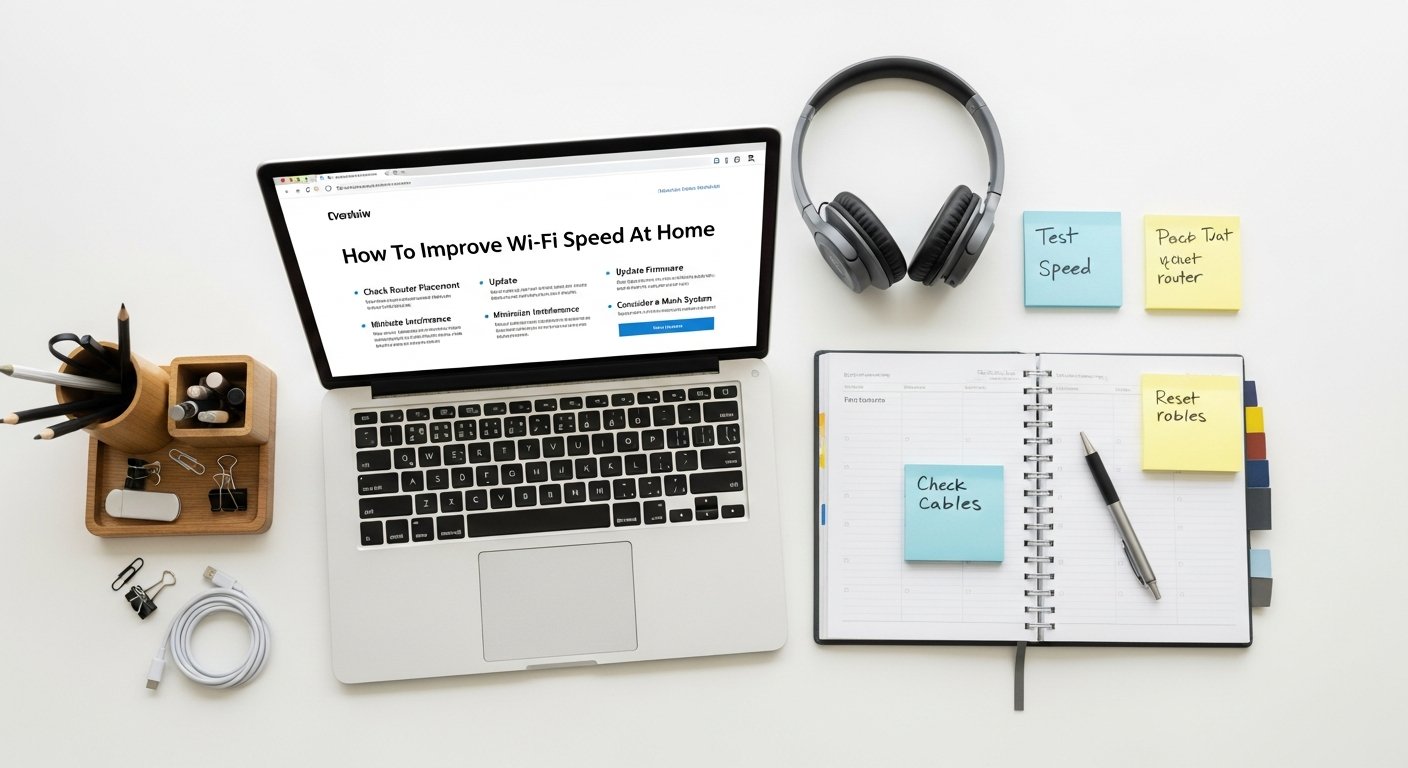
Your Wi-Fi router is the heart of your home network, and its physical location and internal settings play a monumental role in determining the speed and coverage you experience. Many users simply plug in their router where the cable comes in, overlooking critical factors that can drastically improve performance.
Strategic Router Placement for Maximum Coverage
Where you place your router is arguably the single most impactful factor in your Wi-Fi’s performance. Think of Wi-Fi signals like sound waves; they emanate from a central point and are absorbed or reflected by obstacles. To maximize signal strength and coverage:
- Central Location: Place your router as close to the center of your home as possible. This ensures a more even distribution of the signal to all rooms. Avoid placing it in a corner or against an exterior wall, where half of its signal will be broadcast outside your home.
- Elevate It: Wi-Fi signals tend to travel downwards. Placing your router on a high shelf, atop a bookcase, or mounting it on a wall can help its signal cover a larger area and minimize interference from floor-level obstacles.
- Avoid Obstacles and Interference: Keep your router away from large metal objects (filing cabinets, refrigerators), thick concrete walls, mirrors, and appliances that emit electromagnetic waves (microwaves, cordless phones, baby monitors). These can significantly degrade or block Wi-Fi signals.
- Antenna Orientation: If your router has adjustable external antennas, experiment with their orientation. Often, positioning one vertically and one horizontally can help optimize coverage for devices on different floors or at varying distances.
Router Settings Deep Dive: Unlocking Hidden Potential
Beyond physical placement, diving into your router’s administrative settings can reveal powerful tools for optimization. Access these settings by typing your router’s IP address (often 192.168.1.1 or 192.168.0.1) into a web browser and logging in with your credentials (usually found on a sticker on the router itself).
- Firmware Updates: Always ensure your router’s firmware is up to date. Manufacturers regularly release updates that include security patches, bug fixes, and performance enhancements. An outdated firmware can be a bottleneck and a security risk.
- Channel Optimization: Both 2.4GHz and 5GHz Wi-Fi bands operate on different channels. If your neighbors are using the same channel as you, it creates congestion. Use a Wi-Fi analyzer app to identify the least crowded channels in your area and manually switch your router to one of them. For 2.4GHz, channels 1, 6, and 11 are non-overlapping and generally recommended. For 5GHz, there are many more non-overlapping channels, making interference less common but still possible.
- Quality of Service (QoS): Many modern routers feature QoS settings, which allow you to prioritize certain types of internet traffic or specific devices. For instance, you can set QoS to prioritize video conferencing (for remote work) or gaming traffic over large downloads, ensuring critical applications always have sufficient bandwidth. This is particularly useful when you need stable connectivity for tools like the Best Email Management Tools 2026 or real-time collaboration platforms.
- Band Steering/Smart Connect: Some routers offer “band steering” or “smart connect” features, which automatically direct devices to the optimal Wi-Fi band (2.4GHz or 5GHz) based on their capabilities and signal strength. This can simplify network management and improve efficiency.
- Wi-Fi Standard (802.11ac, ax, etc.): Ensure your router is set to use the most efficient Wi-Fi standard it supports (e.g., Wi-Fi 6/802.11ax for newer routers) and that your devices are compatible.
- Security Protocol: Use WPA2 or, ideally, WPA3 encryption. Older protocols like WEP are insecure and can sometimes be slower. A secure network prevents unauthorized access, which could otherwise consume your bandwidth.
Minimizing Interference and Congestion for a Clearer Signal
Identifying Sources of Interference
Interference can come from a surprising number of sources within and outside your home:
- Other Wi-Fi Networks: In densely populated areas, your neighbors’ Wi-Fi networks are often the primary source of interference, especially on the crowded 2.4GHz band.
- Household Appliances: Microwaves, cordless phones (especially older 2.4GHz models), baby monitors, and even fluorescent lights can emit electromagnetic interference that disrupts Wi-Fi signals.
- Bluetooth Devices: While generally less impactful, numerous active Bluetooth devices in close proximity to your router can contribute to interference.
- Physical Obstacles: Thick walls (especially concrete or brick), metal objects (refrigerators, filing cabinets, large mirrors), and even water (aquariums, plumbing) can absorb or reflect Wi-Fi signals, creating dead zones or weakening the signal.
Managing Network Congestion and Bandwidth Hogs
Even with a strong signal, your Wi-Fi can feel slow if too many devices are simultaneously demanding bandwidth. This is network congestion:
- Identify Bandwidth Hogs: Use your router’s admin panel (if it offers traffic monitoring) or third-party network monitoring tools to identify which devices or applications are consuming the most bandwidth. Streaming 4K video, large file downloads, and online gaming are common culprits.
- Leverage the 5GHz Band: The 5GHz band offers faster speeds and more channels, making it less susceptible to interference than the 2.4GHz band. However, its range is shorter, and it’s less effective at penetrating walls. Assign bandwidth-intensive devices (gaming consoles, streaming sticks) to the 5GHz band if they are close enough to the router, leaving the 2.4GHz band for devices that need range over raw speed (smart home devices, older smartphones).
- Guest Networks: If you frequently have guests, utilize your router’s guest network feature. This isolates guest devices from your primary network, preventing them from accessing your private files and potentially consuming excessive bandwidth without your knowledge. Some routers even allow you to set bandwidth limits for guest networks.
- Disconnect Unused Devices: Simple but effective: if you have devices connected to Wi-Fi that aren’t actively being used, disconnect them to free up bandwidth and reduce network overhead. This is particularly relevant for older smart home devices that might be constantly pinging the network.
- Schedule Large Downloads: If possible, schedule large downloads or updates for off-peak hours (e.g., overnight) when network usage is lower.
Upgrading Your Hardware for Peak Performance

Sometimes, no amount of tweaking or repositioning can overcome the limitations of outdated hardware. If your router is several years old or you live in a large home, a hardware upgrade might be the most effective solution for significant speed improvements.
The Power of Modern Routers: Wi-Fi 6, 6E, and Beyond
Wi-Fi technology is constantly evolving, with each new standard bringing substantial improvements in speed, capacity, and efficiency. If your current router is an older 802.11n (Wi-Fi 4) or 802.11ac (Wi-Fi 5) model, upgrading to a Wi-Fi 6 (802.11ax) or even Wi-Fi 6E/7 (802.11be) router can be transformative.
- Wi-Fi 6 (802.11ax): Designed for dense environments, Wi-Fi 6 offers faster theoretical speeds (up to 9.6 Gbps), better performance in crowded networks, and improved battery life for connected devices. Key technologies include OFDMA (Orthogonal Frequency-Division Multiple Access) for more efficient data transmission to multiple devices simultaneously and MU-MIMO (Multi-User, Multiple Input, Multiple Output) for better handling of multiple device streams.
- Wi-Fi 6E: Expands upon Wi-Fi 6 by adding support for the 6GHz band. This band is significantly wider and has far more non-overlapping channels than 2.4GHz or 5GHz, virtually eliminating congestion and interference for compatible devices. This is ideal for high-bandwidth activities like 8K streaming or VR.
- Wi-Fi 7 (802.11be, Extremely High Throughput): The latest standard, Wi-Fi 7, builds on Wi-Fi 6E by introducing even higher speeds (potentially over 40 Gbps), lower latency, and features like Multi-Link Operation (MLO), which allows devices to send and receive data over multiple bands simultaneously for enhanced performance and reliability. While still nascent, Wi-Fi 7-ready devices and routers are starting to emerge.
Upgrading to a newer standard ensures your network can handle the demands of modern devices and future technologies, providing a much smoother experience when using advanced applications or services built on Cloud Computing Explained Simply principles.
Mesh Wi-Fi Systems for Whole-Home Coverage
For larger homes, multi-story houses, or properties with challenging layouts, a single router often struggles to provide consistent Wi-Fi coverage. This is where Mesh Wi-Fi systems shine. Instead of a single point of access, a mesh system uses multiple interconnected nodes (a main router and several satellite units) to create a unified, seamless Wi-Fi network throughout your home.
- Seamless Roaming: As you move around your home, your devices automatically switch to the node with the strongest signal without dropping the connection.
- Extended Coverage: Mesh systems eliminate dead zones by strategically placing nodes to blanket your entire property with strong Wi-Fi.
- Scalability: You can easily add more nodes to expand your network’s coverage as needed.
- Dedicated Backhaul: Many mesh systems use a dedicated wireless band (or even an Ethernet cable, known as “Ethernet backhaul”) to communicate between nodes, ensuring that client devices get full bandwidth rather than sharing it with inter-node communication.
Mesh systems are generally superior to traditional Wi-Fi extenders, which often create separate networks and can halve bandwidth. They offer a more elegant and effective solution for comprehensive home coverage.
Considerations for Wi-Fi Extenders and Powerline Adapters
While mesh systems are preferred, Wi-Fi extenders (also known as repeaters) and powerline adapters can be cost-effective solutions for specific, smaller coverage gaps, though with caveats:
- Wi-Fi Extenders: These devices pick up an existing Wi-Fi signal and re-broadcast it. While they extend range, they often do so at the cost of speed, as they have to receive and transmit the signal on the same radio. They can also create network overhead and introduce latency. Best used for extending coverage to a single device in a fringe area, not for a whole-home solution.
- Powerline Adapters: These devices transmit network data over your home’s existing electrical wiring. You plug one adapter into an outlet near your router (and connect it via Ethernet) and another into an outlet where you need internet access (and connect your device via Ethernet or use a powerline adapter with built-in Wi-Fi). They are excellent for bypassing thick walls or long distances where Wi-Fi struggles, as long as your home’s electrical wiring is in good condition. Performance can vary significantly based on the quality and age of your electrical circuits.
Software Solutions and Network Management
Hardware upgrades are powerful, but software optimization and diligent network management can also extract significant performance gains from your existing setup, ensuring your network runs smoothly and efficiently.
Keeping Drivers and Firmware Up-to-Date
It’s not just your router that needs current firmware; your devices also rely on up-to-date drivers for their network adapters. An outdated Wi-Fi driver on your laptop, desktop, or even a smart TV can cause connectivity issues, slow speeds, or frequent disconnections. Regularly check for driver updates through your operating system’s update utility or directly from the device manufacturer’s website. Similarly, keeping your router’s firmware updated, as mentioned earlier, is paramount for security and performance. These updates often contain crucial bug fixes and performance optimizations that can directly impact your Wi-Fi speed and stability.
Leveraging Router Management Apps and Features
Many modern routers come with companion mobile apps that simplify network management. These apps often provide a user-friendly interface to:
- Monitor Connected Devices: See who’s on your network, identify unknown devices, and even pause internet access for specific devices.
- Guest Network Management: Easily create and manage guest Wi-Fi networks.
- QoS (Quality of Service) Settings: Prioritize traffic for gaming, streaming, or video conferencing directly from your phone.
- Parental Controls: Manage internet access schedules and content filtering for specific users.
- Reboot Scheduling: Some apps allow you to schedule automatic router reboots, a simple yet effective maintenance task.
These features give you granular control over your network, allowing you to quickly respond to congestion or prioritize devices when you need to focus on tasks using the Best Productivity Apps 2026.
Operating System and Browser Optimizations
Sometimes, the slowdown isn’t entirely your Wi-Fi network’s fault but rather an issue with the device you’re using or the software on it:
- Network Adapter Settings: In Windows or macOS, you can access advanced settings for your Wi-Fi adapter. Experiment with settings like “Transmit Power” (ensure it’s at maximum), “Roaming Aggressiveness,” or “Preferred Band” (to force a device to 5GHz if desired). Be cautious, as incorrect settings can worsen performance.
- Clear Browser Cache and Cookies: An overloaded browser cache can slow down web page loading, making your internet feel slower than it is. Regularly clearing your browser’s cache and cookies can improve browsing speed.
- Disable Unnecessary Browser Extensions: Too many browser extensions, especially poorly coded ones, can consume system resources and slow down your browsing experience. Review and disable extensions you don’t frequently use.
- Check for Malware: Malicious software can secretly consume bandwidth and system resources. Regularly run antivirus and anti-malware scans on your devices.
- VPN Impact: While essential for security and privacy, VPNs can introduce some latency and reduce raw speed due to encryption overhead and routing traffic through a third-party server. If you’re experiencing slow Wi-Fi, try temporarily disabling your VPN to see if it’s the culprit. For critical tasks involving sensitive information, the security benefits often outweigh the minor speed reduction, especially when using Best Email Management Tools 2026.
Advanced Strategies for Power Users
For those who want to push their Wi-Fi performance to the absolute limit and aren’t afraid to delve into more technical configurations, these advanced strategies offer further avenues for optimization.
The Reliability of Wired Connections: Ethernet Backhaul and Direct Connect
While the goal is to improve Wi-Fi, it’s crucial to remember that a wired Ethernet connection will almost always provide superior speed, stability, and lower latency than Wi-Fi. For stationary devices that demand high bandwidth or low latency, such as desktop PCs, gaming consoles, smart TVs, or network-attached storage (NAS) devices, connecting them directly to your router or a network switch via an Ethernet cable is the ultimate solution. This frees up valuable Wi-Fi bandwidth for your mobile devices.
- Ethernet Backhaul for Mesh Systems: If you have a mesh Wi-Fi system and your home is wired with Ethernet, connecting your mesh nodes to each other via Ethernet (instead of wirelessly) is known as “Ethernet backhaul.” This dramatically improves the performance and reliability of your mesh network, as the nodes can communicate at full wired speed, dedicating their wireless radios entirely to client devices.
- Powerline Adapters (Revisited): As mentioned, powerline adapters can be an excellent alternative to running long Ethernet cables through walls, especially for devices in rooms far from the main router. They offer a stable, wired-like connection over your existing electrical wiring, often outperforming Wi-Fi extenders.
Exploring Custom Router Firmware (DD-WRT, OpenWRT)
For advanced users with compatible routers, installing custom firmware like DD-WRT or OpenWRT can unlock a host of powerful features not available in stock firmware. These open-source firmwares offer enhanced control and customization options:
- Advanced QoS: More granular control over traffic prioritization.
- VPN Client/Server: Run a VPN directly on your router, protecting all devices on your network.
- Overclocking: Some custom firmwares allow you to slightly overclock your router’s processor for minor performance gains (use with caution).
- Increased Transmit Power: Potentially boost Wi-Fi signal strength (adhere to local regulations).
- Detailed Monitoring: Access extensive network statistics and monitoring tools.
Caution: Flashing custom firmware carries risks, including potentially bricking your router if done incorrectly. It’s recommended only for users comfortable with technical procedures and who have thoroughly researched their specific router model.
DNS Configuration for Faster Browsing
The Domain Name System (DNS) acts like the internet’s phone book, translating human-readable website names (like “google.com”) into machine-readable IP addresses. While your ISP automatically assigns DNS servers, using faster, more reliable third-party DNS servers can sometimes improve web page loading times, making your internet feel snappier.
- Google Public DNS (8.8.8.8 and 8.8.4.4): A popular, fast, and reliable option.
- Cloudflare DNS (1.1.1.1 and 1.0.0.1): Known for its focus on privacy and speed.
- OpenDNS (208.67.222.222 and 208.67.220.220): Offers optional content filtering features.
You can change DNS settings on individual devices or, for a network-wide effect, configure them directly in your router’s settings. While this won’t increase your raw internet speed, it can significantly reduce the time it takes for websites to start loading, improving the perceived speed of your connection.
Understanding ISP Throttling and Data Caps
In rare cases, your ISP might be intentionally slowing down your connection (throttling) for certain types of traffic or if you exceed a data cap. While less common for general internet usage, some ISPs might throttle video streaming during peak hours. If you suspect throttling, you can use tools like Measurement Lab’s (M-Lab) Network Diagnostic Tool to check. Also, review your ISP contract to understand any data caps, as exceeding them often results in reduced speeds.
Maintaining a Fast and Reliable Network
Achieving optimal Wi-Fi speed isn’t a one-time setup; it’s an ongoing process of maintenance and vigilance. By incorporating a few simple habits, you can ensure your home network remains fast, secure, and ready for whatever the digital world throws at it.
Routine Maintenance Tasks for Optimal Performance
- Regular Router Reboots: Just like any computer, your router benefits from a periodic reboot. This clears its memory, resolves minor glitches, and can refresh network connections. Aim to reboot your router at least once a month, or whenever you notice a dip in performance. Simply unplug it for 10-15 seconds and then plug it back in.
- Clean Your Router: Dust can accumulate in your router’s ventilation ports, leading to overheating and performance degradation. Gently clean your router with compressed air or a soft cloth periodically to ensure proper airflow.
- Monitor Network Usage: Periodically check your router’s admin panel or use a network monitoring app to see which devices are connected and how much bandwidth they’re using. This helps you identify unexpected devices or bandwidth hogs.
- Review Device Connectivity: Disconnect devices that are no longer in use or rarely used from your Wi-Fi network. Every connected device, even idle ones, consumes a small amount of network overhead.
Network Security as a Performance Factor
A secure network is a fast network. Unauthorized users connecting to your Wi-Fi can consume your bandwidth, potentially slow down your connection, and pose a security risk. Ensuring robust network security is therefore a critical component of Wi-Fi speed optimization:
- Strong Passwords: Use a strong, unique password for your Wi-Fi network (WPA2/WPA3 passphrase) and for accessing your router’s administrative interface. Avoid default passwords.
- WPA3 Encryption: If your router and devices support it, enable WPA3 encryption. It’s the latest and most secure Wi-Fi security protocol, offering enhanced protection over WPA2.
- Guest Network: As mentioned, utilize a guest network for visitors. This keeps their devices separate from your main network, preventing them from accessing your private files and also limiting their potential impact on your network’s primary performance.
- Disable WPS: Wi-Fi Protected Setup (WPS) is a convenient feature for connecting devices, but it has known security vulnerabilities. It’s generally recommended to disable WPS in your router settings.
- Firewall: Ensure your router’s built-in firewall is enabled. This provides a basic layer of protection against unauthorized access from the internet.
Future-Proofing Your Home Network
As internet speeds increase and smart home ecosystems expand, planning for the future is essential to avoid constant upgrades and slowdowns:
- Consider Your ISP Plan: Ensure your internet plan matches your actual needs. If you’re paying for gigabit internet but your router only supports Wi-Fi 5, you’re not getting your money’s worth. Conversely, if your current plan is too slow for your household’s usage, no amount of Wi-Fi optimization will help.
- Invest in Wi-Fi 7 (or 6E) Routers: While Wi-Fi 7 is still emerging, investing in a Wi-Fi 6E router now will provide excellent performance and future compatibility, especially as more devices support the 6GHz band. This is a smart move for anyone looking to leverage advanced services or participate in the next generation of Cloud Computing Explained Simply applications, which will demand robust, low-latency connections.
- Wired Infrastructure: If you’re building a new home or undertaking renovations, consider running Ethernet cables to key locations. A wired backbone significantly enhances network reliability and performance, complementing your Wi-Fi.
- Scalability: Choose a router or mesh system that can easily scale with your needs. If you plan to add more smart home devices or expand your living space, ensure your network can grow with you.
By implementing these strategies, you can transform a frustratingly slow Wi-Fi experience into a fast, reliable, and secure network that supports all your digital endeavors, from critical work tasks to seamless entertainment.
Frequently Asked Questions
Recommended Resources
Check out Adobe Illustrator For Beginners Guide on Layout Scene for a deeper dive.
Check out How To Use Google Analytics 4 For Your Website on Eamped for a deeper dive.