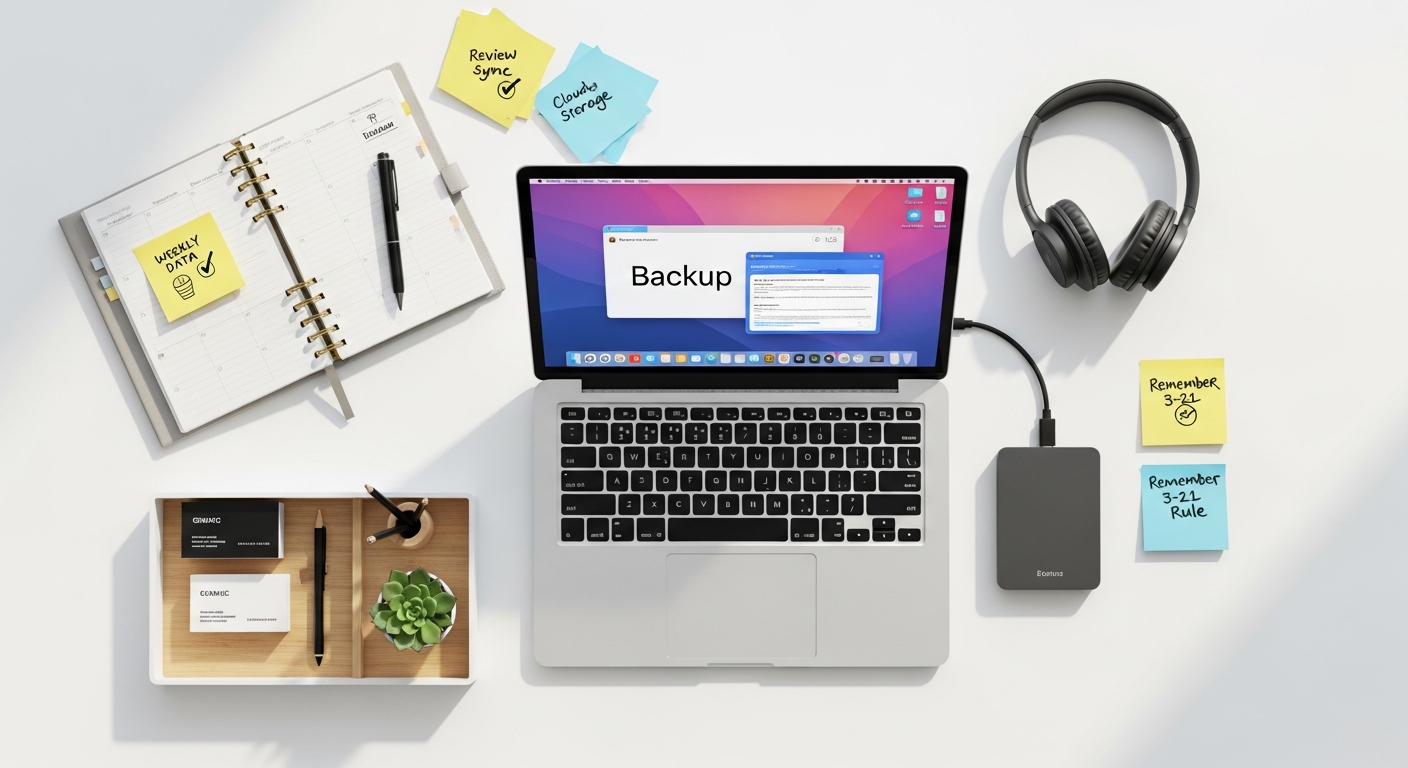

Why Backing Up Your Computer Data is Non-Negotiable
The digital landscape is fraught with potential hazards. Hardware failures, accidental deletions, cyberattacks, and even natural disasters can strike without warning, rendering your data inaccessible or permanently lost. Understanding the multitude of threats underscores the critical importance of a robust backup strategy. It’s not a matter of if you’ll encounter a data loss event, but when.
Common Causes of Data Loss:
- Hardware Failure: Hard drives, SSDs, and other storage components have a finite lifespan. They can fail due to manufacturing defects, wear and tear, power surges, or physical impact. When a drive crashes, accessing its contents can become impossible without specialized, often expensive, data recovery services.
- Accidental Deletion or Overwriting: A moment’s lapse in concentration can lead to important files being permanently deleted from your Recycle Bin or Trash, or overwritten by a newer, incorrect version.
- Software Corruption: Operating system errors, application crashes, or even improper shutdowns can corrupt file systems or individual files, making them unreadable.
- Malware and Ransomware Attacks: Malicious software, particularly ransomware, can encrypt your entire drive or specific files, holding them hostage until a ransom is paid. Even if you pay, there’s no guarantee your data will be restored, and the process can be incredibly disruptive.
- Theft or Loss of Device: Laptops and portable devices are susceptible to theft or simply getting lost. Without a backup, all the data on the device is gone forever.
- Natural Disasters and Accidents: Fires, floods, power outages, or even spilling a drink on your computer can render it inoperable and destroy its internal storage.
Beyond these immediate threats, consider the intangible value of your data. Think about the years of work documents, financial records, creative projects, and personal memories stored on your device. Losing them can cause immense stress, financial hardship, and emotional distress. For businesses, data loss can lead to significant downtime, loss of customer trust, legal ramifications, and ultimately, business failure. A robust backup system acts as your digital insurance policy, allowing you to quickly recover from any of these scenarios and minimize disruption. It allows you to maintain the productivity facilitated by tools like the Best Productivity Apps 2026, ensuring that the critical information managed by these applications is always recoverable.
Understanding the Different Types of Backups

Before diving into specific methods, it’s crucial to understand the fundamental types of backups. Each type offers a different balance of speed, storage space, and recovery time, making them suitable for various scenarios.
1. Full Backup
- What it is: A full backup copies every selected file and folder from your computer to a backup destination.
- Pros:
- Simplest and fastest recovery process, as all data is in one place.
- Complete snapshot of your data at a specific point in time.
- Cons:
- Requires the most storage space.
- Takes the longest time to perform, as every file is copied each time.
- Often impractical for daily backups due to time and resource consumption.
- When to use: Ideal for initial backups, critical system images, or infrequent archiving of stable data.
2. Incremental Backup
- What it is: After an initial full backup, an incremental backup only copies files that have changed or been added since the last backup of any type (full or incremental).
- Pros:
- Requires the least storage space for subsequent backups.
- Fastest backup process after the initial full backup.
- Cons:
- Recovery can be complex and time-consuming, as it requires the original full backup and every subsequent incremental backup in the correct order.
- If any single incremental backup in the chain is corrupted, the entire recovery process can fail.
- When to use: Excellent for daily backups of frequently changing data where speed and storage efficiency are paramount.
3. Differential Backup
- What it is: Similar to incremental, but after an initial full backup, a differential backup copies all files that have changed or been added since the last full backup.
- Pros:
- Faster to perform than a full backup, slower than an incremental.
- Requires less storage space than a full backup, more than an incremental.
- Recovery is simpler and faster than incremental, as it only requires the last full backup and the latest differential backup.
- Cons:
- Takes longer and uses more space than incremental backups over time, as each differential backup grows larger until the next full backup.
- When to use: A good compromise between speed and recovery complexity, often used for weekly backups after a monthly full backup.
Understanding these distinctions is crucial for designing an efficient and reliable backup strategy that aligns with your data’s importance and your recovery objectives. Combining these types, often with dedicated backup software, forms the backbone of a resilient data protection plan.
Popular Backup Methods for Your Computer Data
1. Local Backups: External Drives and Network Attached Storage (NAS)
Local backups involve storing your data on physical devices kept in the same physical location as your computer, or within your local network. This method typically offers fast backup and recovery speeds.
External Hard Drives (HDDs) and Solid State Drives (SSDs)
- Description: These are portable storage devices that connect directly to your computer via USB, Thunderbolt, or other interfaces. They are widely accessible, relatively inexpensive, and easy to use.
- Pros:
- Cost-Effective: High storage capacity for a relatively low price, especially for traditional HDDs.
- Fast: Excellent backup and restore speeds, limited only by your computer’s ports and the drive’s speed.
- Simple: Easy to set up and manage, often just plug-and-play.
- No Internet Required: Backups can be performed offline, making them ideal for large data sets or areas with poor internet connectivity.
- Cons:
- Vulnerability: Susceptible to local disasters (fire, flood, theft) if kept in the same location as the computer.
- Limited Scalability: While you can buy larger drives, managing multiple external drives can become cumbersome.
- Manual Intervention: Often requires you to manually connect the drive and initiate backups, though scheduling software can automate this.
- Best for: Personal users, small businesses, and anyone needing quick, accessible backups of their primary device. It’s an excellent choice for implementing part of the 3-2-1 backup rule (which we’ll discuss shortly).
Network Attached Storage (NAS) Devices
- Description: A NAS is a dedicated storage server connected to your home or office network. It allows multiple devices on the network to store and retrieve data centrally. Often configured with multiple hard drives in a RAID (Redundant Array of Independent Disks) setup for data redundancy and performance.
- Pros:
- Centralized Storage: A single location for backing up multiple computers, smartphones, and tablets on the network.
- Redundancy: RAID configurations protect against single drive failures within the NAS itself.
- Accessibility: Data can often be accessed remotely over the internet, turning your NAS into a personal cloud.
- Automation: Most NAS devices come with sophisticated software for scheduling and automating backups from connected devices.
- Scalability: Many NAS units allow for adding or upgrading hard drives to increase storage capacity.
- Cons:
- Higher Initial Cost: More expensive than a single external drive, especially for multi-bay units and hard drives.
- Complexity: Requires some technical know-how for initial setup and configuration, though user interfaces are becoming increasingly friendly.
- Local Vulnerability: Still susceptible to local disasters if not backed up off-site.
- Best for: Families with multiple computers, small to medium-sized businesses, and users who want a robust, centralized, and accessible local backup solution.
2. Cloud Backups: Off-site and Accessible
Cloud backup services store your data on remote servers managed by a third-party provider, accessible via the internet. This method leverages the principles of Cloud Computing Explained Simply to offer unparalleled convenience and security.
Popular Cloud Backup Services (e.g., Backblaze, Carbonite, IDrive, Google Drive, OneDrive, Dropbox)
- Description: These services automatically upload your specified files and folders to secure data centers over the internet. They typically offer continuous or scheduled backups, versioning, and easy recovery.
- Pros:
- Off-site Protection: Your data is stored geographically separate from your computer, protecting it from local disasters.
- Automatic and Continuous: Many services offer “set it and forget it” continuous backups, ensuring your data is always up-to-date.
- Accessibility: Access your files from any internet-connected device, anywhere in the world.
- Scalability: Easily upgrade your storage plan as your data needs grow.
- Security: Reputable providers use strong encryption (in-transit and at-rest) and maintain robust physical and digital security measures.
- Cons:
- Internet Dependency: Requires a stable and fast internet connection for both backing up and restoring data. Large initial backups can take days or weeks.
- Subscription Costs: Typically involves recurring monthly or annual fees, which can add up over time.
- Privacy Concerns: While reputable services are secure, you are entrusting your data to a third party.
- Initial Upload Time: Uploading vast amounts of data for the first time can be very slow.
- Best for: Everyone. Cloud backup is a critical component of any comprehensive backup strategy, especially for off-site protection. It’s essential for individuals and businesses alike to protect against local threats and enable remote access.
3. Hybrid Backup Solutions
A hybrid approach combines the best aspects of local and cloud backups. This typically involves storing one copy of your data locally (e.g., on an external drive or NAS) and another copy off-site in the cloud.
- Pros:
- Optimal Protection: Provides both fast local recovery and robust off-site protection against all types of data loss scenarios.
- Flexibility: Choose the best method for different types of data (e.g., critical documents to cloud, large media files to local drive).
- Cons:
- Increased Cost and Complexity: Managing two separate backup systems can be more expensive and require more setup time.
- Best for: The most secure and reliable backup strategy for individuals with critical data and businesses where downtime is costly. This is where the “3-2-1 Rule” truly shines.
Choosing the Right Backup Strategy: The 3-2-1 Rule and Beyond
With various types and methods available, how do you construct a truly resilient backup strategy? The industry-standard “3-2-1 Rule” provides an excellent framework.
The 3-2-1 Backup Rule
This rule is simple yet incredibly effective:
- 3 Copies of Your Data: Always keep at least three copies of your data. This includes your primary data (on your computer) and two backup copies.
- 2 Different Media Types: Store your backups on at least two different types of storage media. For example, your computer’s internal drive (primary), an external hard drive (first backup media), and a cloud service (second backup media). This protects against failures specific to a certain storage type.
- 1 Off-site Copy: At least one of your backup copies should be stored off-site. This is crucial protection against local disasters like fire, flood, or theft that could destroy your computer and any local backups simultaneously.
Implementing the 3-2-1 rule significantly reduces the risk of permanent data loss. For instance, you could have your original data on your laptop, a local backup on a NAS, and an off-site backup with a cloud service. If your laptop fails, you recover from the NAS. If your house burns down, you recover everything from the cloud. This redundancy is the cornerstone of true data security.
Backup Frequency and Automation
The “right” backup frequency depends on how often your data changes and how much data you can afford to lose. For most users:
- Critical Data (documents, ongoing projects): Daily or even continuous backup (often provided by cloud services or dedicated backup software).
- Frequently Changing Data (media, large files): Weekly or bi-weekly backups.
- Stable Data (archives, old photos): Monthly or quarterly backups.
Manual backups are prone to human error and forgetfulness. Therefore, automation is key. Most backup software and cloud services allow you to schedule backups to run automatically in the background, ensuring your data is always protected without you having to remember to initiate the process. This automation contributes directly to overall digital productivity, freeing up mental space and time that would otherwise be spent on manual tasks.
Versioning and Retention Policies
Good backup solutions don’t just save the latest version of your files; they also keep multiple historical versions. This is incredibly useful if you accidentally delete a file, overwrite it with an incorrect version, or if a file becomes corrupted and you need to revert to a previous, healthy state. Look for backup solutions that offer:
- Versioning: The ability to restore older versions of files (e.g., going back weeks or months).
- Retention Policy: How long older versions or deleted files are kept before being permanently purged. Customize this based on your needs and compliance requirements.
These advanced features are vital for comprehensive data recovery, protecting you not just from hardware failure but also from human error and insidious data corruption that might not be immediately apparent.
Step-by-Step Guide: Implementing Your Computer Data Backup Plan
Now that you understand the “why” and the “what,” let’s outline the practical steps to set up your backup system. While specific software varies, the principles remain consistent across Windows, macOS, and Linux.
Step 1: Identify and Organize Your Critical Data
Before you back up, know what you’re backing up. This isn’t just about saving everything; it’s about prioritizing.
- Documents: Word files, spreadsheets, presentations, PDFs.
- Photos & Videos: Personal memories, creative projects.
- Emails & Contacts: Export archives from your email client. (Consider how the Best Email Management Tools 2026 might handle their own backups or offer export features).
- Music: Personal libraries, downloaded tracks.
- Software Licenses & Keys: Keep these in a secure, backed-up location.
- System Settings & Configurations: For a faster recovery after a full system restore.
- Application Data: Saved games, specific app configurations.
Consolidate important files into easily identifiable folders. Avoid scattering critical data across your drive. Consider moving less important or easily replaceable files (like operating system files or application installers that can be re-downloaded) out of your primary backup selection to save space and time.
Step 2: Choose Your Backup Mediums (Following the 3-2-1 Rule)
Based on our discussion, select at least two distinct backup destinations:
- Local Backup: Purchase a high-capacity external hard drive or set up a NAS. Ensure it has sufficient space for your current data and anticipated growth. For external drives, consider getting one that is at least 2-3 times the size of the data you intend to back up.
- Off-site Backup: Sign up for a reputable cloud backup service. Compare pricing, storage limits, encryption methods, and retention policies.
Step 3: Implement Your Local Backup (Windows/macOS/Linux)
For Windows:
- File History: Windows 10/11 includes “File History” for backing up personal files (Documents, Pictures, Music, Videos, Desktop) to an external drive or network location.
- Connect your external drive.
- Go to
Settings > Update & Security (or System) > Backup. - Under “Back up using File History,” click
Add a driveand select your external drive. - Turn File History
On. - You can customize which folders are included via
More options.
- System Image Backup: For a full system image (operating system, installed programs, and all data), use the older but still effective “Backup and Restore (Windows 7)” utility found in the Control Panel. This is good for disaster recovery.
- Third-Party Software: For more robust options (incremental/differential, advanced scheduling), consider tools like Macrium Reflect Free, Veeam Agent for Microsoft Windows, or Acronis Cyber Protect Home Office.
For macOS:
- Time Machine: macOS’s built-in backup solution is incredibly user-friendly and powerful.
- Connect your external drive (it will likely prompt you to use it for Time Machine).
- If not, go to
System Settings (or System Preferences) > General > Time Machine. - Click
Add Backup Disk...and select your external drive. - Time Machine will automatically perform hourly backups for the past 24 hours, daily backups for the past month, and weekly backups for all previous months until the disk is full.
- Third-Party Software: Alternatives like Carbon Copy Cloner or SuperDuper! can create bootable clones of your drive, which is excellent for rapid recovery.
For Linux:
- Built-in Tools: Many Linux distributions include backup utilities. For example, Ubuntu has “Deja Dup” (also known as Backups).
- Search for “Backups” in your applications menu.
- Follow the wizard to select folders to backup, folders to ignore, and your backup destination (external drive, network location, or even some cloud services).
- Set up a schedule for automatic backups.
- Command-Line Tools: For advanced users,
rsyncis a powerful and flexible command-line tool for incremental backups.tarcan create archives. - Third-Party GUI Tools: KBackup, LuckyBackup, or commercial solutions like Acronis offer graphical interfaces.
Step 4: Implement Your Off-site Cloud Backup
Once you’ve chosen a cloud service:
- Install the Client: Download and install the desktop application provided by your chosen cloud backup service (e.g., Backblaze, Carbonite, IDrive).
- Configure Backup Settings: Follow the setup wizard to:
- Select the drives and folders you want to back up.
- Set your backup schedule (often continuous or daily for cloud services).
- Configure encryption options (ensure you understand how to manage your encryption key if it’s client-side).
- Set bandwidth limits if you have a slower internet connection.
- Initial Backup: The first full backup to the cloud can take a very long time (days or even weeks for large data sets). Ensure your computer remains on and connected to the internet during this period.
Step 5: Verify Your Backups Regularly
A backup is only good if it can be restored. Many people neglect this crucial step. Periodically:
- Check Backup Logs: Ensure your backup software or service reports successful backups.
- Perform Test Restores: Every few months, try to restore a few non-critical files from your backup to ensure the process works and the files are intact. This is the ultimate test of your backup strategy.
Step 6: Maintain and Review
- Monitor Storage: Ensure your backup drives and cloud storage have enough space.
- Update Software: Keep your operating system, backup software, and antivirus programs up to date.
- Review Your Plan Annually: As your data grows or your needs change, reassess your backup strategy. Are you backing up new critical folders? Is your retention policy still appropriate?
Beyond Basic Backups: Advanced Considerations and Data Management
While the 3-2-1 rule covers most personal and small business needs, there are additional considerations for a truly robust data protection strategy.
Encryption for Data Security
Whether stored locally or in the cloud, encrypting your backup data is paramount, especially for sensitive information. This ensures that even if an unauthorized party gains access to your backup drive or cloud account, they cannot read your files without the encryption key.
- Local Encryption: Use full-disk encryption for external drives (e.g., BitLocker on Windows, FileVault on macOS, LUKS on Linux) or ensure your backup software offers strong encryption.
- Cloud Encryption: Reputable cloud services offer encryption both in transit (data is encrypted as it travels to their servers) and at rest (data is encrypted while stored on their servers). Some services also offer “zero-knowledge” encryption, where only you hold the encryption key, meaning the provider cannot access your data even if compelled.
Immutable Backups and Ransomware Protection
Ransomware is a significant threat because it can encrypt your live data and potentially target connected backup drives. An “immutable backup” is a copy of data that cannot be altered or deleted for a specified period. While more common in enterprise solutions, some advanced NAS devices and cloud services are beginning to offer versions of this for consumers, providing an extra layer of defense against sophisticated attacks.
Disaster Recovery Planning
For businesses, a comprehensive backup strategy is part of a larger Disaster Recovery (DR) plan. This plan outlines not just how data is backed up, but also how systems and operations will be restored after a major outage. For individuals, this might translate to having a bootable recovery drive and documented steps for reinstalling your OS and restoring data in a worst-case scenario.
Data Lifecycle Management
Not all data needs to be kept forever. Establishing a data retention policy helps manage storage costs and compliance. Archive older, less frequently accessed data to cheaper, long-term storage, and securely delete data that is no longer needed. This is especially important for compliance in business settings, where data like old emails (even those managed by the Best Email Management Tools 2026) may need to be retained for specific periods.
Regular Audits and Updates
Technology evolves, and so do threats. Regularly audit your backup strategy:
- Are all critical data sources still covered?
- Is your backup software up to date?
- Are your recovery procedures still valid?
- Are your backup devices performing optimally?
This proactive maintenance ensures your backup strategy remains effective and relevant in the face of changing digital environments.
Maintaining Your Backup System and Best Practices
Setting up your backup system is only half the battle; maintaining it is crucial for long-term data security. Adhering to best practices ensures your backups are always ready when you need them.
Consistency is Key
The most sophisticated backup system is useless if backups aren’t performed consistently. Rely on automation as much as possible. Schedule daily backups for critical data and weekly or monthly for less volatile information. Treat your backup schedule with the same importance as any other critical task. This consistent approach is a hallmark of effective digital productivity.
Label and Organize Your Backup Media
If you use multiple external drives, label them clearly with dates and contents (e.g., “Backup Drive A – Full – Jan 2026,” “Backup Drive B – Differential – Feb 2026”). This organization prevents confusion during recovery and ensures you’re always using the most recent and relevant backup. For off-site storage, ensure physical drives are stored in a secure, climate-controlled environment.
Protect Your Backup Devices
External hard drives are susceptible to physical damage. Handle them with care, keep them away from extreme temperatures and magnetic fields, and protect them from drops. Store them in protective cases when not in use. For cloud backups, use strong, unique passwords and enable two-factor authentication (2FA) on your cloud accounts to prevent unauthorized access.
Regularly Review and Prune Data
Over time, you’ll accumulate redundant or unnecessary files. Periodically review your data and delete what’s no longer needed. This reduces the storage required for backups, speeds up the backup process, and simplifies data management. This also applies to old versions of files retained by versioning systems. Adjust your retention policies as needed to balance recovery needs with storage efficiency.
Stay Informed
The tech landscape changes rapidly. New threats emerge, and new backup solutions or best practices are developed. Stay informed by reading tech blogs like Bookmark Sharer, subscribing to security newsletters, and keeping an eye on updates from your backup software providers. Understanding how tools like the Best Productivity Apps 2026 and the Best Email Management Tools 2026 integrate with backup solutions can also be beneficial.
Consider a Data Recovery Plan
While backups are your primary defense, sometimes data loss occurs from your primary system before a backup can run, or a backup itself might be corrupted. Knowing reputable data recovery services can be a last resort. Keep their contact information handy, especially for critical business data.
By integrating these best practices into your routine, you can create a resilient and reliable data backup system that stands the test of time and protects your valuable digital assets against the myriad threats of the modern world. Investing time in a robust backup strategy today is an investment in your future productivity, security, and peace of mind.
Frequently Asked Questions
Recommended Resources
Related reading: Ui Design Principles For Beginners (Layout Scene).
Check out How To Grow Your Social Media Following From Scratch on Eamped for a deeper dive.