
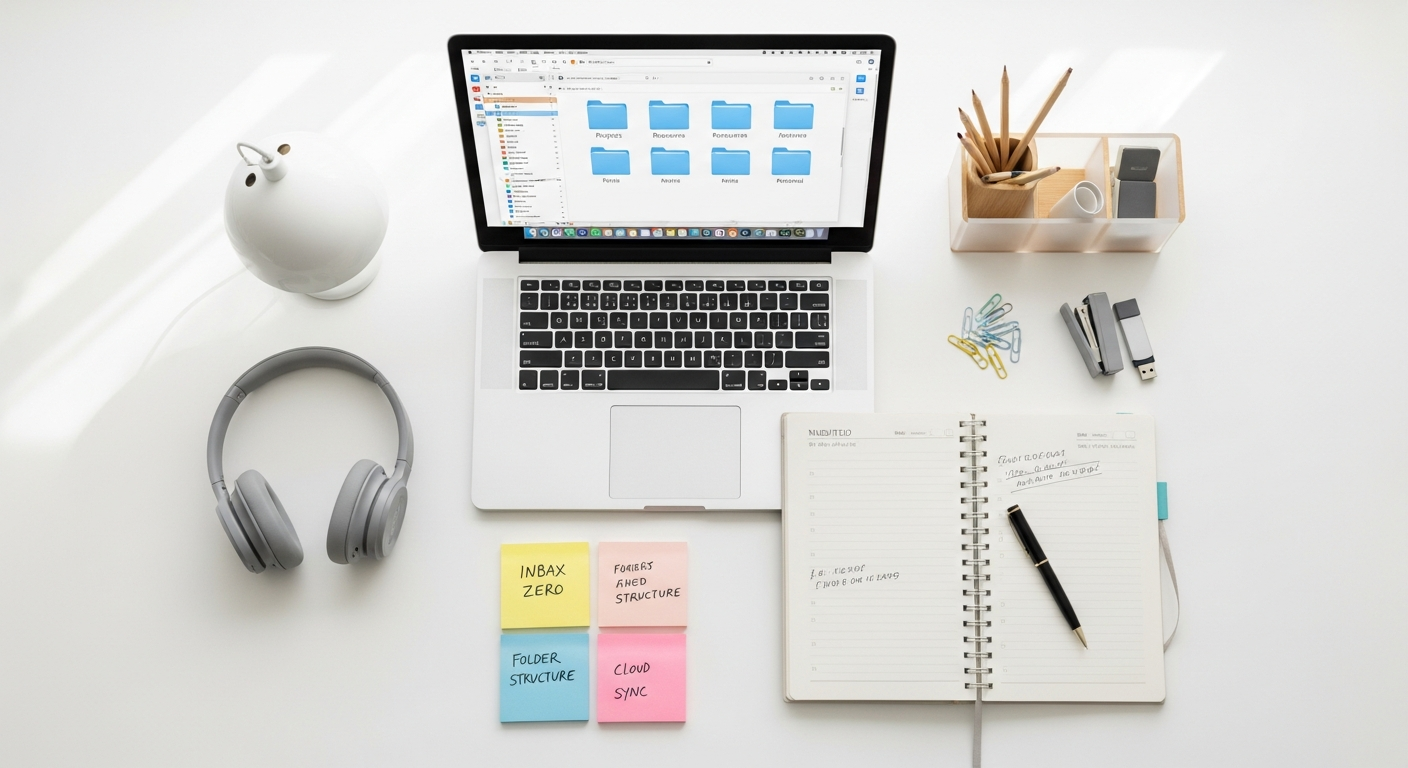

The Digital Deluge: Why Effective File Organization Matters
In an era where every interaction, creation, and communication leaves a digital footprint, the accumulation of files is inevitable. However, the ease with which we generate and store data often masks the underlying problems that arise from a lack of organization. Understanding the profound impact of digital disarray is the first step towards committing to a more structured approach.
The Hidden Costs of Digital Clutter
- Wasted Time and Reduced Productivity: Studies consistently show that individuals spend a significant portion of their workday searching for information. Disorganized files mean navigating through endless folders, sifting through ambiguously named documents, and often recreating work that already exists. This constant searching fragments focus, reduces flow state, and ultimately diminishes output.
- Increased Stress and Cognitive Overload: A cluttered digital environment mirrors a cluttered physical space in its ability to induce stress. The mental burden of knowing a file exists but being unable to locate it, or the anxiety of potentially losing critical data, contributes to cognitive overload. This stress can spill over into other aspects of life, impacting decision-making and overall well-being.
- Data Redundancy and Storage Waste: Without a clear system, it’s common to save multiple versions of the same file in different locations, leading to data redundancy. This not only consumes unnecessary storage space, whether on local drives or in the cloud, but also creates confusion about which version is the most current or authoritative.
- Security Risks and Compliance Issues: Disorganized files are harder to manage from a security perspective. Sensitive information might be left in easily accessible folders, or outdated documents containing personal data might not be properly disposed of. For businesses, this can lead to compliance violations, data breaches, and reputational damage.
- Hindered Collaboration and Knowledge Sharing: In team environments, a lack of consistent file organization impedes collaboration. Colleagues struggle to find shared resources, leading to delays, miscommunication, and frustration. Important institutional knowledge can become siloed or lost, preventing effective knowledge transfer and onboarding processes.
The Psychology of Digital Disarray
Our brains crave order. When faced with a chaotic digital landscape, our minds expend extra energy trying to make sense of it. This constant mental effort, known as decision fatigue, diminishes our capacity for creative problem-solving and strategic thinking. A well-organized system, conversely, reduces this cognitive load, freeing up mental resources for more important tasks. It creates a sense of control and mastery over our digital environment, contributing to a feeling of accomplishment and reducing anxiety.
The Business Case for Order
For professionals and businesses, effective digital file organization is not merely a nicety; it’s a strategic imperative. It directly impacts operational efficiency, client satisfaction, and competitive advantage. Streamlined access to information means faster project completion, improved client communication, and better decision-making. Furthermore, a systematic approach aids in regulatory compliance, simplifies audits, and enhances the overall professional image of an individual or organization.
Future-Proofing Your Digital Life
As technology evolves and our digital footprint expands, an organized system ensures scalability and adaptability. It allows for easier migration to new platforms, simplifies data backups, and protects against data loss. By establishing robust organizational habits today, you are investing in the longevity and accessibility of your valuable digital assets for years to come, ensuring that your data remains a resource, not a burden.
Foundations of a Flawless File System: Principles and Planning

Building an effective digital file organization system is akin to constructing a sturdy building; it requires careful planning and adherence to fundamental principles. Rushing into arbitrary folder creation or haphazard naming conventions will only perpetuate the chaos. Instead, take the time to lay a solid groundwork.
The “Single Source of Truth” Philosophy
A core tenet of effective organization is the concept of a “single source of truth.” This means that for any given file or piece of information, there should ideally be only one authoritative version stored in one definitive location. This principle directly combats the problem of duplicate files and version confusion. When you need to access or modify a document, you know exactly where to find the most current iteration. This simplifies collaboration and ensures everyone is working from the same page, preventing errors and rework.
The “Less Is More” Approach: De-cluttering Before Organizing
Before you even begin to categorize, take the opportunity to declutter. Trying to organize a mountain of unnecessary files is counterproductive and overwhelming. Perform a ruthless audit of your existing data:
- Delete: Permanently remove files that are truly obsolete, irrelevant, or have no future value. Be decisive, but cautious with anything potentially important.
- Archive: Move files that are no longer actively used but might be needed for historical reference or compliance to a separate “Archive” folder or an external drive. This keeps your active workspace lean.
- Consolidate: Identify duplicates and keep only the most recent or complete version, deleting the others.
This initial purge reduces the volume of data you need to manage, making the subsequent organization process much more manageable and effective.
Designing Your Directory Structure
Your directory structure is the backbone of your file system. It dictates how you navigate and retrieve information. There are several common approaches, and the best system often involves a hybrid model tailored to your specific needs:
- Topic-Based: Organizing by subject matter (e.g., “Finances,” “Health,” “Projects,” “Personal Development”). This works well for general documents and resources that span various projects or timeframes.
- Project-Based: Grouping all files related to a specific project together (e.g., “Client X Website Redesign,” “Q3 Marketing Campaign”). This is ideal for collaborative work and ensures all project assets are easily accessible.
- Chronological: Organizing by date (e.g., “2024,” “2025,” “2026”). This is particularly useful for photos, financial statements, or annual reports where the timeline is the primary identifier.
Consistency is Key: Whichever approach or hybrid you choose, apply it consistently across all your main directories. Avoid deep, nested folder structures (more than 3-4 levels deep) as they can become cumbersome to navigate. Aim for a balance between specificity and simplicity.
Naming Conventions: The Unsung Hero of Organization
A consistent and descriptive naming convention is arguably the most powerful tool in your organizational arsenal. It allows you to understand a file’s content at a glance and makes search functions incredibly effective.
- Date Formats: Use a consistent date format, such as
YYYY-MM-DD(e.g.,2026-01-15_MeetingNotes_ProjectAlpha.docx). This ensures chronological sorting regardless of creation or modification dates. - Descriptive Keywords: Include key terms that clearly describe the file’s content. Think about what you would search for if you were looking for this file.
- Version Control: For documents undergoing multiple revisions, incorporate version numbers (e.g.,
ProjectProposal_v1.docx,ProjectProposal_v2_Final.docx). This avoids confusion and preserves historical iterations. - Avoid Special Characters: Stick to letters, numbers, hyphens, and underscores. Special characters can cause issues with different operating systems or web applications.
Example: Instead of report.pdf, use 2026-03-20_Q1SalesReport_EMEA_Final.pdf.
Where to Store Your Files? Local, Network, or Cloud?
The choice of storage location significantly impacts accessibility, security, and collaboration. Each option has its advantages:
- Local Storage (Hard Drive): Offers fastest access and full control. Best for frequently accessed files that don’t require external sharing. However, it’s vulnerable to hardware failure and lacks remote accessibility.
- Network Attached Storage (NAS): A personal or small-business server on your local network. Provides centralized storage, often with RAID for data redundancy, and can be accessed by multiple users on the same network. Offers more control than public cloud services.
- Cloud Storage: Services like Google Drive, Dropbox, OneDrive, and iCloud have revolutionized file storage. They offer unparalleled accessibility from any device, anywhere with an internet connection, robust backup mechanisms, and powerful collaboration features. This is where the concept of Cloud Computing Explained Simply truly shines, as it abstracts the physical infrastructure, providing scalable, on-demand storage and processing power. Cloud storage is ideal for active projects, shared documents, and ensuring data resilience.
A hybrid approach is often the most practical, using local storage for very sensitive or performance-critical files, and cloud storage for everything else that benefits from accessibility and collaboration.
Practical Strategies for Organizing Your Digital Kingdom
The “Inbox Zero” for Files: Processing New Information
Just as many strive for “Inbox Zero” in email, applying a similar principle to your digital files can prevent accumulation. Create a temporary folder called “Inbox,” “Downloads,” or “To Process” where all new, unfiled items initially land. Regularly (daily or weekly) process this folder:
- Review: Quickly assess each file.
- Categorize: Move it to its permanent, appropriately named folder.
- Rename: Apply your consistent naming convention immediately.
- Delete/Archive: If it’s no longer needed, delete it or move it to an archive.
This disciplined approach prevents new files from scattering indiscriminately across your system, making cleanup a continuous, manageable task rather than an overwhelming chore.
The Power of Tagging and Metadata
Folders provide a hierarchical structure, but tagging (or labeling) adds a powerful, non-hierarchical layer of organization. Tags are keywords or categories you assign to files, allowing them to be associated with multiple contexts without duplicating the file itself.
- Enhanced Searchability: A file about “Project Alpha” that also contains “Meeting Notes” and discusses “Budget” can be found by searching for any of those tags, even if it resides in a “Project Alpha” folder.
- Cross-Referencing: Tags are excellent for linking related items that might be stored in different parts of your folder structure. For example, a “Client A” tag could apply to project documents, invoices, and communication logs, regardless of their primary folder.
- Metadata: Beyond simple tags, many operating systems and applications allow for the addition of metadata (data about data), such as author, comments, keywords, or ratings. Leveraging these features further enriches the search capabilities of your system.
While not a replacement for a solid folder structure, tags are a fantastic complement, especially for files that might fit into multiple categories or when you need more granular search capabilities.
Automating Basic Tasks
Technology can be your ally in maintaining an organized system. Many operating systems and third-party tools offer automation capabilities:
- Download Rules: Configure your browser to automatically save certain file types (e.g., PDFs, images) to specific folders.
- Document Scanning: Modern scanners often come with software that can automatically name and file documents based on content or barcodes.
- Folder Actions/Rules: Tools like Hazel for macOS or built-in Windows Folder Actions allow you to set rules for what happens when files are added to a specific folder (e.g., move files older than 30 days, rename files based on creation date, convert formats).
Automating repetitive tasks saves significant time and ensures consistency without manual intervention.
Regular Review and Maintenance
An organized system isn’t a one-time setup; it’s an ongoing process. Schedule regular intervals (e.g., weekly, monthly, quarterly) to review your files:
- Clean Up “Inbox” and “Downloads”: Ensure these temporary folders are consistently emptied and processed.
- Archive Old Projects: Move completed projects or outdated information to your dedicated archive.
- Delete Unneeded Files: Periodically reassess if files still hold value.
- Check for Duplicates: Use duplicate file finders to identify and eliminate redundancies.
- Update Naming Conventions: If your needs evolve, adjust your naming conventions and apply them retroactively where feasible.
Think of it as digital gardening – regular weeding and pruning keep your system healthy and thriving.
Backup Strategies: The Ultimate Safety Net
No matter how meticulously organized your files are, they are vulnerable to hardware failure, accidental deletion, or cyber-attacks. A robust backup strategy is non-negotiable.
- The 3-2-1 Rule: This industry standard recommends:
- 3 Copies of Your Data: The original plus two backups.
- 2 Different Media Types: For example, internal hard drive and an external drive, or internal hard drive and cloud storage.
- 1 Offsite Copy: This protects against local disasters like fire or theft. Cloud backups perfectly fulfill this requirement.
- Automated Backups: Use software or cloud services that perform backups automatically and regularly.
- Test Your Backups: Periodically verify that your backups are working and that you can successfully restore files. There’s nothing worse than needing a backup only to find it corrupted.
Implementing a solid backup plan provides immense peace of mind and ensures that your organized digital kingdom is resilient against unforeseen circumstances.
Leveraging Technology: Tools and Automation for Organization
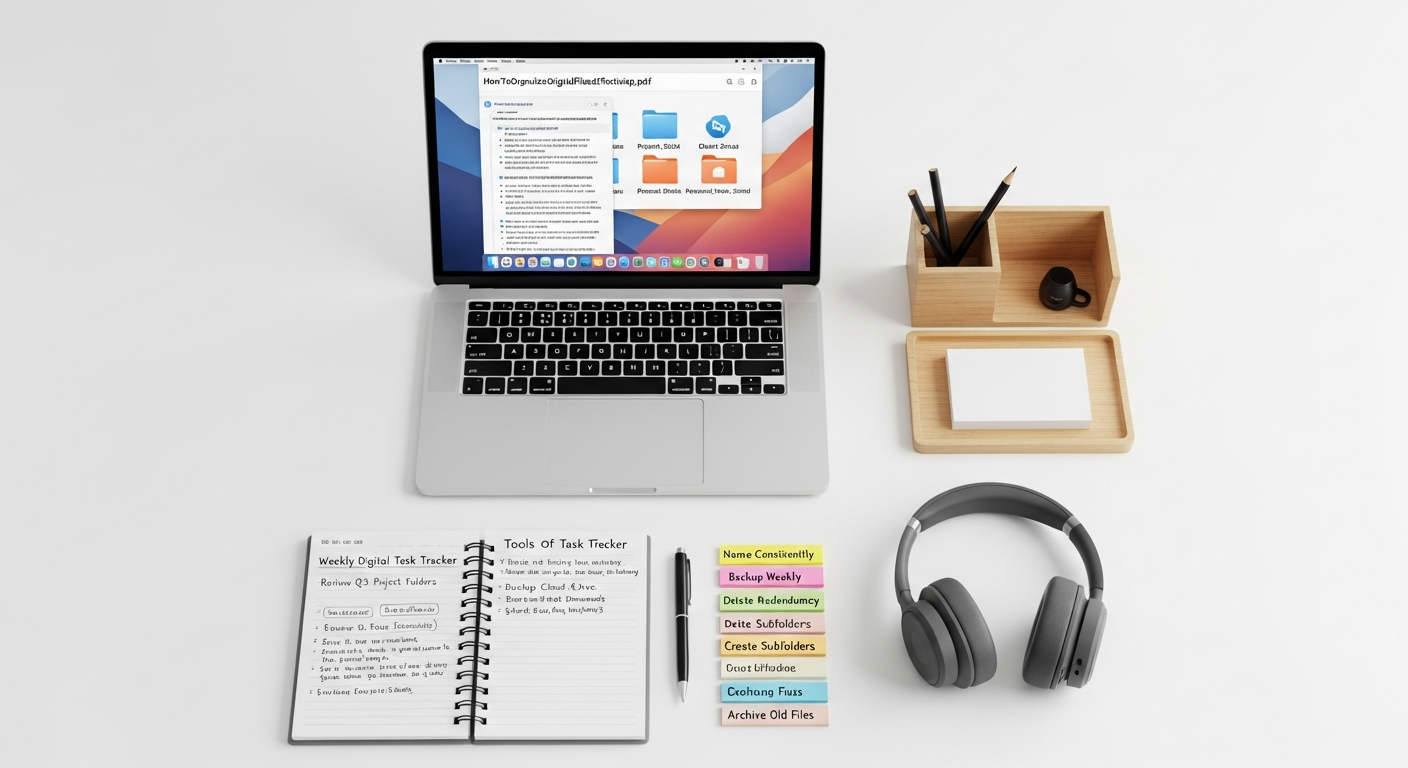
The digital age provides an abundance of powerful tools designed to aid in file organization, automation, and knowledge management. Integrating these technologies can significantly enhance the efficiency and effectiveness of your system.
File Managers and Operating System Features
At the most basic level, your operating system’s built-in file manager (File Explorer on Windows, Finder on macOS) offers fundamental organizational capabilities:
- Search Functions: Learn to use advanced search operators (e.g., file type, date modified, content keywords) to quickly locate files.
- Smart Folders/Saved Searches: Create dynamic folders that automatically display files matching specific criteria, without moving the actual files.
- Tags/Labels: Both Windows and macOS offer native tagging features for files and folders, allowing you to add metadata for better discoverability.
Dedicated Digital Asset Management (DAM) Systems
For individuals or organizations managing large volumes of media files (photos, videos, audio), a DAM system can be invaluable. These specialized platforms provide advanced features for cataloging, metadata management, version control, and rights management, far beyond what a standard file system offers.
Note-Taking and Knowledge Management Tools
Effective file organization extends beyond documents to include your thoughts, ideas, and knowledge. Modern note-taking tools are evolving into powerful personal knowledge management (PKM) systems that can integrate seamlessly with your file organization.
- Obsidian: For those seeking a robust, future-proof solution, understanding How To Use Obsidian For Note Taking is a game-changer. Obsidian uses plain text Markdown files stored locally, allowing you to create a vast network of interconnected notes. Its powerful linking capabilities, graph view, and extensive plugin ecosystem enable you to build a personal wiki that cross-references your ideas, projects, and even external files. By linking notes to specific documents or folders in your file system, Obsidian becomes a central hub for navigating your intellectual landscape and related resources.
- Other Tools: Applications like Notion, Evernote, and OneNote offer different approaches to note-taking and knowledge organization, often with web clipping, rich media embedding, and collaborative features. Choosing the right tool depends on your specific workflow and needs.
Cloud Storage Services: Beyond Simple Storage
As previously mentioned, cloud storage (Google Drive, Dropbox, OneDrive, iCloud) is not just for backup; it’s a powerful organizational and collaborative platform. These services offer:
- Seamless Syncing: Files are accessible and synchronized across all your devices.
- Version History: Automatically keeps previous versions of files, allowing you to revert to older edits.
- Collaboration Features: Real-time co-editing of documents, shared folders, and granular permission controls make teamwork efficient.
- Integrated Apps: Many cloud services are integrated with productivity suites (e.g., Google Workspace, Microsoft 365), allowing for direct creation and editing of files within the cloud environment.
These features fundamentally change how we interact with and organize our digital assets, embodying the benefits of Cloud Computing Explained Simply by providing a flexible, scalable, and resilient digital infrastructure.
Productivity Suites and Task Managers
Modern productivity apps are increasingly integrating file management into their broader functionalities. When looking at the Best Productivity Apps 2026, you’ll find that many go beyond simple task lists to offer comprehensive project management and resource linking:
- Project Management Tools (e.g., Asana, Trello, ClickUp): These platforms allow you to attach relevant files directly to tasks, projects, or boards. This contextualizes your documents, making it easier to find what you need in relation to a specific piece of work.
- Integrated Suites (e.g., Microsoft 365, Google Workspace): These ecosystems combine word processors, spreadsheets, presentation tools, and cloud storage, often allowing for seamless file creation, sharing, and organization within a unified interface.
By connecting your files to your tasks and projects, you create a more holistic and actionable organizational system, ensuring that your documents serve their purpose within your broader workflow.
Automation Tools
To truly supercharge your organization, consider dedicated automation tools:
- IFTTT (If This Then That) / Zapier: These web-based services connect different apps and services, allowing you to create “recipes” or “Zaps” that automate tasks. For instance, automatically save Gmail attachments to a specific Dropbox folder, or receive a notification when a new file is added to a shared drive.
- Hazel (macOS) / File Juggler (Windows): Desktop automation tools that monitor folders and perform actions based on rules you define (e.g., move PDFs containing “invoice” to your “Finances” folder, rename screenshots with a date prefix, convert image formats).
These tools allow you to set up “set-it-and-forget-it” systems that handle repetitive filing and maintenance tasks, freeing you to focus on more important work.
Specific Use Cases: Email, Photos, and Project Files
While the general principles of file organization apply broadly, certain types of digital assets benefit from tailored strategies due to their unique characteristics and volume. Mastering these specific areas is crucial for a truly organized digital life.
Email Organization Mastery
Email often feels like a separate, overwhelming beast, yet it’s a critical component of our digital communication and information flow. Applying organizational principles here can significantly reduce stress and improve responsiveness.
- Folders/Labels/Tags:
- Folders: For broad categories (e.g., “Clients,” “Projects,” “Finances,” “Personal”).
- Labels/Tags: More flexible than folders, allowing an email to belong to multiple categories (e.g., an email from “Client X” related to “Project Y” and concerning “Billing” can have all three labels).
- Search Operators: Learn your email client’s advanced search functions. Knowing how to search by sender, recipient, subject, keywords, date range, or attachment type will save immense time.
- Rules/Filters: Set up automated rules to move incoming emails from specific senders or with certain keywords directly into designated folders, bypassing your inbox.
- Unsubscribe Ruthlessly: Regularly review newsletters and promotional emails. If you don’t read them, unsubscribe. An empty inbox is easier to manage.
- “Inbox Zero” for Email: Process emails as they arrive:
- Delete: If not needed.
- Respond: If it takes less than 2 minutes.
- Delegate: Forward to the appropriate person.
- Defer: Move to a “To Do” or “Follow Up” folder, or use a task manager integration.
- File: Move to its permanent folder/apply labels.
Taming Your Photo Library
Digital photos are among the most cherished and voluminous files we possess. Without a system, they quickly become an unsearchable mess.
- Date-Based Folders: A highly effective primary structure. Organize by year (e.g.,
2026), then by month (e.g.,2026-01 January), and then by specific event (e.g.,2026-01-15 Family Vacation Hawaii). - Event-Based Albums/Collections: Use photo management software (e.g., Google Photos, Apple Photos, Adobe Lightroom) to create albums based on events, people, or themes.
- Facial Recognition and Geotagging: Leverage features in modern photo apps that automatically tag photos with people’s faces or locations, making them highly searchable.
- Consistent Naming: Rename individual photos, especially key ones, with descriptive names (e.g.,
2026-01-15_Hawaii_BeachSunset.jpg). - Cloud Syncing: Use services like Google Photos or iCloud to automatically back up and synchronize your entire library across devices, providing an offsite copy and easy access.
- Culling and Deleting: Be ruthless in deleting blurry, duplicate, or unappealing photos immediately after importing. Quality over quantity.
Streamlining Project Files and Collaborative Workspaces
For work-related projects, especially those involving teams, a well-structured system is paramount for efficiency and collaboration.
- Standardized Folder Structures: Create templates for project folders that contain subfolders for common elements (e.g.,
01_Brief,02_Research,03_Drafts,04_Final,05_Assets,99_Archive). Prefixing with numbers ensures consistent sorting. - Centralized Shared Drives: Utilize cloud services (Google Drive, SharePoint, Dropbox Business) or network drives as a single source of truth for all project files. Ensure everyone has appropriate access permissions.
- Version Control: Beyond simple v1, v2 naming, consider using dedicated version control systems (like Git for code, or built-in versioning in cloud docs) for critical documents that undergo frequent revisions.
- Clear Naming Conventions for Project Files: Incorporate project codes, document types, and dates (e.g.,
PJA001_MarketingPlan_v3_2026-04-10.docx). - Communication Platforms: Integrate file sharing with communication tools (Slack, Microsoft Teams) to link discussions directly to relevant documents, providing context.
- Project Archiving Protocol: Once a project is complete, have a clear process for moving its files to an archive location, compressing them, and retaining only essential final versions, while ensuring long-term accessibility.
By applying these specialized strategies, you can bring order to even the most challenging categories of digital files, maximizing their utility and minimizing friction in your daily workflows.
Maintaining Your Organized Digital Ecosystem
Creating an organized digital file system is an achievement, but maintaining it is where the real long-term benefits lie. Organization is not a one-time event; it’s a continuous habit, much like tending to a garden. Neglecting it will inevitably lead to a return to chaos.
The Habit of Organization
The most effective organizational systems are those that are integrated into your daily routine. Make filing and naming a natural part of saving any new document or downloading any new file. Think of it as a small, non-negotiable step in your workflow. Initially, this might feel like an extra effort, but over time, it becomes second nature and significantly reduces the need for large, daunting cleanup sessions.
- Process Downloads Immediately: Don’t let your “Downloads” folder become a graveyard. As soon as you download something, take a moment to rename it and move it to its permanent home.
- File as You Go: When creating a new document, save it directly into the correct folder with the proper naming convention from the outset.
- Schedule Micro-Maintenance: Dedicate 5-10 minutes at the end of each day or week to quickly review your temporary folders, clear your desktop, and ensure everything is where it should be.
Regular Audits and Purges
Even with daily habits, digital cruft accumulates. Schedule more extensive audits periodically – perhaps quarterly or bi-annually. During these sessions:
- Review Top-Level Folders: Ensure your main categories still make sense and aren’t becoming bloated.
- Deep Dive into Subfolders: Look for unnecessary duplicates, outdated versions, or files that can be archived or deleted.
- Check Archive for Relevance: Even archived files can sometimes be fully deleted if their retention period has passed and they hold no further value.
- Evaluate Naming Conventions: Are your naming conventions still serving you well? Adjust if necessary.
These larger purges help keep your system lean, efficient, and aligned with your current needs.
Adapting to Change
Your digital life is not static. Your job responsibilities might change, new hobbies might emerge, or your personal projects could evolve. A truly effective organizational system is flexible enough to adapt:
- Be Open to Revisions: Don’t be afraid to tweak your folder structure or naming conventions if they are no longer serving you. The goal is efficiency, not rigid adherence to an outdated system.
- Integrate New Tools: As new technologies emerge (like those highlighted in our Best Productivity Apps 2
Recommended Resources
Related reading: Best Project Management Software For Startups (Eamped).
You might also enjoy Ui Design Principles For Beginners from Layout Scene.


