


The Foundation: Understanding Google Workspace’s Core Value and Cloud Computing
Google Workspace, formerly known G Suite, is more than just a collection of apps; it’s an integrated ecosystem built on the principles of cloud computing. At its heart, Workspace offers a unified platform where communication, collaboration, and creativity converge, allowing teams to work together seamlessly from anywhere, at any time, on any device. Understanding its underlying architecture is crucial for leveraging its full power.
The core value proposition of Google Workspace lies in its ability to centralize digital work. Instead of disparate applications requiring separate logins and file transfers, Workspace provides a cohesive environment. This integration means that a document created in Google Docs can be easily shared via Gmail, scheduled for discussion in Google Calendar, and stored securely in Google Drive, all within a few clicks. This interconnectedness drastically reduces friction in workflows, minimizing context switching and maximizing productive time.
Crucially, Google Workspace operates entirely in the cloud. For those who might wonder, Cloud Computing Explained Simply refers to the delivery of computing services—including servers, storage, databases, networking, software, analytics, and intelligence—over the Internet (“the cloud”). Instead of owning your own computing infrastructure or data centers, you can access computing services from a cloud provider like Google. This model brings several significant advantages:
- Accessibility: Your files and applications are accessible from any device with an internet connection, breaking down geographical barriers.
- Scalability: Google’s infrastructure can scale up or down to meet your needs, whether you’re a solopreneur or a multinational corporation.
- Reliability: Cloud providers invest heavily in infrastructure redundancy and backup systems, ensuring high availability of your data and services.
- Security: While often a concern, major cloud providers like Google implement world-class security measures, often surpassing what individual businesses can afford or manage on-premises.
- Automatic Updates: Software updates are managed by Google, ensuring you always have the latest features and security patches without manual intervention.
By embracing Google Workspace, you’re not just adopting a set of tools; you’re adopting a modern, agile way of working that is resilient, flexible, and inherently collaborative. This fundamental understanding sets the stage for diving into the specifics of each application and how to optimize their use for peak productivity.
Mastering Gmail and Google Calendar for Seamless Communication and Scheduling
Gmail and Google Calendar are the twin pillars of communication and organization within Google Workspace. When used effectively, they can transform your inbox from a source of stress into a powerful productivity hub and your schedule from chaotic to perfectly orchestrated.
Supercharging Your Gmail Experience
Gmail is more than just an email service; it’s a sophisticated communication platform. To truly master it, move beyond basic sending and receiving:
- Labels and Filters: These are your ultimate organizational tools. Create labels for projects, clients, or priority levels. Then, set up filters to automatically apply labels, archive, delete, or star incoming emails. For example, all emails from your “Project X” team can automatically be labeled “Project X” and skip the inbox, allowing you to review them when you dedicate time to that specific project.
- Advanced Search Operators: Stop scrolling endlessly. Use operators like
from:[email protected],to:me,subject:"meeting notes",has:attachment,after:YYYY/MM/DD,before:YYYY/MM/DD, or combinations thereof to pinpoint exact emails instantly. - Smart Reply and Smart Compose: Leverage Google’s AI capabilities. Smart Reply offers quick, context-aware responses, while Smart Compose helps you write emails faster by suggesting common phrases as you type. Accept suggestions with a tap or press of the Tab key.
- Scheduled Send: Avoid sending emails at inconvenient hours. Compose your message and schedule it to be sent later, ensuring your recipient receives it at an optimal time.
- Templates (Canned Responses): For frequently sent emails (e.g., onboarding instructions, common FAQs), create templates. This saves immense time and ensures consistency in your communications.
- Priority Inbox & Multiple Inboxes: Tailor your inbox view. Priority Inbox automatically categorizes emails into “Important and unread,” “Starred,” and “Everything else.” Multiple Inboxes allow you to create up to five custom sections based on labels, stars, or specific senders, giving you a segmented view of your most critical communications.
- Mute Conversations: For email threads that are no longer relevant to you but continue to generate notifications, simply mute them to declutter your inbox without missing potentially important future replies if the conversation becomes active again.
- Integrate with Tasks: Turn emails into actionable tasks directly from your inbox by adding them to Google Tasks. This ensures follow-ups aren’t forgotten.
Optimizing Your Google Calendar for Peak Efficiency
Google Calendar is your command center for time management. Maximize its utility with these strategies:
- Multiple Calendars: Create separate calendars for different aspects of your life – work, personal, projects, team events. This allows you to toggle visibility and maintain clear boundaries. Share specific calendars with relevant people.
- Shared Calendars and Permissions: For teams, shared calendars are indispensable. Grant different levels of permission (e.g., “see all event details,” “make changes to events,” “make changes and manage sharing”) to colleagues or assistants to streamline scheduling.
- Appointment Slots: If you frequently schedule meetings with external parties or multiple individuals, use appointment slots. You define blocks of time, and others can book slots within those blocks, eliminating back-and-forth emails.
- Meeting Insights: Leverage features that show you how much time you spend in meetings. This data can be invaluable for analyzing your time allocation and identifying areas for improvement.
- Working Hours & Location: Set your working hours and location in Calendar settings. This helps others know when you’re available and whether you’re in the office or remote, preventing scheduling conflicts.
- Time Zones: When collaborating internationally, enable world clock and secondary time zones to easily manage meetings across different regions.
- Goals: Google Calendar can help you achieve personal and professional goals by intelligently finding time slots to work on them. Want to “exercise three times a week”? Calendar will suggest times and automatically reschedule if conflicts arise.
- Keyboard Shortcuts: Learn shortcuts like
tfor today,cfor create event,dfor day view,wfor week view, andmfor month view to navigate your calendar with speed.
By mastering Gmail and Google Calendar, you create a robust foundation for managing your communications and time, freeing up mental bandwidth for more strategic and creative tasks.
Unleashing Collaboration with Google Docs, Sheets, and Slides
Google Docs: Collaborative Writing Redefined
Google Docs transcends a traditional word processor by embedding collaboration at its core. Here’s how to maximize its potential:
- Real-time Co-editing: Multiple users can edit the same document simultaneously, seeing each other’s changes in real-time. This is revolutionary for drafting reports, proposals, or meeting minutes.
- Comments and Suggestions: Instead of tracking changes manually, use the “Suggesting” mode. Edits appear as suggestions that the document owner can accept or reject. Comments allow for targeted feedback on specific sections, paragraphs, or words, facilitating focused discussions directly within the document. You can also assign comments as tasks to specific individuals.
- Version History: Never lose a previous iteration. Docs automatically saves every change, and you can revert to any past version, see who made changes, and even name specific versions for easy reference.
- Outline and Table of Contents: Use heading styles (H1, H2, etc.) to automatically generate a document outline and table of contents, making long documents easy to navigate and structure.
- Add-ons: Extend functionality with add-ons from the Google Workspace Marketplace. These can range from grammar checkers to citation tools, enhancing your writing and research capabilities.
- Voice Typing: Dictate your thoughts directly into a document, a powerful tool for brainstorming or hands-free drafting.
Google Sheets: Data Analysis and Team Planning
Google Sheets offers much of the analytical power of traditional spreadsheets but with unparalleled collaboration features. It’s ideal for budgeting, project tracking, data analysis, and shared lists.
- Real-time Data Entry and Analysis: Teams can collaboratively update budgets, project timelines, or inventory lists. Changes are instantly visible to everyone with access.
- Conditional Formatting: Visually highlight important data, identify trends, or flag issues (e.g., overdue tasks, values above a threshold) by applying formatting rules based on cell content.
- Data Validation: Ensure data integrity by creating dropdown lists for specific cells, preventing incorrect entries and standardizing input.
- Pivot Tables and Charts: Summarize complex data and create insightful visualizations to understand trends and make informed decisions, all collaboratively.
- Formulas and Functions: Leverage a vast library of formulas for calculations, data manipulation, and logical operations. Explore functions like
IMPORTRANGEto pull data from other Sheets, creating dynamic dashboards. - Named Ranges: Assign meaningful names to cell ranges, making formulas more readable and easier to manage.
- Protect Ranges and Sheets: Prevent accidental or unauthorized changes to critical data by protecting specific cells, ranges, or entire sheets, while still allowing others to edit unprotected areas.
Google Slides: Dynamic and Collaborative Presentations
Google Slides empowers teams to create compelling presentations together, ensuring consistency and efficiency.
- Collaborative Design: Multiple team members can work on different slides simultaneously, assigning roles for content, design, and review.
- Master Slides: Maintain brand consistency across all presentations by designing custom master slides with predefined layouts, fonts, and color schemes.
- Q&A Feature: During a presentation, use the built-in Q&A tool to allow audience members to submit questions, which can then be displayed and addressed in real-time. This fosters engagement and provides a structured way to manage inquiries.
- Version History: Just like Docs and Sheets, Slides offers comprehensive version history, allowing you to track changes and revert to earlier designs.
- Integrate with Google Photos and Drive: Easily insert images, videos, and other media directly from your Google Photos or Google Drive, streamlining content inclusion.
- Speaker Notes: Use speaker notes to guide your presentation without cluttering the slides, visible only to you during the presentation.
By fully embracing the collaborative features of Docs, Sheets, and Slides, teams can eliminate bottlenecks, reduce review cycles, and produce higher-quality work faster, positioning these tools as essential components of the Best Productivity Apps 2026.
Streamlining Information with Google Drive and Google Keep
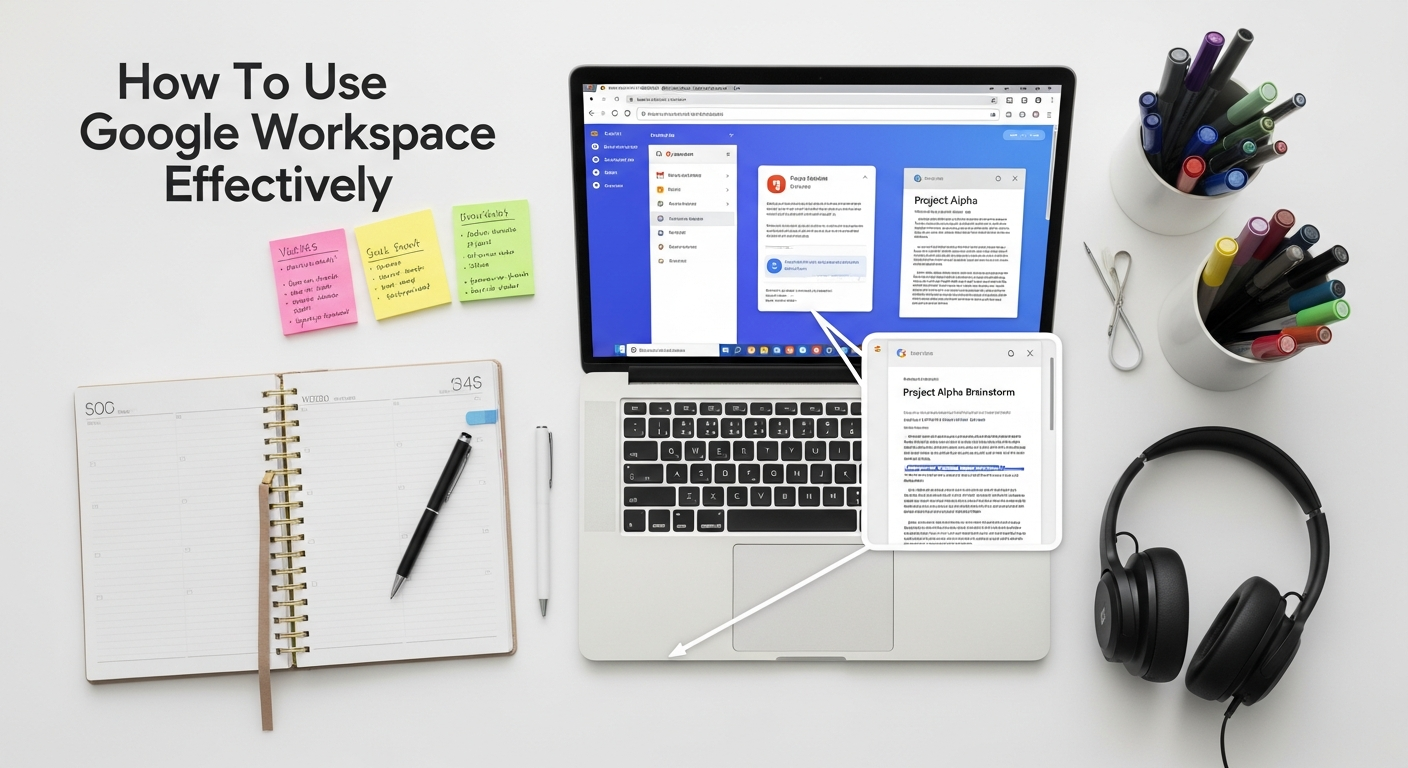
Effective productivity hinges on efficient information management. Google Drive serves as your central repository for all files, while Google Keep offers a lightweight, versatile solution for capturing fleeting thoughts and quick notes. Together, they form a formidable duo for organizing your digital life.
Google Drive: Your Centralized File Management System
Google Drive is more than just cloud storage; it’s a sophisticated file management and sharing platform that integrates seamlessly with all other Google Workspace apps. Mastering Drive is key to preventing digital clutter and ensuring easy access to your information.
- Organized Folder Structure: Develop a logical and consistent folder structure from the outset. Categorize by project, client, department, or year. Avoid dumping everything into the root “My Drive” folder.
- Shared Drives (for Teams): For organizations, Shared Drives (formerly Team Drives) are invaluable. Unlike “My Drive” where files are owned by individuals, files in Shared Drives are owned by the team. This ensures continuity and access even if team members leave, simplifying permission management and preventing data silos.
- Powerful Search Capabilities: Don’t underestimate Drive’s search bar. You can search by file name, content, file type (
type:spreadsheet), owner (owner:[email protected]), date modified, or even text within PDFs and images. Leverage filters to narrow down results quickly. - Offline Access: For critical documents you need regardless of internet connectivity, enable offline access. This allows you to view and edit files, with changes syncing once you’re back online.
- Star Important Files/Folders: For frequently accessed items, star them. This creates a “Starred” section for quick retrieval without navigating through deep folder structures.
- Version Control for Non-Google Files: While Google Docs, Sheets, and Slides have built-in version history, Drive also supports versioning for other file types (e.g., PDFs, Word documents), allowing you to upload new versions while retaining old ones.
- File Stream (Desktop Integration): For business users, Google Drive for Desktop (formerly Drive File Stream) allows you to stream your Drive files directly to your computer without consuming local disk space, making cloud files feel like local files.
- Quick Access: Leverage Drive’s “Quick Access” feature, which uses AI to predict the files you’re most likely to need based on your activity, meetings, and team interactions.
Google Keep: Capturing Ideas and Quick Notes
Google Keep is the digital equivalent of sticky notes, but far more powerful and organized. It’s designed for rapid capture, quick checklists, and visual reminders.
- Rapid Note Taking: Keep excels at capturing thoughts as they arise. Open Keep, type your note, and you’re done. No need to worry about saving.
- Checklists: Easily create to-do lists that you can check off as you complete tasks. These are perfect for groceries, daily routines, or simple project steps.
- Reminders: Attach time-based or location-based reminders to your notes. “Remind me to call John at 3 PM” or “Remind me to pick up milk when I arrive home.” These integrate with Google Calendar and your phone’s notifications.
- Labels and Colors: Organize your notes using labels (similar to Gmail) and different colors. This visual categorization makes it easy to quickly find related notes.
- Collaboration: Share notes and checklists with others, making Keep an excellent tool for quick shared lists (e.g., shared shopping lists, team brainstorming ideas).
- Image to Text (OCR): Keep has built-in OCR (Optical Character Recognition) capabilities. Upload an image containing text (e.g., a whiteboard photo, a receipt), and Keep can extract the text, making it searchable and editable.
- Voice Memos: Record voice notes directly into Keep, which then transcribes them into text, providing both the audio and a searchable text version.
- Integration with Google Docs: You can easily drag and drop notes from the Keep sidebar directly into a Google Doc, making it simple to transfer brainstormed ideas into a more formal document.
While Google Keep is fantastic for quick captures and simple organization, it’s important to understand its scope. For complex knowledge management, deep research, or building interconnected personal knowledge graphs, dedicated tools like How To Use Obsidian For Note Taking might offer more advanced features, such as bidirectional linking, graph views, and local Markdown file storage. However, for everyday reminders, shared lists, and fleeting thoughts, Keep remains an unparalleled, lightweight, and integrated solution within the Google Workspace ecosystem.
Advanced Productivity Tactics and Integrations within Google Workspace
Beyond the core applications, Google Workspace offers a suite of tools and integration capabilities that can significantly amplify your productivity. Leveraging these advanced tactics can create a more cohesive and efficient digital environment.
Maximizing Communication with Google Meet and Google Chat
Effective communication is the bedrock of productivity. Google Meet and Chat provide robust platforms for real-time interaction.
- Google Meet for Video Conferencing:
- Scheduled Meetings: Always schedule Meet calls via Google Calendar. This automatically adds the meeting link and details, making it easy for participants to join.
- Recording: Record important meetings (with consent) for those who couldn’t attend or for future reference. Recordings are automatically saved to Google Drive.
- Live Captions: Use live captions for accessibility or when you’re in a noisy environment.
- Polls & Q&A: Engage your audience during presentations with interactive polls and a dedicated Q&A feature, fostering participation and gathering feedback.
- Breakout Rooms: For larger meetings or workshops, utilize breakout rooms to divide participants into smaller groups for focused discussions.
- Noise Cancellation: Google Meet’s AI-powered noise cancellation can significantly improve audio quality by filtering out background distractions.
- Google Chat for Team Messaging:
- Spaces (formerly Rooms): Create dedicated “Spaces” for projects, departments, or specific topics. This keeps conversations organized and provides a centralized place for sharing files and tasks.
- Direct Messaging: For quick one-on-one communications, direct messages are efficient.
- Integrations: Chat integrates with other Workspace apps. You can share Docs, Sheets, or Slides directly in a chat, and even add tasks to Google Tasks from a conversation.
- Bots: Explore Chat bots that can automate tasks, provide information, or integrate with third-party services.
Data Collection and Websites with Google Forms and Google Sites
Google Workspace also provides tools for data collection and simple website creation.
- Google Forms:
- Surveys and Quizzes: Easily create surveys for feedback, registration forms for events, or even quizzes for training.
- Automated Data Collection: Responses are automatically collected and organized in a Google Sheet, ready for analysis.
- Conditional Logic: Use “go to section based on answer” to create dynamic forms that adapt based on user input.
- Branding: Customize forms with themes, colors, and your organization’s logo for a professional look.
- Google Sites:
- Internal Project Sites: Create simple, elegant internal websites for project documentation, team portals, or knowledge bases.
- Public-Facing Pages: Design basic public websites for events, portfolios, or small business presence.
- Easy Integration: Embed Google Docs, Sheets, Slides, Calendar, and Maps directly into your site pages with ease.
- No Coding Required: A drag-and-drop interface makes site creation accessible to anyone, regardless of technical skill.
Leveraging Add-ons, Extensions, and Google Workspace Marketplace
The Google Workspace ecosystem is highly extensible. The Google Workspace Marketplace offers a vast array of add-ons and extensions that can significantly enhance the functionality of your core apps.
- Enhance Core Apps: Find add-ons for Docs (e.g., citation managers, grammar checkers), Sheets (e.g., mail merge, advanced data tools), and Calendar (e.g., advanced scheduling).
- Integrate with Third-Party Services: Many popular productivity and business tools offer direct integrations with Google Workspace, allowing for seamless workflows between different platforms. This is crucial for Google Workspace to remain competitive among the Best Productivity Apps 2026.
- Browser Extensions: Beyond the Workspace Marketplace, Chrome Web Store offers numerous extensions that enhance your Google Workspace experience, from screenshot tools to tab organizers.
- App Script: For power users and developers, Google Apps Script allows you to automate tasks, create custom functions, and integrate Workspace apps with each other and other services programmatically.
By exploring and strategically implementing these advanced tools and integrations, you can tailor your Google Workspace environment to perfectly match your specific workflows and productivity needs, transforming it from a mere suite of applications into a powerful, interconnected productivity hub.
Maximizing Your Efficiency: Best Practices for Google Workspace Power Users
To truly excel with Google Workspace, it’s not just about knowing the features, but about adopting a mindset and workflow that prioritizes efficiency, security, and continuous improvement. Becoming a Google Workspace power user means proactively shaping your digital environment for optimal output.
Embrace Automation and Smart Features
Google Workspace is increasingly infused with AI and automation capabilities. Leverage them:
- Smart Canvas: Explore Smart Chips in Docs, Sheets, and Slides to easily insert people, files, dates, and even meeting notes with a simple @ mention. This creates dynamic, interconnected content.
- Automate with Filters and Rules: As discussed with Gmail filters, look for opportunities to automate repetitive tasks across all apps. For example, in Google Sheets, you can use App Script to automate data clean-up or report generation.
- Use Google Assistant Integration: If enabled, use voice commands with Google Assistant to create calendar events, send emails, or set reminders, especially useful for mobile productivity.
- Focus Mode: Utilize features like Focus Time in Google Calendar to block out distractions and protect deep work periods, signaling to colleagues that you’re unavailable.
Prioritize Security and Data Management
While Google manages the core infrastructure security, your practices play a vital role in protecting your data:
- Strong Passwords and 2-Step Verification (2SV): This is non-negotiable. Enable 2SV for all your Google accounts.
- Understand Sharing Permissions: Always review who you’re sharing files with and their access level (viewer, commenter, editor). Be judicious with public links. Regularly audit shared files.
- Regular Backup Strategy: While Google Drive is reliable, consider a supplementary backup strategy for mission-critical data, especially for files not native to Workspace.
- Device Management: For business accounts, the admin console allows you to manage devices, wipe data remotely, and enforce security policies. Even for personal use, review connected devices regularly.
- Stay Informed: Keep abreast of Google’s security updates and best practices.
Continuous Learning and Adaptation
The digital world, and Google Workspace along with it, is constantly evolving. What’s cutting-edge in 2026 might be standard by 2027.
- Follow Google Workspace Blogs and Updates: Google frequently rolls out new features and improvements. Stay subscribed to their official blogs or tech news sites like Bookmark Sharer to learn about these updates.
- Explore the Google Workspace Learning Center: This official resource offers guides, tutorials, and training materials for all levels of users.
- Experiment with New Features: Don’t be afraid to try out new functionalities as they appear. Often, a small new feature can dramatically improve a specific workflow.
- Share Knowledge with Your Team: Foster a culture of learning within your organization. Share tips, best practices, and new discoveries with colleagues to elevate collective productivity.
By integrating these best practices into your daily routine, you move beyond simply using Google Workspace to truly mastering it. This proactive and informed approach ensures that you’re not just keeping up with the pace of digital productivity, but actively setting it, making your Google Workspace a powerful engine for success in any endeavor.
Frequently Asked Questions
Recommended Resources
You might also enjoy Adobe Illustrator For Beginners Guide from Layout Scene.
For more on how to use, see How To Use Social Proof To Increase Conversions on Eamped.


