

The Best Web Clipper Tools for Ultimate Productivity & Knowledge Management in 2026
Affiliate disclosure: This article may contain affiliate links. Recommendations are independent and editorially driven.
In an increasingly digital world, the ability to efficiently capture, organize, and retrieve information from the web is no longer a luxury—it’s a necessity. Whether you’re a student compiling research, a professional curating industry insights, a creative saving inspiration, or simply someone who wants to keep track of interesting articles, recipes, or shopping finds, the internet presents an overwhelming flood of data. This is where the best web clipper becomes an indispensable tool in your digital arsenal.
A web clipper is essentially a digital scissor, allowing you to snip specific content from any webpage and save it directly into your preferred note-taking app, bookmark manager, or knowledge management system. It transforms transient online information into permanent, searchable, and actionable assets. But with a myriad of options available, each boasting unique features and integrations, how do you choose the one that truly elevates your productivity and streamlines your personal knowledge management (PKM) workflow? This comprehensive guide dives deep into the world of web clipping, exploring the top contenders, key features, and strategic considerations to help you identify the ideal web clipper for your specific needs in 2026.
Understanding the Power of a Web Clipper: More Than Just Bookmarking
At first glance, a web clipper might seem akin to a bookmarking tool. While both save web content, their functionalities diverge significantly. A traditional bookmark merely saves a link to a webpage. If that page changes, moves, or disappears, your bookmark becomes useless. A web clipper, however, captures the actual content – text, images, videos, and sometimes even the original layout – and stores it offline or within a robust cloud-based system.
From Fleeting Links to Lasting Knowledge
Imagine stumbling upon a groundbreaking research paper, an insightful article, or a complex tutorial. With a bookmark, you save the URL and hope it remains accessible. With a web clipper, you save a clean, readable version of the content itself. This distinction is critical for several reasons:
- Preservation: Clipped content is saved independently of the original source, making it immune to link rot or website changes. You own the content.
- Accessibility: Saved clips are often available offline, allowing you to revisit important information without an internet connection.
- Organization: Most web clippers integrate deeply with note-taking apps, allowing you to tag, categorize, annotate, and link your clips with other notes, transforming raw data into structured knowledge.
- Readability: Clippers often strip away distracting ads, sidebars, and navigation, presenting a clean, article-focused view perfect for focused reading and comprehension.
- Actionability: By saving content into your PKM system, it becomes part of your active knowledge base, ready to be reviewed, synthesized, and applied in your work or studies.
The Evolution of Digital Information Capture
The concept of “clipping” has evolved dramatically from physical newspaper clippings. Early digital solutions involved saving entire web pages as HTML files. While functional, this approach often resulted in cumbersome, hard-to-search, and poorly organized data. Modern web clippers, leveraging advanced browser extensions and cloud technologies, offer a far more sophisticated and seamless experience. They are designed to integrate directly into your browsing workflow, making content capture intuitive and efficient, and connecting that content to the broader ecosystem of your digital life.
Why Every Productive Individual Needs the Best Web Clipper in Their Toolkit
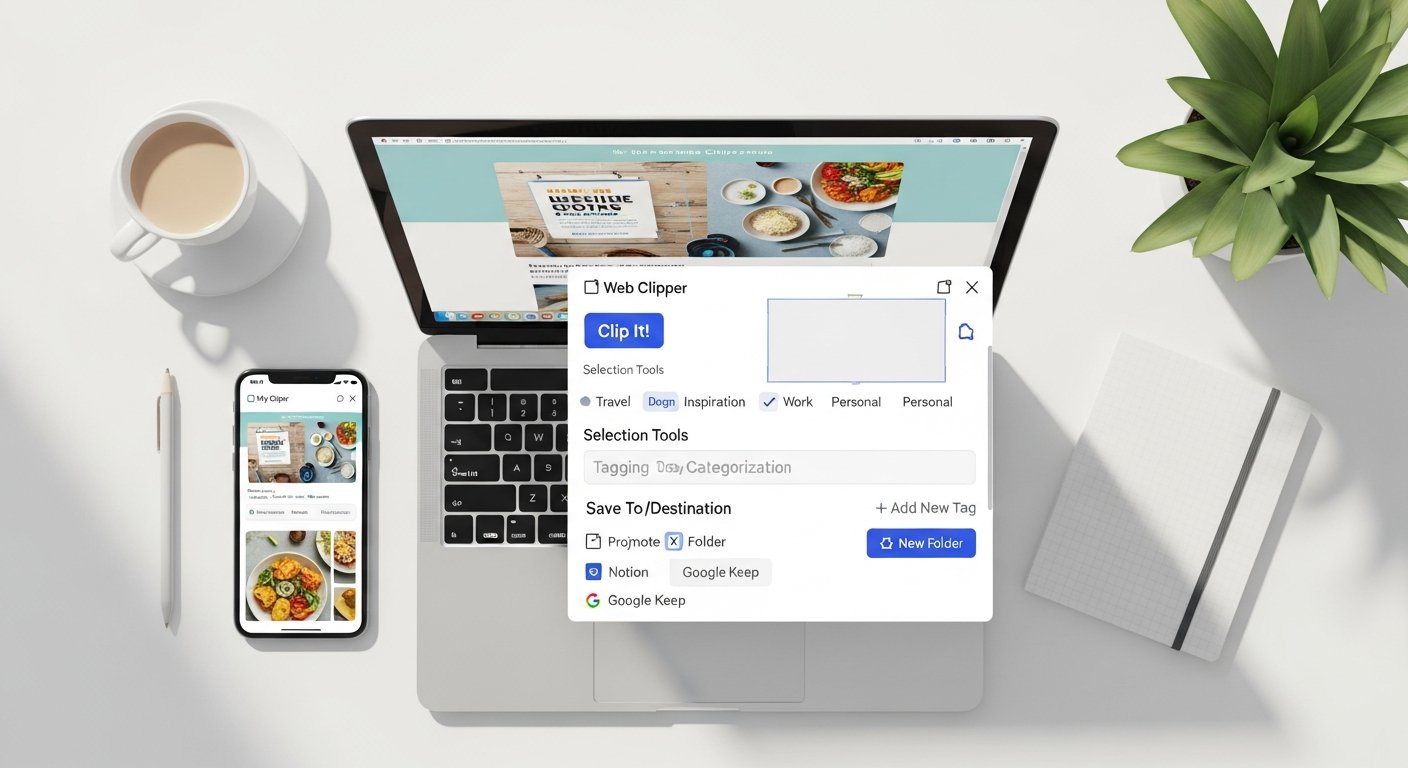
In an age of information overload, merely consuming content isn’t enough; you need to master the art of strategic capture and effective knowledge management. A top-tier web clipper isn’t just a utility; it’s a foundational tool for anyone serious about productivity, learning, and informed decision-making.
[INLINE IMAGE 1: place after second H2 | alt=”best web clipper concept illustration”]
Fueling Research and Learning
For academics, students, researchers, and lifelong learners, the web is an unparalleled library. A web clipper allows you to methodically gather sources, extract key paragraphs, and save entire articles related to your field of study. Imagine:
- Saving research papers with highlights and annotations for easy review.
- Collecting case studies and examples for presentations.
- Curating educational tutorials and how-to guides for skill development.
This organized repository becomes a personalized knowledge base, accelerating your learning curve and providing quick access to essential facts and insights.
Streamlining Professional Workflows
Professionals across all industries benefit immensely from efficient information capture. Marketing professionals can track competitor campaigns, designers can save inspiration boards, developers can collect code snippets or technical documentation, and project managers can aggregate requirements and client feedback.
- Competitive Analysis: Quickly clip articles about competitors’ new products or strategies.
- Market Research: Save trends, reports, and consumer insights.
- Content Creation: Gather resources, examples, and statistics for blogs, reports, or social media posts.
- Project Documentation: Clip online specifications, user guides, or relevant discussions.
By centralizing this information, you reduce cognitive load, save time searching, and ensure you’re always working with the most relevant and up-to-date data.
Enhancing Personal Knowledge Management (PKM)
PKM is about developing a system for collecting, organizing, and retrieving information that resonates with you, ultimately leading to new insights and creative output. A web clipper is often the gateway into a robust PKM system. It provides the initial input mechanism, allowing you to feed your digital brain with valuable web content. This content can then be processed, linked, and synthesized with your own thoughts and notes, creating a rich tapestry of interconnected knowledge. Whether you subscribe to the Zettelkasten method, the PARA method, or your own bespoke system, a web clipper is fundamental to populating it with external information.
Curbing Information Overload and Digital Distraction
The internet is a double-edged sword: a source of endless knowledge, but also a black hole of distraction. When you encounter something interesting but don’t have time to process it immediately, a web clipper allows you to save it for later focused attention. This practice helps cultivate a “read-it-later” habit, preventing you from falling down rabbit holes during active work sessions. By separating content discovery from content consumption, you regain control over your attention and minimize digital fatigue.
Key Features to Look For in the Best Web Clipper
Not all web clippers are created equal. To find the best web clipper for your needs, it’s crucial to understand the essential features that differentiate them and contribute to a truly effective clipping experience.
Diverse Clipping Options: Precision and Versatility
A good web clipper offers more than just saving an entire page. Look for flexibility in what and how you capture content:
- Article View: Strips away ads and clutter, saving only the main text and images for clean reading. This is ideal for news articles, blog posts, and tutorials.
- Full Page: Captures the entire visible webpage, including design elements, sidebars, and navigation. Useful for design inspiration or documenting a specific web layout.
- Selection: Allows you to highlight and save only a specific block of text or an image. Perfect for extracting quotes, definitions, or particular data points.
- Screenshot: Captures an image of a specific section or the entire visible screen. Some advanced clippers allow for scrolling screenshots.
- PDF Clipping: The ability to convert a webpage into a PDF and save it, maintaining its layout for archival purposes.
Annotation and Highlighting Tools: Engaging with Content
Saving content is only the first step; interacting with it is where learning happens. The best web clippers integrate robust annotation features:
- Highlights: Mark important text directly on the clipped content.
- Notes/Comments: Add your own thoughts, questions, or summaries alongside the clipped text or images.
- Drawing/Markup: For visual clips or screenshots, the ability to draw arrows, circles, or add text overlays can be invaluable.
These tools transform passive capture into active engagement, making your saved content far more useful for later review and synthesis.
Robust Organization and Retrieval: Finding What You Need, When You Need It
A vast collection of unorganized clips is just as useless as no clips at all. Strong organizational features are paramount:
- Tags and Labels: Apply keywords to categorize your clips, allowing for flexible retrieval across different topics.
- Notebooks/Folders: Create hierarchical structures to group related content.
- Powerful Search: The ability to search not just titles and tags, but also the full text of your clipped content, including annotations. OCR (Optical Character Recognition) for searching text within images is a significant bonus.
- Smart Suggestions: Some clippers offer AI-powered suggestions for tags or related content.
Seamless Integrations: Connecting Your Digital Ecosystem
A web clipper doesn’t operate in a vacuum. Its value is amplified by how well it connects with your other productivity and PKM tools:
- Note-Taking Apps: Direct integration with services like Notion, Evernote, OneNote, Obsidian, etc.
- Read-It-Later Services: Compatibility with Pocket or Instapaper.
- Cloud Storage: Options to save directly to Dropbox, Google Drive, or OneDrive.
- API Access: For advanced users, an open API allows for custom automation via tools like Zapier or IFTTT.
Cross-Platform Availability and Sync: Access Anywhere, Anytime
Your digital life isn’t confined to a single device. The best web clipper should offer:
- Browser Extensions: For Chrome, Firefox, Safari, Edge, Brave, etc.
- Mobile Apps: iOS and Android apps for clipping on the go and accessing saved content.
- Desktop Applications: For a more robust viewing and editing experience.
- Reliable Sync: Ensures your clipped content is instantly accessible and consistent across all your devices.
Privacy and Security: Protecting Your Data
Given the sensitive nature of some information you might clip, consider the clipper’s privacy policy and security measures. Does it encrypt your data? What are its data retention policies? Does it sell or share your information?
Offline Access: When the Internet Fails
The ability to access your clipped content even without an internet connection is a significant advantage, particularly for travel or environments with unreliable Wi-Fi. Many clippers save content locally in their apps or allow for export.
Top Web Clippers in 2026: A Deep Dive into the Best Options
Now that we understand what makes a web clipper powerful, let’s explore the leading contenders in 2026. Each offers a unique blend of features, catering to different user needs and preferences. We’ll look at the strengths, weaknesses, and ideal use cases for each.
[INLINE IMAGE 2: place after fourth H2 | alt=”best web clipper comparison illustration”]
1. Evernote Web Clipper: The Venerable Veteran
Evernote has long been synonymous with note-taking and web clipping, offering one of the most comprehensive and mature web clipper experiences on the market.
Key Features:
- Smart Clipping Options: Captures articles, simplified articles, full pages, selected areas, or just the URL. It intelligently detects content types like recipes or product pages for tailored saving.
- Rich Annotation: Add highlights, text, arrows, and shapes directly to clipped content or screenshots.
- Powerful Search: Full-text search across all notes, including text within images (thanks to robust OCR).
- Organization: Save directly to specific notebooks, add tags, and set reminders.
- Cross-Platform: Excellent apps for web, desktop (Windows, macOS), and mobile (iOS, Android).
Pros:
- Extremely versatile clipping options.
- Industry-leading OCR for image text.
- Robust annotation tools.
- Excellent search capabilities, making information retrieval a breeze.
- Deep integration into the Evernote ecosystem.
Cons:
- Free tier is somewhat limited (2 devices, 60MB uploads/month).
- Can be perceived as “heavy” or feature-rich to the point of complexity for minimalists.
- Subscription cost can be a deterrent for some.
Ideal User:
Researchers, students, and professionals who need an all-in-one solution for comprehensive content capture, deep organization, and advanced search, and who are already invested in the Evernote ecosystem or are willing to be.
2. Notion Web Clipper: The Flexible Workspace Integrator
Notion isn’t just a note-taking app; it’s a versatile workspace. Its web clipper reflects this philosophy, allowing you to save web content directly into your Notion pages, databases, and projects.
Key Features:
- Database Integration: Save clips as new entries in existing Notion databases (e.g., a “Reading List” database, a “Research” database), complete with properties like URL, tags, type, and custom fields.
- Clean Article Capture: Extracts main content, stripping away distractions.
- Basic Annotation: Add notes and highlights directly within the Notion page after clipping.
- Highly Customizable: Leverage Notion’s block-based editor to embed, transform, and connect your clipped content with other notes and tasks.
Pros:
- Seamless integration into the Notion workspace, making clipped content actionable within projects.
- Extremely flexible for organizing content through databases and custom properties.
- Excellent for visual learners and those who prefer a highly customizable layout.
- Generous free tier for personal use.
Cons:
- Lacks advanced annotation features directly within the clipper itself (post-clip editing in Notion is required).
- Search functionality is powerful but relies on Notion’s internal search, not dedicated OCR for images during clipping.
- Can have a learning curve for those new to Notion.
Ideal User:
Notion power users, project managers, content creators, and teams who want to integrate web research directly into their existing Notion-based workflows, databases, and knowledge management systems.
3. Microsoft OneNote Web Clipper: The Office 365 Champion
For individuals and organizations entrenched in the Microsoft ecosystem, the OneNote Web Clipper is a natural fit, providing deep integration with OneNote’s powerful digital notebook capabilities.
Key Features:
- Diverse Clipping Formats: Clip entire pages, selected regions, full articles (stripped of ads), or just specific screenshots.
- Save to Specific Sections: Direct saving to any notebook and section within your OneNote structure.
- Searchable Content: OneNote’s robust search functionality includes clipped web content, with built-in OCR for text in images.
- Collaboration: Clipped content within shared notebooks can be accessed and collaborated on by teams.
Pros:
- Excellent integration with the Microsoft Office 365 suite.
- Generous free storage with a Microsoft account.
- Powerful search, including OCR.
- Ideal for students and professionals in Microsoft-centric environments.
- Robust desktop and mobile applications.
Cons:
- Annotation features are less direct from the clipper itself compared to Evernote.
- The interface can feel a bit dated for some users accustomed to more modern PKM tools.
- Less aesthetic appeal compared to some competitors.
Ideal User:
Students, educators, and business professionals heavily reliant on Microsoft’s suite (Word, Excel, Outlook, Teams) who need a reliable, free, and deeply integrated web clipper and note-taking solution.
4. Raindrop.io: The Visual Bookmark & Clipper
Raindrop.io isn’t just a web clipper; it’s a beautiful, visual bookmark manager that excels at organizing a wide variety of web content with stunning aesthetics and powerful tagging.
Key Features:
- Visual Bookmarking: Saves content with rich previews, including images, titles, and descriptions, making it easy to visually browse your collection.
- Diverse Clipping: Capture entire articles, screenshots, or specific content types (e.g., images, videos, audio, PDF).
- Advanced Organization: Nested collections, tags, and intelligent search with filters.
- Permanent Copies: Pro users get a permanent copy of web pages, protecting against link rot.
- Integrations: Support for IFTTT and Zapier for automation.
Pros:
- Gorgeous, intuitive interface that makes organization enjoyable.
- Powerful tagging system and nested collections.
- Excellent for visual content curation (designers, mood boards).
- Permanent content backup (Pro feature) is invaluable.
- Good free tier, robust Pro features.
Cons:
- Less emphasis on in-depth text annotation compared to dedicated note-taking apps.
- More focused on “bookmarking with superpowers” rather than comprehensive note-taking.
Ideal User:
Designers, content curators, visual learners, and anyone who wants a visually appealing, highly organized system for saving and managing links, articles, and various media types, with an emphasis on bookmarking over deep text manipulation.
5. Pocket & Instapaper: The “Read-It-Later” Specialists
While often categorized as “read-it-later” apps, both Pocket and Instapaper include robust web clipping functionalities focused on saving articles for distraction-free reading.
Common Features:
- One-Click Save: Quickly save articles, videos, and web pages from your browser or apps.
- Distraction-Free Reading: Strips away clutter, ads, and formatting for a clean reading experience, often with customizable fonts and themes.
- Offline Access: Saved content is available offline on mobile devices.
- Tagging: Basic tagging for organization.
- Highlighting: Highlight key passages within articles.
Pocket Specifics:
- Discovery: Features content recommendations based on your saved items and interests.
- Text-to-Speech: Listen to articles.
- Video Saving: Excellent for saving YouTube videos and other online media.
Instapaper Specifics:
- Speed Reader: Built-in speed reading feature.
- More Minimalist: Often preferred by those seeking a simpler, purer reading experience.
Pros (for both):
- Excellent for focused, distraction-free reading.
- Superior offline access to articles.
- Simple, intuitive saving process.
Cons (for both):
- Limited in terms of advanced note-taking, annotation, and integration with broader PKM systems.
- Primarily focused on articles and media, not general web content or structured data.
Ideal User:
Individuals who primarily want to save long-form articles and videos for later, focused, distraction-free consumption, and who appreciate a minimalist approach to content hoarding.
6. Readwise Reader: The All-in-One Reading & Clipping Hub
Readwise Reader is an ambitious product aiming to be the ultimate reading application, combining a “read-it-later” service with powerful web clipping, PDF annotation, and RSS aggregation, all integrated with Readwise’s robust highlight export features.
Key Features:
- Unified Inbox: Save web pages, PDFs, and even emails into a single inbox for reading.
- Advanced Web Clipper: Captures clean articles with excellent fidelity.
- Robust Highlighting & Annotation: Highlight and add notes to any text, whether it’s a web page, PDF, or ebook.
- Export Highlights: Seamlessly export all your highlights and notes to popular PKM tools like Notion, Evernote, Obsidian, Roam Research, and more via the core Readwise service.
- AI Features: Some AI-powered summary or analysis features are in development.
Pros:
- Consolidates reading from multiple sources (web, PDF, RSS, email) into one elegant interface.
- Exceptional highlighting and annotation experience.
- Powerful export features for integrating with your PKM system.
- Designed for serious readers and knowledge workers.
Cons:
- Requires a Readwise subscription, which can be a premium cost.
- Can be overwhelming for casual users due to its feature richness.
- Still relatively new compared to veterans, so some features are continuously evolving.
Ideal User:
Serious readers, knowledge workers, and PKM enthusiasts who want to centralize all their reading and highlighting, and then seamlessly export those insights into their broader knowledge management system. If you value deep engagement with text and robust integration, Reader is a top contender.
Comparison Table: Best Web Clipper Tools at a Glance (2026)
To help you quickly compare the features of the top web clippers, here’s a table summarizing their key differentiators:
| Feature | Evernote Web Clipper | Notion Web Clipper | OneNote Web Clipper | Raindrop.io | Pocket/Instapaper | Readwise Reader |
|---|---|---|---|---|---|---|
| Primary Focus | All-in-one note-taking & capture | Integrated workspace & PKM | Microsoft ecosystem note-taking | Visual bookmarking & curation | Read-it-later, distraction-free | Unified reading & highlight export |
| Clipping Options | Article, Full Page, Selection, Screenshot | Clean Page, Selection, Add to DB | Article, Full Page, Region, Screenshot | Article, Screenshot, Media, URL | Article, Video, Web Page | Article, PDF, Email, RSS |
| Annotation Tools | Rich highlights, text, shapes, arrows | In-app highlights & notes (after clip) | In-app highlights & notes (after clip) | Basic notes, tags (Pro: permanent copy) | Highlights, basic notes | Extensive highlights, notes, tag extraction |
| Organization | Notebooks, tags, reminders, search | Databases, pages, links, custom properties | Notebooks, sections, pages, search | Collections, nested folders, tags, filters | Tags, favorites | Unified inbox, tags, folders |
| OCR Search | Yes (leading) | No (Notion search is powerful but not OCR-focused on image text) | Yes | No (but searches titles/tags/descriptions) | Limited | In-app for text content, likely future image OCR |
| Cross-Platform | Excellent (Web, Desktop, Mobile) | Excellent (Web, Desktop, Mobile) | Excellent (Web, Desktop, Mobile) | Excellent (Web, Desktop, Mobile) | Excellent (Web, Mobile) | Excellent (Web, Mobile) |
| Offline Access | Yes (Premium) | Yes (within apps) | Yes | Yes (saved content previews) | Yes | Yes |
| Pricing Model | Free, Personal, Professional | Free Personal, Plus, Business, Enterprise | Free (with Microsoft account) | Free, Pro | Free, Premium | Subscription (Readwise) |
How to Choose the Best Web Clipper for Your Workflow
With so many excellent options, the “best” web clipper isn’t a universal truth; it’s a personal choice. Consider these factors to align a clipper with your unique needs and existing workflow.
Explore essential note-taking app integrations for streamlined productivity.
1. Define Your Primary Use Case
What do you clip most often, and why?
- Research & Deep Study: If you need to heavily annotate, cross-reference, and search within long articles and academic papers, consider Evernote, OneNote, or Readwise Reader for their robust annotation and OCR capabilities.
- Knowledge Management & PKM: If you’re building a structured knowledge base and want to link web content with your notes, Notion, Readwise Reader, or even a highly organized Evernote setup will serve you well.
- Visual Curation & Inspiration: For designers, artists, or anyone collecting visual ideas, Raindrop.io’s visual interface and advanced tagging are a strong fit.
- Read-It-Later: If your main goal is simply to save articles for distraction-free reading later, Pocket or Instapaper are ideal, often with great mobile experiences.
- Team Collaboration: For shared research or project documentation, OneNote and Notion offer robust collaborative features.
2. Assess Your Existing Digital Ecosystem
The best web clipper is often one that integrates seamlessly with the tools you already use daily.
- Microsoft User: If you live in Outlook, Word, and Teams, OneNote is a natural extension.
- Notion Power User: If Notion is your central hub for projects and notes, its web clipper is a must-have.
- Readwise Subscriber: Readwise Reader becomes incredibly powerful if you’re already exporting highlights from books and articles through Readwise.
- Browser Preference: While most clippers support major browsers, ensure your chosen tool has a well-maintained extension for your preferred browser (Chrome, Firefox, Safari, Edge).
3. Prioritize Features that Matter Most to You
Revisit the “Key Features” section and rank them by importance:
- Annotation: Do you need to highlight, draw, and add detailed notes directly on the clip? (Evernote, Readwise Reader)
- Organization: How sophisticated do your tagging, folder structures, and search need to be? (Evernote, Notion, Raindrop.io)
- Offline Access: Is it critical to access your saved content without an internet connection? (Pocket, Instapaper, OneNote, Readwise)
- Media Capture: Do you frequently save videos, images, or PDFs? (Raindrop.io, Pocket, Readwise Reader)
- Aesthetics: Does the visual appeal and user experience influence your productivity? (Raindrop.io, Notion)
- Cost: Are you looking for a free solution, or are you willing to pay for advanced features and cloud storage?
4. Consider Your Budget and Pricing Model
- Free Tiers: Many clippers offer generous free tiers (Notion, OneNote, Raindrop.io, Pocket) that are sufficient for light to moderate use.
- Subscription Models: Evernote, Readwise Reader, and premium versions of others offer enhanced features, more storage, and sometimes offline access or permanent archives. Evaluate if the premium features justify the recurring cost for your workflow.
5. Try Before You Buy (or Commit)
Most web clippers offer free trials or robust free tiers. Install a few browser extensions, clip some content, and integrate them with your existing apps. See which one “clicks” with your workflow and feels most intuitive. Your comfort and efficiency with the tool are paramount.
Integrating Web Clippers with Your PKM & Productivity Tools
The true power of the best web clipper is unleashed when it’s integrated seamlessly into your broader Personal Knowledge Management (PKM) and productivity ecosystem. It acts as the crucial input mechanism, feeding valuable information into your digital brain.
Connecting to Your Note-Taking Hub
Whether you use Notion, Obsidian, Roam Research, Evernote, or OneNote as your primary note-taking application, your web clipper should ideally feed directly into it.
- Notion: Clips saved into a Notion database can automatically populate properties like URL, date, tags, and even content summaries. This makes your web clips actionable elements within your project management or knowledge base.
- Evernote/OneNote: These clippers save directly into their respective notebooks, making them extensions of your existing note hierarchy.
- Obsidian/Roam Research: While these tools don’t have native clippers in the same way, tools like Readwise Reader can export highlights and notes in Markdown format, which can then be easily imported and linked within your graph-based knowledge system. Services like Hypothesis or tools that export to Markdown can also bridge this gap, allowing you to bring rich web content into your local markdown files for deep linking and contextualization.
This integration transforms isolated web pages into interconnected nodes of knowledge, vastly improving searchability and allowing you to draw connections between disparate pieces of information.
Enhancing Your “Read-It-Later” Workflow
If you use a dedicated “read-it-later” service like Pocket or Instapaper, their clippers are purpose-built for this. However, you can also use a more robust clipper (like Evernote or Readwise Reader) to save content and then use internal linking or tags to flag items for later review within your main PKM system. Some tools even offer bidirectional syncing or export options to push content to these services after initial capture and annotation.
Leveraging Automation with Zapier and IFTTT
For advanced users, automation platforms like Zapier and IFTTT can create powerful workflows around your web clipper.
Learn more about advanced workflow automation with Zapier.
- Example 1: When a new article is clipped to a specific tag in Evernote, automatically create a task in your project management tool (e.g., Todoist, Asana) to review it.
- Example 2: Save all articles from a specific RSS feed to your Readwise Reader inbox.
- Example 3: If you clip a web page containing a specific keyword, automatically send a notification to a team chat (e.g., Slack, Microsoft Teams).
These automations save time, reduce manual effort, and ensure that important clipped content triggers subsequent actions in your workflow.
Building a Curated Research Repository
Regardless of the specific tools, the goal is to build a centralized, searchable repository of your web research. Think of your web clipper as the intake valve for this repository. Regularly review and process your clipped content:
- Tagging Consistency: Develop a consistent tagging schema. Use clear, concise tags that allow for easy retrieval.
- Summarize & Synthesize: Don’t just clip and forget. Take a moment to summarize why you saved the article and how it relates to your existing knowledge.
- Link & Connect: Create internal links between your clipped content and your own notes or other clipped items. This builds a rich web of interconnected knowledge.
By actively integrating and processing your clipped content, you transform raw information into a powerful, personalized knowledge base that fuels your learning, creativity, and decision-making.
Advanced Web Clipping Strategies for Maximum Impact
Beyond basic capture, mastering advanced web clipping techniques can significantly amplify your productivity and the utility of your digital archive. The best web clipper is one you use effectively and strategically.
1. Develop a Consistent Tagging and Naming Convention
The ability to find what you’ve clipped is as important as clipping itself. Before you start clipping broadly, establish a system:
- Tags: Use a hierarchical or faceted tagging system (e.g., #project/marketing, #topic/AI, #resource/tutorial). Be consistent.
- Notebooks/Folders: Create logical categories for your primary organizational structure.
- Naming: Rename clips for clarity if the default title is vague. Add a brief description or your main takeaway to the title.
This upfront investment in organization pays dividends when you need to retrieve information quickly months or years down the line.
2. Leverage OCR for Text within Images and PDFs
Many top web clippers (especially Evernote and OneNote, and increasingly Readwise Reader) incorporate Optical Character Recognition (OCR). This means they can read text within images or scanned PDFs you clip.
- Screenshots: If you take a screenshot of a data table or a quote embedded in an image, OCR makes that text searchable.
- Infographics: Capture an infographic and later search for specific terms mentioned within it.
- Legacy Content: If you clip a scanned document on a webpage, its text becomes accessible.
Actively seek out clippers with strong OCR if your work involves a lot of visual or legacy content.
3. Use Multiple Clippers for Different Purposes
While one clipper might be your primary workhorse, there’s no rule against using specialized clippers for specific tasks:
- Primary PKM Clipper: (e.g., Notion, Evernote) for serious research and note-taking.
- Read-It-Later Clipper: (e.g., Pocket) for articles to consume in your downtime.
- Visual Inspiration Clipper: (e.g., Raindrop.io) for mood boards, design elements, and general visual references.
This allows each tool to excel at its specialized function without burdening your primary PKM system with unrelated content.
4. Annotate and Summarize Immediately After Clipping
Don’t just clip and forget. Make it a habit to spend 1-2 minutes immediately after clipping an item to:
- Highlight Key Passages: What was the most important information?
- Add a Summary: In your own words, what is this clip about and why is it relevant to you?
- Ask Questions: What questions does this clip raise? How does it connect to other knowledge?
This “processing” step transforms raw information into actionable knowledge, making the clip far more valuable for future recall and synthesis. This practice aligns with principles of active recall and spaced repetition, making your knowledge sticky.
5. Integrate with Browser Reading Modes
Many modern browsers (Chrome, Edge, Safari, Firefox) now offer built-in “Reader Mode” or “Reading List” functionalities. While not full web clippers, they can often be used in conjunction:
- Use the browser’s reader mode to clean up an article for initial reading.
- If you decide the article is valuable enough, then use your dedicated web clipper to save the cleaned version to your PKM system.
This two-step process can ensure you only clip truly valuable content and that it’s in a clean, readable format.
6. Periodically Review and Curate Your Clips
Your clipped collection isn’t static; it should be a living, growing knowledge base. Schedule regular reviews:
- Weekly/Monthly Review: Go through your recently clipped items. Are they properly tagged? Do they need further annotation or linkage?
- Archive or Delete: If an item is no longer relevant, archive it or delete it. A cluttered system is an inefficient one.
- Synthesize: Look for connections between different clips. Can you combine ideas from multiple sources into a new note or insight?
This active curation process prevents your clipped content from becoming a digital graveyard and ensures it remains a powerful engine for your productivity and learning.
The Future of Web Clipping: AI and Beyond
The landscape of digital information capture is constantly evolving, and web clippers are no exception. Looking ahead to 2026 and beyond, we can anticipate several exciting advancements, largely driven by artificial intelligence and increasing integration with other smart technologies.
Smarter Content Understanding and Summarization
Current web clippers are excellent at extracting content, but future iterations will likely boast enhanced AI capabilities for understanding and processing that content:
- Automated Summarization: AI will be able to generate concise summaries of clipped articles, saving users time and highlighting key takeaways. Readwise Reader is already showing promising steps in this direction.
- Entity Recognition: Clippers will automatically identify and tag important entities within the text—people, organizations, locations, key concepts—making organization even more effortless.
- Sentiment Analysis: Understanding the tone or sentiment of an article could provide an additional layer of context for research.
Enhanced Multimedia and Interactive Content Clipping
The Best Web Clipper Tools for Ultimate Productivity & Knowledge Management in 2026
Affiliate disclosure: This article may contain affiliate links. Recommendations are independent and editorially driven.
In an increasingly digital world, the ability to efficiently capture, organize, and retrieve information from the web is no longer a luxury—it’s a necessity. Whether you’re a student compiling research, a professional curating industry insights, a creative saving inspiration, or simply someone who wants to keep track of interesting articles, recipes, or shopping finds, the internet presents an overwhelming flood of data. This is where the best web clipper becomes an indispensable tool in your digital arsenal.
A web clipper is essentially a digital scissor, allowing you to snip specific content from any webpage and save it directly into your preferred note-taking app, bookmark manager, or knowledge management system. It transforms transient online information into permanent, searchable, and actionable assets. But with a myriad of options available, each boasting unique features and integrations, how do you choose the one that truly elevates your productivity and streamlines your personal knowledge management (PKM) workflow? This comprehensive guide dives deep into the world of web clipping, exploring the top contenders, key features, and strategic considerations to help you identify the ideal web clipper for your specific needs in 2026.
Understanding the Power of a Web Clipper: More Than Just Bookmarking
At first glance, a web clipper might seem akin to a bookmarking tool. While both save web content, their functionalities diverge significantly. A traditional bookmark merely saves a link to a webpage. If that page changes, moves, or disappears, your bookmark becomes useless. A web clipper, however, captures the actual content – text, images, videos, and sometimes even the original layout – and stores it offline or within a robust cloud-based system.
From Fleeting Links to Lasting Knowledge
Imagine stumbling upon a groundbreaking research paper, an insightful article, or a complex tutorial. With a bookmark, you save the URL and hope it remains accessible. With a web clipper, you save a clean, readable version of the content itself. This distinction is critical for several reasons:
- Preservation: Clipped content is saved independently of the original source, making it immune to link rot or website changes. You own the content.
- Accessibility: Saved clips are often available offline, allowing you to revisit important information without an internet connection.
- Organization: Most web clippers integrate deeply with note-taking apps, allowing you to tag, categorize, annotate, and link your clips with other notes, transforming raw data into structured knowledge.
- Readability: Clippers often strip away distracting ads, sidebars, and navigation, presenting a clean, article-focused view perfect for focused reading and comprehension.
- Actionability: By saving content into your PKM system, it becomes part of your active knowledge base, ready to be reviewed, synthesized, and applied in your work or studies.
The Evolution of Digital Information Capture
The concept of “clipping” has evolved dramatically from physical newspaper clippings. Early digital solutions involved saving entire web pages as HTML files. While functional, this approach often resulted in cumbersome, hard-to-search, and poorly organized data. Modern web clippers, leveraging advanced browser extensions and cloud technologies, offer a far more sophisticated and seamless experience. They are designed to integrate directly into your browsing workflow, making content capture intuitive and efficient, and connecting that content to the broader ecosystem of your digital life.
Why Every Productive Individual Needs the Best Web Clipper in Their Toolkit
In an age of information overload, merely consuming content isn’t enough; you need to master the art of strategic capture and effective knowledge management. A top-tier web clipper isn’t just a utility; it’s a foundational tool for anyone serious about productivity, learning, and informed decision-making.
[INLINE IMAGE 1: place after second H2 | alt=”best web clipper concept illustration”]
Fueling Research and Learning
For academics, students, researchers, and lifelong learners, the web is an unparalleled library. A web clipper allows you to methodically gather sources, extract key paragraphs, and save entire articles related to your field of study. Imagine:
- Saving research papers with highlights and annotations for easy review.
- Collecting case studies and examples for presentations.
- Curating educational tutorials and how-to guides for skill development.
This organized repository becomes a personalized knowledge base, accelerating your learning curve and providing quick access to essential facts and insights.
Streamlining Professional Workflows
Professionals across all industries benefit immensely from efficient information capture. Marketing professionals can track competitor campaigns, designers can save inspiration boards, developers can collect code snippets or technical documentation, and project managers can aggregate requirements and client feedback.
- Competitive Analysis: Quickly clip articles about competitors’ new products or strategies.
- Market Research: Save trends, reports, and consumer insights.
- Content Creation: Gather resources, examples, and statistics for blogs, reports, or social media posts.
- Project Documentation: Clip online specifications, user guides, or relevant discussions.
By centralizing this information, you reduce cognitive load, save time searching, and ensure you’re always working with the most relevant and up-to-date data.
Enhancing Personal Knowledge Management (PKM)
PKM is about developing a system for collecting, organizing, and retrieving information that resonates with you, ultimately leading to new insights and creative output. A web clipper is often the gateway into a robust PKM system. It provides the initial input mechanism, allowing you to feed your digital brain with valuable web content. This content can then be processed, linked, and synthesized with your own thoughts and notes, creating a rich tapestry of interconnected knowledge. Whether you subscribe to the Zettelkasten method, the PARA method, or your own bespoke system, a web clipper is fundamental to populating it with external information.
Curbing Information Overload and Digital Distraction
The internet is a double-edged sword: a source of endless knowledge, but also a black hole of distraction. When you encounter something interesting but don’t have time to process it immediately, a web clipper allows you to save it for later focused attention. This practice helps cultivate a “read-it-later” habit, preventing you from falling down rabbit holes during active work sessions. By separating content discovery from content consumption, you regain control over your attention and minimize digital fatigue.
Key Features to Look For in the Best Web Clipper
Not all web clippers are created equal. To find the best web clipper for your needs, it’s crucial to understand the essential features that differentiate them and contribute to a truly effective clipping experience.
Diverse Clipping Options: Precision and Versatility
A good web clipper offers more than just saving an entire page. Look for flexibility in what and how you capture content:
- Article View: Strips away ads and clutter, saving only the main text and images for clean reading. This is ideal for news articles, blog posts, and tutorials.
- Full Page: Captures the entire visible webpage, including design elements, sidebars, and navigation. Useful for design inspiration or documenting a specific web layout.
- Selection: Allows you to highlight and save only a specific block of text or an image. Perfect for extracting quotes, definitions, or particular data points.
- Screenshot: Captures an image of a specific section or the entire visible screen. Some advanced clippers allow for scrolling screenshots.
- PDF Clipping: The ability to convert a webpage into a PDF and save it, maintaining its layout for archival purposes.
Annotation and Highlighting Tools: Engaging with Content
Saving content is only the first step; interacting with it is where learning happens. The best web clippers integrate robust annotation features:
- Highlights: Mark important text directly on the clipped content.
- Notes/Comments: Add your own thoughts, questions, or summaries alongside the clipped text or images.
- Drawing/Markup: For visual clips or screenshots, the ability to draw arrows, circles, or add text overlays can be invaluable.
These tools transform passive capture into active engagement, making your saved content far more useful for later review and synthesis.
Robust Organization and Retrieval: Finding What You Need, When You Need It
A vast collection of unorganized clips is just as useless as no clips at all. Strong organizational features are paramount:
- Tags and Labels: Apply keywords to categorize your clips, allowing for flexible retrieval across different topics.
- Notebooks/Folders: Create hierarchical structures to group related content.
- Powerful Search: The ability to search not just titles and tags, but also the full text of your clipped content, including annotations. OCR (Optical Character Recognition) for searching text within images is a significant bonus.
- Smart Suggestions: Some clippers offer AI-powered suggestions for tags or related content.
Seamless Integrations: Connecting Your Digital Ecosystem
A web clipper doesn’t operate in a vacuum. Its value is amplified by how well it connects with your other productivity and PKM tools:
- Note-Taking Apps: Direct integration with services like Notion, Evernote, OneNote, Obsidian, etc.
- Read-It-Later Services: Compatibility with Pocket or Instapaper.
- Cloud Storage: Options to save directly to Dropbox, Google Drive, or OneDrive.
- API Access: For advanced users, an open API allows for custom automation via tools like Zapier or IFTTT.
Cross-Platform Availability and Sync: Access Anywhere, Anytime
Your digital life isn’t confined to a single device. The best web clipper should offer:
- Browser Extensions: For Chrome, Firefox, Safari, Edge, Brave, etc.
- Mobile Apps: iOS and Android apps for clipping on the go and accessing saved content.
- Desktop Applications: For a more robust viewing and editing experience.
- Reliable Sync: Ensures your clipped content is instantly accessible and consistent across all your devices.
Privacy and Security: Protecting Your Data
Given the sensitive nature of some information you might clip, consider the clipper’s privacy policy and security measures. Does it encrypt your data? What are its data retention policies? Does it sell or share your information?
Offline Access: When the Internet Fails
The ability to access your clipped content even without an internet connection is a significant advantage, particularly for travel or environments with unreliable Wi-Fi. Many clippers save content locally in their apps or allow for export.
Top Web Clippers in 2026: A Deep Dive into the Best Options
Now that we understand what makes a web clipper powerful, let’s explore the leading contenders in 2026. Each offers a unique blend of features, catering to different user needs and preferences. We’ll look at the strengths, weaknesses, and ideal use cases for each.
[INLINE IMAGE 2: place after fourth H2 | alt=”best web clipper comparison illustration”]
1. Evernote Web Clipper: The Venerable Veteran
Evernote has long been synonymous with note-taking and web clipping, offering one of the most comprehensive and mature web clipper experiences on the market.
Key Features:
- Smart Clipping Options: Captures articles, simplified articles, full pages, selected areas, or just the URL. It intelligently detects content types like recipes or product pages for tailored saving.
- Rich Annotation: Add highlights, text, arrows, and shapes directly to clipped content or screenshots.
- Powerful Search: Full-text search across all notes, including text within images (thanks to robust OCR).
- Organization: Save directly to specific notebooks, add tags, and set reminders.
- Cross-Platform: Excellent apps for web, desktop (Windows, macOS), and mobile (iOS, Android).
Pros:
- Extremely versatile clipping options.
- Industry-leading OCR for image text.
- Robust annotation tools.
- Excellent search capabilities, making information retrieval a breeze.
- Deep integration into the Evernote ecosystem.
Cons:
- Free tier is somewhat limited (2 devices, 60MB uploads/month).
- Can be perceived as “heavy” or feature-rich to the point of complexity for minimalists.
- Subscription cost can be a deterrent for some.
Ideal User:
Researchers, students, and professionals who need an all-in-one solution for comprehensive content capture, deep organization, and advanced search, and who are already invested in the Evernote ecosystem or are willing to be.
2. Notion Web Clipper: The Flexible Workspace Integrator
Notion isn’t just a note-taking app; it’s a versatile workspace. Its web clipper reflects this philosophy, allowing you to save web content directly into your Notion pages, databases, and projects.
Key Features:
- Database Integration: Save clips as new entries in existing Notion databases (e.g., a “Reading List” database, a “Research” database), complete with properties like URL, tags, type, and custom fields.
- Clean Article Capture: Extracts main content, stripping away distractions.
- Basic Annotation: Add notes and highlights directly within the Notion page after clipping.
- Highly Customizable: Leverage Notion’s block-based editor to embed, transform, and connect your clipped content with other notes and tasks.
Pros:
- Seamless integration into the Notion workspace, making clipped content actionable within projects.
- Extremely flexible for organizing content through databases and custom properties.
- Excellent for visual learners and those who prefer a highly customizable layout.
- Generous free tier for personal use.
Cons:
- Lacks advanced annotation features directly within the clipper itself (post-clip editing in Notion is required).
- Search functionality is powerful but relies on Notion’s internal search, not dedicated OCR for images during clipping.
- Can have a learning curve for those new to Notion.
Ideal User:
Notion power users, project managers, content creators, and teams who want to integrate web research directly into their existing Notion-based workflows, databases, and knowledge management systems.
3. Microsoft OneNote Web Clipper: The Office 365 Champion
For individuals and organizations entrenched in the Microsoft ecosystem, the OneNote Web Clipper is a natural fit, providing deep integration with OneNote’s powerful digital notebook capabilities.
Key Features:
- Diverse Clipping Formats: Clip entire pages, selected regions, full articles (stripped of ads), or just specific screenshots.
- Save to Specific Sections: Direct saving to any notebook and section within your OneNote structure.
- Searchable Content: OneNote’s robust search functionality includes clipped web content, with built-in OCR for text in images.
- Collaboration: Clipped content within shared notebooks can be accessed and collaborated on by teams.
Pros:
- Excellent integration with the Microsoft Office 365 suite.
- Generous free storage with a Microsoft account.
- Powerful search, including OCR.
- Ideal for students and professionals in Microsoft-centric environments.
- Robust desktop and mobile applications.
Cons:
- Annotation features are less direct from the clipper itself compared to Evernote.
- The interface can feel a bit dated for some users accustomed to more modern PKM tools.
- Less aesthetic appeal compared to some competitors.
Ideal User:
Students, educators, and business professionals heavily reliant on Microsoft’s suite (Word, Excel, Outlook, Teams) who need a reliable, free, and deeply integrated web clipper and note-taking solution.
4. Raindrop.io: The Visual Bookmark & Clipper
Raindrop.io isn’t just a web clipper; it’s a beautiful, visual bookmark manager that excels at organizing a wide variety of web content with stunning aesthetics and powerful tagging.
Key Features:
- Visual Bookmarking: Saves content with rich previews, including images, titles, and descriptions, making it easy to visually browse your collection.
- Diverse Clipping: Capture entire articles, screenshots, or specific content types (e.g., images, videos, audio, PDF).
- Advanced Organization: Nested collections, tags, and intelligent search with filters.
- Permanent Copies: Pro users get a permanent copy of web pages, protecting against link rot.
- Integrations: Support for IFTTT and Zapier for automation.
Pros:
- Gorgeous, intuitive interface that makes organization enjoyable.
- Powerful tagging system and nested collections.
- Excellent for visual content curation (designers, mood boards).
- Permanent content backup (Pro feature) is invaluable.
- Good free tier, robust Pro features.
Cons:
- Less emphasis on in-depth text annotation compared to dedicated note-taking apps.
- More focused on “bookmarking with superpowers” rather than comprehensive note-taking.
Ideal User:
Designers, content curators, visual learners, and anyone who wants a visually appealing, highly organized system for saving and managing links, articles, and various media types, with an emphasis on bookmarking over deep text manipulation.
5. Pocket & Instapaper: The “Read-It-Later” Specialists
While often categorized as “read-it-later” apps, both Pocket and Instapaper include robust web clipping functionalities focused on saving articles for distraction-free reading.
Common Features:
- One-Click Save: Quickly save articles, videos, and web pages from your browser or apps.
- Distraction-Free Reading: Strips away clutter, ads, and formatting for a clean reading experience, often with customizable fonts and themes.
- Offline Access: Saved content is available offline on mobile devices.
- Tagging: Basic tagging for organization.
- Highlighting: Highlight key passages within articles.
Pocket Specifics:
- Discovery: Features content recommendations based on your saved items and interests.
- Text-to-Speech: Listen to articles.
- Video Saving: Excellent for saving YouTube videos and other online media.
Instapaper Specifics:
- Speed Reader: Built-in speed reading feature.
- More Minimalist: Often preferred by those seeking a simpler, purer reading experience.
Pros (for both):
- Excellent for focused, distraction-free reading.
- Superior offline access to articles.
- Simple, intuitive saving process.
Cons (for both):
- Limited in terms of advanced note-taking, annotation, and integration with broader PKM systems.
- Primarily focused on articles and media, not general web content or structured data.
Ideal User:
Individuals who primarily want to save long-form articles and videos for later, focused, distraction-free consumption, and who appreciate a minimalist approach to content hoarding.
6. Readwise Reader: The All-in-One Reading & Clipping Hub
Readwise Reader is an ambitious product aiming to be the ultimate reading application, combining a “read-it-later” service with powerful web clipping, PDF annotation, and RSS aggregation, all integrated with Readwise’s robust highlight export features.
Key Features:
- Unified Inbox: Save web pages, PDFs, and even emails into a single inbox for reading.
- Advanced Web Clipper: Captures clean articles with excellent fidelity.
- Robust Highlighting & Annotation: Highlight and add notes to any text, whether it’s a web page, PDF, or ebook.
- Export Highlights: Seamlessly export all your highlights and notes to popular PKM tools like Notion, Evernote, Obsidian, Roam Research, and more via the core Readwise service.
- AI Features: Some AI-powered summary or analysis features are in development.
Pros:
- Consolidates reading from multiple sources (web, PDF, RSS, email) into one elegant interface.
- Exceptional highlighting and annotation experience.
- Powerful export features for integrating with your PKM system.
- Designed for serious readers and knowledge workers.
Cons:
- Requires a Readwise subscription, which can be a premium cost.
- Can be overwhelming for casual users due to its feature richness.
- Still relatively new compared to veterans, so some features are continuously evolving.
Ideal User:
Serious readers, knowledge workers, and PKM enthusiasts who want to centralize all their reading and highlighting, and then seamlessly export those insights into their broader knowledge management system. If you value deep engagement with text and robust integration, Reader is a top contender.
Comparison Table: Best Web Clipper Tools at a Glance (2026)
To help you quickly compare the features of the top web clippers, here’s a table summarizing their key differentiators:
| Feature | Evernote Web Clipper | Notion Web Clipper | OneNote Web Clipper | Raindrop.io | Pocket/Instapaper | Readwise Reader |
|---|---|---|---|---|---|---|
| Primary Focus | All-in-one note-taking & capture | Integrated workspace & PKM | Microsoft ecosystem note-taking | Visual bookmarking & curation | Read-it-later, distraction-free | Unified reading & highlight export |
| Clipping Options | Article, Full Page, Selection, Screenshot | Clean Page, Selection, Add to DB | Article, Full Page, Region, Screenshot | Article, Screenshot, Media, URL | Article, Video, Web Page | Article, PDF, Email, RSS |
| Annotation Tools | Rich highlights, text, shapes, arrows | In-app highlights & notes (after clip) | In-app highlights & notes (after clip) | Basic notes, tags (Pro: permanent copy) | Highlights, basic notes | Extensive highlights, notes, tag extraction |
| Organization | Notebooks, tags, reminders, search | Databases, pages, links, custom properties | Notebooks, sections, pages, search | Collections, nested folders, tags, filters | Tags, favorites | Unified inbox, tags, folders |
| OCR Search | Yes (leading) | No (Notion search is powerful but not OCR-focused on image text) | Yes | No (but searches titles/tags/descriptions) | Limited | In-app for text content, likely future image OCR |
| Cross-Platform | Excellent (Web, Desktop, Mobile) | Excellent (Web, Desktop, Mobile) | Excellent (Web, Desktop, Mobile) | Excellent (Web, Desktop, Mobile) | Excellent (Web, Mobile) | Excellent (Web, Mobile) |
| Offline Access | Yes (Premium) | Yes (within apps) | Yes | Yes (saved content previews) | Yes | Yes |
| Pricing Model | Free, Personal, Professional | Free Personal, Plus, Business, Enterprise | Free (with Microsoft account) | Free, Pro | Free, Premium | Subscription (Readwise) |
How to Choose the Best Web Clipper for Your Workflow
With so many excellent options, the “best” web clipper isn’t a universal truth; it’s a personal choice. Consider these factors to align a clipper with your unique needs and existing workflow.
Explore essential note-taking app integrations for streamlined productivity.
1. Define Your Primary Use Case
What do you clip most often, and why?
- Research & Deep Study: If you need to heavily annotate, cross-reference, and search within long articles and academic papers, consider Evernote, OneNote, or Readwise Reader for their robust annotation and OCR capabilities.
- Knowledge Management & PKM: If you’re building a structured knowledge base and want to link web content with your notes, Notion, Readwise Reader, or even a highly organized Evernote setup will serve you well.
- Visual Curation & Inspiration: For designers, artists, or anyone collecting visual ideas, Raindrop.io’s visual interface and advanced tagging are a strong fit.
- Read-It-Later: If your main goal is simply to save articles for distraction-free reading later, Pocket or Instapaper are ideal, often with great mobile experiences.
- Team Collaboration: For shared research or project documentation, OneNote and Notion offer robust collaborative features.
2. Assess Your Existing Digital Ecosystem
The best web clipper is often one that integrates seamlessly with the tools you already use daily.
- Microsoft User: If you live in Outlook, Word, and Teams, OneNote is a natural extension.
- Notion Power User: If Notion is your central hub for projects and notes, its web clipper is a must-have.
- Readwise Subscriber: Readwise Reader becomes incredibly powerful if you’re already exporting highlights from books and articles through Readwise.
- Browser Preference: While most clippers support major browsers, ensure your chosen tool has a well-maintained extension for your preferred browser (Chrome, Firefox, Safari, Edge).
3. Prioritize Features that Matter Most to You
Revisit the “Key Features” section and rank them by importance:
- Annotation: Do you need to highlight, draw, and add detailed notes directly on the clip? (Evernote, Readwise Reader)
- Organization: How sophisticated do your tagging, folder structures, and search need to be? (Evernote, Notion, Raindrop.io)
- Offline Access: Is it critical to access your saved content without an internet connection? (Pocket, Instapaper, OneNote, Readwise)
- Media Capture: Do you frequently save videos, images, or PDFs? (Raindrop.io, Pocket, Readwise Reader)
- Aesthetics: Does the visual appeal and user experience influence your productivity? (Raindrop.io, Notion)
- Cost: Are you looking for a free solution, or are you willing to pay for advanced features and cloud storage?
4. Consider Your Budget and Pricing Model
- Free Tiers: Many clippers offer generous free tiers (Notion, OneNote, Raindrop.io, Pocket) that are sufficient for light to moderate use.
- Subscription Models: Evernote, Readwise Reader, and premium versions of others offer enhanced features, more storage, and sometimes offline access or permanent archives. Evaluate if the premium features justify the recurring cost for your workflow.
5. Try Before You Buy (or Commit)
Most web clippers offer free trials or robust free tiers. Install a few browser extensions, clip some content, and integrate them with your existing apps. See which one “clicks” with your workflow and feels most intuitive. Your comfort and efficiency with the tool are paramount.
Integrating Web Clippers with Your PKM & Productivity Tools
The true power of the best web clipper is unleashed when it’s integrated seamlessly into your broader Personal Knowledge Management (PKM) and productivity ecosystem. It acts as the crucial input mechanism, feeding valuable information into your digital brain.
Connecting to Your Note-Taking Hub
Whether you use Notion, Obsidian, Roam Research, Evernote, or OneNote as your primary note-taking application, your web clipper should ideally feed directly into it.
- Notion: Clips saved into a Notion database can automatically populate properties like URL, date, tags, and even content summaries. This makes your web clips actionable elements within your project management or knowledge base.
- Evernote/OneNote: These clippers save directly into their respective notebooks, making them extensions of your existing note hierarchy.
- Obsidian/Roam Research: While these tools don’t have native clippers in the same way, tools like Readwise Reader can export highlights and notes in Markdown format, which can then be easily imported and linked within your graph-based knowledge system. Services like Hypothesis or tools that export to Markdown can also bridge this gap, allowing you to bring rich web content into your local markdown files for deep linking and contextualization.
This integration transforms isolated web pages into interconnected nodes of knowledge, vastly improving searchability and allowing you to draw connections between disparate pieces of information.
Enhancing Your “Read-It-Later” Workflow
If you use a dedicated “read-it-later” service like Pocket or Instapaper, their clippers are purpose-built for this. However, you can also use a more robust clipper (like Evernote or Readwise Reader) to save content and then use internal linking or tags to flag items for later review within your main PKM system. Some tools even offer bidirectional syncing or export options to push content to these services after initial capture and annotation.
Leveraging Automation with Zapier and IFTTT
For advanced users, automation platforms like Zapier and IFTTT can create powerful workflows around your web clipper.
Learn more about advanced workflow automation with Zapier.
- Example 1: When a new article is clipped to a specific tag in Evernote, automatically create a task in your project management tool (e.g., Todoist, Asana) to review it.
- Example 2: Save all articles from a specific RSS feed to your Readwise Reader inbox.
- Example 3: If you clip a web page containing a specific keyword, automatically send a notification to a team chat (e.g., Slack, Microsoft Teams).
These automations save time, reduce manual effort, and ensure that important clipped content triggers subsequent actions in your workflow.
Building a Curated Research Repository
Regardless of the specific tools, the goal is to build a centralized, searchable repository of your web research. Think of your web clipper as the intake valve for this repository. Regularly review and process your clipped content:
- Tagging Consistency: Develop a consistent tagging schema. Use clear, concise tags that allow for easy retrieval.
- Summarize & Synthesize: Don’t just clip and forget. Take a moment to summarize why you saved the article and how it relates to your existing knowledge.
- Link & Connect: Create internal links between your clipped content and your own notes or other clipped items. This builds a rich web of interconnected knowledge.
By actively integrating and processing your clipped content, you transform raw information into a powerful, personalized knowledge base that fuels your learning, creativity, and decision-making.
Advanced Web Clipping Strategies for Maximum Impact
Beyond basic capture, mastering advanced web clipping techniques can significantly amplify your productivity and the utility of your digital archive. The best web clipper is one you use effectively and strategically.
1. Develop a Consistent Tagging and Naming Convention
The ability to find what you’ve clipped is as important as clipping itself. Before you start clipping broadly, establish a system:
- Tags: Use a hierarchical or faceted tagging system (e.g., #project/marketing, #topic/AI, #resource/tutorial). Be consistent.
- Notebooks/Folders: Create logical categories for your primary organizational structure.
- Naming: Rename clips for clarity if the default title is vague. Add a brief description or your main takeaway to the title.
This upfront investment in organization pays dividends when you need to retrieve information quickly months or years down the line.
2. Leverage OCR for Text within Images and PDFs
Many top web clippers (especially Evernote and OneNote, and increasingly Readwise Reader) incorporate Optical Character Recognition (OCR). This means they can read text within images or scanned PDFs you clip.
- Screenshots: If you take a screenshot of a data table or a quote embedded in an image, OCR makes that text searchable.
- Infographics: Capture an infographic and later search for specific terms mentioned within it.
- Legacy Content: If you clip a scanned document on a webpage, its text becomes accessible.
Actively seek out clippers with strong OCR if your work involves a lot of visual or legacy content.
3. Use Multiple Clippers for Different Purposes
While one clipper might be your primary workhorse, there’s no rule against using specialized clippers for specific tasks:
- Primary PKM Clipper: (e.g., Notion, Evernote) for serious research and note-taking.
- Read-It-Later Clipper: (e.g., Pocket) for articles to consume in your downtime.
- Visual Inspiration Clipper: (e.g., Raindrop.io) for mood boards, design elements, and general visual references.
This allows each tool to excel at its specialized function without burdening your primary PKM system with unrelated content.
4. Annotate and Summarize Immediately After Clipping
Don’t just clip and forget. Make it a habit to spend 1-2 minutes immediately after clipping an item to:
- Highlight Key Passages: What was the most important information?
- Add a Summary: In your own words, what is this clip about and why is it relevant to you?
- Ask Questions: What questions does this clip raise? How does it connect to other knowledge?
This “processing” step transforms raw information into actionable knowledge, making the clip far more valuable for future recall and synthesis. This practice aligns with principles of active recall and spaced repetition, making your knowledge sticky.
5. Integrate with Browser Reading Modes
Many modern browsers (Chrome, Edge, Safari, Firefox) now offer built-in “Reader Mode” or “Reading List” functionalities. While not full web clippers, they can often be used in conjunction:
- Use the browser’s reader mode to clean up an article for initial reading.
- If you decide the article is valuable enough, then use your dedicated web clipper to save the cleaned version to your PKM system.
This two-step process can ensure you only clip truly valuable content and that it’s in a clean, readable format.
6. Periodically Review and Curate Your Clips
Your clipped collection isn’t static; it should be a living, growing knowledge base. Schedule regular reviews:
- Weekly/Monthly Review: Go through your recently clipped items. Are they properly tagged? Do they need further annotation or linkage?
- Archive or Delete: If an item is no longer relevant, archive it or delete it. A cluttered system is an inefficient one.
- Synthesize: Look for connections between different clips. Can you combine ideas from multiple sources into a new note or insight?
This active curation process prevents your clipped content from becoming a digital graveyard and ensures it remains a powerful engine for your productivity and learning.
The Future of Web Clipping: AI and Beyond
The landscape of digital information capture is constantly evolving, and web clippers are no exception. Looking ahead to 2026 and beyond, we can anticipate several exciting advancements, largely driven by artificial intelligence and increasing integration with other smart technologies.
Smarter Content Understanding and Summarization
Current web clippers are excellent at extracting content, but future iterations will likely boast enhanced AI capabilities for understanding and processing that content:
- Automated Summarization: AI will be able to generate concise summaries of clipped articles, saving users time and highlighting key takeaways. Readwise Reader is already showing promising steps in this direction.
- Entity Recognition: Clippers will automatically identify and tag important entities within the text—people, organizations, locations, key concepts—making organization even more effortless.
- Sentiment Analysis: Understanding the tone or sentiment of an article could provide an additional layer of context for research.


