


OneNote vs Google Keep: The Ultimate Showdown for Modern Note-Taking & Productivity in 2026
Affiliate disclosure: This article may contain affiliate links. Recommendations are independent and editorially driven.
In the rapidly evolving landscape of digital productivity, choosing the right note-taking application can significantly impact your efficiency, organization, and overall personal knowledge management (PKM) strategy. For individuals and teams alike, the ability to capture ideas, organize information, and recall it seamlessly is paramount. Among the plethora of options available, Microsoft OneNote and Google Keep stand out as two of the most popular, yet fundamentally different, contenders. Each offers a unique approach to digital note-taking, catering to distinct user needs and workflows.
This comprehensive guide dives deep into an in-depth comparison of OneNote vs Google Keep in 2026, dissecting their features, strengths, weaknesses, and ideal use cases. Whether you’re a student trying to manage lecture notes, a professional juggling project details, a creative brainstorming new ideas, or simply someone looking to digitize their grocery lists, understanding the nuances between these two powerful tools is crucial. We’ll explore everything from their user interfaces and core functionalities to their integration capabilities and approaches to data security, helping you make an informed decision that aligns perfectly with your productivity goals.
Introduction: Setting the Stage for Note-Taking Excellence
The digital age has transformed how we interact with information. Gone are the days when physical notebooks were the sole repositories of our thoughts and plans. Today, note-taking applications serve as an extension of our minds, allowing us to capture, organize, and retrieve information with unprecedented ease. Microsoft OneNote, a veteran in the productivity suite, and Google Keep, a nimble and intuitive option, represent two distinct philosophies in this domain.
OneNote, often lauded for its robust features and canvas-like freedom, is part of the expansive Microsoft 365 ecosystem. It’s designed for comprehensive information capture, allowing users to create elaborate notebooks filled with various media types. Think of it as a digital binder, infinitely expandable and incredibly versatile. Google Keep, on the other hand, embodies simplicity and speed. Its card-based interface is perfect for quick captures, reminders, and managing short bursts of information. It integrates tightly with the Google ecosystem, making it a natural choice for those already invested in Google’s services.
The choice between these two isn’t about which is inherently “better,” but rather which is “better for you.” Your personal workflow, the complexity of information you manage, your existing tech ecosystem, and even your aesthetic preferences will play a significant role in this decision. Throughout this article, we’ll peel back the layers of each application, providing you with the insights needed to determine your ideal digital note-taking companion.
Understanding Your Needs: A Foundation for Choice
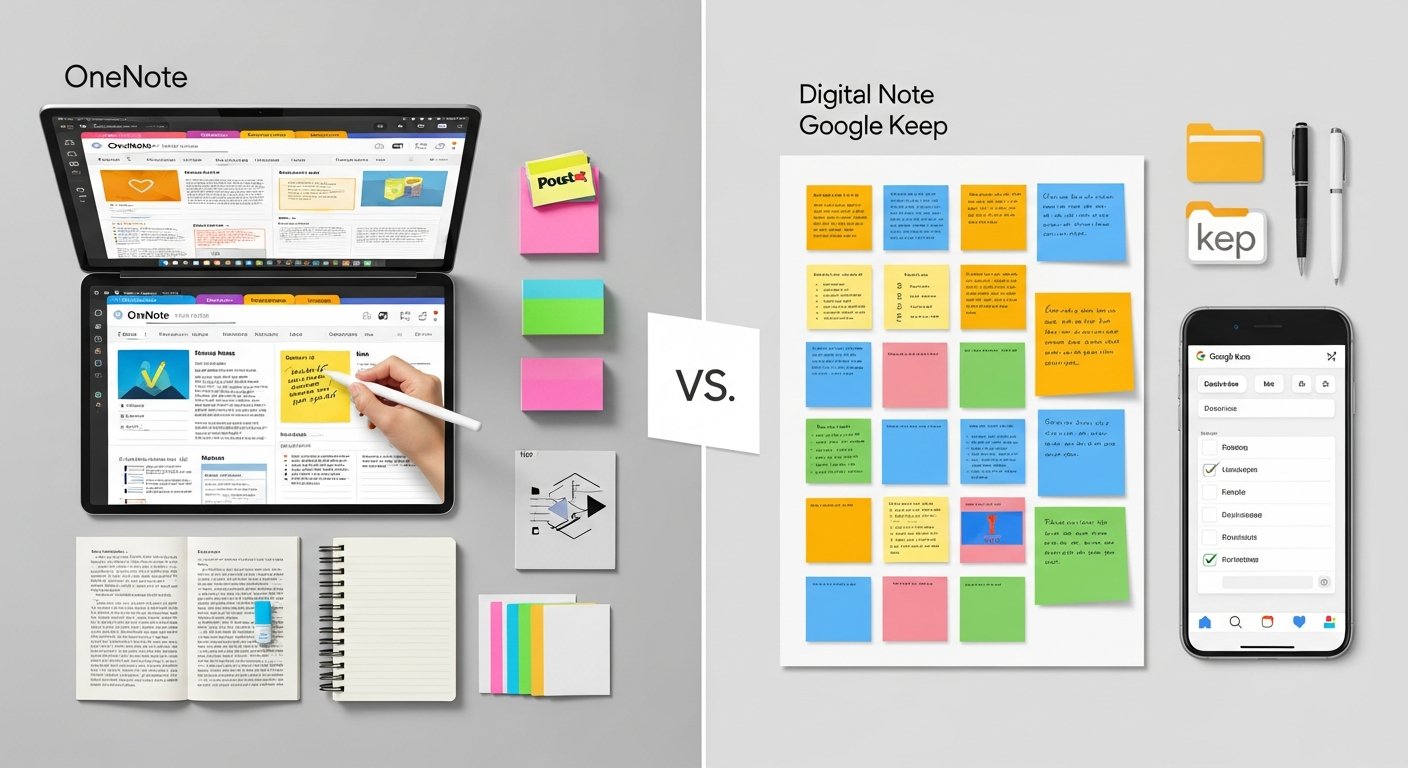
Before diving into the intricate details of OneNote and Google Keep, it’s essential to first understand your own requirements for a note-taking application. A tool that perfectly suits one person might be entirely inadequate for another. Consider the following questions to clarify your needs:
- What kind of information do you primarily capture? Is it long-form text, quick reminders, web clippings, handwritten notes, images, or audio?
- How do you typically organize your information? Do you prefer hierarchical structures (notebooks, sections, pages), or a more tag-based, free-form approach?
- How often do you need to access your notes, and from what devices? Do you primarily work on a desktop, or are mobile access and cross-platform syncing crucial?
- Do you collaborate with others on notes or share information frequently?
- What is your existing digital ecosystem? Are you heavily invested in Microsoft 365 (formerly Office 365) or Google Workspace (formerly G Suite)?
- Do you require advanced features like rich formatting, drawing, OCR, or web clipping?
- What is your comfort level with complexity? Do you prefer a powerful tool with a learning curve, or something intuitive and straightforward?
- Are there any specific privacy or security concerns you have regarding your notes?
By answering these questions, you’ll gain clarity on the features that are non-negotiable for your workflow and those that are merely “nice-to-haves.” This foundational understanding will serve as your compass as we navigate the detailed comparison of OneNote and Google Keep.
[INLINE IMAGE 1: place after second H2 | alt=”onenote vs google keep concept illustration”]
Core Features & Functionality: A Head-to-Head Battle
At their heart, both OneNote and Google Keep are designed to help you capture and manage information. However, their approaches to core functionality differ significantly, reflecting their distinct design philosophies. Let’s break down the primary features.
Text & Rich Formatting
- Microsoft OneNote: OneNote offers a virtually limitless canvas for text input. You can type anywhere on a page, creating text boxes that can be moved, resized, and rotated. Its rich text formatting capabilities are extensive, rivaling those of a word processor. Users can apply various fonts, sizes, colors, highlighting, bold, italics, underlining, strikethrough, and even advanced paragraph formatting like indents, bullets, numbered lists, and custom styles. Tables can be inserted and manipulated with considerable flexibility. This makes OneNote ideal for detailed notes, academic papers, meeting minutes, and any document requiring structured, polished text.
- Google Keep: Keep prioritizes quick capture and simplicity. Its text formatting options are minimal, primarily limited to basic bold, italics, underline, and strikethrough, available through markdown shortcuts or simple controls. There’s no advanced paragraph formatting, font selection, or table support. Notes are essentially plain text or simple checklists. This design choice ensures speed and ease of use, making Keep perfect for ephemeral notes, to-do lists, shopping lists, and quick reminders where complex formatting is unnecessary and would only slow down the process.
Handwriting & Drawing
- Microsoft OneNote: This is an area where OneNote truly shines, especially for users with pen-enabled devices (like Microsoft Surface devices, iPads with Apple Pencil, or Android tablets with styluses). OneNote provides an exceptional digital inking experience. You can write, draw, highlight, and annotate anywhere on the page, just like on physical paper. It offers a wide range of pen types, thicknesses, and colors. Crucially, OneNote features powerful optical character recognition (OCR) that can convert handwritten notes into searchable text, and even solve mathematical equations written with a stylus. This functionality is invaluable for students, artists, and anyone who prefers the tactile experience of writing.
- Google Keep: Keep offers basic drawing capabilities, primarily useful for quick sketches, doodles, or simple annotations on images. While you can draw directly onto notes, the tools are rudimentary compared to OneNote. There’s no advanced pen customization, shape recognition, or OCR for handwritten notes. It’s suitable for quick visual notes or marking up an image, but not for extensive freehand note-taking or detailed diagrams.
Multimedia & Attachments
- Microsoft OneNote: OneNote is a multimedia powerhouse. You can embed virtually anything into a note:
- Images: Insert pictures from files, cameras, or screenshots. OneNote can even perform OCR on text within images, making them searchable.
- Audio: Record audio directly into a note. The recording is linked to your typing, so you can play back audio from the exact point you were typing, a phenomenal feature for lectures or meetings.
- Video: While not directly embedding video files, you can link to online videos.
- Files: Attach any type of file (PDFs, Word documents, spreadsheets, etc.) directly into a note. PDFs and printouts of documents can be embedded as “printouts,” allowing you to annotate directly on them.
- Web Content: The OneNote Web Clipper browser extension allows you to save full web pages, articles, or specific sections directly into OneNote notebooks.
- Google Keep: Keep’s multimedia capabilities are more focused on simplicity and speed:
- Images: You can add images from your device or camera. Keep also performs OCR on text within images, making them searchable – a very useful feature.
- Audio: You can record short audio notes, and Keep will automatically transcribe them into text. This is fantastic for quick voice memos.
- Web Content: The Google Keep browser extension allows you to save web pages or parts of pages as notes, though the fidelity might not be as high as OneNote’s clipper for full page layouts.
- Files: Keep does not support embedding or attaching arbitrary files in the same way OneNote does. Its focus is on notes, not file storage.
Reminders & Checklists
- Microsoft OneNote: While OneNote doesn’t have native, built-in reminder functionality that triggers notifications, it integrates with Microsoft To Do. You can flag notes or specific lines of text in OneNote as “Outlook Tasks,” which then appear in Microsoft To Do and Outlook, complete with reminders. Checklists can be created using custom tags, but they are not interactive in the same way as Keep’s.
- Google Keep: This is a core strength of Google Keep. Every note can easily be turned into a checklist with interactive checkboxes. More importantly, Keep has robust reminder features. You can set time-based reminders (e.g., “remind me at 5 PM”) or location-based reminders (e.g., “remind me when I get home”), which leverages Google’s location services. These reminders are deeply integrated with Google Calendar and other Google services, ensuring you don’t miss anything. This makes Keep an excellent tool for quick to-do lists and actionable items.
Explore advanced task management systems for deeper dives into productivity.
User Interface & Experience: Navigating Your Digital Brain
The interface of a note-taking app plays a crucial role in its usability and how readily you adopt it into your workflow. OneNote and Google Keep offer vastly different user experiences, tailored to their respective philosophies.
OneNote’s Notebook Analogy
OneNote’s interface is structured around a traditional physical notebook metaphor. You have:
- Notebooks: The highest level of organization, akin to a physical binder for a specific subject (e.g., “Work,” “Personal,” “Projects”).
- Sections: Within each notebook, you create sections, which are like tabs or dividers (e.g., “Meeting Notes,” “Research,” “Ideas”).
- Pages: Each section contains individual pages, where you actually take your notes. These pages can be nested as subpages for further organization.
This hierarchical structure provides a robust framework for organizing vast amounts of information. The pages themselves are free-form canvases. You’re not restricted to a linear document; you can click and type anywhere, drag elements around, and create a visually rich and spatially organized layout. This “infinite canvas” can be incredibly liberating for visual thinkers or those who prefer to arrange information non-linearly. However, for new users, the sheer flexibility can sometimes feel overwhelming, requiring a bit of a learning curve to fully master its organizational potential.
Google Keep’s Card-Based Simplicity
Google Keep takes a completely different approach with its card-based interface. All your notes appear as individual “cards” on a single, scrollable dashboard. Each card is a distinct note, reminder, or checklist. This design prioritizes speed and immediate accessibility. Key aspects include:
- Visual Glanceability: You can see many notes at once, often with their associated colors or images, making it easy to spot what you’re looking for.
- Quick Creation: Creating a new note is usually a single tap or click, with minimal fuss.
- Minimalist Design: Keep’s interface is clean, uncluttered, and highly intuitive. There are very few advanced menus or hidden features, making it incredibly easy for anyone to pick up and start using immediately.
- Pinning & Colors: Important notes can be “pinned” to the top of the feed for quick access, and notes can be color-coded for visual categorization.
While Keep’s simplicity is its strength, it can become less efficient for managing a very large number of detailed notes, as scrolling through a long list of cards might not be as effective as OneNote’s structured navigation. The lack of a true hierarchy means that deep dives into specific topics are less straightforward than in OneNote.
[INLINE IMAGE 2: place after fourth H2 | alt=”onenote vs google keep comparison illustration”]
Organization & Search: Keeping Your Knowledge Accessible
The ability to find your notes quickly is just as important as the ability to capture them. Both OneNote and Google Keep offer distinct organizational paradigms and search functionalities.
OneNote’s Hierarchical Structure & Tags
OneNote’s primary organizational method is its nested hierarchy of notebooks, sections, and pages. This provides a clear, logical structure for managing complex information. For example, a student might have a “University” notebook, with sections for each course (“Biology 101,” “Calculus II”), and pages for individual lectures or assignments within those sections. Beyond this, OneNote offers:
- Subpages: Pages can be nested under other pages, allowing for a deeper level of detail within a specific topic.
- Tags: OneNote has a robust tagging system. You can apply various built-in tags (e.g., “To Do,” “Important,” “Question,” “Idea”) or create custom tags to categorize content across different notebooks and sections. These tags are searchable and can be summarized, providing powerful ways to pull related information together regardless of its location in the hierarchy.
- Internal Links: You can create internal links between pages, sections, or even specific paragraphs within OneNote, effectively building a personal wiki or knowledge base.
- Powerful Search: OneNote’s search functionality is incredibly powerful. It can search across all your notebooks, sections, and pages, including text in images (thanks to OCR), text in embedded files (like PDFs or Word documents), and even handwritten notes. The search results are presented clearly, making it easy to jump to the relevant context.
This comprehensive organizational toolkit makes OneNote exceptionally well-suited for long-term knowledge retention and the management of large, interconnected bodies of information.
Google Keep’s Labels, Colors & Pinning
Google Keep eschews hierarchy in favor of a flatter, tag-based system. Its primary organizational tools are:
- Labels: These function as tags. You can apply multiple labels to a single note (e.g., a note could be labeled “Groceries” and “Home”). This allows for flexible categorization without rigid folder structures.
- Colors: Notes can be assigned different colors. This is a simple yet effective visual cue for categorization or priority (e.g., red for urgent, green for personal).
- Pinning: Important or frequently accessed notes can be “pinned” to the top of your Keep feed, keeping them immediately visible.
- Search: Google Keep’s search is remarkably fast and efficient. It searches across all your notes, including text in images (OCR), transcribed audio notes, and even by color or label. You can search for specific words, phrases, or filter by note type (e.g., “lists,” “images,” “reminders”). The ability to search by image content or audio transcription is particularly impressive for a free tool.
Keep’s organizational system is designed for quick retrieval of discrete pieces of information. It’s less about building a structured knowledge base and more about making sure you can instantly find that quick thought, reminder, or snippet you captured earlier. For users who prefer a less structured, more agile approach to information management, Keep’s system is highly effective.
Collaboration & Sharing: Working Together Seamlessly
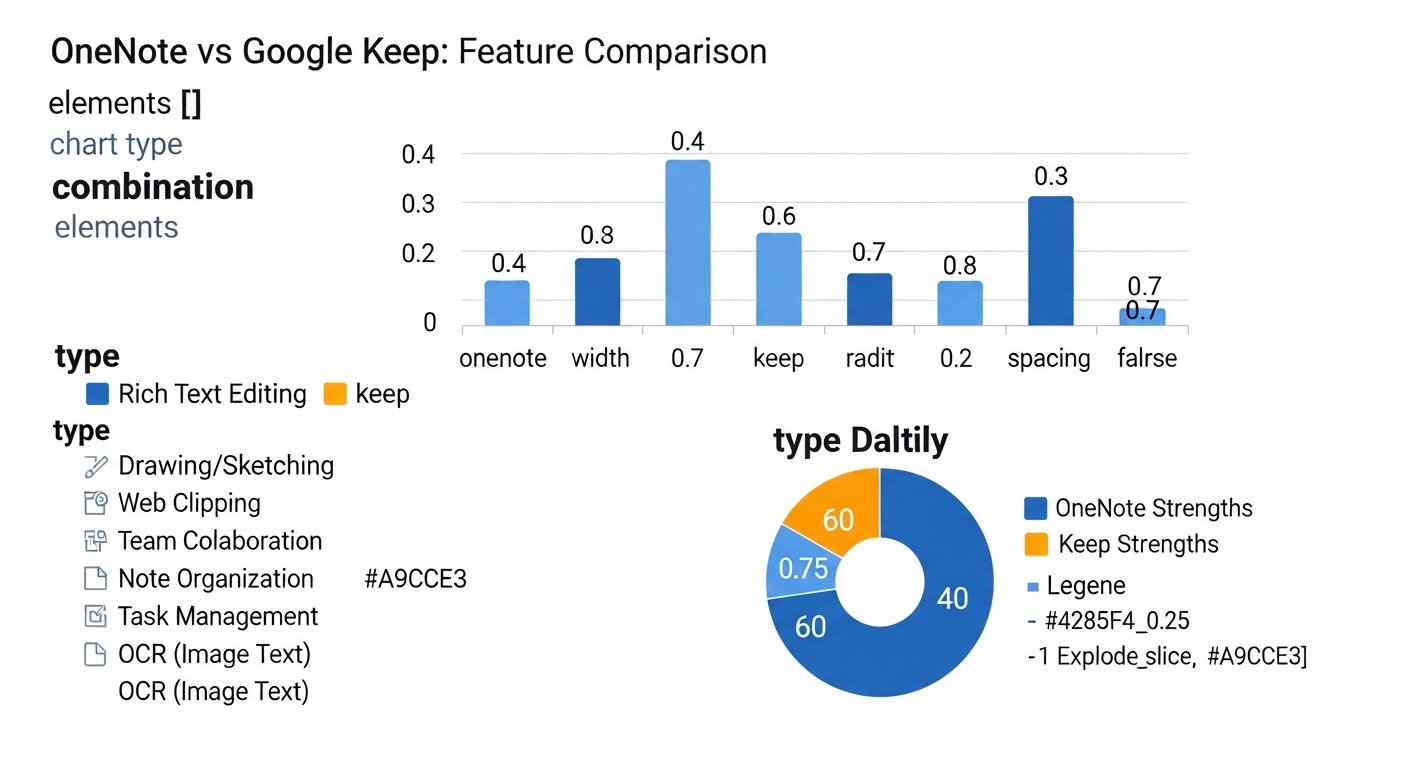
In many professional and personal contexts, the ability to share notes and collaborate in real-time is a critical feature. Both OneNote and Google Keep offer collaboration capabilities, but with different levels of depth and integration.
OneNote’s Robust Collaboration Features
As part of the Microsoft 365 ecosystem, OneNote is built for robust collaboration. You can share entire notebooks, specific sections, or individual pages with others. When a notebook is shared, multiple users can edit simultaneously, with changes appearing in real-time. Key aspects include:
- Real-time Co-authoring: This is a core strength. Multiple users can work on the same page or section at the same time, seeing each other’s contributions as they happen.
- Permission Levels: You can typically grant “can edit” or “can view” permissions, giving you control over who can modify your content.
- Version History: OneNote keeps a history of page versions, allowing you to revert to previous states if needed – a crucial feature for collaborative environments.
- Integration with Microsoft Teams: OneNote notebooks can be deeply integrated into Microsoft Teams channels, serving as shared knowledge hubs for projects and teams.
OneNote’s collaborative features are best suited for teams working on complex projects, students collaborating on group assignments, or families managing shared information where detailed, structured co-editing is required.
Google Keep’s Simple Sharing
Google Keep offers a simpler, yet effective, approach to sharing. You can share any individual note with one or more Google contacts. When a note is shared, collaborators can view and edit the note in real-time. Features include:
- Real-time Editing: Similar to OneNote, shared Keep notes can be edited simultaneously by multiple users.
- Instant Sharing: Sharing a note is incredibly straightforward – just add a collaborator’s email address.
- Limited Permissions: The sharing options are basic: either someone can edit or they can’t. There’s no granular control over different sections or pages, as sharing is note-by-note.
- Practical Use Cases: Keep’s sharing is ideal for shared grocery lists, simple project task lists, quick brainstorms, or sharing snippets of information with a colleague or family member.
While not as feature-rich as OneNote’s enterprise-grade collaboration, Keep’s ease of sharing makes it highly practical for everyday collaborative tasks that don’t require complex version control or hierarchical organization.
Discover the best collaboration tools for remote teams in 2026.
Integrations & Ecosystems: Expanding Your Productivity Hub
The true power of a note-taking application often lies in its ability to integrate seamlessly with other tools in your digital ecosystem. Both OneNote and Google Keep are deeply embedded within their respective company’s broader productivity suites.
OneNote’s Microsoft 365 Integration
OneNote is a core component of Microsoft 365, meaning it integrates tightly with other Microsoft applications:
- Outlook: You can send emails directly to OneNote, link meeting notes to Outlook calendar events, and create Outlook tasks from OneNote content.
- Word, Excel, PowerPoint: You can embed files from these applications directly into OneNote pages, view their content, and even edit them (if the native app is installed). You can also “print” documents from these apps into OneNote as editable images.
- Microsoft To Do: As mentioned, flagged notes or tasks in OneNote can sync with Microsoft To Do, allowing for centralized task management.
- OneDrive: All OneNote notebooks are stored on OneDrive, Microsoft’s cloud storage service, ensuring automatic sync and accessibility across devices.
- Microsoft Teams: OneNote notebooks can be integrated into Teams channels, providing a shared knowledge base for teams and projects.
- Browser Extensions: The OneNote Web Clipper for Chrome, Edge, and Firefox allows you to easily save web content to your notebooks.
For users who are already heavily invested in the Microsoft 365 suite for work, education, or personal use, OneNote offers an unparalleled level of integration, creating a cohesive and powerful productivity environment.
Google Keep’s Google Workspace Integration
Google Keep is intrinsically linked to the Google Workspace (formerly G Suite) ecosystem, making it a natural fit for Google users:
- Gmail: You can easily save emails to Keep as notes, and create Keep notes from within Gmail. Conversely, you can send Keep notes to Gmail.
- Google Docs, Sheets, Slides: While not as deeply integrated for embedding as OneNote, you can easily copy and paste content between Keep and these applications. The “Keep sidebar” in Google Docs is particularly useful for referencing and creating notes while working on a document.
- Google Calendar: Reminders set in Keep automatically appear in Google Calendar, providing a unified view of your schedule and tasks. Location-based reminders are a standout feature here.
- Google Drive: All Keep notes are stored and synced via your Google Drive account, ensuring accessibility and backup.
- Chrome Browser: The Google Keep Chrome extension allows for quick saving of web pages, images, or selected text directly to Keep.
- Google Assistant: You can create notes and set reminders in Keep using voice commands with Google Assistant on various devices.
Google Keep’s integrations are designed for a streamlined, web-centric workflow, appealing to users who rely on Google’s cloud services for their daily productivity.
| Feature Category | Microsoft OneNote | Google Keep | Who It’s Best For |
|---|---|---|---|
| Core Philosophy | Digital notebook/binder, infinite canvas, comprehensive capture. | Quick capture, simple reminders, ephemeral notes, card-based. | OneNote: Detailed organizers; Keep: Quick thinkers. |
| Text & Formatting | Extensive rich text, fonts, tables, advanced paragraph controls. | Basic bold, italic, underline; no tables or advanced formatting. | OneNote: Professionals, academics; Keep: Lists, simple notes. |
| Handwriting & Drawing | Superior inking, stylus support, OCR for handwriting, math assistance. | Basic drawing, quick sketches, image annotation; no handwriting OCR. | OneNote: Students, artists, tablet users; Keep: Quick doodles. |
| Multimedia Support | Embed images, audio (with playback sync), files (PDFs, docs), web clips (rich). | Attach images (with OCR), record audio (with transcription), web clips (simpler). | OneNote: Comprehensive media collectors; Keep: Voice memos, simple visuals. |
| Organization | Hierarchical (Notebooks > Sections > Pages), subpages, robust tagging, internal links. | Labels (tags), color-coding, pinning notes, search-driven. | OneNote: Structured knowledge managers; Keep: Agile, visual organizers. |
| Search Capabilities | Powerful, full-text search across all content, including images, files, handwriting. | Fast search, includes images (OCR), audio transcripts, filters by color/label. | Both: Excellent search, but OneNote goes deeper into embedded content. |
| Reminders & Tasks | Integrates with Microsoft To Do/Outlook Tasks for reminders. | Native reminders (time & location-based), integrates with Google Calendar. | OneNote: Microsoft To Do users; Keep: Google Calendar/Assistant users. |
| Collaboration | Real-time co-authoring, granular permissions, version history, Teams integration. | Real-time sharing/editing of individual notes, simpler permissions. | OneNote: Teams, complex projects; Keep: Shared lists, simple co-editing. |
| Ecosystem Integration | Deep integration with Microsoft 365 (Office apps, Outlook, Teams, OneDrive). | Deep integration with Google Workspace (Gmail, Calendar, Drive, Assistant). | OneNote: Microsoft 365 users; Keep: Google Workspace users. |
| Platform Support | Windows, macOS, Web, iOS, Android, Chrome OS (via web/Android app). | Web, iOS, Android, Chrome OS (native app/extension), Windows/macOS (via web/Chrome app). | Both: Broad cross-platform availability. |
| Pricing | Free standalone desktop/mobile apps; advanced features with Microsoft 365 subscription. | Completely free. | OneNote: Users valuing premium features; Keep: Budget-conscious users. |
Accessibility & Platform Support: Notes On The Go
In 2026, a truly effective note-taking application must be accessible across a multitude of devices and operating systems. Both OneNote and Google Keep offer broad cross-platform support, but their native experiences can vary.
OneNote’s Ubiquitous Reach
Microsoft OneNote is available on virtually every major platform, ensuring your notes are always within reach:
- Windows: Fully featured desktop application (OneNote for Windows 10, or the more classic OneNote 2016 which is still updated for Microsoft 365 subscribers).
- macOS: A robust and feature-rich application, though sometimes with slight differences from the Windows version.
- Web: A capable web application accessible through any modern browser, offering a solid experience for most tasks.
- iOS & Android: Excellent mobile applications that are highly optimized for touch and stylus input, making them powerful tools for on-the-go note-taking.
- Chrome OS: Accessible via the web app or the Android application.
- Linux: Primarily accessible through the web application.
OneNote’s consistent functionality across these platforms, particularly its excellent mobile experience, makes it a reliable choice for users who switch between devices frequently or rely heavily on tablet-based note-taking.
Google Keep’s Web & Mobile First Approach
Google Keep, while widely accessible, has a design philosophy that is very much “web-first” and “mobile-first”:
- Web: Its primary interface is a highly functional and intuitive web application, accessible through keep.google.com on any browser.
- iOS & Android: Superb mobile applications that are fast, responsive, and perfectly designed for quick note capture and review on smartphones and tablets.
- Chrome OS: Native integration and a fantastic experience for Chromebook users.
- Windows & macOS: While there isn’t a native desktop application in the traditional sense, Keep is easily accessible through its web app, and users can install it as a Progressive Web App (PWA) or use the Chrome extension for quick access.
- Linux: Accessible through the web application.
Keep’s simplicity translates well to smaller screens and quick interactions, making it a standout for mobile users. Its PWA capabilities offer a near-native desktop experience for many, blurring the lines between web and desktop applications.
Security, Privacy & Data Ownership: Protecting Your Information
In an era where digital data is invaluable, the security and privacy policies of your note-taking app are paramount. Both Microsoft and Google are major tech companies with extensive security infrastructures, but their approaches and the implications for user data are worth considering.
Microsoft OneNote’s Enterprise-Grade Security
OneNote, as part of Microsoft 365, benefits from Microsoft’s robust enterprise-grade security framework. All OneNote notebooks are stored in OneDrive (or SharePoint for business/education users), which employs:
- Encryption: Data is encrypted both in transit (using TLS) and at rest (using AES 256-bit encryption).
- Compliance: Microsoft’s services adhere to numerous global compliance standards (e.g., ISO 27001, HIPAA, GDPR), which is particularly important for business and educational institutions.
- Authentication: Integration with Microsoft accounts and Azure Active Directory provides strong authentication options, including multi-factor authentication (MFA).
- Data Ownership: Microsoft generally asserts that customers own their data and that Microsoft does not use customer data for advertising purposes.
- Password Protection: Individual OneNote sections can be password-protected, adding an extra layer of security for sensitive information.
For users concerned with robust security, compliance, and clear data ownership policies, especially in professional or academic settings, OneNote offers a reassuring level of protection.
Google Keep’s Consumer-Focused Security
Google Keep, while secure, operates under Google’s broader consumer privacy policy. Notes are stored in Google Drive and benefit from Google’s extensive security measures:
- Encryption: Data is encrypted in transit and at rest, similar to other Google services.
- Authentication: Secured by your Google Account, with strong support for 2-Factor Authentication (2FA).
- Privacy Policy: Google’s privacy policy, while comprehensive, does indicate that data may be used to personalize services and ads. While this typically doesn’t mean your private notes are directly scanned for ad targeting, it’s part of the broader data handling agreement.
- No Password Protection: Keep does not offer the ability to password-protect individual notes or sections, relying solely on your Google Account security.
Keep’s security is more than adequate for most personal users, leveraging Google’s massive security infrastructure. However, for those with stringent privacy requirements or who are wary of extensive data collection practices, the broader Google ecosystem might be a point of consideration.
Pricing, Availability & Business Models: Value Proposition
The cost associated with a note-taking application can be a significant factor in the decision-making process. OneNote and Google Keep have different business models, making them appealing to different budget constraints and value propositions.
OneNote’s Tiered Availability (Free & Paid)
OneNote has a somewhat nuanced pricing model:
- Free Versions: The standalone OneNote desktop applications for Windows and macOS, as well as the mobile apps for iOS and Android, are largely free to use. These free versions offer a significant amount of functionality, including core note-taking, organization, and syncing. The only real “cost” is that your notebooks are stored on OneDrive, which has a free storage limit (typically 5GB).
- Microsoft 365 Integration: To unlock OneNote’s full potential, including some advanced features, deeper integrations with other Microsoft Office applications, and increased OneDrive storage, a Microsoft 365 subscription (Personal, Family, Business, or Enterprise) is required. This subscription bundles OneNote with Word, Excel, PowerPoint, Outlook, and other services.
Essentially, you can get a powerful OneNote experience for free, but it’s part of a premium ecosystem if you want all the bells and whistles. The value here is that OneNote integrates seamlessly with tools many users already pay for or use in professional settings.
Google Keep’s Completely Free Model
Google Keep’s business model is straightforward: it is completely free to use. There are no premium tiers, no paid features, and no subscriptions required specifically for Keep. This aligns with Google’s strategy of offering many consumer services for free, supported by its advertising business and data insights.
- No Hidden Costs: All features available in Keep are free, and your notes are stored in your Google Drive, leveraging its free storage (typically 15GB, shared across Gmail, Drive, and Photos).
For individuals and small teams seeking a powerful yet entirely free note-taking solution, Google Keep presents an incredibly compelling value proposition. Its accessibility and zero-cost barrier to entry make it an excellent choice for anyone, regardless of budget.
Who is OneNote For? Ideal Use Cases and User Profiles
Based on its feature set and design, OneNote is particularly well-suited for specific types of users and workflows:
- Students & Academics: With its ability to handle long-form notes, rich formatting, handwritten input (with OCR), audio recording (linked to text), and file attachments, OneNote is an unparalleled tool for lectures, research, and paper writing. The hierarchical organization helps manage multiple courses and projects.
- Professionals & Project Managers: For organizing detailed meeting notes, project documentation, client information, research data, and brainstorming sessions, OneNote’s expansive canvas and robust search are invaluable. Its collaboration features are ideal for team environments, especially those already using Microsoft 365.
- Content Creators & Researchers: Those who gather large amounts of information from various sources (web clippings, documents, images) and need to synthesize it into structured content will find OneNote’s capabilities for collecting, annotating, and organizing diverse media highly beneficial.
- Visual Thinkers & Pen-Enabled Device Users: If you love to draw, sketch, or write by hand, especially with a stylus on a tablet, OneNote offers the most natural and powerful digital inking experience, making it a digital replacement for traditional pen-and-paper.
- Users in the Microsoft Ecosystem: Individuals and organizations deeply embedded in Microsoft 365 will find OneNote’s seamless integrations with Outlook, Word, Excel, Teams, and OneDrive to be a major advantage.
OneNote is for those who need a comprehensive, flexible, and powerful digital notebook that can scale with complex information management needs.
Learn more about effective PKM tools for organizing your digital life.
Who is Google Keep For? Ideal Use Cases and User Profiles
Google Keep, with its emphasis on speed and simplicity, appeals to a different set of users and situations:
- Everyday Task & Reminder Management: For quick to-do lists, shopping lists, errands, and actionable reminders (especially location-based ones), Keep is incredibly efficient and effective.
- Quick Idea Capture: When you need to jot down a thought, a quote, a phone number, or a fleeting idea before it’s lost, Keep’s instant note creation and minimalist interface are perfect.
- Lightweight Personal Knowledge Management: For individuals who need to keep track of snippets of information, recipes, movie lists, or simple notes without the need for complex organization.
- Google Ecosystem Users: If you live in Gmail, Google Calendar, and Google Drive, Keep’s seamless integrations make it an obvious and convenient choice. Voice commands with Google Assistant further enhance its utility.
- Mobile-First Users: For those who primarily capture and access notes on their smartphone or tablet, Keep’s optimized mobile apps offer a superior experience for quick interactions.
- Budget-Conscious Users: Given that it’s completely free, Keep is an excellent choice for anyone who needs a reliable note-taking tool without any financial investment.
Google Keep is for those who prioritize speed, simplicity, and immediate access to their notes and reminders, especially for short, actionable bursts of information.
Can OneNote and Google Keep Be Used Together? Synergy in Productivity
While often presented as competing alternatives, OneNote and Google Keep are not mutually exclusive. In fact, many users find that leveraging the strengths of both applications creates a highly effective hybrid note-taking system. Think of it as a tiered approach to information management:
- Google Keep as the “Inbox” or “Scratchpad”: Use Keep for initial captures. That fleeting idea, a quick reminder, a phone number, a
OneNote vs Google Keep: The Ultimate Showdown for Modern Note-Taking & Productivity in 2026
Affiliate disclosure: This article may contain affiliate links. Recommendations are independent and editorially driven.
In the rapidly evolving landscape of digital productivity, choosing the right note-taking application can significantly impact your efficiency, organization, and overall personal knowledge management (PKM) strategy. For individuals and teams alike, the ability to capture ideas, organize information, and recall it seamlessly is paramount. Among the plethora of options available, Microsoft OneNote and Google Keep stand out as two of the most popular, yet fundamentally different, contenders. Each offers a unique approach to digital note-taking, catering to distinct user needs and workflows.
This comprehensive guide dives deep into an in-depth comparison of OneNote vs Google Keep in 2026, dissecting their features, strengths, weaknesses, and ideal use cases. Whether you’re a student trying to manage lecture notes, a professional juggling project details, a creative brainstorming new ideas, or simply someone looking to digitize their grocery lists, understanding the nuances between these two powerful tools is crucial. We’ll explore everything from their user interfaces and core functionalities to their integration capabilities and approaches to data security, helping you make an informed decision that aligns perfectly with your productivity goals.
Introduction: Setting the Stage for Note-Taking Excellence
The digital age has transformed how we interact with information. Gone are the days when physical notebooks were the sole repositories of our thoughts and plans. Today, note-taking applications serve as an extension of our minds, allowing us to capture, organize, and retrieve information with unprecedented ease. Microsoft OneNote, a veteran in the productivity suite, and Google Keep, a nimble and intuitive option, represent two distinct philosophies in this domain.
OneNote, often lauded for its robust features and canvas-like freedom, is part of the expansive Microsoft 365 ecosystem. It’s designed for comprehensive information capture, allowing users to create elaborate notebooks filled with various media types. Think of it as a digital binder, infinitely expandable and incredibly versatile. Google Keep, on the other hand, embodies simplicity and speed. Its card-based interface is perfect for quick captures, reminders, and managing short bursts of information. It integrates tightly with the Google ecosystem, making it a natural choice for those already invested in Google’s services.
The choice between these two isn’t about which is inherently “better,” but rather which is “better for you.” Your personal workflow, the complexity of information you manage, your existing tech ecosystem, and even your aesthetic preferences will play a significant role in this decision. Throughout this article, we’ll peel back the layers of each application, providing you with the insights needed to determine your ideal digital note-taking companion.
Understanding Your Needs: A Foundation for Choice
Before diving into the intricate details of OneNote and Google Keep, it’s essential to first understand your own requirements for a note-taking application. A tool that perfectly suits one person might be entirely inadequate for another. Consider the following questions to clarify your needs:
- What kind of information do you primarily capture? Is it long-form text, quick reminders, web clippings, handwritten notes, images, or audio?
- How do you typically organize your information? Do you prefer hierarchical structures (notebooks, sections, pages), or a more tag-based, free-form approach?
- How often do you need to access your notes, and from what devices? Do you primarily work on a desktop, or are mobile access and cross-platform syncing crucial?
- Do you collaborate with others on notes or share information frequently?
- What is your existing digital ecosystem? Are you heavily invested in Microsoft 365 (formerly Office 365) or Google Workspace (formerly G Suite)?
- Do you require advanced features like rich formatting, drawing, OCR, or web clipping?
- What is your comfort level with complexity? Do you prefer a powerful tool with a learning curve, or something intuitive and straightforward?
- Are there any specific privacy or security concerns you have regarding your notes?
By answering these questions, you’ll gain clarity on the features that are non-negotiable for your workflow and those that are merely “nice-to-haves.” This foundational understanding will serve as your compass as we navigate the detailed comparison of OneNote and Google Keep.
[INLINE IMAGE 1: place after second H2 | alt=”onenote vs google keep concept illustration”]
Core Features & Functionality: A Head-to-Head Battle
At their heart, both OneNote and Google Keep are designed to help you capture and manage information. However, their approaches to core functionality differ significantly, reflecting their distinct design philosophies. Let’s break down the primary features.
Text & Rich Formatting
- Microsoft OneNote: OneNote offers a virtually limitless canvas for text input. You can type anywhere on a page, creating text boxes that can be moved, resized, and rotated. Its rich text formatting capabilities are extensive, rivaling those of a word processor. Users can apply various fonts, sizes, colors, highlighting, bold, italics, underlining, strikethrough, and even advanced paragraph formatting like indents, bullets, numbered lists, and custom styles. Tables can be inserted and manipulated with considerable flexibility. This makes OneNote ideal for detailed notes, academic papers, meeting minutes, and any document requiring structured, polished text.
- Google Keep: Keep prioritizes quick capture and simplicity. Its text formatting options are minimal, primarily limited to basic bold, italics, underline, and strikethrough, available through markdown shortcuts or simple controls. There’s no advanced paragraph formatting, font selection, or table support. Notes are essentially plain text or simple checklists. This design choice ensures speed and ease of use, making Keep perfect for ephemeral notes, to-do lists, shopping lists, and quick reminders where complex formatting is unnecessary and would only slow down the process.
Handwriting & Drawing
- Microsoft OneNote: This is an area where OneNote truly shines, especially for users with pen-enabled devices (like Microsoft Surface devices, iPads with Apple Pencil, or Android tablets with styluses). OneNote provides an exceptional digital inking experience. You can write, draw, highlight, and annotate anywhere on the page, just like on physical paper. It offers a wide range of pen types, thicknesses, and colors. Crucially, OneNote features powerful optical character recognition (OCR) that can convert handwritten notes into searchable text, and even solve mathematical equations written with a stylus. This functionality is invaluable for students, artists, and anyone who prefers the tactile experience of writing.
- Google Keep: Keep offers basic drawing capabilities, primarily useful for quick sketches, doodles, or simple annotations on images. While you can draw directly onto notes, the tools are rudimentary compared to OneNote. There’s no advanced pen customization, shape recognition, or OCR for handwritten notes. It’s suitable for quick visual notes or marking up an image, but not for extensive freehand note-taking or detailed diagrams.
Multimedia & Attachments
- Microsoft OneNote: OneNote is a multimedia powerhouse. You can embed virtually anything into a note:
- Images: Insert pictures from files, cameras, or screenshots. OneNote can even perform OCR on text within images, making them searchable.
- Audio: Record audio directly into a note. The recording is linked to your typing, so you can play back audio from the exact point you were typing, a phenomenal feature for lectures or meetings.
- Video: While not directly embedding video files, you can link to online videos.
- Files: Attach any type of file (PDFs, Word documents, spreadsheets, etc.) directly into a note. PDFs and printouts of documents can be embedded as “printouts,” allowing you to annotate directly on them.
- Web Content: The OneNote Web Clipper browser extension allows you to save full web pages, articles, or specific sections directly into OneNote notebooks.
- Google Keep: Keep’s multimedia capabilities are more focused on simplicity and speed:
- Images: You can add images from your device or camera. Keep also performs OCR on text within images, making them searchable – a very useful feature.
- Audio: You can record short audio notes, and Keep will automatically transcribe them into text. This is fantastic for quick voice memos.
- Web Content: The Google Keep browser extension allows you to save web pages or parts of pages as notes, though the fidelity might not be as high as OneNote’s clipper for full page layouts.
- Files: Keep does not support embedding or attaching arbitrary files in the same way OneNote does. Its focus is on notes, not file storage.
Reminders & Checklists
- Microsoft OneNote: While OneNote doesn’t have native, built-in reminder functionality that triggers notifications, it integrates with Microsoft To Do. You can flag notes or specific lines of text in OneNote as “Outlook Tasks,” which then appear in Microsoft To Do and Outlook, complete with reminders. Checklists can be created using custom tags, but they are not interactive in the same way as Keep’s.
- Google Keep: This is a core strength of Google Keep. Every note can easily be turned into a checklist with interactive checkboxes. More importantly, Keep has robust reminder features. You can set time-based reminders (e.g., “remind me at 5 PM”) or location-based reminders (e.g., “remind me when I get home”), which leverages Google’s location services. These reminders are deeply integrated with Google Calendar and other Google services, ensuring you don’t miss anything. This makes Keep an excellent tool for quick to-do lists and actionable items.
Explore advanced task management systems for deeper dives into productivity.
User Interface & Experience: Navigating Your Digital Brain
The interface of a note-taking app plays a crucial role in its usability and how readily you adopt it into your workflow. OneNote and Google Keep offer vastly different user experiences, tailored to their respective philosophies.
OneNote’s Notebook Analogy
OneNote’s interface is structured around a traditional physical notebook metaphor. You have:
- Notebooks: The highest level of organization, akin to a physical binder for a specific subject (e.g., “Work,” “Personal,” “Projects”).
- Sections: Within each notebook, you create sections, which are like tabs or dividers (e.g., “Meeting Notes,” “Research,” “Ideas”).
- Pages: Each section contains individual pages, where you actually take your notes. These pages can be nested as subpages for further organization.
This hierarchical structure provides a robust framework for organizing vast amounts of information. The pages themselves are free-form canvases. You’re not restricted to a linear document; you can click and type anywhere, drag elements around, and create a visually rich and spatially organized layout. This “infinite canvas” can be incredibly liberating for visual thinkers or those who prefer to arrange information non-linearly. However, for new users, the sheer flexibility can sometimes feel overwhelming, requiring a bit of a learning curve to fully master its organizational potential.
Google Keep’s Card-Based Simplicity
Google Keep takes a completely different approach with its card-based interface. All your notes appear as individual “cards” on a single, scrollable dashboard. Each card is a distinct note, reminder, or checklist. This design prioritizes speed and immediate accessibility. Key aspects include:
- Visual Glanceability: You can see many notes at once, often with their associated colors or images, making it easy to spot what you’re looking for.
- Quick Creation: Creating a new note is usually a single tap or click, with minimal fuss.
- Minimalist Design: Keep’s interface is clean, uncluttered, and highly intuitive. There are very few advanced menus or hidden features, making it incredibly easy for anyone to pick up and start using immediately.
- Pinning & Colors: Important notes can be “pinned” to the top of the feed for quick access, and notes can be color-coded for visual categorization.
While Keep’s simplicity is its strength, it can become less efficient for managing a very large number of detailed notes, as scrolling through a long list of cards might not be as effective as OneNote’s structured navigation. The lack of a true hierarchy means that deep dives into specific topics are less straightforward than in OneNote.
[INLINE IMAGE 2: place after fourth H2 | alt=”onenote vs google keep comparison illustration”]
Organization & Search: Keeping Your Knowledge Accessible
The ability to find your notes quickly is just as important as the ability to capture them. Both OneNote and Google Keep offer distinct organizational paradigms and search functionalities.
OneNote’s Hierarchical Structure & Tags
OneNote’s primary organizational method is its nested hierarchy of notebooks, sections, and pages. This provides a clear, logical structure for managing complex information. For example, a student might have a “University” notebook, with sections for each course (“Biology 101,” “Calculus II”), and pages for individual lectures or assignments within those sections. Beyond this, OneNote offers:
- Subpages: Pages can be nested under other pages, allowing for a deeper level of detail within a specific topic.
- Tags: OneNote has a robust tagging system. You can apply various built-in tags (e.g., “To Do,” “Important,” “Question,” “Idea”) or create custom tags to categorize content across different notebooks and sections. These tags are searchable and can be summarized, providing powerful ways to pull related information together regardless of its location in the hierarchy.
- Internal Links: You can create internal links between pages, sections, or even specific paragraphs within OneNote, effectively building a personal wiki or knowledge base.
- Powerful Search: OneNote’s search functionality is incredibly powerful. It can search across all your notebooks, sections, and pages, including text in images (thanks to OCR), text in embedded files (like PDFs or Word documents), and even handwritten notes. The search results are presented clearly, making it easy to jump to the relevant context.
This comprehensive organizational toolkit makes OneNote exceptionally well-suited for long-term knowledge retention and the management of large, interconnected bodies of information.
Google Keep’s Labels, Colors & Pinning
Google Keep eschews hierarchy in favor of a flatter, tag-based system. Its primary organizational tools are:
- Labels: These function as tags. You can apply multiple labels to a single note (e.g., a note could be labeled “Groceries” and “Home”). This allows for flexible categorization without rigid folder structures.
- Colors: Notes can be assigned different colors. This is a simple yet effective visual cue for categorization or priority (e.g., red for urgent, green for personal).
- Pinning: Important or frequently accessed notes can be “pinned” to the top of your Keep feed, keeping them immediately visible.
- Search: Google Keep’s search is remarkably fast and efficient. It searches across all your notes, including text in images (OCR), transcribed audio notes, and even by color or label. You can search for specific words, phrases, or filter by note type (e.g., “lists,” “images,” “reminders”). The ability to search by image content or audio transcription is particularly impressive for a free tool.
Keep’s organizational system is designed for quick retrieval of discrete pieces of information. It’s less about building a structured knowledge base and more about making sure you can instantly find that quick thought, reminder, or snippet you captured earlier. For users who prefer a less structured, more agile approach to information management, Keep’s system is highly effective.
Collaboration & Sharing: Working Together Seamlessly
In many professional and personal contexts, the ability to share notes and collaborate in real-time is a critical feature. Both OneNote and Google Keep offer collaboration capabilities, but with different levels of depth and integration.
OneNote’s Robust Collaboration Features
As part of the Microsoft 365 ecosystem, OneNote is built for robust collaboration. You can share entire notebooks, specific sections, or individual pages with others. When a notebook is shared, multiple users can edit simultaneously, with changes appearing in real-time. Key aspects include:
- Real-time Co-authoring: This is a core strength. Multiple users can work on the same page or section at the same time, seeing each other’s contributions as they happen.
- Permission Levels: You can typically grant “can edit” or “can view” permissions, giving you control over who can modify your content.
- Version History: OneNote keeps a history of page versions, allowing you to revert to previous states if needed – a crucial feature for collaborative environments.
- Integration with Microsoft Teams: OneNote notebooks can be deeply integrated into Microsoft Teams channels, serving as shared knowledge hubs for projects and teams.
OneNote’s collaborative features are best suited for teams working on complex projects, students collaborating on group assignments, or families managing shared information where detailed, structured co-editing is required.
Google Keep’s Simple Sharing
Google Keep offers a simpler, yet effective, approach to sharing. You can share any individual note with one or more Google contacts. When a note is shared, collaborators can view and edit the note in real-time. Features include:
- Real-time Editing: Similar to OneNote, shared Keep notes can be edited simultaneously by multiple users.
- Instant Sharing: Sharing a note is incredibly straightforward – just add a collaborator’s email address.
- Limited Permissions: The sharing options are basic: either someone can edit or they can’t. There’s no granular control over different sections or pages, as sharing is note-by-note.
- Practical Use Cases: Keep’s sharing is ideal for shared grocery lists, simple project task lists, quick brainstorms, or sharing snippets of information with a colleague or family member.
While not as feature-rich as OneNote’s enterprise-grade collaboration, Keep’s ease of sharing makes it highly practical for everyday collaborative tasks that don’t require complex version control or hierarchical organization.
Discover the best collaboration tools for remote teams in 2026.
Integrations & Ecosystems: Expanding Your Productivity Hub
The true power of a note-taking application often lies in its ability to integrate seamlessly with other tools in your digital ecosystem. Both OneNote and Google Keep are deeply embedded within their respective company’s broader productivity suites.
OneNote’s Microsoft 365 Integration
OneNote is a core component of Microsoft 365, meaning it integrates tightly with other Microsoft applications:
- Outlook: You can send emails directly to OneNote, link meeting notes to Outlook calendar events, and create Outlook tasks from OneNote content.
- Word, Excel, PowerPoint: You can embed files from these applications directly into OneNote pages, view their content, and even edit them (if the native app is installed). You can also “print” documents from these apps into OneNote as editable images.
- Microsoft To Do: As mentioned, flagged notes or tasks in OneNote can sync with Microsoft To Do, allowing for centralized task management.
- OneDrive: All OneNote notebooks are stored on OneDrive, Microsoft’s cloud storage service, ensuring automatic sync and accessibility across devices.
- Microsoft Teams: OneNote notebooks can be integrated into Teams channels, providing a shared knowledge base for teams and projects.
- Browser Extensions: The OneNote Web Clipper for Chrome, Edge, and Firefox allows you to easily save web content to your notebooks.
For users who are already heavily invested in the Microsoft 365 suite for work, education, or personal use, OneNote offers an unparalleled level of integration, creating a cohesive and powerful productivity environment.
Google Keep’s Google Workspace Integration
Google Keep is intrinsically linked to the Google Workspace (formerly G Suite) ecosystem, making it a natural fit for Google users:
- Gmail: You can easily save emails to Keep as notes, and create Keep notes from within Gmail. Conversely, you can send Keep notes to Gmail.
- Google Docs, Sheets, Slides: While not as deeply integrated for embedding as OneNote, you can easily copy and paste content between Keep and these applications. The “Keep sidebar” in Google Docs is particularly useful for referencing and creating notes while working on a document.
- Google Calendar: Reminders set in Keep automatically appear in Google Calendar, providing a unified view of your schedule and tasks. Location-based reminders are a standout feature here.
- Google Drive: All Keep notes are stored and synced via your Google Drive account, ensuring accessibility and backup.
- Chrome Browser: The Google Keep Chrome extension allows for quick saving of web pages, images, or selected text directly to Keep.
- Google Assistant: You can create notes and set reminders in Keep using voice commands with Google Assistant on various devices.
Google Keep’s integrations are designed for a streamlined, web-centric workflow, appealing to users who rely on Google’s cloud services for their daily productivity.
Feature Category Microsoft OneNote Google Keep Who It’s Best For Core Philosophy Digital notebook/binder, infinite canvas, comprehensive capture. Quick capture, simple reminders, ephemeral notes, card-based. OneNote: Detailed organizers; Keep: Quick thinkers. Text & Formatting Extensive rich text, fonts, tables, advanced paragraph controls. Basic bold, italic, underline; no tables or advanced formatting. OneNote: Professionals, academics; Keep: Lists, simple notes. Handwriting & Drawing Superior inking, stylus support, OCR for handwriting, math assistance. Basic drawing, quick sketches, image annotation; no handwriting OCR. OneNote: Students, artists, tablet users; Keep: Quick doodles. Multimedia Support Embed images, audio (with playback sync), files (PDFs, docs), web clips (rich). Attach images (with OCR), record audio (with transcription), web clips (simpler). OneNote: Comprehensive media collectors; Keep: Voice memos, simple visuals. Organization Hierarchical (Notebooks > Sections > Pages), subpages, robust tagging, internal links. Labels (tags), color-coding, pinning notes, search-driven. OneNote: Structured knowledge managers; Keep: Agile, visual organizers. Search Capabilities Powerful, full-text search across all content, including images, files, handwriting. Fast search, includes images (OCR), audio transcripts, filters by color/label. Both: Excellent search, but OneNote goes deeper into embedded content. Reminders & Tasks Integrates with Microsoft To Do/Outlook Tasks for reminders. Native reminders (time & location-based), integrates with Google Calendar. OneNote: Microsoft To Do users; Keep: Google Calendar/Assistant users. Collaboration Real-time co-authoring, granular permissions, version history, Teams integration. Real-time sharing/editing of individual notes, simpler permissions. OneNote: Teams, complex projects; Keep: Shared lists, simple co-editing. Ecosystem Integration Deep integration with Microsoft 365 (Office apps, Outlook, Teams, OneDrive). Deep integration with Google Workspace (Gmail, Calendar, Drive, Assistant). OneNote: Microsoft 365 users; Keep: Google Workspace users. Platform Support Windows, macOS, Web, iOS, Android, Chrome OS (via web/Android app). Web, iOS, Android, Chrome OS (native app/extension), Windows/macOS (via web/Chrome app). Both: Broad cross-platform availability. Pricing Free standalone desktop/mobile apps; advanced features with Microsoft 365 subscription. Completely free. OneNote: Users valuing premium features; Keep: Budget-conscious users. Accessibility & Platform Support: Notes On The Go
In 2026, a truly effective note-taking application must be accessible across a multitude of devices and operating systems. Both OneNote and Google Keep offer broad cross-platform support, but their native experiences can vary.
OneNote’s Ubiquitous Reach
Microsoft OneNote is available on virtually every major platform, ensuring your notes are always within reach:
- Windows: Fully featured desktop application (OneNote for Windows 10, or the more classic OneNote 2016 which is still updated for Microsoft 365 subscribers).
- macOS: A robust and feature-rich application, though sometimes with slight differences from the Windows version.
- Web: A capable web application accessible through any modern browser, offering a solid experience for most tasks.
- iOS & Android: Excellent mobile applications that are highly optimized for touch and stylus input, making them powerful tools for on-the-go note-taking.
- Chrome OS: Accessible via the web app or the Android application.
- Linux: Primarily accessible through the web application.
OneNote’s consistent functionality across these platforms, particularly its excellent mobile experience, makes it a reliable choice for users who switch between devices frequently or rely heavily on tablet-based note-taking.
Google Keep’s Web & Mobile First Approach
Google Keep, while widely accessible, has a design philosophy that is very much “web-first” and “mobile-first”:
- Web: Its primary interface is a highly functional and intuitive web application, accessible through keep.google.com on any browser.
- iOS & Android: Superb mobile applications that are fast, responsive, and perfectly designed for quick note capture and review on smartphones and tablets.
- Chrome OS: Native integration and a fantastic experience for Chromebook users.
- Windows & macOS: While there isn’t a native desktop application in the traditional sense, Keep is easily accessible through its web app, and users can install it as a Progressive Web App (PWA) or use the Chrome extension for quick access.
- Linux: Accessible through the web application.
Keep’s simplicity translates well to smaller screens and quick interactions, making it a standout for mobile users. Its PWA capabilities offer a near-native desktop experience for many, blurring the lines between web and desktop applications.
Security, Privacy & Data Ownership: Protecting Your Information
In an era where digital data is invaluable, the security and privacy policies of your note-taking app are paramount. Both Microsoft and Google are major tech companies with extensive security infrastructures, but their approaches and the implications for user data are worth considering.
Microsoft OneNote’s Enterprise-Grade Security
OneNote, as part of Microsoft 365, benefits from Microsoft’s robust enterprise-grade security framework. All OneNote notebooks are stored in OneDrive (or SharePoint for business/education users), which employs:
- Encryption: Data is encrypted both in transit (using TLS) and at rest (using AES 256-bit encryption).
- Compliance: Microsoft’s services adhere to numerous global compliance standards (e.g., ISO 27001, HIPAA, GDPR), which is particularly important for business and educational institutions.
- Authentication: Integration with Microsoft accounts and Azure Active Directory provides strong authentication options, including multi-factor authentication (MFA).
- Data Ownership: Microsoft generally asserts that customers own their data and that Microsoft does not use customer data for advertising purposes.
- Password Protection: Individual OneNote sections can be password-protected, adding an extra layer of security for sensitive information.
For users concerned with robust security, compliance, and clear data ownership policies, especially in professional or academic settings, OneNote offers a reassuring level of protection.
Google Keep’s Consumer-Focused Security
Google Keep, while secure, operates under Google’s broader consumer privacy policy. Notes are stored in Google Drive and benefit from Google’s extensive security measures:
- Encryption: Data is encrypted in transit and at rest, similar to other Google services.
- Authentication: Secured by your Google Account, with strong support for 2-Factor Authentication (2FA).
- Privacy Policy: Google’s privacy policy, while comprehensive, does indicate that data may be used to personalize services and ads. While this typically doesn’t mean your private notes are directly scanned for ad targeting, it’s part of the broader data handling agreement.
- No Password Protection: Keep does not offer the ability to password-protect individual notes or sections, relying solely on your Google Account security.
Keep’s security is more than adequate for most personal users, leveraging Google’s massive security infrastructure. However, for those with stringent privacy requirements or who are wary of extensive data collection practices, the broader Google ecosystem might be a point of consideration.
Pricing, Availability & Business Models: Value Proposition
The cost associated with a note-taking application can be a significant factor in the decision-making process. OneNote and Google Keep have different business models, making them appealing to different budget constraints and value propositions.
OneNote’s Tiered Availability (Free & Paid)
OneNote has a somewhat nuanced pricing model:
- Free Versions: The standalone OneNote desktop applications for Windows and macOS, as well as the mobile apps for iOS and Android, are largely free to use. These free versions offer a significant amount of functionality, including core note-taking, organization, and syncing. The only real “cost” is that your notebooks are stored on OneDrive, which has a free storage limit (typically 5GB).
- Microsoft 365 Integration: To unlock OneNote’s full potential, including some advanced features, deeper integrations with other Microsoft Office applications, and increased OneDrive storage, a Microsoft 365 subscription (Personal, Family, Business, or Enterprise) is required. This subscription bundles OneNote with Word, Excel, PowerPoint, Outlook, and other services.
Essentially, you can get a powerful OneNote experience for free, but it’s part of a premium ecosystem if you want all the bells and whistles. The value here is that OneNote integrates seamlessly with tools many users already pay for or use in professional settings.
Google Keep’s Completely Free Model
Google Keep’s business model is straightforward: it is completely free to use. There are no premium tiers, no paid features, and no subscriptions required specifically for Keep. This aligns with Google’s strategy of offering many consumer services for free, supported by its advertising business and data insights.
- No Hidden Costs: All features available in Keep are free, and your notes are stored in your Google Drive, leveraging its free storage (typically 15GB, shared across Gmail, Drive, and Photos).
For individuals and small teams seeking a powerful yet entirely free note-taking solution, Google Keep presents an incredibly compelling value proposition. Its accessibility and zero-cost barrier to entry make it an excellent choice for anyone, regardless of budget.
Who is OneNote For? Ideal Use Cases and User Profiles
Based on its feature set and design, OneNote is particularly well-suited for specific types of users and workflows:
- Students & Academics: With its ability to handle long-form notes, rich formatting, handwritten input (with OCR), audio recording (linked to text), and file attachments, OneNote is an unparalleled tool for lectures, research, and paper writing. The hierarchical organization helps manage multiple courses and projects.
- Professionals & Project Managers: For organizing detailed meeting notes, project documentation, client information, research data, and brainstorming sessions, OneNote’s expansive canvas and robust search are invaluable. Its collaboration features are ideal for team environments, especially those already using Microsoft 365.
- Content Creators & Researchers: Those who gather large amounts of information from various sources (web clippings, documents, images) and need to synthesize it into structured content will find OneNote’s capabilities for collecting, annotating, and organizing diverse media highly beneficial.
- Visual Thinkers & Pen-Enabled Device Users: If you love to draw, sketch, or write by hand, especially with a stylus on a tablet, OneNote offers the most natural and powerful digital inking experience, making it a digital replacement for traditional pen-and-paper.
- Users in the Microsoft Ecosystem: Individuals and organizations deeply embedded in Microsoft 365 will find OneNote’s seamless integrations with Outlook, Word, Excel, Teams, and OneDrive to be a major advantage.
OneNote is for those who need a comprehensive, flexible, and powerful digital notebook that can scale with complex information management needs.
Learn more about effective PKM tools for organizing your digital life.
Who is Google Keep For? Ideal Use Cases and User Profiles
Google Keep, with its emphasis on speed and simplicity, appeals to a different set of users and situations:
- Everyday Task & Reminder Management: For quick to-do lists, shopping lists, errands, and actionable reminders (especially location-based ones), Keep is incredibly efficient and effective.
- Quick Idea Capture: When you need to jot down a thought, a quote, a phone number, or a fleeting idea before it’s lost, Keep’s instant note creation and minimalist interface are perfect.
- Lightweight Personal Knowledge Management: For individuals who need to keep track of snippets of information, recipes, movie lists, or simple notes without the need for complex organization.
- Google Ecosystem Users: If you live in Gmail, Google Calendar, and Google Drive, Keep’s seamless integrations make it an obvious and convenient choice. Voice commands with Google Assistant further enhance its utility.
- Mobile-First Users: For those who primarily capture and access notes on their smartphone or tablet, Keep’s optimized mobile apps offer a superior experience for quick interactions.
- Budget-Conscious Users: Given that it’s completely free, Keep is an excellent choice for anyone who needs a reliable note-taking tool without any financial investment.
Google Keep is for those who prioritize speed, simplicity, and immediate access to their notes and reminders, especially for short, actionable bursts of information.
Can OneNote and Google Keep Be Used Together? Synergy in Productivity
While often presented as competing alternatives, OneNote and Google Keep are not mutually exclusive. In fact, many users find that leveraging the strengths of both applications creates a highly effective hybrid note-taking system. Think of it as a tiered approach to information management:
- Google Keep as the “Inbox” or “Scratchpad”: Use Keep for initial captures. That fleeting idea, a quick reminder, a phone number, a


