
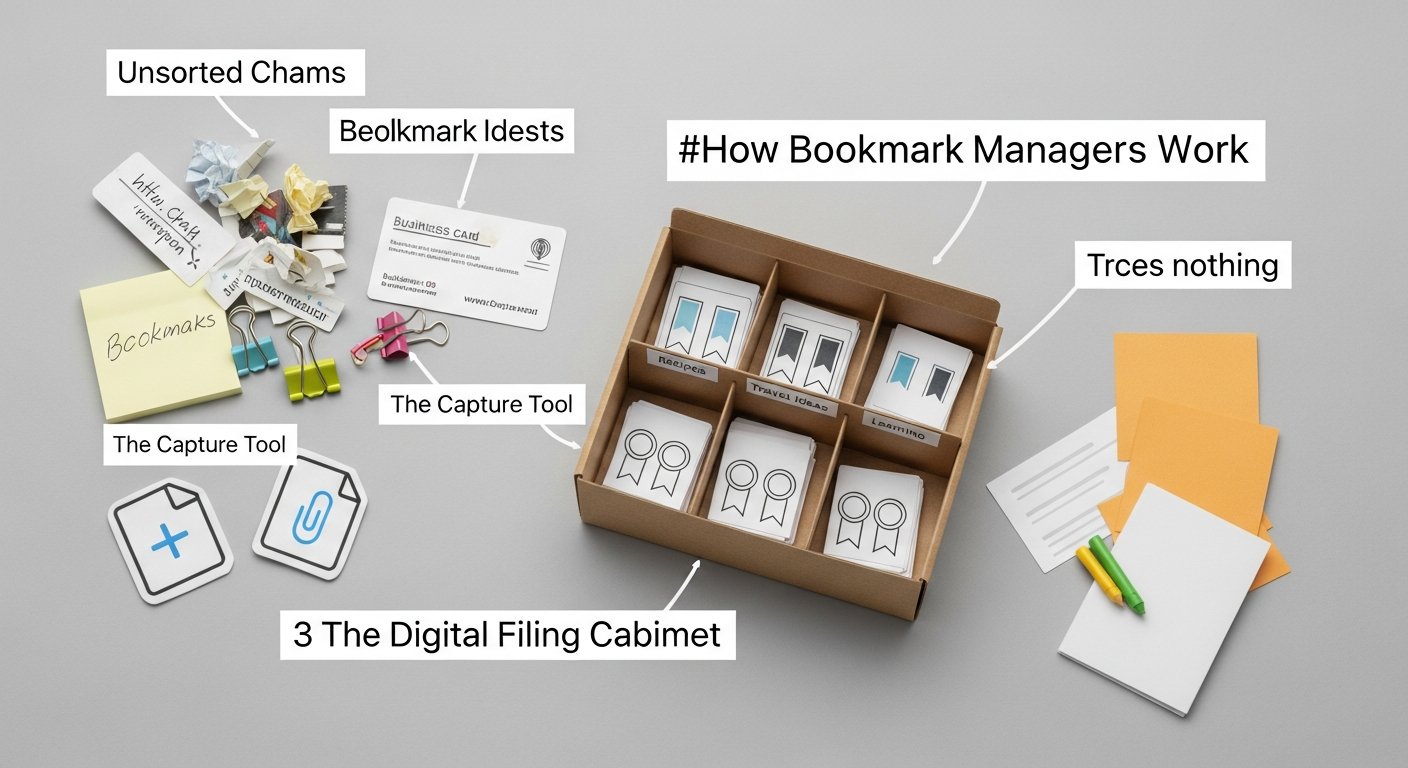

Understanding the Digital Labyrinth: How Do Bookmark Managers Work?
Affiliate disclosure: This article may contain affiliate links. Recommendations are independent and editorially driven.
In the vast, ever-expanding ocean of the internet, keeping track of valuable information can feel like trying to catch mist with a sieve. Every day, we encounter countless articles, research papers, tutorials, recipes, shopping links, and inspiring content that we wish to revisit, reference, or share. The traditional browser bookmark bar, while a staple for decades, often buckles under the sheer volume of our digital explorations, leading to a cluttered, unmanageable mess that defeats the very purpose of saving links.
This is where bookmark managers step in as indispensable tools for digital knowledge workers, researchers, students, content creators, and anyone committed to effective information management. More than just simple link savers, these sophisticated systems are designed to transform your digital hoarding into a well-organized, searchable, and actionable archive. But beyond the slick interfaces and promised productivity gains, a fundamental question often arises: exactly how do bookmark managers work to achieve this digital harmony?
This comprehensive guide will peel back the layers of these essential productivity tools, exploring their core mechanics, diverse features, underlying technologies, and the intricate workflows they enable. From basic capturing to advanced knowledge management, we’ll delve into the processes that empower you to tame the information overload, ensuring that every valuable link you encounter becomes a permanent, accessible asset in your personal or professional digital library. Prepare to unlock the secrets behind efficient web organization and elevate your digital productivity in 2026 and beyond.
The Core Mechanics: How Links Are Captured and Stored
At their heart, all bookmark managers perform two fundamental operations: capturing web links and storing them in an organized fashion. While the user experience might vary wildly between different tools, the underlying principles share common ground. Understanding these core mechanics is crucial to appreciating the power and utility of these systems.
Capturing Links: The Gateway to Your Digital Library
The act of saving a link might seem trivial, but bookmark managers employ several clever methods to make this process as seamless and informative as possible. They aim to not just save a URL but to capture its context and content effectively.
- Browser Extensions: This is arguably the most common and convenient method. A small piece of software integrates directly into your web browser (Chrome, Firefox, Edge, Safari, Brave, etc.). When you encounter a page you want to save, you simply click an icon in your browser’s toolbar. The extension then communicates with the bookmark manager’s server or local database. It typically captures:
- The URL of the current page.
- The page title.
- A description or excerpt from the page’s meta tags or initial content.
- Sometimes, a screenshot of the page or the favicon.
This method often allows for quick tagging, folder selection, and note addition directly within a small pop-up window, minimizing disruption to your browsing flow.
- “Share Sheet” Integrations (Mobile): On smartphones and tablets, bookmark managers often integrate with the operating system’s native share sheet. When you’re in a browser or another app and want to save a link, you tap the “Share” icon, and your bookmark manager appears as an option. This mirrors the browser extension functionality, sending the URL and metadata to the app.
- Direct Web Interface/Bookmarklet: For some services, or when a browser extension isn’t available or preferred, you can manually paste a URL into the bookmark manager’s web interface. Additionally, some provide a “bookmarklet”—a small piece of JavaScript code saved as a bookmark in your browser. Clicking this bookmarklet acts similarly to an extension, extracting information from the current page and prompting you to save it, even if you don’t have a full extension installed.
- Email Forwarding: A less common but useful method involves sending links to a specific email address provided by the bookmark manager. The system then parses the email, extracts URLs, and adds them to your collection. This is particularly handy for saving links discovered in newsletters or email communications.
- API Integrations: Advanced users or developers might leverage a bookmark manager’s API (Application Programming Interface) to programmatically send links from other applications, scripts, or services, creating highly customized capture workflows.
Data Storage and Synchronization: The Backbone of Accessibility
Once a link is captured, where does it go, and how does it remain accessible across all your devices? This involves robust data storage and synchronization mechanisms.
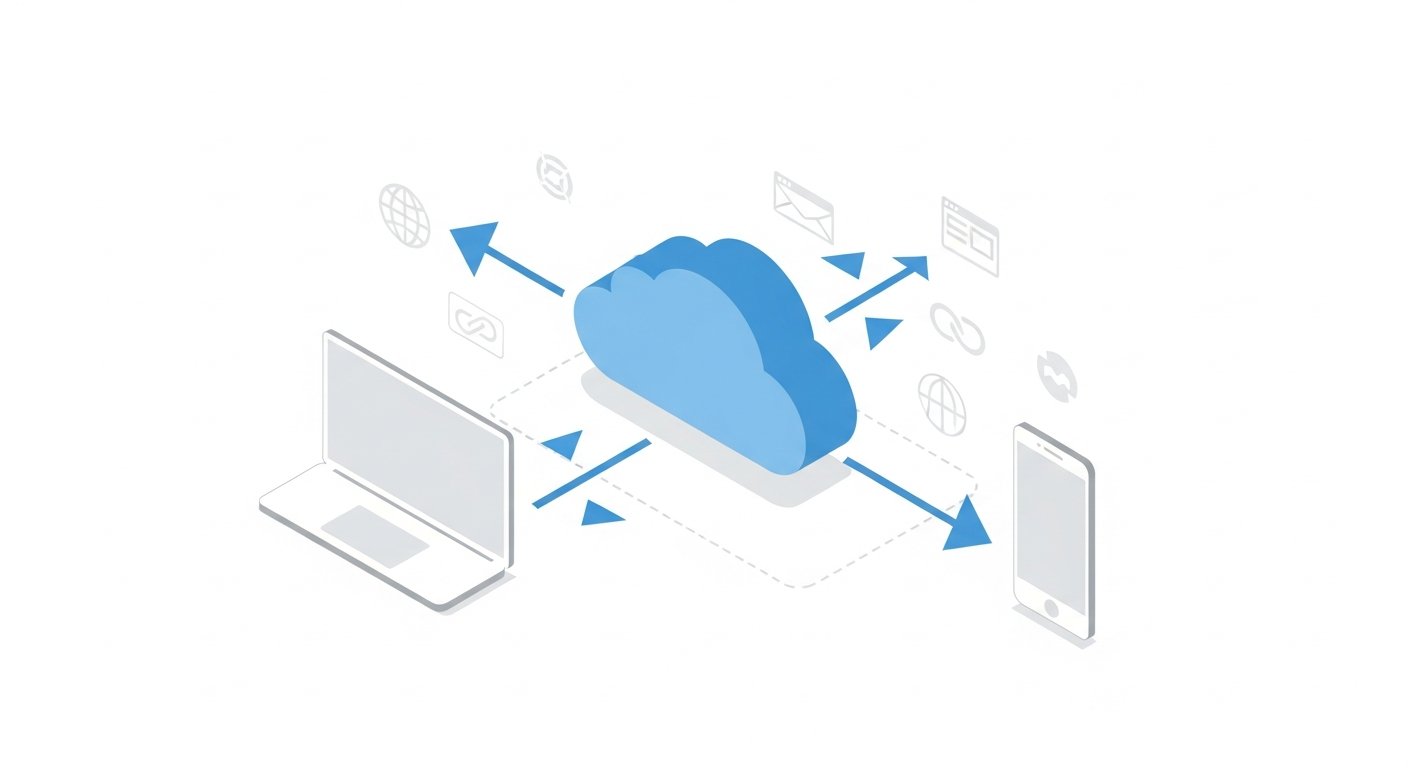
- Cloud-Based Storage: The vast majority of modern bookmark managers store your data in the cloud. This means your entire collection of links, tags, notes, and other associated metadata resides on the provider’s servers.
- Benefits: Universal accessibility from any device with an internet connection, automatic backups, and seamless synchronization. You log in from a new computer or phone, and your entire library is there.
- Considerations: Relies on the provider’s security and privacy policies. Data is not truly “yours” in a local sense, though reputable services offer export options.
- Local Storage (Less Common for Primary): Some browser-native bookmark systems (like your default browser bookmarks) store data primarily on your local machine. Desktop applications might also maintain a local database.
- Benefits: Full control over your data, no reliance on external servers.
- Considerations: Limited accessibility (only on the device where it’s stored), manual backup required, synchronization across devices is either non-existent or relies on the browser’s own sync service (which effectively acts as a limited cloud service).
- Synchronization Protocols: For cloud-based services, sophisticated synchronization protocols ensure that any change made on one device (adding a new bookmark, editing a tag, deleting an entry) is instantly or near-instantly reflected across all other devices where you’re logged in. This often involves real-time database updates and secure communication channels between your client application (browser extension, mobile app, web interface) and the central servers. When you open the bookmark manager on a new device, it fetches the latest state of your library from the cloud.
- Data Structure: Internally, this data is typically stored in a relational database or a NoSQL database, structured to allow for efficient searching, filtering, and retrieval based on various attributes like URL, title, tags, notes, and creation date. Each bookmark entry is an object with multiple properties.
[INLINE IMAGE 1: place after second H2 | alt=”how do bookmark managers work concept illustration”]
Beyond Basic Saving: Advanced Features and Functionalities
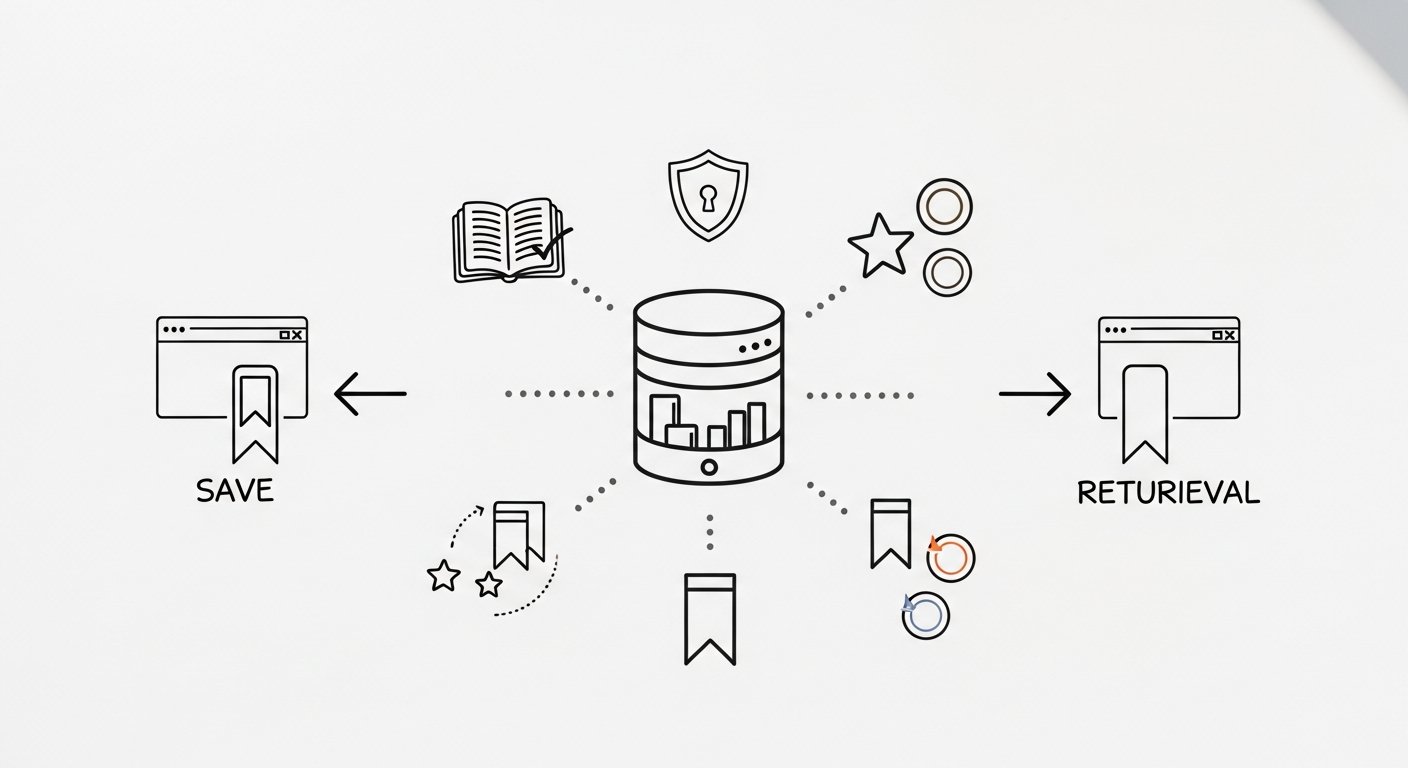
Simply saving a link is only the first step. The true power of a bookmark manager lies in its ability to organize, enrich, retrieve, and leverage that saved information. Modern tools offer a rich suite of features that transform a simple list of URLs into a powerful knowledge base.
Organization Systems: Tags, Folders, and Collections
A disorganized archive is almost as useless as no archive at all. Bookmark managers offer flexible ways to structure your saved content.
- Tags: This is the cornerstone of flexible organization. Tags are keywords or phrases you assign to a bookmark. Unlike folders, a single bookmark can have multiple tags, allowing for cross-categorization. For example, a recipe for “keto chicken curry” could be tagged “keto,” “chicken,” “curry,” “dinner,” and “Indian.” This allows you to retrieve it whether you’re looking for keto meals, chicken dishes, or Indian cuisine. Tags are often auto-suggested or generated from the page content, and many systems support tag hierarchies or tag bundles.
- Folders/Collections: While tags offer flexibility, hierarchical folders provide a more traditional, tree-like structure. You might have main folders like “Work,” “Personal,” “Research,” and then subfolders within them (e.g., “Work > Projects > Project X,” “Personal > Recipes > Dinner”). Some managers blend these, offering “collections” or “boards” that act like super-folders, often with a visual layout, where items can still be tagged for finer granularity.
- Smart Lists/Saved Searches: Advanced managers can create “smart lists” or “dynamic folders” based on specific criteria. For instance, a smart list could automatically display all bookmarks tagged “AI” AND “research” that were saved in the last 30 days. These lists update in real-time as new bookmarks matching the criteria are added.
Search and Filtering Capabilities: Finding What You Need, Fast
The ability to quickly locate a specific bookmark from potentially thousands is paramount. Bookmark managers excel here, far surpassing basic browser search.
- Full-Text Search: Many managers don’t just search the title and URL; they often index the full content of the saved web page. This means if you saved an article about “quantum computing ethics,” you can find it by searching for “ethics” even if neither the title nor the tags explicitly mention it. This requires sophisticated text indexing and parsing, often performed on the manager’s servers after the page is saved.
- Advanced Filters: Beyond search, you can typically filter your bookmarks by:
- Tags (single or multiple)
- Folders/Collections
- Date saved
- Type (e.g., article, video, image)
- Read status (read/unread)
- Source website/domain
- Any custom fields or annotations you’ve added.
These filters can often be combined to narrow down results with precision.
- Recommendation Engines: Some cutting-edge managers use AI to analyze your saved content and suggest related articles, tags, or even people to follow, enhancing discovery within your own knowledge base.
Annotation and Note-Taking: Adding Context and Personal Insights
A link without context can lose its value. Bookmark managers integrate features to add your personal touch and insights.
- Private Notes: For each bookmark, you can add private notes, summaries, key takeaways, or reminders. This transforms a simple link into a meaningful knowledge unit.
- Highlighting and Web Clipping: Some managers go a step further, allowing you to highlight specific text on a web page or clip particular sections (images, paragraphs) directly into your bookmark entry. This is incredibly useful for research, as it saves the most relevant parts of a page without needing to save the entire page or copy-paste into another application.
- Link Previews and Summaries: Many services automatically generate rich link previews, showing an image, title, and description, similar to how social media platforms display shared links. Some might even offer AI-powered summaries of the page content, saving you time.
Archiving and Offline Access: Preserving Content Beyond the Web
The internet is ephemeral. Pages change, go offline, or get paywalled. Bookmark managers address this fragility.
- Full-Page Archiving: A critical feature is the ability to save an entire static copy of a web page. This “web archive” or “snapshot” is stored on the bookmark manager’s servers (or sometimes locally). If the original page disappears or changes, you still have your saved version. This is invaluable for research, legal documentation, or simply preserving content you deem important. The manager essentially “crawls” the page at the moment of saving and stores its HTML, CSS, and images.
- PDF Conversion: Some tools can convert saved web pages into PDF format, making them easier to read offline, annotate with standard PDF tools, or share as a static document.
- Offline Mode: Mobile apps and some desktop versions of bookmark managers often allow you to download a selection of your bookmarks (including archived pages) for offline viewing, perfect for commutes or travel.
Sharing and Collaboration: Turning Individual Hoards into Collective Knowledge
Information is often more valuable when shared. Bookmark managers facilitate this in various ways.
- Public/Private Sharing: You can typically share individual bookmarks, collections, or even entire folders with others. This can be done via a public link, or privately with specific users or teams within the manager’s ecosystem.
- Team Accounts: Many services offer team or enterprise accounts, where multiple users can contribute to shared collections, tag collaboratively, and view each other’s contributions. This is ideal for research teams, content curation, or project knowledge bases.
- Export Options: For interoperability, most managers allow you to export your data in various formats, such as HTML (for importing into other browsers or managers), CSV, JSON, or even Markdown. This ensures you’re not locked into a single platform.
Integrations: Extending Functionality Across Your Digital Ecosystem
No tool exists in a vacuum. Bookmark managers often integrate with other popular productivity and knowledge management applications.
- Read-It-Later Services: Seamless integration with services like Pocket or Instapaper allows you to send articles directly for distraction-free reading.
- Note-Taking Apps: Connections with tools like Notion, Obsidian, Evernote, or OneNote can automatically send clipped content, highlights, or link summaries for deeper contextualization within your personal knowledge management system (PKM).
- Project Management Tools: For teams, integrating with platforms like Asana, Trello, or Jira can allow relevant links to be attached to tasks or projects directly from the bookmark manager.
- API for Developers: As mentioned, a robust API allows developers to build custom integrations, scripts, or workflows, connecting the bookmark manager to virtually any other web service or application.
Diverse Ecosystems: Types of Bookmark Managers Explained
Just as there are many ways to organize physical objects, there are numerous approaches to digital bookmark management. The landscape of bookmark managers is rich and varied, offering solutions tailored to different needs, technical proficiencies, and preferences. Understanding these categories is key to choosing the right tool for your specific workflow.
1. Browser-Native Bookmarks (The Basics)
Every major web browser (Chrome, Firefox, Edge, Safari, Brave, Opera) comes equipped with its own built-in bookmarking system. These are the most rudimentary forms of bookmark managers.
- How they work: When you click the star or bookmark icon, the browser saves the URL and title to its internal database. This data is typically stored locally on your device but can often be synchronized across devices if you’re logged into your browser’s account (e.g., Google account for Chrome, Firefox Sync for Firefox).
- Pros: Extremely simple to use, deeply integrated into your browsing experience, free, and often syncs automatically if logged in.
- Cons: Limited organization (mostly folders, some tagging via extensions but not native), rudimentary search (usually just title/URL), no full-page archiving, no advanced annotation, often clunky for large collections, and prone to clutter.
- Best for: Casual users who only save a few dozen links and don’t need advanced features or deep organization.
2. Standalone Web Services (The Cloud-Centric Powerhouses)
These are dedicated platforms accessed primarily through a web browser, often supported by companion browser extensions and mobile apps. They are purpose-built for comprehensive bookmark management.
- How they work: You sign up for an account, and all your data is stored in their cloud infrastructure. Browser extensions and mobile apps act as interfaces to capture and interact with this central cloud repository. They often offer advanced features like full-text search of archived pages, rich tagging, public/private sharing, and collaborative features.
- Pros: Highly robust, feature-rich, accessible from anywhere, cross-platform, often include full-page archiving, powerful search, and collaboration. Regular updates and dedicated support.
- Cons: Often require a subscription for full features, reliance on a third-party server, potential learning curve for advanced features.
- Examples: Pinboard (minimalist), Raindrop.io (visual, feature-rich), Diigo (annotation-heavy), Instapaper/Pocket (read-it-later focus with strong bookmarking), Omnivore (open-source read-it-later).
- Best for: Power users, researchers, content curators, teams, and anyone who needs a comprehensive, future-proof solution for thousands of links.
3. Desktop Applications (Niche, Often Local-First)
Less common in the modern cloud-first era, these are software programs installed directly on your computer. Some might offer cloud sync, but their primary operation is often local.
- How they work: They store data in a local database on your hard drive. Some may integrate with browsers via companion extensions or by monitoring clipboard activity. Cloud synchronization might be an add-on feature or handled by a third-party service.
- Pros: Full control over your data (if local-only), potentially faster performance (no network latency), can work offline entirely, deep system integration.
- Cons: Limited accessibility (tied to one machine unless synced), usually less polished UI/UX than web services, slower development cycle, often Windows/macOS specific.
- Examples: Some older tools, or niche applications for highly specific archival needs. Most modern solutions have migrated to web/hybrid models.
- Best for: Users with specific data privacy concerns, those who prefer local control, or individuals with highly specialized offline archival needs.
4. Hybrid Solutions (The Best of Both Worlds)
Many modern bookmark managers fall into this category, combining the ubiquity of web services with the convenience of browser extensions and mobile apps.
- How they work: They are essentially cloud-based web services that offer highly optimized browser extensions and dedicated mobile applications. The extension provides the seamless capture mechanism, the mobile app offers on-the-go access, and the web interface provides the full management dashboard. All data lives in the cloud and syncs across these interfaces.
- Pros: Optimal balance of features, accessibility, and ease of use. Seamless cross-device experience.
- Cons: Generally subscription-based for advanced features, still reliant on a third-party service for cloud storage.
- Best for: The majority of users seeking a powerful yet convenient bookmarking solution.
5. PKM Tools with Bookmarking Features (Integrated Knowledge Management)
A growing trend involves personal knowledge management (PKM) tools that incorporate robust bookmarking capabilities as part of a larger system for organizing all forms of knowledge.
- How they work: These tools (often web-based, desktop-based, or hybrid) treat bookmarks not as isolated links, but as nodes in a broader knowledge graph. They might allow you to link bookmarks to notes, projects, people, or other resources. Bookmarking becomes one input stream among many (e.g., notes, documents, thoughts). They typically offer advanced tagging, bi-directional linking, and rich text editing alongside link saving.
- Pros: Hollistic approach to knowledge, ability to build deep connections between information, often supports custom schemas and extensive metadata, future-proof for evolving knowledge needs.
- Cons: Can have a steep learning curve, potentially more complex than a dedicated bookmark manager, may not have the same level of full-page archiving or public sharing features as standalone bookmark services.
- Examples: Notion (databases for links), Obsidian (with bookmark plugins), Anytype, Logseq.
- Best for: Serious knowledge managers, researchers, students, and anyone building a comprehensive personal or team knowledge base.
Learn more about the differences between bookmark managers and PKM tools.
[INLINE IMAGE 2: place after fourth H2 | alt=”how do bookmark managers work comparison illustration”]
Choosing the Right Bookmark Manager: A Feature Comparison
With such a diverse ecosystem, selecting the ideal bookmark manager requires careful consideration of your specific needs, workflow, and budget. Here, we’ll compare key aspects across different types and popular options to help you make an informed decision.
Key Factors to Consider When Evaluating Options
- Ease of Use & User Interface (UI): How intuitive is the process of saving, organizing, and retrieving bookmarks? Is the interface clean and visually appealing, or cluttered and confusing?
- Feature Set: Does it offer the specific features you need (e.g., full-page archiving, annotation, collaboration, mobile apps, full-text search)?
- Organization Capabilities: How flexible are its tagging, folder, and collection systems? Can it handle thousands of bookmarks without becoming a mess?
- Search & Retrieval: How powerful is the search? Does it include full-text search of archived content? What filtering options are available?
- Platform Compatibility: Does it work across all your devices and browsers (desktop, mobile, specific browsers)?
- Privacy & Security: How does the service handle your data? Do they offer encryption, and what are their data retention policies?
- Cost: Is it free, freemium (basic free, advanced paid), or subscription-only? What’s the value proposition for the price?
- Export Options: Can you easily export your data in a usable format if you decide to switch services in the future? This is crucial for data portability.
- Community & Support: Is there an active user community or responsive customer support if you run into issues?
Comparison Table: Popular Bookmark Managers and Their Strengths
| Feature/Service | Raindrop.io | Pocket / Instapaper | Pinboard | Diigo | Notion (as a PKM tool) |
|---|---|---|---|---|---|
| Primary Focus | Visual Bookmarking, Content Curation | Read-It-Later, Distraction-Free Reading | Minimalist, Tag-Driven Archiving | Web Annotation, Research | All-in-One Workspace, Databases |
| Ease of Use | Very High (Visual) | High | Moderate (Text-based) | Moderate to High | Moderate to High (Steep for databases) |
| Full-Page Archiving | Yes (Pro) | Yes (Premium) | Yes (Paid Add-on) | Yes (Premium) | No (can embed/link to external archives) |
| Full-Text Search | Yes (Pro) | Yes (Premium) | Yes (Paid Add-on) | Yes | Yes (within pages/databases) |
| Annotation/Highlighting | Limited notes | Yes (within reader) | No | Yes (on page & in app) | Yes (within notes linked to bookmark) |
| Collaboration | Yes (Teams) | Limited (sharing lists) | Limited (public/private) | Yes (groups) | Excellent (shared workspaces) |
| Visual Organization | Excellent (Collections, Thumbnails) | Good (Lists, Tags) | Minimal (Tag Clouds) | Good (Folders, Outlines) | Excellent (Customizable Tables, Galleries) |
| Pricing Model | Freemium | Freemium | One-time purchase + optional add-on | Freemium | Freemium |
| Best For | Designers, visual learners, general curators | Heavy readers, article savers | Developers, minimalists, archivists | Students, researchers, educators | Comprehensive PKM, teams, custom workflows |
This table is a simplified overview. Each service offers a deeper set of features and nuances. For instance, Pinboard, while minimalist, is renowned for its speed, reliability, and emphasis on user control over data. Raindrop.io shines with its beautiful, visual interface and powerful collection management. Pocket and Instapaper focus on optimizing the reading experience, stripping away distractions. Diigo is a favorite among academics for its robust highlighting and annotation tools. Notion, while not a dedicated bookmark manager, offers incredible flexibility to build custom bookmarking databases as part of a larger knowledge system.
Explore our detailed reviews of the best bookmark managers for 2026.
Advanced Workflows and Best Practices with Bookmark Managers
Understanding how bookmark managers work is one thing; leveraging them to their fullest potential is another. Beyond simply saving links, these tools become truly transformative when integrated into strategic workflows. Here are some advanced practices to elevate your digital organization and knowledge management.
Designing an Effective Tagging and Folder System
The success of your bookmark manager largely depends on how you organize your content. A well-thought-out system prevents “digital rot” and ensures discoverability.
- Develop a Standardized Tag Taxonomy: Before you start tagging indiscriminately, create a list of core tags you’ll use consistently. Think in terms of categories (e.g., “Tech,” “Productivity,” “Marketing”), topics (e.g., “AI,” “Blockchain,” “Content Creation”), types of content (e.g., “Article,” “Video,” “Tool”), and status (e.g., “Read Later,” “Reference,” “Actionable”).
- Use Hierarchical Tags (where supported): If your manager supports it, use tag hierarchies (e.g., “Research/AI,” “Research/ML”). If not, use a consistent naming convention like “research-ai” or “research_ml.”
- Don’t Over-Tag, Don’t Under-Tag: Aim for 3-7 relevant tags per bookmark. Too few makes it hard to find; too many can make tags meaningless.
- Combine Tags and Folders/Collections: Use folders for broad categories (e.g., “Work Projects,” “Personal Interests”) and tags for granular cross-referencing within those folders. A “Project X” folder might contain bookmarks tagged “budget,” “client communication,” and “inspiration.”
- Regular Review and Refinement: Periodically review your tags and folders. Are there redundancies? New categories emerging? Prune unused tags and merge similar ones.
Integrating with Your Broader PKM (Personal Knowledge Management) System
For many, bookmarks are just one piece of a larger knowledge puzzle. Seamless integration with other PKM tools amplifies their utility.
- Connect with Note-Taking Apps: If your bookmark manager supports it, automatically send saved links or highlights to your preferred note-taking app (Obsidian, Notion, Evernote, Roam Research). This allows you to elaborate on the content, link it to other notes, and embed it within your knowledge graph. For example, a research paper saved in your bookmark manager could be linked to a summary note in Obsidian, with key quotes and your own insights.
- Leverage Bi-Directional Linking: If your PKM tool supports bi-directional links, create links between your bookmark entries and your notes. This means that from a note about “AI ethics,” you can see all related bookmarks, and from a saved article on “AI ethics,” you can see all notes referencing it.
- Use Bookmarks as Project Resources: For project management, create dedicated collections or tags for each project. Link these collections to your project management software (e.g., Trello, Asana) or directly integrate the URLs into project tasks. This keeps all project-related resources consolidated and accessible.
- Content Curation Workflows: If you’re a content creator, use your bookmark manager to curate resources for articles, newsletters, or social media posts. Create a “Content Ideas” collection, tag links by topic, and use notes to brainstorm angles.
Leveraging Automation and Smart Features
Many bookmark managers offer automation features that can save significant time and effort.
- Automated Tagging: Some tools use AI to suggest or automatically apply tags based on the content of the saved page. Review these suggestions, but they can be a great starting point.
- Rules and Filters: Set up rules to automatically categorize bookmarks based on their domain, title, or content. For example, all links from “youtube.com” could automatically go into a “Videos” folder, or all links containing “AI” in the title could get an “AI” tag.
- RSS Feed Integration: Some managers allow you to subscribe to RSS feeds. New articles from these feeds can automatically be added to a specific collection, creating a personalized news reader within your manager.
- Scheduled Backups: Ensure your bookmark manager has robust backup procedures. If you’re using a service that allows it, schedule regular exports of your data to local storage or another cloud service as an extra layer of redundancy.
Discover powerful extensions to supercharge your bookmark manager experience.
Regular Maintenance and Review: Keeping Your Library Alive
A bookmark library is a living entity; it requires periodic maintenance to remain useful.
- The “Inbox Zero” for Bookmarks: Try to process newly saved bookmarks regularly. Don’t just save and forget. Allocate time each week to tag, add notes, and move new bookmarks into their appropriate folders or collections.
- Periodic Pruning: Go through older bookmarks. Are they still relevant? Are the links still live? Delete outdated, broken, or irrelevant entries. This keeps your library lean and useful.
- Revisit and Engage: The purpose of saving bookmarks is to use them. Schedule time to revisit older resources, reread articles, or review your highlights. This reinforces learning and reminds you of valuable information you’ve collected.
The Future Landscape of Digital Bookmarking
The evolution of technology rarely stands still, and bookmark managers are no exception. As our digital lives become more complex and the volume of information continues to explode, these tools are adapting, integrating new technologies, and offering even more sophisticated ways to manage our web knowledge. Looking ahead to 2026 and beyond, several key trends are shaping the future of digital bookmarking.
Artificial Intelligence and Machine Learning Integration
AI is poised to revolutionize how we interact with and extract value from our saved content.
- Smarter Organization: AI algorithms will move beyond simple tag suggestions. They will be able to automatically categorize bookmarks with high accuracy, infer relationships between different links (even across diverse topics), and suggest optimal folder structures based on your usage patterns. Imagine your manager identifying that a link about “serverless functions” is related to your “Cloud Computing Project” and automatically placing it there, while also suggesting other related serverless resources you’ve saved.
- Intelligent Summarization and Extraction: AI-powered summarization will become standard, providing instant digests of long articles, saving significant reading time. Furthermore, AI will be able to extract key entities, concepts, and data points from saved pages, making your content even more searchable and actionable without manual effort. For instance, saving a research paper might automatically extract authors, publication year, key findings, and methodologies into structured metadata.
- Personalized Discovery and Recommendations: Beyond finding what you’ve saved, AI will help you discover new, relevant content based on your saved history, reading habits, and explicit interests. It could recommend articles from across the web, or even surface forgotten gems from your own archive that are relevant to a current task or query.
- Contextual Link Previews: Instead of static screenshots, future managers might offer dynamic, interactive previews of saved pages, perhaps even answering questions about the content without requiring you to open the original link.
Enhanced Collaboration and Knowledge Sharing
As remote work and distributed teams become the norm, collaborative features in bookmark managers will grow more sophisticated.
- Seamless Team Workspaces: Expect deeper integrations into team collaboration platforms, allowing shared bookmark collections to function as robust knowledge bases for projects, departments, or entire organizations. This includes granular permission controls, versioning of archived pages, and real-time co-annotation.
- Crowdsourced Tagging and Curation: For public collections or communities, shared tagging and content moderation tools will allow groups to collectively enrich and refine knowledge sets, similar to Wikipedia, but for curated links.
- Integrated Discussion and Feedback: Direct commenting threads on shared bookmarks or collections will facilitate discussions around saved content, enabling teams to debate insights, ask questions, and build collective understanding directly within the manager.
Deeper Content Interaction and Interoperability
The boundaries between bookmark managers, read-it-later apps, and PKM tools will continue to blur, leading to more fluid interactions with saved content.
- Richer Annotation Capabilities: Beyond simple highlights, expect advanced tools for creating mind maps, concept diagrams, or even interactive quizzes directly on archived web pages. The line between reading and actively engaging with content will disappear.
- Standardized Data Formats and APIs: While export options exist, true interoperability will come from more standardized data formats for saved web content and more open, robust APIs. This will make it easier to migrate between services or build custom integrations without fear of vendor lock-in.
- Cross-Application Unification: Imagine a future where your highlight from a web page (saved in your bookmark manager) automatically appears as a flashcard in your spaced repetition system, and a key quote from that page is suggested when you’re writing a document in your word processor. The goal is a unified knowledge fabric.
Privacy, Security, and Decentralization
With growing concerns about data privacy, bookmark managers will need to offer more transparency and control.
- Enhanced Encryption and Control: End-to-end encryption for stored content and metadata will become a more common offering, giving users greater peace of mind. Options for self-hosting or choosing data residency regions might also expand.
- Decentralized Bookmarking: The rise of Web3 technologies could usher in decentralized bookmarking solutions, where users truly own and control their data on blockchain-like networks, rather than relying on a central server. This could offer unprecedented levels of privacy and censorship resistance.
- Transparent AI Usage: As AI becomes more integrated, services will need to be transparent about how user data is used to train models and what privacy safeguards are in place for AI-driven features.
The trajectory of bookmark managers points towards more intelligent, integrated, and collaborative systems. They are evolving from simple repositories of links into powerful personal and collective knowledge assistants, capable of not just storing information, but actively helping us understand, analyze, and leverage it in meaningful ways. Embracing these evolving tools will be crucial for anyone navigating the ever-increasing informational demands of the digital age.
Conclusion: Mastering Your Digital Landscape with Bookmark Managers
We’ve embarked on a comprehensive journey to understand how do bookmark managers work, from the fundamental act of capturing a URL to the sophisticated features that transform a chaotic collection of links into a meticulously organized, searchable, and actionable knowledge base. It’s clear that these tools are far more than mere digital placeholders; they are essential components of a robust personal and professional knowledge management strategy in 2026 and beyond.
At their core, bookmark managers operate by efficiently capturing web page metadata, often including full content archives, and storing this information securely in the cloud. This architecture ensures universal accessibility and seamless synchronization across all your devices. However, their true value emerges from the layers of functionality built upon this foundation: dynamic tagging systems that allow for multi-dimensional organization, powerful full-text search capabilities that uncover forgotten insights, integrated annotation tools for contextualizing information, and robust sharing features that foster collaboration.
Whether you’re a student overwhelmed by research papers, a professional curating industry trends, a content creator seeking inspiration, or simply an avid internet explorer, there’s a bookmark manager designed for your specific needs. From minimalist, tag-focused services to visually rich content curation platforms and comprehensive PKM tools, the ecosystem offers a spectrum of solutions.
The future of digital bookmarking is even more exciting, promising deeper integration of artificial intelligence for intelligent organization and discovery, enhanced collaborative workflows for teams, and greater emphasis on data ownership and interoperability. As the internet continues to grow, the necessity of these digital librarians will only intensify.
By understanding their mechanics, exploring their features, and adopting best practices for organization and integration, you can transform your digital life from one of overwhelming information overload to one of empowered knowledge mastery. Invest the time to choose the right bookmark manager, commit to an organizational system, and regularly engage with your saved content. The payoff will be a highly productive, less stressful, and infinitely more insightful digital experience, where every saved link contributes meaningfully to your personal and collective intelligence.
Frequently Asked Questions
Q1: What’s the main difference between browser bookmarks and a dedicated bookmark manager?
A1: Browser bookmarks are typically basic, offering limited organization (mostly folders), simple search (title/URL only), and no advanced features like full-page archiving or robust annotation. A dedicated bookmark manager, on the other hand, is a specialized tool designed for comprehensive web content management. It provides advanced tagging, powerful full-text search (even of archived page content), rich annotation and note-taking, full-page archiving for future reference, collaborative features, and usually works seamlessly across all browsers and devices through cloud synchronization. They offer far greater control, flexibility, and longevity for your saved links.
Q2: Are bookmark managers secure? How is my data protected?
A2: Reputable bookmark managers prioritize security. Most cloud-based services use industry-standard encryption protocols (like HTTPS for data in transit and AES-256 for data at rest on their servers) to protect your information. They also typically implement authentication (passwords, sometimes two-factor authentication) to secure access to your account. However, security ultimately depends on the provider’s practices, so it’s always advisable to choose well-established services, use strong, unique passwords, and enable any available security features like 2FA. Some offer private or encrypted notes for sensitive information.
Q3: Can I import my existing browser bookmarks into a new bookmark manager?
A3: Yes, nearly all dedicated bookmark managers offer an import function. Your browser can typically export its bookmarks as an HTML file
Understanding the Digital Labyrinth: How Do Bookmark Managers Work?
Affiliate disclosure: This article may contain affiliate links. Recommendations are independent and editorially driven.
In the vast, ever-expanding ocean of the internet, keeping track of valuable information can feel like trying to catch mist with a sieve. Every day, we encounter countless articles, research papers, tutorials, recipes, shopping links, and inspiring content that we wish to revisit, reference, or share. The traditional browser bookmark bar, while a staple for decades, often buckles under the sheer volume of our digital explorations, leading to a cluttered, unmanageable mess that defeats the very purpose of saving links.
This is where bookmark managers step in as indispensable tools for digital knowledge workers, researchers, students, content creators, and anyone committed to effective information management. More than just simple link savers, these sophisticated systems are designed to transform your digital hoarding into a well-organized, searchable, and actionable archive. But beyond the slick interfaces and promised productivity gains, a fundamental question often arises: exactly how do bookmark managers work to achieve this digital harmony?
This comprehensive guide will peel back the layers of these essential productivity tools, exploring their core mechanics, diverse features, underlying technologies, and the intricate workflows they enable. From basic capturing to advanced knowledge management, we’ll delve into the processes that empower you to tame the information overload, ensuring that every valuable link you encounter becomes a permanent, accessible asset in your personal or professional digital library. Prepare to unlock the secrets behind efficient web organization and elevate your digital productivity in 2026 and beyond.
The Core Mechanics: How Links Are Captured and Stored
At their heart, all bookmark managers perform two fundamental operations: capturing web links and storing them in an organized fashion. While the user experience might vary wildly between different tools, the underlying principles share common ground. Understanding these core mechanics is crucial to appreciating the power and utility of these systems.
Capturing Links: The Gateway to Your Digital Library
The act of saving a link might seem trivial, but bookmark managers employ several clever methods to make this process as seamless and informative as possible. They aim to not just save a URL but to capture its context and content effectively.
- Browser Extensions: This is arguably the most common and convenient method. A small piece of software integrates directly into your web browser (Chrome, Firefox, Edge, Safari, Brave, etc.). When you encounter a page you want to save, you simply click an icon in your browser’s toolbar. The extension then communicates with the bookmark manager’s server or local database. It typically captures:
- The URL of the current page.
- The page title.
- A description or excerpt from the page’s meta tags or initial content.
- Sometimes, a screenshot of the page or the favicon.
This method often allows for quick tagging, folder selection, and note addition directly within a small pop-up window, minimizing disruption to your browsing flow.
- “Share Sheet” Integrations (Mobile): On smartphones and tablets, bookmark managers often integrate with the operating system’s native share sheet. When you’re in a browser or another app and want to save a link, you tap the “Share” icon, and your bookmark manager appears as an option. This mirrors the browser extension functionality, sending the URL and metadata to the app.
- Direct Web Interface/Bookmarklet: For some services, or when a browser extension isn’t available or preferred, you can manually paste a URL into the bookmark manager’s web interface. Additionally, some provide a “bookmarklet”—a small piece of JavaScript code saved as a bookmark in your browser. Clicking this bookmarklet acts similarly to an extension, extracting information from the current page and prompting you to save it, even if you don’t have a full extension installed.
- Email Forwarding: A less common but useful method involves sending links to a specific email address provided by the bookmark manager. The system then parses the email, extracts URLs, and adds them to your collection. This is particularly handy for saving links discovered in newsletters or email communications.
- API Integrations: Advanced users or developers might leverage a bookmark manager’s API (Application Programming Interface) to programmatically send links from other applications, scripts, or services, creating highly customized capture workflows.
Data Storage and Synchronization: The Backbone of Accessibility
Once a link is captured, where does it go, and how does it remain accessible across all your devices? This involves robust data storage and synchronization mechanisms.
- Cloud-Based Storage: The vast majority of modern bookmark managers store your data in the cloud. This means your entire collection of links, tags, notes, and other associated metadata resides on the provider’s servers.
- Benefits: Universal accessibility from any device with an internet connection, automatic backups, and seamless synchronization. You log in from a new computer or phone, and your entire library is there.
- Considerations: Relies on the provider’s security and privacy policies. Data is not truly “yours” in a local sense, though reputable services offer export options.
- Local Storage (Less Common for Primary): Some browser-native bookmark systems (like your default browser bookmarks) store data primarily on your local machine. Desktop applications might also maintain a local database.
- Benefits: Full control over your data, no reliance on external servers.
- Considerations: Limited accessibility (only on the device where it’s stored), manual backup required, synchronization across devices is either non-existent or relies on the browser’s own sync service (which effectively acts as a limited cloud service).
- Synchronization Protocols: For cloud-based services, sophisticated synchronization protocols ensure that any change made on one device (adding a new bookmark, editing a tag, deleting an entry) is instantly or near-instantly reflected across all other devices where you’re logged in. This often involves real-time database updates and secure communication channels between your client application (browser extension, mobile app, web interface) and the central servers. When you open the bookmark manager on a new device, it fetches the latest state of your library from the cloud.
- Data Structure: Internally, this data is typically stored in a relational database or a NoSQL database, structured to allow for efficient searching, filtering, and retrieval based on various attributes like URL, title, tags, notes, and creation date. Each bookmark entry is an object with multiple properties.
[INLINE IMAGE 1: place after second H2 | alt=”how do bookmark managers work concept illustration”]
Beyond Basic Saving: Advanced Features and Functionalities
Simply saving a link is only the first step. The true power of a bookmark manager lies in its ability to organize, enrich, retrieve, and leverage that saved information. Modern tools offer a rich suite of features that transform a simple list of URLs into a powerful knowledge base.
Organization Systems: Tags, Folders, and Collections
A disorganized archive is almost as useless as no archive at all. Bookmark managers offer flexible ways to structure your saved content.
- Tags: This is the cornerstone of flexible organization. Tags are keywords or phrases you assign to a bookmark. Unlike folders, a single bookmark can have multiple tags, allowing for cross-categorization. For example, a recipe for “keto chicken curry” could be tagged “keto,” “chicken,” “curry,” “dinner,” and “Indian.” This allows you to retrieve it whether you’re looking for keto meals, chicken dishes, or Indian cuisine. Tags are often auto-suggested or generated from the page content, and many systems support tag hierarchies or tag bundles.
- Folders/Collections: While tags offer flexibility, hierarchical folders provide a more traditional, tree-like structure. You might have main folders like “Work,” “Personal,” “Research,” and then subfolders within them (e.g., “Work > Projects > Project X,” “Personal > Recipes > Dinner”). Some managers blend these, offering “collections” or “boards” that act like super-folders, often with a visual layout, where items can still be tagged for finer granularity.
- Smart Lists/Saved Searches: Advanced managers can create “smart lists” or “dynamic folders” based on specific criteria. For instance, a smart list could automatically display all bookmarks tagged “AI” AND “research” that were saved in the last 30 days. These lists update in real-time as new bookmarks matching the criteria are added.
Search and Filtering Capabilities: Finding What You Need, Fast
The ability to quickly locate a specific bookmark from potentially thousands is paramount. Bookmark managers excel here, far surpassing basic browser search.
- Full-Text Search: Many managers don’t just search the title and URL; they often index the full content of the saved web page. This means if you saved an article about “quantum computing ethics,” you can find it by searching for “ethics” even if neither the title nor the tags explicitly mention it. This requires sophisticated text indexing and parsing, often performed on the manager’s servers after the page is saved.
- Advanced Filters: Beyond search, you can typically filter your bookmarks by:
- Tags (single or multiple)
- Folders/Collections
- Date saved
- Type (e.g., article, video, image)
- Read status (read/unread)
- Source website/domain
- Any custom fields or annotations you’ve added.
These filters can often be combined to narrow down results with precision.
- Recommendation Engines: Some cutting-edge managers use AI to analyze your saved content and suggest related articles, tags, or even people to follow, enhancing discovery within your own knowledge base.
Annotation and Note-Taking: Adding Context and Personal Insights
A link without context can lose its value. Bookmark managers integrate features to add your personal touch and insights.
- Private Notes: For each bookmark, you can add private notes, summaries, key takeaways, or reminders. This transforms a simple link into a meaningful knowledge unit.
- Highlighting and Web Clipping: Some managers go a step further, allowing you to highlight specific text on a web page or clip particular sections (images, paragraphs) directly into your bookmark entry. This is incredibly useful for research, as it saves the most relevant parts of a page without needing to save the entire page or copy-paste into another application.
- Link Previews and Summaries: Many services automatically generate rich link previews, showing an image, title, and description, similar to how social media platforms display shared links. Some might even offer AI-powered summaries of the page content, saving you time.
Archiving and Offline Access: Preserving Content Beyond the Web
The internet is ephemeral. Pages change, go offline, or get paywalled. Bookmark managers address this fragility.
- Full-Page Archiving: A critical feature is the ability to save an entire static copy of a web page. This “web archive” or “snapshot” is stored on the bookmark manager’s servers (or sometimes locally). If the original page disappears or changes, you still have your saved version. This is invaluable for research, legal documentation, or simply preserving content you deem important. The manager essentially “crawls” the page at the moment of saving and stores its HTML, CSS, and images.
- PDF Conversion: Some tools can convert saved web pages into PDF format, making them easier to read offline, annotate with standard PDF tools, or share as a static document.
- Offline Mode: Mobile apps and some desktop versions of bookmark managers often allow you to download a selection of your bookmarks (including archived pages) for offline viewing, perfect for commutes or travel.
Sharing and Collaboration: Turning Individual Hoards into Collective Knowledge
Information is often more valuable when shared. Bookmark managers facilitate this in various ways.
- Public/Private Sharing: You can typically share individual bookmarks, collections, or even entire folders with others. This can be done via a public link, or privately with specific users or teams within the manager’s ecosystem.
- Team Accounts: Many services offer team or enterprise accounts, where multiple users can contribute to shared collections, tag collaboratively, and view each other’s contributions. This is ideal for research teams, content curation, or project knowledge bases.
- Export Options: For interoperability, most managers allow you to export your data in various formats, such as HTML (for importing into other browsers or managers), CSV, JSON, or even Markdown. This ensures you’re not locked into a single platform.
Integrations: Extending Functionality Across Your Digital Ecosystem
No tool exists in a vacuum. Bookmark managers often integrate with other popular productivity and knowledge management applications.
- Read-It-Later Services: Seamless integration with services like Pocket or Instapaper allows you to send articles directly for distraction-free reading.
- Note-Taking Apps: Connections with tools like Notion, Obsidian, Evernote, or OneNote can automatically send clipped content, highlights, or link summaries for deeper contextualization within your personal knowledge management system (PKM).
- Project Management Tools: For teams, integrating with platforms like Asana, Trello, or Jira can allow relevant links to be attached to tasks or projects directly from the bookmark manager.
- API for Developers: As mentioned, a robust API allows developers to build custom integrations, scripts, or workflows, connecting the bookmark manager to virtually any other web service or application.
Diverse Ecosystems: Types of Bookmark Managers Explained
Just as there are many ways to organize physical objects, there are numerous approaches to digital bookmark management. The landscape of bookmark managers is rich and varied, offering solutions tailored to different needs, technical proficiencies, and preferences. Understanding these categories is key to choosing the right tool for your specific workflow.
1. Browser-Native Bookmarks (The Basics)
Every major web browser (Chrome, Firefox, Edge, Safari, Brave, Opera) comes equipped with its own built-in bookmarking system. These are the most rudimentary forms of bookmark managers.
- How they work: When you click the star or bookmark icon, the browser saves the URL and title to its internal database. This data is typically stored locally on your device but can often be synchronized across devices if you’re logged into your browser’s account (e.g., Google account for Chrome, Firefox Sync for Firefox).
- Pros: Extremely simple to use, deeply integrated into your browsing experience, free, and often syncs automatically if logged in.
- Cons: Limited organization (mostly folders, some tagging via extensions but not native), rudimentary search (usually just title/URL), no full-page archiving, no advanced annotation, often clunky for large collections, and prone to clutter.
- Best for: Casual users who only save a few dozen links and don’t need advanced features or deep organization.
2. Standalone Web Services (The Cloud-Centric Powerhouses)
These are dedicated platforms accessed primarily through a web browser, often supported by companion browser extensions and mobile apps. They are purpose-built for comprehensive bookmark management.
- How they work: You sign up for an account, and all your data is stored in their cloud infrastructure. Browser extensions and mobile apps act as interfaces to capture and interact with this central cloud repository. They often offer advanced features like full-text search of archived pages, rich tagging, public/private sharing, and collaborative features.
- Pros: Highly robust, feature-rich, accessible from anywhere, cross-platform, often include full-page archiving, powerful search, and collaboration. Regular updates and dedicated support.
- Cons: Often require a subscription for full features, reliance on a third-party server, potential learning curve for advanced features.
- Examples: Pinboard (minimalist), Raindrop.io (visual, feature-rich), Diigo (annotation-heavy), Instapaper/Pocket (read-it-later focus with strong bookmarking), Omnivore (open-source read-it-later).
- Best for: Power users, researchers, content curators, teams, and anyone who needs a comprehensive, future-proof solution for thousands of links.
3. Desktop Applications (Niche, Often Local-First)
Less common in the modern cloud-first era, these are software programs installed directly on your computer. Some might offer cloud sync, but their primary operation is often local.
- How they work: They store data in a local database on your hard drive. Some may integrate with browsers via companion extensions or by monitoring clipboard activity. Cloud synchronization might be an add-on feature or handled by a third-party service.
- Pros: Full control over your data (if local-only), potentially faster performance (no network latency), can work offline entirely, deep system integration.
- Cons: Limited accessibility (tied to one machine unless synced), usually less polished UI/UX than web services, slower development cycle, often Windows/macOS specific.
- Examples: Some older tools, or niche applications for highly specific archival needs. Most modern solutions have migrated to web/hybrid models.
- Best for: Users with specific data privacy concerns, those who prefer local control, or individuals with highly specialized offline archival needs.
4. Hybrid Solutions (The Best of Both Worlds)
Many modern bookmark managers fall into this category, combining the ubiquity of web services with the convenience of browser extensions and mobile apps.
- How they work: They are essentially cloud-based web services that offer highly optimized browser extensions and dedicated mobile applications. The extension provides the seamless capture mechanism, the mobile app offers on-the-go access, and the web interface provides the full management dashboard. All data lives in the cloud and syncs across these interfaces.
- Pros: Optimal balance of features, accessibility, and ease of use. Seamless cross-device experience.
- Cons: Generally subscription-based for advanced features, still reliant on a third-party service for cloud storage.
- Best for: The majority of users seeking a powerful yet convenient bookmarking solution.
5. PKM Tools with Bookmarking Features (Integrated Knowledge Management)
A growing trend involves personal knowledge management (PKM) tools that incorporate robust bookmarking capabilities as part of a larger system for organizing all forms of knowledge.
- How they work: These tools (often web-based, desktop-based, or hybrid) treat bookmarks not as isolated links, but as nodes in a broader knowledge graph. They might allow you to link bookmarks to notes, projects, people, or other resources. Bookmarking becomes one input stream among many (e.g., notes, documents, thoughts). They typically offer advanced tagging, bi-directional linking, and rich text editing alongside link saving.
- Pros: Hollistic approach to knowledge, ability to build deep connections between information, often supports custom schemas and extensive metadata, future-proof for evolving knowledge needs.
- Cons: Can have a steep learning curve, potentially more complex than a dedicated bookmark manager, may not have the same level of full-page archiving or public sharing features as standalone bookmark services.
- Examples: Notion (databases for links), Obsidian (with bookmark plugins), Anytype, Logseq.
- Best for: Serious knowledge managers, researchers, students, and anyone building a comprehensive personal or team knowledge base.
Learn more about the differences between bookmark managers and PKM tools.
[INLINE IMAGE 2: place after fourth H2 | alt=”how do bookmark managers work comparison illustration”]
Choosing the Right Bookmark Manager: A Feature Comparison
With such a diverse ecosystem, selecting the ideal bookmark manager requires careful consideration of your specific needs, workflow, and budget. Here, we’ll compare key aspects across different types and popular options to help you make an informed decision.
Key Factors to Consider When Evaluating Options
- Ease of Use & User Interface (UI): How intuitive is the process of saving, organizing, and retrieving bookmarks? Is the interface clean and visually appealing, or cluttered and confusing?
- Feature Set: Does it offer the specific features you need (e.g., full-page archiving, annotation, collaboration, mobile apps, full-text search)?
- Organization Capabilities: How flexible are its tagging, folder, and collection systems? Can it handle thousands of bookmarks without becoming a mess?
- Search & Retrieval: How powerful is the search? Does it include full-text search of archived content? What filtering options are available?
- Platform Compatibility: Does it work across all your devices and browsers (desktop, mobile, specific browsers)?
- Privacy & Security: How does the service handle your data? Do they offer encryption, and what are their data retention policies?
- Cost: Is it free, freemium (basic free, advanced paid), or subscription-only? What’s the value proposition for the price?
- Export Options: Can you easily export your data in a usable format if you decide to switch services in the future? This is crucial for data portability.
- Community & Support: Is there an active user community or responsive customer support if you run into issues?
Comparison Table: Popular Bookmark Managers and Their Strengths
| Feature/Service | Raindrop.io | Pocket / Instapaper | Pinboard | Diigo | Notion (as a PKM tool) |
|---|---|---|---|---|---|
| Primary Focus | Visual Bookmarking, Content Curation | Read-It-Later, Distraction-Free Reading | Minimalist, Tag-Driven Archiving | Web Annotation, Research | All-in-One Workspace, Databases |
| Ease of Use | Very High (Visual) | High | Moderate (Text-based) | Moderate to High | Moderate to High (Steep for databases) |
| Full-Page Archiving | Yes (Pro) | Yes (Premium) | Yes (Paid Add-on) | Yes (Premium) | No (can embed/link to external archives) |
| Full-Text Search | Yes (Pro) | Yes (Premium) | Yes (Paid Add-on) | Yes | Yes (within pages/databases) |
| Annotation/Highlighting | Limited notes | Yes (within reader) | No | Yes (on page & in app) | Yes (within notes linked to bookmark) |
| Collaboration | Yes (Teams) | Limited (sharing lists) | Limited (public/private) | Yes (groups) | Excellent (shared workspaces) |
| Visual Organization | Excellent (Collections, Thumbnails) | Good (Lists, Tags) | Minimal (Tag Clouds) | Good (Folders, Outlines) | Excellent (Customizable Tables, Galleries) |
| Pricing Model | Freemium | Freemium | One-time purchase + optional add-on | Freemium | Freemium |
| Best For | Designers, visual learners, general curators | Heavy readers, article savers | Developers, minimalists, archivists | Students, researchers, educators | Comprehensive PKM, teams, custom workflows |
This table is a simplified overview. Each service offers a deeper set of features and nuances. For instance, Pinboard, while minimalist, is renowned for its speed, reliability, and emphasis on user control over data. Raindrop.io shines with its beautiful, visual interface and powerful collection management. Pocket and Instapaper focus on optimizing the reading experience, stripping away distractions. Diigo is a favorite among academics for its robust highlighting and annotation tools. Notion, while not a dedicated bookmark manager, offers incredible flexibility to build custom bookmarking databases as part of a larger knowledge system.
Explore our detailed reviews of the best bookmark managers for 2026.
Advanced Workflows and Best Practices with Bookmark Managers
Understanding how bookmark managers work is one thing; leveraging them to their fullest potential is another. Beyond simply saving links, these tools become truly transformative when integrated into strategic workflows. Here are some advanced practices to elevate your digital organization and knowledge management.
Designing an Effective Tagging and Folder System
The success of your bookmark manager largely depends on how you organize your content. A well-thought-out system prevents “digital rot” and ensures discoverability.
- Develop a Standardized Tag Taxonomy: Before you start tagging indiscriminately, create a list of core tags you’ll use consistently. Think in terms of categories (e.g., “Tech,” “Productivity,” “Marketing”), topics (e.g., “AI,” “Blockchain,” “Content Creation”), types of content (e.g., “Article,” “Video,” “Tool”), and status (e.g., “Read Later,” “Reference,” “Actionable”).
- Use Hierarchical Tags (where supported): If your manager supports it, use tag hierarchies (e.g., “Research/AI,” “Research/ML”). If not, use a consistent naming convention like “research-ai” or “research_ml.”
- Don’t Over-Tag, Don’t Under-Tag: Aim for 3-7 relevant tags per bookmark. Too few makes it hard to find; too many can make tags meaningless.
- Combine Tags and Folders/Collections: Use folders for broad categories (e.g., “Work Projects,” “Personal Interests”) and tags for granular cross-referencing within those folders. A “Project X” folder might contain bookmarks tagged “budget,” “client communication,” and “inspiration.”
- Regular Review and Refinement: Periodically review your tags and folders. Are there redundancies? New categories emerging? Prune unused tags and merge similar ones.
Integrating with Your Broader PKM (Personal Knowledge Management) System
For many, bookmarks are just one piece of a larger knowledge puzzle. Seamless integration with other PKM tools amplifies their utility.
- Connect with Note-Taking Apps: If your bookmark manager supports it, automatically send saved links or highlights to your preferred note-taking app (Obsidian, Notion, Evernote, Roam Research). This allows you to elaborate on the content, link it to other notes, and embed it within your knowledge graph. For example, a research paper saved in your bookmark manager could be linked to a summary note in Obsidian, with key quotes and your own insights.
- Leverage Bi-Directional Linking: If your PKM tool supports bi-directional links, create links between your bookmark entries and your notes. This means that from a note about “AI ethics,” you can see all related bookmarks, and from a saved article on “AI ethics,” you can see all notes referencing it.
- Use Bookmarks as Project Resources: For project management, create dedicated collections or tags for each project. Link these collections to your project management software (e.g., Trello, Asana) or directly integrate the URLs into project tasks. This keeps all project-related resources consolidated and accessible.
- Content Curation Workflows: If you’re a content creator, use your bookmark manager to curate resources for articles, newsletters, or social media posts. Create a “Content Ideas” collection, tag links by topic, and use notes to brainstorm angles.
Leveraging Automation and Smart Features
Many bookmark managers offer automation features that can save significant time and effort.
- Automated Tagging: Some tools use AI to suggest or automatically apply tags based on the content of the saved page. Review these suggestions, but they can be a great starting point.
- Rules and Filters: Set up rules to automatically categorize bookmarks based on their domain, title, or content. For example, all links from “youtube.com” could automatically go into a “Videos” folder, or all links containing “AI” in the title could get an “AI” tag.
- RSS Feed Integration: Some managers allow you to subscribe to RSS feeds. New articles from these feeds can automatically be added to a specific collection, creating a personalized news reader within your manager.
- Scheduled Backups: Ensure your bookmark manager has robust backup procedures. If you’re using a service that allows it, schedule regular exports of your data to local storage or another cloud service as an extra layer of redundancy.
Discover powerful extensions to supercharge your bookmark manager experience.
Regular Maintenance and Review: Keeping Your Library Alive
A bookmark library is a living entity; it requires periodic maintenance to remain useful.
- The “Inbox Zero” for Bookmarks: Try to process newly saved bookmarks regularly. Don’t just save and forget. Allocate time each week to tag, add notes, and move new bookmarks into their appropriate folders or collections.
- Periodic Pruning: Go through older bookmarks. Are they still relevant? Are the links still live? Delete outdated, broken, or irrelevant entries. This keeps your library lean and useful.
- Revisit and Engage: The purpose of saving bookmarks is to use them. Schedule time to revisit older resources, reread articles, or review your highlights. This reinforces learning and reminds you of valuable information you’ve collected.
The Future Landscape of Digital Bookmarking
The evolution of technology rarely stands still, and bookmark managers are no exception. As our digital lives become more complex and the volume of information continues to explode, these tools are adapting, integrating new technologies, and offering even more sophisticated ways to manage our web knowledge. Looking ahead to 2026 and beyond, several key trends are shaping the future of digital bookmarking.
Artificial Intelligence and Machine Learning Integration
AI is poised to revolutionize how we interact with and extract value from our saved content.
- Smarter Organization: AI algorithms will move beyond simple tag suggestions. They will be able to automatically categorize bookmarks with high accuracy, infer relationships between different links (even across diverse topics), and suggest optimal folder structures based on your usage patterns. Imagine your manager identifying that a link about “serverless functions” is related to your “Cloud Computing Project” and automatically placing it there, while also suggesting other related serverless resources you’ve saved.
- Intelligent Summarization and Extraction: AI-powered summarization will become standard, providing instant digests of long articles, saving significant reading time. Furthermore, AI will be able to extract key entities, concepts, and data points from saved pages, making your content even more searchable and actionable without manual effort. For instance, saving a research paper might automatically extract authors, publication year, key findings, and methodologies into structured metadata.
- Personalized Discovery and Recommendations: Beyond finding what you’ve saved, AI will help you discover new, relevant content based on your saved history, reading habits, and explicit interests. It could recommend articles from across the web, or even surface forgotten gems from your own archive that are relevant to a current task or query.
- Contextual Link Previews: Instead of static screenshots, future managers might offer dynamic, interactive previews of saved pages, perhaps even answering questions about the content without requiring you to open the original link.
Enhanced Collaboration and Knowledge Sharing
As remote work and distributed teams become the norm, collaborative features in bookmark managers will grow more sophisticated.
- Seamless Team Workspaces: Expect deeper integrations into team collaboration platforms, allowing shared bookmark collections to function as robust knowledge bases for projects, departments, or entire organizations. This includes granular permission controls, versioning of archived pages, and real-time co-annotation.
- Crowdsourced Tagging and Curation: For public collections or communities, shared tagging and content moderation tools will allow groups to collectively enrich and refine knowledge sets, similar to Wikipedia, but for curated links.
- Integrated Discussion and Feedback: Direct commenting threads on shared bookmarks or collections will facilitate discussions around saved content, enabling teams to debate insights, ask questions, and build collective understanding directly within the manager.
Deeper Content Interaction and Interoperability
The boundaries between bookmark managers, read-it-later apps, and PKM tools will continue to blur, leading to more fluid interactions with saved content.
- Richer Annotation Capabilities: Beyond simple highlights, expect advanced tools for creating mind maps, concept diagrams, or even interactive quizzes directly on archived web pages. The line between reading and actively engaging with content will disappear.
- Standardized Data Formats and APIs: While export options exist, true interoperability will come from more standardized data formats for saved web content and more open, robust APIs. This will make it easier to migrate between services or build custom integrations without fear of vendor lock-in.
- Cross-Application Unification: Imagine a future where your highlight from a web page (saved in your bookmark manager) automatically appears as a flashcard in your spaced repetition system, and a key quote from that page is suggested when you’re writing a document in your word processor. The goal is a unified knowledge fabric.
Privacy, Security, and Decentralization
With growing concerns about data privacy, bookmark managers will need to offer more transparency and control.
- Enhanced Encryption and Control: End-to-end encryption for stored content and metadata will become a more common offering, giving users greater peace of mind. Options for self-hosting or choosing data residency regions might also expand.
- Decentralized Bookmarking: The rise of Web3 technologies could usher in decentralized bookmarking solutions, where users truly own and control their data on blockchain-like networks, rather than relying on a central server. This could offer unprecedented levels of privacy and censorship resistance.
- Transparent AI Usage: As AI becomes more integrated, services will need to be transparent about how user data is used to train models and what privacy safeguards are in place for AI-driven features.
The trajectory of bookmark managers points towards more intelligent, integrated, and collaborative systems. They are evolving from simple repositories of links into powerful personal and collective knowledge assistants, capable of not just storing information, but actively helping us understand, analyze, and leverage it in meaningful ways. Embracing these evolving tools will be crucial for anyone navigating the ever-increasing informational demands of the digital age.
Conclusion: Mastering Your Digital Landscape with Bookmark Managers
We’ve embarked on a comprehensive journey to understand how do bookmark managers work, from the fundamental act of capturing a URL to the sophisticated features that transform a chaotic collection of links into a meticulously organized, searchable, and actionable knowledge base. It’s clear that these tools are far more than mere digital placeholders; they are essential components of a robust personal and professional knowledge management strategy in 2026 and beyond.
At their core, bookmark managers operate by efficiently capturing web page metadata, often including full content archives, and storing this information securely in the cloud. This architecture ensures universal accessibility and seamless synchronization across all your devices. However, their true value emerges from the layers of functionality built upon this foundation: dynamic tagging systems that allow for multi-dimensional organization, powerful full-text search capabilities that uncover forgotten insights, integrated annotation tools for contextualizing information, and robust sharing features that foster collaboration.
Whether you’re a student overwhelmed by research papers, a professional curating industry trends, a content creator seeking inspiration, or simply an avid internet explorer, there’s a bookmark manager designed for your specific needs. From minimalist, tag-focused services to visually rich content curation platforms and comprehensive PKM tools, the ecosystem offers a spectrum of solutions.
The future of digital bookmarking is even more exciting, promising deeper integration of artificial intelligence for intelligent organization and discovery, enhanced collaborative workflows for teams, and greater emphasis on data ownership and interoperability. As the internet continues to grow, the necessity of these digital librarians will only intensify.
By understanding their mechanics, exploring their features, and adopting best practices for organization and integration, you can transform your digital life from one of overwhelming information overload to one of empowered knowledge mastery. Invest the time to choose the right bookmark manager, commit to an organizational system, and regularly engage with your saved content. The payoff will be a highly productive, less stressful, and infinitely more insightful digital experience, where every saved link contributes meaningfully to your personal and collective intelligence.
Frequently Asked Questions
Q1: What’s the main difference between browser bookmarks and a dedicated bookmark manager?
A1: Browser bookmarks are typically basic, offering limited organization (mostly folders), simple search (title/URL only), and no advanced features like full-page archiving or robust annotation. A dedicated bookmark manager, on the other hand, is a specialized tool designed for comprehensive web content management. It provides advanced tagging, powerful full-text search (even of archived page content), rich annotation and note-taking, full-page archiving for future reference, collaborative features, and usually works seamlessly across all browsers and devices through cloud synchronization. They offer far greater control, flexibility, and longevity for your saved links.
Q2: Are bookmark managers secure? How is my data protected?
A2: Reputable bookmark managers prioritize security. Most cloud-based services use industry-standard encryption protocols (like HTTPS for data in transit and AES-256 for data at rest on their servers) to protect your information. They also typically implement authentication (passwords, sometimes two-factor authentication) to secure access to your account. However, security ultimately depends on the provider’s practices, so it’s always advisable to choose well-established services, use strong, unique passwords, and enable any available security features like 2FA. Some offer private or encrypted notes for sensitive information.
Q3: Can I import my existing browser bookmarks into a new bookmark manager?
A3: Yes, nearly all dedicated bookmark managers offer an import function. Your browser can typically export its bookmarks as an HTML file


