
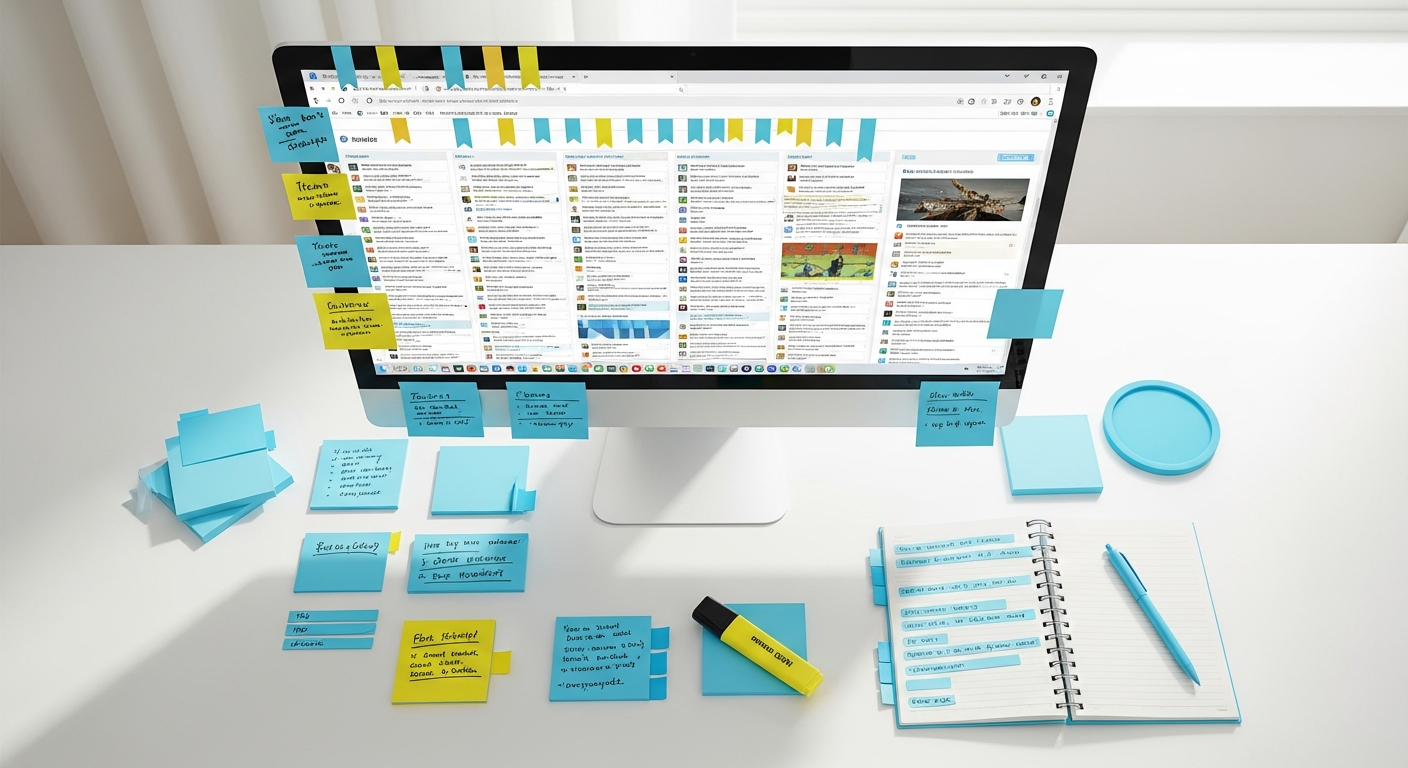

Updated May 2024. In today’s information-dense world, professionals and knowledge workers are constantly bombarded with data. Establishing a distraction-free personal information hub is essential to store, organize, and retrieve all your personal and professional information without succumbing to digital clutter.
TL;DR: Establish a centralized, digital space to manage your data without constant interruptions. This guide outlines how to select the right tools, implement effective organization strategies, and maintain a focused environment to boost your productivity significantly.
This deluge of emails, documents, articles, meeting notes, project plans, and personal reminders can quickly lead to digital chaos, lost files, missed deadlines, and a pervasive sense of overwhelm. The consequence? Reduced productivity, increased stress, and a constant struggle to find the information you need, when you need it. Imagine a world where every piece of information you encounter has a designated, easily accessible home, free from the noise and distractions of the digital landscape. This isn’t a pipe dream; it’s the power of a well-structured, centralized workspace.
This comprehensive guide will walk you through the process of building such a system. You’ll learn how to select the optimal tools, establish robust organizational principles, and implement strategies to minimize distractions, ensuring your setup serves as a powerful engine for clarity, focus, and unparalleled productivity. By centralizing your knowledge and workflows, you’ll reclaim valuable time, reduce cognitive load, and empower yourself to perform at your absolute best.
Why Do You Need a Centralized Information Hub?
Before diving into the “how,” it’s crucial to grasp the “why.” Combating the inherent challenges of modern digital work requires a dedicated system. Without it, your information becomes fragmented across various platforms: emails in Gmail, documents in Google Drive, notes in Apple Notes, tasks in a physical planner, and bookmarks scattered across browser folders.
This fragmentation forces your brain to constantly switch contexts, search multiple locations, and piece together related information. This process, known as “context switching cost,” severely drains your mental energy and time.
A unified digital workspace addresses this by serving as a single source of truth. It consolidates all your critical data—from project specifications and research notes to personal goals and creative ideas—into one accessible, searchable, and organized environment. This centralization offers several profound benefits:
- Reduced Cognitive Load: You no longer have to remember where every piece of information resides. Your system becomes an extension of your memory, freeing up mental bandwidth for higher-level thinking and creative problem-solving.
- Enhanced Retrieval: With consistent organization and powerful search capabilities, you can find any piece of information within seconds, eliminating frustrating searches and boosting efficiency.
- Improved Decision Making: Having all relevant data at your fingertips allows for more informed and timely decisions, whether for work projects or personal matters.
- Increased Focus and Flow: A streamlined setup minimizes interruptions from notifications, cluttered interfaces, and irrelevant information, allowing you to enter and sustain states of deep work.
- Seamless Workflow Integration: By connecting your information to your tasks and projects, you create a cohesive workflow where ideas flow effortlessly into actionable steps.
Consider the professional who juggles multiple client projects. Without a centralized system, they might have project specs in a shared drive, meeting notes in a personal notebook, client feedback in email threads, and task lists in a separate app. This scattered approach inevitably leads to missed details, duplicated efforts, and a feeling of being constantly behind. With a unified setup, all this information is linked, readily available, and contributes to a clear, actionable path forward.
Core Principles of a Digital Knowledge Environment
Building an effective knowledge management system isn’t just about picking tools; it’s about adhering to fundamental principles that ensure its utility and longevity. These principles guide your setup and ongoing maintenance, ensuring your environment truly serves as a productivity amplifier rather than another source of digital clutter.
- Centralization: The cornerstone. All information, regardless of its origin (email, web, meeting, brainstorm), funnels into this one primary system. While you might use various capture tools, the ultimate destination for organized knowledge is your core database.
- Accessibility: Your data must be accessible from all your primary devices—desktop, laptop, tablet, and smartphone. Cloud-syncing is non-negotiable for this. If you can’t quickly access information on the go, its utility diminishes significantly.
- Searchability: A vast repository of information is useless if you can’t find what you need. Robust search functionality, coupled with consistent tagging and naming conventions, is paramount.
- Actionability: Information should not just sit there. It should be linked to actions, projects, or decisions. Integrate task management or at least clearly delineate what needs to be done with the information.
- Minimalism & Simplicity: Fight the urge to over-engineer. Start simple and add complexity only when absolutely necessary. A cluttered interface is inherently distracting. Focus on a clean UI and streamlined workflows.
- Automation: Where possible, automate the capture and initial organization of information. This reduces manual effort and ensures consistency.
- Regular Review & Pruning: Your database is a living system. Schedule regular times to review, update, and remove outdated or irrelevant information. This prevents the accumulation of digital junk.
Many systems, like Tiago Forte’s PARA method (Projects, Areas, Resources, Archives), provide excellent frameworks for organizing within your workspace. PARA encourages you to organize by actionability: Projects are active, time-bound endeavors; Areas are ongoing responsibilities; Resources are topics of interest; and Archives are inactive items. Adopting such a system from the outset can prevent future organizational headaches and ensure your information is always aligned with your current priorities.
Types of Foundation Tools and When to Apply Them
The heart of your setup lies in a robust note-taking and knowledge management application. This is where the bulk of your information will reside. The market offers a plethora of options, each with its strengths. Your choice should align with your specific needs, technical comfort, and desired level of flexibility.
Leading Choices for Your Core Workspace
Notion
A versatile all-in-one workspace. Notion excels at combining notes, databases, wikis, and project management.
- Pricing: Free for personal use; Plus plan at $8/month (billed annually) for unlimited blocks, file uploads, and version history; Business plan at $15/month (billed annually) for advanced features.
- Key Features: Highly customizable pages, databases with various views (table, board, calendar, gallery), linked databases, templates, web clipper, collaboration features.
- Best For: Users who want a single, highly flexible tool for almost everything. Ideal for those comfortable with a steeper learning curve in exchange for immense power.
- Real-world Use Case: A freelancer manages client projects, personal finances, research notes, and a content calendar all within a single Notion workspace, linking project tasks directly to relevant research pages. For more advanced setups, check out our guide on Advanced Notion Tips for Productivity.
Obsidian
A powerful knowledge base that works on local Markdown files, emphasizing linking ideas.
- Pricing: Free for personal use; Catalyst license (one-time payment) for early access/support; Commercial license for business use. Sync service is $10/month.
- Key Features: Markdown-based, bi-directional linking, graph view, extensive plugin ecosystem, local storage of files, highly privacy-focused.
- Best For: Knowledge workers, researchers, and writers who prioritize ownership of their data, value deep linking of ideas, and appreciate a highly extensible, privacy-centric environment.
- Real-world Use Case: A student uses Obsidian to create a “second brain,” linking lecture notes, research papers, and essay outlines. The graph view helps them visualize connections between disparate topics, aiding in comprehension and recall.
Evernote
A long-standing veteran, great for capturing and organizing diverse information.
- Pricing: Free (Basic, limited sync/upload); Personal plan at $14.99/month for unlimited devices, larger uploads, and offline access; Professional plan at $17.99/month for advanced search and integrations.
- Key Features: Web clipper, robust search (including text in images), note linking, tags, notebooks, powerful search, PDF annotation.
- Best For: Users who need reliable capture across devices, strong search capabilities, and don’t require the complex database features of Notion or the deep linking of Obsidian.
- Real-world Use Case: A project manager uses Evernote to clip important articles, save email attachments, store meeting notes, and scan physical documents, knowing everything is searchable later.
Microsoft OneNote
Integrated with the Microsoft ecosystem, offering a free-form canvas.
- Pricing: Free with a Microsoft account. Part of Microsoft 365 subscriptions (e.g., Personal at $6.99/month, Family at $9.99/month) for additional storage and features.
- Key Features: Free-form canvas, ink support, powerful search, section groups and pages, deep integration with other Microsoft Office apps.
- Best For: Users deeply embedded in the Microsoft ecosystem, students, and those who prefer a non-linear, canvas-like note-taking experience.
- Real-world Use Case: A sales professional uses OneNote to organize client proposals, meeting notes, product information, and training materials, leveraging its integration with Outlook and Word.
When selecting your foundational tool, consider data ownership, interoperability, learning curve, offline access, and collaboration needs. Start with one primary tool. Resist the urge to use multiple core knowledge management systems, as this defeats the purpose of centralization.
[INLINE IMAGE 3: Screenshot of a Notion dashboard showing a personal information hub with linked databases and project management.]
How Can You Integrate Task Management and Project Tracking?
Information without action is often just noise. Your setup gains immense power when seamlessly integrated with your task management and project tracking systems. This integration ensures that ideas captured in your notes can be directly translated into actionable steps, and project-related information is always accessible from your task lists.
Popular Task and Project Management Tools
Todoist
A minimalist yet powerful task manager known for its natural language input and cross-platform availability.
- Pricing: Free (Basic); Pro at $4/month (billed annually) for reminders, labels, filters, and more.
- Integration Strategy: Link tasks directly to notes in your database. For example, a task “Draft Q3 report” in Todoist could have a direct link to the “Q3 Report Research” page in Notion or Obsidian. Use Todoist’s rich text fields to paste URLs to your information repository.
Asana
A robust project management tool ideal for teams, but also highly effective for individual project tracking.
- Pricing: Free (Basic); Premium at $10.99/user/month (billed annually) for timelines, rules, and advanced reporting.
- Integration Strategy: Create specific projects in Asana that mirror projects in your workspace. Attach relevant notes or documents directly to Asana tasks or project briefs. Many tools like Notion offer direct share links that can be pasted into Asana task descriptions.
ClickUp
An all-in-one productivity platform offering extensive customization for tasks, docs, goals, and more.
- Pricing: Free (Unlimited); Unlimited at $7/member/month (billed annually) for unlimited storage, custom fields; Business at $12/member/month (billed annually) for advanced features.
- Integration Strategy: ClickUp’s “Docs” feature can sometimes serve as a mini-database, but for deeper knowledge, link out to your primary tool. Use ClickUp’s custom fields to store direct URLs to specific pages or notes in Notion, Obsidian, or Evernote.
Strategies for Seamless Integration
- Hyperlinking: This is the simplest and most effective method. When you create a task, include a hyperlink to the relevant note, document, or knowledge base entry. Most modern note-taking apps offer easy ways to copy page links.
- Consistent Naming: Use similar naming conventions for projects and tasks across both your knowledge base and your task manager. This makes cross-referencing intuitive.
- Bi-directional Linking (Advanced): If your tool (like Obsidian) supports bi-directional linking, consider if your task manager can expose a unique ID for tasks. This is less common but powerful for advanced users.
- Automation with Zapier/IFTTT: For more sophisticated workflows, use automation tools like Zapier or IFTTT. For instance, you could set up a Zapier automation that creates a new task in Todoist whenever a new “action item” tag is added to a note, with a link back to the note.
The goal is to eliminate the friction between “knowing what to do” and “doing it.” By linking your information to your actions, you create a dynamic system where knowledge fuels productivity, and tasks are always backed by readily available context.
Streamlining Digital Input for Effortless Capture
A focused environment is only effective if you can get information into it quickly and without friction. The process of capturing data should be as seamless as possible, preventing valuable insights from slipping through the cracks or becoming isolated in temporary locations. The key is to leverage tools that allow for rapid, multi-source input.
Essential Capture Tools and Strategies
- Web Clippers: These browser extensions are indispensable for saving articles, blog posts, and web pages directly into your database. For a deeper dive, read our guide on the Best Web Clippers for Research.
- Evernote Web Clipper: Highly robust, allows you to save entire articles, simplified articles, screenshots, or just the URL. You can add tags and notes during the clipping process.
- Notion Web Clipper: Saves web pages directly to a Notion database or page. Useful for creating reading lists or research repositories.
- Pocket / Instapaper: While not direct integrations, these “read-it-later” services are excellent for temporary storage of articles you want to read later. Once read, you can then decide to move key insights or the entire article into your primary workspace.
- Email Integration: Your inbox is a major source of information.
- Forward to Note: Many tools (Evernote, Notion, OneNote) provide a unique email address. Forward important emails, attachments, or newsletters to this address to have them automatically appear as notes. This clears your inbox and centralizes key communications.
- Outlook/Gmail Add-ins: Some tools offer direct add-ins for email clients, allowing you to save emails or create tasks from them without leaving your inbox.
- Mobile Capture: Ideas strike anywhere. Your setup needs strong mobile capabilities.
- Dedicated Mobile Apps: All major tools (Notion, Obsidian, Evernote, OneNote) have excellent mobile apps for capturing text, photos, voice notes, and more on the go.
- Share Sheets: Leverage your phone’s “Share Sheet” (iOS) or “Share Menu” (Android) to send content from any app (e.g., a photo from your gallery, text from a news article) directly to your note-taking app.
- Dictation/Voice Notes: Use your phone’s dictation feature or a dedicated voice note app to quickly record thoughts that can later be transcribed or moved into your database.
- Quick Capture Widgets/Shortcuts:
- Desktop Shortcuts: Create keyboard shortcuts or desktop widgets for quick note creation.
- Universal Inbox: Consider a temporary “inbox” note where all raw, unorganized captures initially land. You can then process this inbox daily or weekly.
The goal is to minimize the steps and mental effort required to get information into your system. If it’s too cumbersome, you’ll default to letting information scatter or be forgotten. By optimizing your capture workflow, you ensure that no valuable piece of data is lost and your repository remains comprehensive.
Categories of Organization: Tagging, Linking, and Search
Capturing information is only half the battle; the true power of a digital workspace lies in its ability to facilitate effortless retrieval. Without a robust organizational scheme, your setup can quickly devolve into a digital junk drawer. Effective organization relies on a combination of structured hierarchy, flexible tagging, and intelligent linking, all underpinned by powerful search capabilities.
Key Organizational Strategies
- Hierarchical Structure (Folders/Notebooks/Databases):
- Folders/Notebooks: Most tools allow you to group related notes into folders or notebooks (e.g., “Work Projects,” “Personal Development,” “Client X”). This provides a primary level of organization.
- Databases (Notion): Notion’s databases offer a highly structured way to organize information with properties (tags, dates, URLs, checkboxes). You can create databases for “Articles Read,” “Meeting Notes,” “CRM,” etc., and filter/sort them in countless ways.
- PARA Method: Apply a framework like PARA (Projects, Areas, Resources, Archives) to your top-level structure.
- Flexible Tagging: Tags are crucial for cross-cutting themes that don’t fit neatly into a single folder.
- Consistency is Key: Develop a consistent tagging schema. Avoid too many tags, but ensure they are descriptive. For example, instead of “meeting notes” and “client meeting,” use a single tag like “#meeting” and then add a client tag like “#client-acme.”
- Action Tags: Use tags like “#action-required,” “#follow-up,” or “#waiting-on” to quickly identify tasks embedded within notes.
- Context Tags: Tags like “#research,” “#idea,” “#reference” can help categorize the nature of the information.
- Bi-directional Linking (Obsidian, Notion): This is a game-changer for knowledge workers.
- Connect Ideas: Create links between related notes. For example, in a note about “Project Alpha,” link to notes about “Client X Requirements” and “Team Meeting Minutes.”
- Uncovered Connections: Tools like Obsidian show “backlinks”—notes that link to the current note. This helps you discover unexpected connections and build a richer knowledge graph.
- Contextual Retrieval: When reviewing a note, you instantly see all related information, providing a comprehensive context without needing to search.
- Powerful Search: No matter how well you organize, you’ll still rely on search.
- Full-text Search: Ensure your chosen tool can search the full text of all your notes, including attachments (PDFs, images with OCR). Evernote is particularly strong here.
- Filtered Search: The ability to combine keywords with tags, dates, and other properties significantly narrows down results.
- Saved Searches: Create and save frequently used search queries to quickly access specific sets of information (e.g., “all notes tagged #urgent from last week”).
For example, if you’re working on a “Marketing Campaign Q4” project in Notion, you might have a database entry for the project. Within that entry, you link to pages for “Competitor Analysis,” “Content Ideas Brainstorm,” and “Budget Allocation.” Each of these linked pages would have relevant tags like “#research,” “#creative,” or “#finance.” If you then search for “#creative,” you’ll see “Content Ideas Brainstorm” along with other creative notes from different projects or areas, fostering serendipitous discovery.
[INLINE IMAGE 6: Diagram illustrating the PARA method organization structure with Projects, Areas, Resources, and Archives.]
How Do You Minimize Distractions and Automate Workflows?
A dedicated workspace is designed to enhance focus, but it can quickly become another source of distraction if not managed carefully. Minimizing interruptions requires a multi-pronged approach that addresses notifications, user interface design, and the automation of repetitive tasks.
Strategies for a Distraction-Free Environment
- Notification Management:
- Disable Non-Essential Notifications: Go into the settings of your app and disable all notifications that aren’t absolutely critical. Do you really need a pop-up every time a new note is synced? Probably not.
- Batch Notifications: If your tool supports it, opt for daily or weekly summaries of activity rather than real-time alerts.
- “Do Not Disturb” Modes: Leverage your operating system’s “Do Not Disturb” or “Focus” modes to silence all application notifications during dedicated work blocks.
- Clean User Interface (UI):
- Embrace Minimalism: Configure your workspace to show only what’s necessary. Hide sidebars, extraneous menus, and unnecessary widgets.
- Consistent Layouts: For tools like Notion, create standardized page templates for different types of notes (e.g., meeting notes, project briefs). This reduces decision fatigue and keeps your pages looking consistent and clean.
- Dark Mode: For some, dark mode can reduce eye strain and visual distraction, especially during extended work sessions.
- Limit Open Tabs/Windows: When working in your database, close all other unrelated browser tabs or applications. Focus on just the information you need.
- Workflow Automation: Automating repetitive tasks not only saves time but also reduces the mental friction that can lead to distraction.
- Zapier/IFTTT: Use these tools to connect your workspace with other services. Examples:
- Automatically save starred emails to a specific note.
- Create a new task in your task manager when a specific tag (e.g., “action item”) is added to a note.
- Save new articles from an RSS feed directly to a “Read Later” database in Notion.
- Templates: Create templates for recurring tasks, meeting agendas, or project kick-offs. This eliminates the need to recreate structures, allowing you to jump straight into content.
- Keyboard Shortcuts: Learn and use keyboard shortcuts for common actions. This keeps your hands on the keyboard and reduces reliance on the mouse, which can be a source of micro-distractions.
- Zapier/IFTTT: Use these tools to connect your workspace with other services. Examples:
The goal is to create an environment where your workspace is a place of calm and focus, not another source of digital noise. By proactively managing notifications, simplifying your UI, and automating routine actions, you transform your setup into a true productivity sanctuary.
Maintaining and Evolving Your Hub: The Long Game
Setting up your digital environment is an achievement, but maintaining and evolving it over time is crucial for its long-term effectiveness. A static system quickly becomes outdated, cluttered, and ultimately, abandoned. Think of your workspace as a garden: it requires regular weeding, pruning, and occasional replanting to thrive.
Strategies for Ongoing Maintenance
- Weekly Review (The “Capture and Process” Loop):
- Process Your Inbox: Dedicate time each week (e.g., Friday afternoon or Monday morning) to process your “inbox”—any raw, unorganized notes or captures. Assign them to projects, areas, or resources, and add relevant tags.
- Review Projects & Tasks: Check in on active projects and tasks linked to your database. Update progress, identify next actions, and ensure all necessary information is readily available.
- Clear Digital Clutter: Delete duplicate notes, consolidate fragmented information, and archive completed projects or outdated resources.
- Monthly/Quarterly Deep Dive:
- Review Top-Level Structure: Does your folder or database structure still make sense? Are there new areas of responsibility that need their own section?
- Tag Audit: Review your tags. Are some tags redundant? Are there missing tags you frequently wish you had? Consolidate or create new ones as needed.
- Tool Check-in: Are your current tools still serving you effectively? Have new features been released that could improve your workflow? Is it time to consider a different integration?
- Adapt and Iterate:
- Flexibility is Key: Your workflow and information needs will change. Your setup should be flexible enough to adapt. Don’t be afraid to experiment with new organization methods or leverage new features of your chosen tools.
- Learn from Experience: Pay attention to friction points. Where do you struggle to find information? What types of notes consistently get lost? Use these observations to refine your system.
- Embrace Change: Technology evolves, and so should your workspace. Stay informed about updates to your chosen tools and new productivity methodologies.
- Backup Your Data: While most cloud-based services handle backups, for tools like Obsidian that rely on local files, ensure you have a robust backup strategy (e.g., cloud sync like Dropbox/Google Drive, or a dedicated backup solution). Data loss can be a significant setback.
Comparison Table: Core Information Management Tools
| Tool Name | Pricing Tiers (Annual) | Key Features | Best For |
|---|---|---|---|
| Notion | Free Personal; Plus $8/month; Business $15/month | All-in-one workspace, databases, linked pages, templates, web clipper, collaboration. | Users seeking extreme flexibility and customization, combining notes, tasks, and wikis. |
| Obsidian | Free Personal; Sync $10/month; Commercial license. | Markdown-based, bi-directional linking, graph view, local files, extensive plugin ecosystem. | Researchers, writers, and knowledge workers prioritizing data ownership, privacy, and deep conceptual linking. |
| Evernote | Free Basic; Personal $14.99/month; Professional $17.99/month | Robust web clipper, powerful search (incl. text in images), notebooks, tags, PDF annotation. | Reliable capture, strong search, and simple organization across diverse content types. |
| Microsoft OneNote | Free with MS account; Part of MS 365 ($6.99/month Personal) | Free-form canvas, ink support, deep MS Office integration, section groups and pages. | Microsoft ecosystem users, students, and those preferring a non-linear, visual note-taking style. |
Frequently Asked Questions
Q: What if I already have notes scattered across multiple apps? How do I consolidate?
A: Start by identifying your primary tool. Then, systematically migrate your existing notes. Most tools offer import features (e.g., Evernote can import from OneNote, Notion can import from Evernote and CSVs). For others, you might need to export your data as Markdown or text files and import them manually. Don’t try to move everything in one day; migrate active projects first, then slowly move archival information as needed.
Q: How much time should I spend organizing my digital workspace?
A: The goal is to spend more time doing the work than organizing it. Aim for a 5-10 minute daily review to process your inbox and a 30-60 minute weekly review to maintain the overall structure. If you find yourself spending hours tweaking the system, you may be over-engineering it. Stick to the core principles of simplicity and actionability.
Q: Is it safe to store all my personal and professional data in one place?
A: Security and privacy are paramount. If you use cloud-based tools like Notion or Evernote, ensure you use strong, unique passwords and enable two-factor authentication (2FA). Avoid storing highly sensitive information like passwords or social security numbers in plain text; use a dedicated password manager instead. If privacy is your top concern, consider local-first tools like Obsidian, where your data remains on your hard drive.
Sources & References
- Forte, Tiago. Building a Second Brain: A Proven Method to Organize Your Digital Life and Unlock Your Creative Potential. Atria Books, 2022.
- Allen, David. Getting Things Done: The Art of Stress-Free Productivity. Penguin Books, 2015.
- “The PARA Method: The Simple System for Organizing Your Digital Life in Seconds.” Forte Labs. https://fortelabs.com/blog/para/
- “Context Switching: Why It’s Killing Your Productivity.” Atlassian Work Life Blog. https://www.atlassian.com/blog/productivity/context-switching
About the Author
Bookmark Sharer Editorial Team — Our experts in digital productivity and knowledge management share strategies for optimal information flow, helping professionals build robust systems to conquer digital clutter.
Reviewed by Marcus Chen, Lead Tech Reviewer — Last reviewed: June 09, 2026


