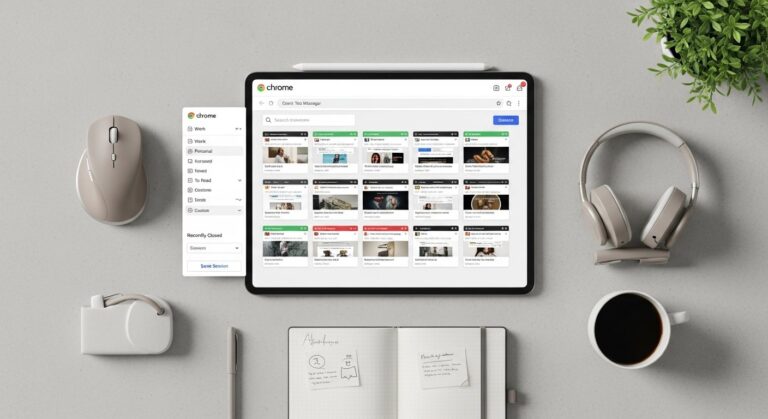
Master Your Workflow: The Ultimate Guide to Organizing Browser Tabs for Students
In the modern academic landscape, the browser is no longer just a window to the internet; it is a digital classroom, a research library, and a collaborative workspace rolled into one. However, this convergence comes with a significant drawback: the “tab sprawl.” We have all been there—fifty tabs open, icons so small they are unrecognizable, and the cooling fan of the laptop sounding like a jet engine preparing for takeoff. For students and professionals alike, a cluttered browser is the digital equivalent of a messy desk, leading to cognitive overload, increased anxiety, and a drastic drop in productivity.
As we move into 2026, the complexity of digital research has only intensified. With AI-integrated search engines, cloud-based citation tools, and streaming lecture platforms, the ability to organize browser tabs has transitioned from a “neat trick” to an essential survival skill for academic success. This guide provides a comprehensive roadmap for transforming your browser from a chaotic mess into a streamlined engine for efficiency, ensuring you spend less time hunting for lost pages and more time mastering your subject matter.
—
1. The Psychology of Tab Overload: Why Clutter Kills Focus
Before diving into the “how-to,” it is crucial to understand the “why.” Cognitive scientists have long noted that our brains have a limited capacity for working memory. Every open tab represents an unfinished loop—a concept known in psychology as the Zeigarnik Effect. This effect suggests that our brains stay focused on incomplete tasks, creating a background “hum” of mental noise that drains our energy.
For a student, each tab is a potential distraction. When you are writing a thesis but can see a YouTube tab or a social media notification shimmering at the edge of your vision, your brain is forced to use precious metabolic energy to *ignore* that stimulus. This leads to “context switching” costs. Studies show that it can take upwards of 20 minutes to regain deep focus after a distraction. By organizing your tabs, you aren’t just cleaning up your screen; you are protecting your cognitive resources and creating a digital environment conducive to “Deep Work.”
2. Leveraging Built-In Browser Features: Tab Groups and Beyond
By 2026, major browsers like Chrome, Safari, and Microsoft Edge have perfected their native organization tools. You no longer need a dozen third-party apps to stay organized; you simply need to master the features already at your fingertips.
#
Tab Groups: The Game Changer
The most powerful tool in your arsenal is the Tab Group. This feature allows you to bundle related tabs under a single label and color. For a student, this means you can have a “History Research” group in blue, a “Math Assignment” group in red, and a “Personal/Leisure” group in gray.
* **The Pro Move:** You can collapse these groups. When you finish your research for the day, click the group name to hide all those tabs into a single icon, instantly decluttering your view without losing your place.
#
Vertical Tabs (Microsoft Edge)
If you are a “tab hoarder,” vertical tabs are your best friend. By moving the tab bar from the top to the side, you can read the full titles of your open pages. This eliminates the guesswork of clicking through twenty identical Wikipedia icons to find the specific one you need.
#
Reading Lists and “Pinning”
Not every tab needs to be “active.” If you find an article you want to read later, don’t leave it open. Use the “Reading List” feature. Conversely, for tools you use every single day—like your university portal or Google Drive—use the “Pin” feature. This shrinks the tab to a small, permanent icon on the left, preventing you from accidentally closing it.
3. The 2026 Student Tech Stack: Top Extensions for Tab Management
While native features are excellent, certain workflows require the heavy lifting of specialized extensions. In 2026, the best extensions are those that utilize AI to assist in categorization.
* **Workona:** This is arguably the gold standard for students. Workona organizes your work into “Workspaces.” If you switch from “Biology” to “English Literature,” the extension swaps out your entire set of tabs, saving the previous session automatically. It treats your browser like a project management tool.
* **Toby:** Toby is a visual tab manager that allows you to save “collections” of tabs with a single click. It’s perfect for students who do heavy research; you can save all 15 sources for a paper into a “History Paper” collection and close them all, knowing you can reopen the entire set tomorrow.
* **OneTab:** If your computer is lagging, OneTab is a lifesaver. It converts all your open tabs into a simple list on a single page. This reduces memory (RAM) usage by up to 95%, making your laptop run faster and cooler.
* **AI-Driven Organizers:** Newer tools in 2026 now offer “Smart Sorting.” These extensions analyze the content of your open tabs and suggest groups for you, automatically separating your “shopping” tabs from your “academic” tabs using machine learning.
4. Developing a Systematic Workflow: From Research to Writing
Organization is not a one-time event; it is a habit. To maintain a clean browser, you need a workflow that mirrors the phases of your academic projects.
#
Phase 1: The Discovery Phase (The “Wide Net”)
When you start a project, it is okay to have many tabs open. You are gathering sources, checking citations, and exploring leads. However, set a “cap.” Once you hit 20 tabs, you must pause and audit.
#
Phase 2: The Synthesis Phase (The “Cull”)
During this phase, move the essential tabs into a designated Tab Group. For the tabs that are “maybe” useful, use a tool like Pocket or your browser’s Reading List to save them and *close the tab*. If a tab hasn’t been looked at in 30 minutes, close it.
#
Phase 3: The Writing Phase (The “Focus”)
When it’s time to write, your browser should only have three types of tabs open:
1. Your primary writing document (Google Docs/Word).
2. Your primary research sources (max 3-4).
3. Your citation manager (Zotero/Mendeley).
Everything else should be hidden or saved for later. This visual minimalism signals to your brain that it is time to produce, not just consume.
5. Cross-Device Synergy: Syncing and Mobile Management
In 2026, the modern student rarely works on just one device. You might find a source on your phone while commuting, read it on your tablet in a cafe, and cite it on your desktop at night. Effective tab management requires cross-device synchronization.
Ensure you are signed into your browser profile (Google, Apple ID, or Microsoft Account) across all devices. This allows you to use the “Tabs from other devices” feature. If you left an important paper open on your library computer, you can easily pull it up on your laptop.
However, be wary of “mobile tab bloat.” It is incredibly easy to end up with hundreds of tabs open on a smartphone browser. Make it a weekly habit to “Close All Tabs” on your mobile device after saving the essentials to a cloud-based bookmarking system like Raindrop.io. This ensures your mobile browsing remains a tool for quick lookups rather than a graveyard for forgotten ideas.
6. Maintaining a Digital Minimalist Mindset
The ultimate goal of tab organization is to reach a state of digital minimalism. This doesn’t mean you never have more than three tabs open; it means that every tab you *do* have open is there for a specific, intentional purpose.
#
The “Close-at-Night” Policy
One of the most effective habits for students is the “Reset.” At the end of every study session or before you go to bed, close your browser entirely. If there are things you still need, save them into a “To-Do” group or a session manager. Starting every morning with a blank slate reduces the “dread” of returning to work and allows you to prioritize your tasks fresh each day.
#
The Rule of Five
If you find yourself feeling overwhelmed, apply the Rule of Five: Look at your tabs and immediately close five that you know you don’t need *right now*. This small act of momentum often leads to a deeper cleaning session and restores a sense of control over your digital environment.
—
FAQ: Frequently Asked Questions
#
1. Does having too many tabs open actually slow down my computer?
Yes. Each open tab consumes a portion of your computer’s RAM (Random Access Memory). While modern browsers in 2026 are better at “sleeping” inactive tabs to save power, having dozens of active tabs—especially those with video or complex scripts—will eventually throttle your processor and drain your battery.
#
2. What is the best browser for students in 2026?
The “best” browser depends on your ecosystem. **Microsoft Edge** is currently a leader for tab management due to its native vertical tabs and robust “Collections” feature. **Chrome** remains the best for extension support, while **Safari** is the most energy-efficient for Mac and iPad users.
#
3. How do I save a group of tabs for later without cluttering my bookmarks?
Use a “Session Manager” extension or the “Add Tabs to Reading List” feature. Alternatively, many browsers now allow you to right-click a Tab Group and select “Save Group,” which stores it in your bookmarks bar as a single folder that you can reopen with one click.
#
4. Can AI help me organize my tabs automatically?
Absolutely. By 2026, most major browsers have integrated AI assistants. You can often type a command like “/organize” into the address bar, and the browser will automatically group tabs based on topic, such as “Social Media,” “Research,” and “Shopping.”
#
5. How can I recover my tabs if my browser crashes?
Most browsers have a “Restore Session” prompt upon restarting. To be safe, you should always enable the “Continue where you left off” setting in your browser’s Startup preferences. For extra security, extensions like Session Buddy keep a continuous log of your open tabs that you can access even after a major system failure.
—
Conclusion: Clarity Through Organization
Organizing your browser tabs is more than just a digital chore; it is a fundamental pillar of modern academic success. By mastering the tools of 2026—from native tab groups to AI-driven extensions—you transform your browser from a source of stress into a precision tool for learning.
Remember, the goal is not to have the “perfectly” organized browser, but to create a system that serves your workflow. As you move through your academic journey, stay mindful of your digital environment. Treat your browser tabs with the same respect you would treat your physical notes. When you clear the clutter from your screen, you clear the clutter from your mind, paving the way for better focus, higher grades, and a much more enjoyable research experience. Start small: close three unnecessary tabs right now, group the rest, and feel the immediate relief of a streamlined digital life.