Future-Proof Your Productivity: The Ultimate Home Office Setup Guide for 2026
The Foundation: Ergonomics & Workspace Design
Your physical setup is the bedrock of long-term productivity and health. Skimping here can lead to discomfort, fatigue, and even injury. Prioritizing ergonomics ensures you can work effectively for hours without strain, keeping you energized and focused. Think of your workspace as an investment in your physical and mental well-being.
The Desk: Your Command Center
The right desk goes beyond a flat surface; it’s the central hub of your operations. In 2026, the discussion often starts with standing desks, and for good reason.
- Standing Desks: These are a game-changer for breaking up prolonged sitting. Look for electric models with programmable memory presets.
- Recommendations: The Uplift V2 Desk and FlexiSpot E7 are premium choices, offering robust stability, smooth transitions, and a wide range of desktop options. For a more budget-friendly yet reliable option, consider pairing an IKEA LINNMON/LAGKAPTEN tabletop with a FlexiSpot E1 or similar frame.
- Why it matters: Regular movement throughout the day improves circulation, reduces back pain, and can even boost focus. Use an app like Stand Up! (iOS) or a simple timer to remind you to alternate between sitting and standing.
- Fixed Desks: If a standing desk isn’t for you, prioritize ample surface area. A desk that’s at least 60 inches wide and 30 inches deep provides enough space for monitors, peripherals, and room to spread out.
- Recommendation: The IKEA KARLBY countertop with two Alex drawers offers a spacious and aesthetically pleasing fixed desk solution that’s popular for its sturdiness and integrated storage.
The Chair: Your Throne of Productivity
This is arguably the most critical piece of your ergonomic puzzle. A good chair supports your spine, reduces pressure points, and allows for proper posture.
- High-End Ergonomic Chairs: These are an investment, but they pay dividends in comfort and health.
- Recommendations: The Herman Miller Aeron or Embody, and the Steelcase Gesture or Leap are industry benchmarks. They offer extensive adjustability for lumbar support, armrests, seat depth, and tilt, adapting to your unique body shape.
- Use Case: If you spend 8+ hours a day in your chair, the precise adjustability and long-term durability of these chairs are unmatched. They often come with excellent warranties.
- Mid-Range Ergonomic Chairs: Excellent options exist that balance features and cost.
- Recommendations: The Branch Ergonomic Chair and the Autonomous ErgoChair Pro offer impressive adjustability and comfort at a more accessible price point.
Monitors: Your Digital Windows
More screen real estate translates to less alt-tabbing and improved multitasking. Aim for at least two monitors or a single ultrawide display.
- Dual Monitor Setup: Two 24-inch or 27-inch monitors are a popular and highly efficient choice.
- Recommendations: Dell UltraSharp U2723QE (27-inch 4K USB-C) or LG 27GN800-B (27-inch QHD) offer excellent clarity and connectivity.
- Monitor Arms: Free up desk space and allow for precise positioning. The Ergotron LX Dual Monitor Arm or a VIVO Dual Monitor Arm are highly recommended for their stability and flexibility.
- Ultrawide Monitor: A single ultrawide monitor can replace two smaller displays, offering an immersive, seamless experience.
- Recommendations: The LG 34WN780-B (34-inch ultrawide with an ergonomic stand) or the Samsung Odyssey G9 Neo (for a premium, curved gaming/productivity experience).
- Use Case: Ideal for video editing, sprawling spreadsheets, or running multiple applications side-by-side without bezels.
Lighting: Illuminating Your Work
Good lighting reduces eye strain and improves mood. Maximize natural light first, then supplement with task and ambient lighting.
- Natural Light: Position your desk to take advantage of natural light, ideally perpendicular to a window to avoid glare.
- Task Lighting: A dedicated desk lamp or monitor light bar is crucial.
- Recommendations: The BenQ ScreenBar Halo sits atop your monitor, illuminating your desk without screen glare. For a traditional desk lamp, the TaoTronics LED Desk Lamp offers multiple brightness and color temperature settings.
- Smart Ambient Lighting: Integrate smart bulbs or light strips to adjust the mood.
- Recommendations: Philips Hue Play Light Bar behind your monitor or Govee RGBIC LED Strip Lights can create a dynamic and personalized ambiance.
- Use Case: Set a cool, bright white for focused work, and a warmer, dimmer light for winding down.
Cable Management: The Unseen Hero
A tidy workspace reduces visual clutter, which in turn reduces mental clutter. Effective cable management is essential for a clean, professional look.
- Tools & Strategies:
- Velcro Cable Ties: Reusable and flexible for bundling cables.
- Cable Sleeves: Wrap multiple cables into a single, neat tube.
- Under-Desk Cable Trays: The IKEA Signum or various generic metal trays mount discreetly under your desk to hold power bricks and excess cable length.
- Cable Raceways: For cables running along walls or desk legs, D-Line Cable Raceways offer a clean, paintable solution.
- Desk Grommets: If your desk doesn’t have them, consider drilling a hole and installing a grommet for a clean pass-through for monitor and power cables.
- Actionable Tip: Before setting up, map out your power outlets and device locations. Use a label maker to tag cables for easy identification.
Powering Your Productivity: Hardware & Connectivity
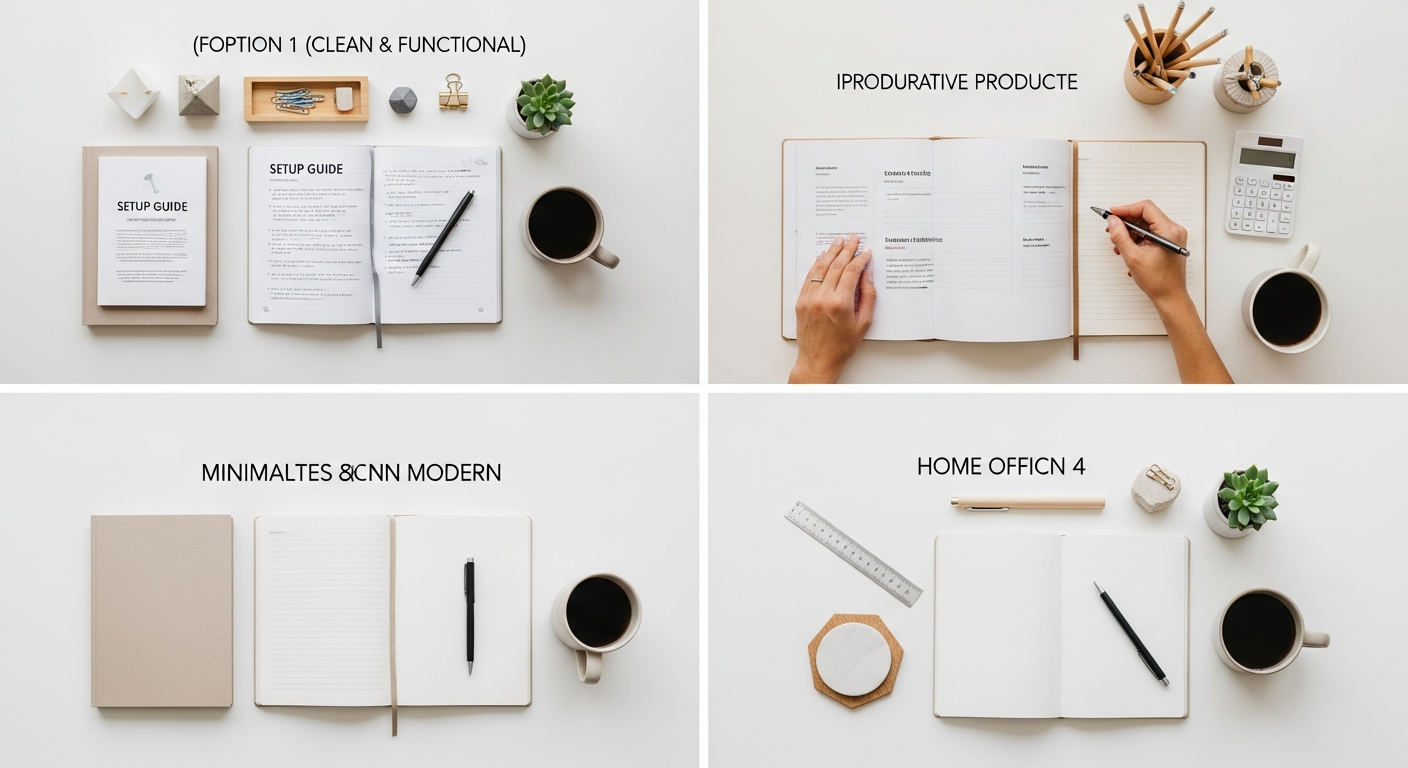
Beyond the physical setup, your digital tools are the engine of your home office. Investing in reliable, high-performance hardware and robust connectivity is non-negotiable for modern professionals.
The Computing Core: Desktop vs. Laptop
Your primary computer is the brain of your operation. The choice between a desktop and a laptop often comes down to portability versus raw power and upgradeability.
- Desktop PC: Offers superior performance, better value for money, and easier upgrades.
- Recommendations: A custom-built PC (Ryzen 7/9 or Intel i7/i9, 32GB RAM, 1TB NVMe SSD) for power users. Pre-built options like the Dell XPS Desktop or Apple Mac Studio/Mini offer sleek designs and robust performance for creative and analytical tasks.
- Use Case: Ideal for demanding tasks like video editing, 3D rendering, or running multiple virtual machines.
- Laptop with Docking Station: Offers flexibility to work from anywhere while still providing a desktop-like experience at home.
- Recommendations: Apple MacBook Pro (M3/M4 series), Dell XPS 15/17, or Lenovo ThinkPad X1 Carbon/Extreme. Pair with a universal docking station like the Plugable USB-C Triple Display Docking Station or a Thunderbolt dock for single-cable connectivity to monitors, peripherals, and power.
- Why it matters: A powerful laptop combined with a dock means you only plug in one cable to transform your mobile device into a full desktop workstation.
Input Devices: Your Interface with the Digital World
Your keyboard and mouse are extensions of your hands. Don’t underestimate their impact on comfort and speed.
- Keyboard:
- Mechanical Keyboards: Offer tactile feedback and durability. Keychron Q-series (Q1, Q2, Q3) are popular for their customizable, premium feel.
- Ergonomic Keyboards: Designed to reduce strain. The Logitech Ergo K860 (split ergonomic) or the Microsoft Sculpt Ergonomic Keyboard are excellent for preventing wrist issues.
- Low-Profile/Quiet: For shared spaces or a minimalist aesthetic, the Logitech MX Keys offers a comfortable, quiet typing experience.
- Mouse:
- Ergonomic Mouse: The Logitech MX Master 3S is a perennial favorite for its comfort, customizable buttons, and rapid scrolling.
- Vertical Mouse: Reduces forearm pronation. The Logitech MX Vertical places your hand in a natural handshake position.
- Trackball Mouse: Reduces arm movement, ideal for confined spaces. The Elecom Deft Pro offers high precision.
Communication Peripherals: Be Seen and Heard Clearly
In a world of virtual meetings, clear audio and video are non-negotiable for professionalism.
- Webcam: Built-in laptop cameras are often subpar. An external webcam offers superior image quality.
- Recommendations: The Logitech Brio 4K or Elgato Facecam provide excellent resolution and low-light performance.
- Pro Tip: Position your webcam at eye level to maintain natural eye contact during calls. Use a small tripod or monitor clamp.
- Microphone: Good audio is more important than good video for effective communication.
- USB Microphones: Easy to set up. The Blue Yeti and Rode NT-USB+ are popular for their clear sound.
- XLR Microphones (Pro-level): For studio-quality sound, pair a microphone like the Shure MV7 (hybrid USB/XLR) or Rode PodMic with an audio interface like the Focusrite Scarlett 2i2.
- Headset Microphones: For noise isolation and convenience, the Jabra Evolve2 65 Flex offers excellent sound and comfort.
Connectivity: The Lifeline of Your Digital Office
A fast, reliable internet connection is paramount. Don’t let slow Wi-Fi or dropped connections derail your workday.
- Router & Wi-Fi:
- Recommendations: Upgrade to a Wi-Fi 6E or Wi-Fi 7 router like the TP-Link Archer AXE75 or Netgear Nighthawk RAXE500 for faster speeds and less interference.
- Mesh Wi-Fi Systems: For larger homes or dead zones, a mesh system (e.g., Eero Pro 6E, Google Nest Wifi Pro) ensures consistent coverage.
- Wired Ethernet: Where possible, connect your primary workstation directly to your router via an Ethernet cable for the most stable and fastest connection.
- Backup Internet: Don’t get caught offline.
- Recommendation: A 5G mobile hotspot (e.g., Inseego MiFi X PRO) or tethering to your smartphone can be a lifesaver during outages.
- Uninterruptible Power Supply (UPS): Protect your equipment and data from power surges and outages.
- Recommendation: An APC Back-UPS Pro 1500VA provides battery backup for your computer, monitor, and router, giving you time to save your work and safely shut down during a power cut.
Streamlining Your Workflow: Software & Digital Tools
The right software can transform chaos into order, turning your digital workspace into a hyper-efficient hub. These tools are designed to keep you organized, collaborative, and focused.
Project Management & Task Tracking
Keep track of deadlines, tasks, and team collaborations.
- Asana: Excellent for managing complex projects with multiple stakeholders, offering Gantt charts, boards, and list views.
- ClickUp: An all-in-one productivity platform that combines tasks, docs, goals, and chat. Highly customizable for various workflows.
- Trello: Ideal for visual thinkers, using Kanban boards to track tasks through different stages. Great for personal projects or small teams.
- Notion: While more than just a PM tool, its database features make it incredibly powerful for custom project management systems, from simple to highly complex.
- Use Case: For managing editorial calendars, use Trello. For large software development sprints, Asana or ClickUp might be better. For personal goal tracking, Notion’s flexibility shines.
Communication Hubs
Seamless communication is key for remote teams and external collaborations.
- Slack: The gold standard for real-time team messaging, with channels for different projects, direct messages, and extensive integrations.
- Microsoft Teams: A comprehensive platform integrating chat, video conferencing, file storage, and app integration, especially powerful for organizations within the Microsoft ecosystem.
- Zoom/Google Meet: Essential for video conferencing. Both offer reliable video and screen sharing, with features like virtual backgrounds and recording.
- Pro Tip: Define clear communication protocols with your team – e.g., Slack for quick questions, email for formal requests, Zoom for scheduled meetings.
Note-Taking & Knowledge Management
Capture ideas, organize information, and build your personal knowledge base.
- Obsidian: A powerful, local-first knowledge base that uses Markdown files. Its graph view helps you see connections between your notes, making it excellent for deep research and interconnected thoughts.
- Notion: A versatile workspace for notes, databases, wikis, and project management. Highly collaborative and web-based, making it accessible from anywhere.
- Evernote: A classic for capturing anything – web clips, PDFs, handwritten notes, and audio. Excellent search functionality.
- OneNote: Microsoft’s free-form digital notebook, great for stylus input and organizing notes into sections and pages. Integrates well with other Microsoft 365 apps.
- Use Case: For academic research and personal thought mapping, Obsidian is superb. For team wikis and structured documentation, Notion excels. For quick capture of diverse information, Evernote remains strong.
Cloud Storage & Backup
Your data is precious. Ensure it’s safely stored and accessible.
- Cloud Storage for Sync & Collaboration:
- Google Drive: Generous free tier, excellent for Google Workspace users, strong collaboration features.
- Dropbox: Reliable syncing, simple interface, good for cross-platform file sharing.
- OneDrive: Best for Microsoft 365 users, integrates deeply with Windows and Office apps.
- Continuous Cloud Backup:
- Backblaze: Unlimited, automatic, continuous backup for a single computer at a low annual cost. Set it and forget it.
- Carbonite: Similar to Backblaze, offering continuous cloud backup with various plan tiers.
- Actionable Tip: Use a primary cloud storage (Drive/Dropbox/OneDrive) for active files and collaboration, and a continuous backup service (Backblaze/Carbonite) for your entire system.
Password Management
Strong, unique passwords for every service are non-negotiable for security.
- 1Password: A premium, feature-rich password manager with excellent family plans and strong security audits.
- LastPass: Popular and user-friendly, offering robust password management and sharing features.
- Bitwarden: An open-source, free (with paid premium features) option that’s highly secure and cross-platform.
- Why it matters: These tools generate strong passwords, auto-fill them, and securely store them, often including 2FA codes, reducing your attack surface significantly.
Focus & Time Management Tools
Minimize distractions and maximize your productive hours.
- Forest: A gamified app that helps you stay focused by growing a virtual tree. If you leave the app, your tree withers.
- Freedom: Blocks distracting websites and apps across all your devices for set periods. Essential for deep work.
- Pomofocus.io: A simple, web-based Pomodoro timer that helps you work in focused bursts with scheduled breaks.
- Actionable Tip: Experiment with these tools to find what helps you enter a “flow state.” Combine them – use Freedom to block distractions during a Forest session with Pomofocus.io guiding your intervals.
Fortifying Your Digital Fortress: Security & Data Management

In the digital age, your home office is a prime target for cyber threats. Protecting your data and privacy is paramount. This section is about building robust defenses and smart habits to safeguard your digital life.
The First Line of Defense: Antivirus & Firewall
While operating systems have built-in protections, dedicated security software offers enhanced layers of defense.
- Antivirus & Anti-Malware:
- Recommendations: Bitdefender Total Security (comprehensive protection across devices) or Malwarebytes Premium (excellent for detecting and removing malware, often used alongside an antivirus).
- Why it matters: These tools actively scan for, detect, and neutralize viruses, ransomware, phishing attempts, and other malicious software that could compromise your system.
- Firewall: Your operating system’s built-in firewall (Windows Defender Firewall, macOS Firewall) is generally sufficient, but ensure it’s enabled and configured to block unwanted incoming connections.
Privacy & Anonymity: VPNs
A Virtual Private Network (VPN) encrypts your internet traffic, protecting your online activities from prying eyes, especially on public Wi-Fi.
- Recommendations: NordVPN, ExpressVPN, and ProtonVPN are top-tier choices known for their strong encryption, no-logs policies, and wide server networks.
- Use Cases:
- Public Wi-Fi: Essential for securing your connection when working from a coffee shop or airport.
- Geo-unblocking: Access content or services that may be restricted in your region.
- Enhanced Privacy: Prevent your ISP or other entities from monitoring your online activities.
Robust Backup Strategy (The 3-2-1 Rule)
This golden rule of data backup ensures your critical files are safe from