

The Ultimate 2026 Guide to the Best Laptops for Working From Home
But with an overwhelming array of options, how do you choose the perfect laptop that won’t just keep up but actively enhance your productivity in 2026? This isn’t about chasing the flashiest gadget; it’s about smart, informed choices that align with your unique workflow and digital lifestyle. This comprehensive guide, crafted by your tech-savvy friends at Bookmark Sharer, cuts through the noise. We’ll dive deep into the specs that truly matter, offer specific recommendations for diverse professional personas, and arm you with actionable strategies to build an optimized WFH setup. Let’s find your ultimate work-from-home companion.
Understanding Your WFH Workflow: More Than Just Specs
Before you even glance at a specification sheet, the most crucial step is to honestly assess your own working style and daily tasks. Think of your laptop as a specialized tool; you wouldn’t use a wrench to hammer a nail, and similarly, a basic productivity laptop might buckle under the demands of professional video editing. Understanding your workflow is the foundation for making an informed decision.
Identify Your Primary Tasks
- Basic Productivity & Communication: Are your days primarily filled with emails, document creation, spreadsheets, and endless video calls? Tools like Microsoft 365 (Word, Excel, PowerPoint, Outlook), Google Workspace (Docs, Sheets, Gmail, Calendar), Slack, and Zoom are your daily drivers. For this, you need reliability, good battery life, and solid video conferencing capabilities.
- Creative Work & Design: If you’re a graphic designer, video editor, architect, or 3D artist, your software demands are much higher. Think Adobe Creative Suite (Photoshop, Premiere Pro, Illustrator, After Effects), DaVinci Resolve, AutoCAD, or Blender. These applications are resource-intensive, requiring powerful processors, ample RAM, and often a dedicated graphics card.
- Coding & Development: Developers often juggle multiple applications like VS Code, Docker containers, local servers, and even virtual machines. Compiling code, running tests, and managing complex projects require significant processing power and memory to maintain a smooth workflow.
- Data Analysis & Science: Working with large datasets in Python, R, SAS, or Tableau requires robust processing power and sufficient RAM to handle complex computations and visualizations without slowdowns.
Multitasking Habits
How many browser tabs do you typically have open? Are you constantly switching between a dozen applications – your CRM, project management tool (Notion, Asana), communication platforms, and a research document – all at once? If you’re a heavy multitasker, your laptop needs enough RAM to keep all those applications responsive without a frustrating lag. Consider also if you use multiple external monitors; this puts additional strain on your laptop’s integrated graphics.
Mobility vs. Stationary Setup
Do you work exclusively from a dedicated desk, or do you frequently move your laptop between different rooms, perhaps to a standing desk, a couch, or even out to the patio for a change of scenery? If you’re constantly on the move, portability and excellent battery life become paramount. If your laptop rarely leaves its spot, you might prioritize a larger screen and more powerful components, knowing you’ll always be near a power outlet.
Budget Considerations
Laptops range from a few hundred dollars to several thousand. Be realistic about what you can afford, but also understand that investing a bit more upfront can save you headaches and upgrade costs down the line. We’ll provide options across various price points, ensuring you get the best value for your specific needs.
Key Laptop Specifications That Matter for WFH
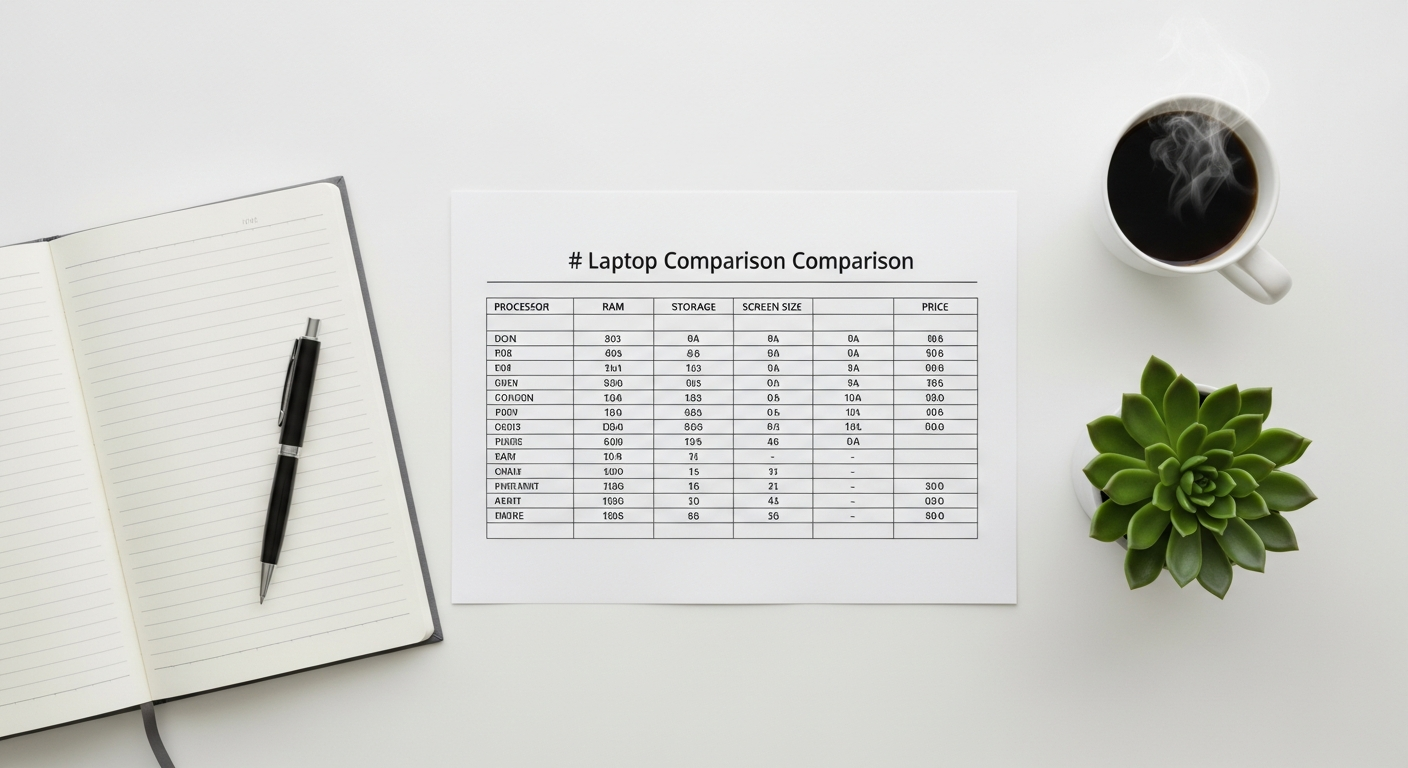
Once you’ve identified your workflow, it’s time to translate those needs into concrete specifications. Here’s a breakdown of the components that truly impact your work-from-home experience.
Processor (CPU): The Brain of Your Operation
The CPU is the central processing unit, responsible for executing instructions and calculations. Its power dictates how quickly your applications open, how smoothly multitasking performs, and how fast complex tasks complete.
- Intel Core i5 / AMD Ryzen 5 (latest generation): Excellent for general productivity, web browsing, video calls, and light photo editing. A solid choice for most professionals.
- Intel Core i7 / AMD Ryzen 7 (latest generation) / Apple M3: The sweet spot for demanding multitasking, professional creative work (graphic design, light video editing), coding, and data analysis. Offers a significant performance boost for smoother operation.
- Intel Core i9 / AMD Ryzen 9 (latest generation) / Apple M3 Pro/Max: Designed for power users, heavy video editing, 3D rendering, complex simulations, and high-end development. If your work involves pushing the limits of computation, these are your go-to.
RAM (Memory): Your Laptop’s Short-Term Workspace
RAM (Random Access Memory) is where your computer stores data it’s actively using. More RAM means you can run more applications simultaneously and handle larger files without slowdowns.
- 8GB: The bare minimum for basic productivity (email, web browsing, single-app use). If you juggle multiple browser tabs or video calls, you’ll quickly feel the limitations.
- 16GB: The sweet spot for most modern professionals. This allows for smooth multitasking, several browser tabs, simultaneous video calls and document editing, and even light creative work. Highly recommended.
- 32GB+: Essential for creative professionals working with large media files (4K video, high-res images), developers running multiple VMs, or data scientists manipulating massive datasets. Future-proofs your machine for demanding tasks.
Storage (SSD): Speed and Space
Forget traditional hard drives (HDDs) for your primary drive. An NVMe Solid State Drive (SSD) is non-negotiable for speed, responsiveness, and overall system snappiness. It significantly reduces boot times and app loading speeds.
- 256GB NVMe SSD: Bare minimum. You’ll likely rely heavily on cloud storage (Google Drive, OneDrive, Dropbox) and external drives.
- 512GB NVMe SSD: Recommended for most professionals. Offers a good balance of speed and space for your OS, essential applications, and frequently used files.
- 1TB+ NVMe SSD: Ideal for creative professionals, developers, or anyone with large local file libraries. Provides ample space for projects, software, and peace of mind.
Display: Your Window to Work
You’ll be staring at this screen for hours, so don’t overlook its importance.
- Size: 13-14 inches offer portability, while 15-16 inches provide more screen real estate, often making them better as a primary workstation.
- Resolution: Full HD (1920×1080) is standard. QHD (2560×1440) or 4K (3840×2160) offers sharper text and more workspace, especially useful for creative tasks, but can impact battery life.
- Panel Type: IPS panels offer excellent viewing angles and color accuracy. OLED panels provide incredible contrast and vibrant colors, ideal for media consumption and creative work, but often come at a premium.
- Brightness: Look for at least 300 nits for comfortable indoor use. Higher brightness (400+ nits) is better if you work near windows or occasionally outdoors.
Battery Life: Unplug and Unwind (or Relocate)
Even if you’re mostly stationary, good battery life offers flexibility. You can move to another room, work during a power outage, or simply keep your desk clutter-free from cables. Aim for 8+ hours of real-world usage.
Webcam & Microphone: Your Video Call Essentials
Often an afterthought, but critical for professional video calls. While many integrated webcams are still 720p, some newer laptops offer 1080p, which is a noticeable improvement. Good microphones with noise cancellation are also beneficial. If the integrated options aren’t up to par, consider external upgrades (more on this later).
Ports & Connectivity: Hooking Everything Up
Your laptop needs to connect to your external monitors, peripherals, and network.
- USB-C (Thunderbolt/USB4): Versatile for charging, data transfer, and connecting to docking stations. Thunderbolt 3/4 or USB4 offers the fastest speeds and multi-monitor support.
- USB-A: Still useful for older peripherals, external drives, and dongles.
- HDMI: Handy for direct connection to monitors or projectors without an adapter.
- Wi-Fi 6E/7: Ensures the fastest and most reliable wireless internet connection.
- Bluetooth 5.3+: For connecting wireless headphones, mice, and keyboards.
Top Laptop Recommendations for Different WFH Personas
Now that you know what to look for, let’s explore some specific laptop series and models that excel for various work-from-home scenarios in 2026. Remember, configurations vary, so always check the specific specs before purchasing.
1. The Everyday Productivity Powerhouse (Mainstream Professionals)
You need a reliable, fast, and comfortable machine for daily tasks, video calls, and managing your digital life. You appreciate a premium feel and strong battery life.
- Dell XPS 15/13: Consistently top-rated for its stunning display (often OLED options), premium build quality, excellent keyboard, and robust performance. The XPS 15, especially with an Intel Core i7 or AMD Ryzen 7, 16GB RAM, and 512GB SSD, is a fantastic all-rounder.
- HP Spectre x360 14/16: Offers a gorgeous design, versatile 2-in-1 functionality (touchscreen with pen support), and solid performance. The 14-inch model with its OLED screen is particularly appealing. Look for configurations with an Intel Core i7, 16GB RAM, and 512GB SSD.
- Lenovo ThinkPad X1 Carbon Gen 12 (or newer): The gold standard for business productivity. Unmatched keyboard, legendary durability, and strong security features. Excellent for heavy typing. A configuration with an Intel Core i7, 16GB RAM, and 512GB SSD will handle anything you throw at it.
- Apple MacBook Air (M3 or M4): For macOS users, the MacBook Air offers incredible battery life, silent operation (fanless design), and outstanding performance for its class thanks to the M-series chip. The 13-inch or 15-inch model with 16GB Unified Memory and 512GB SSD is a dream for productivity, web browsing, and light creative tasks.
Ideal Specs: Intel Core i5/i7, AMD Ryzen 5/7, or Apple M-series; 16GB RAM; 512GB NVMe SSD; FHD+ or QHD display; 8+ hours battery life.
2. The Creative Pro & Developer’s Workstation
Your work demands serious horsepower for rendering, compiling, virtual machines, and manipulating large files. A dedicated graphics card is often a must.
- Apple MacBook Pro (14-inch or 16-inch with M3 Pro/Max or M4 Pro/Max): Unrivaled performance for video editing (e.g., DaVinci Resolve, Final Cut Pro), graphic design (Adobe Creative Suite), and software development. The M-series Pro/Max chips offer incredible power efficiency and integrated GPU performance. Opt for at least 32GB Unified Memory and 1TB SSD.
- Dell XPS 17: A larger canvas for serious work, often configurable with powerful Intel Core i9 processors and NVIDIA RTX discrete graphics. Great for video editing, 3D work, and CAD. Aim for 32GB+ RAM and 1TB+ SSD.
- HP ZBook Studio/Power: HP’s professional workstation line. These are built for reliability and performance in demanding applications. Look for Intel Core i9 or AMD Ryzen 9 processors, NVIDIA RTX A-series or GeForce RTX GPUs, 32GB+ RAM, and 1TB+ SSD.
- Lenovo ThinkPad P Series (e.g., P1 Gen 6/7): Lenovo’s answer to mobile workstations, offering ThinkPad durability with top-tier professional components. Similar configurations to the HP ZBook.
- ASUS ProArt Studiobook: Specifically designed for creators, often featuring OLED displays, powerful CPUs, and NVIDIA Studio drivers for optimized creative software performance.
Ideal Specs: Intel Core i7/i9, AMD Ryzen 7/9, or Apple M-series Pro/Max; 32GB+ RAM; 1TB+ NVMe SSD; dedicated NVIDIA RTX or AMD Radeon Pro GPU; high-resolution, color-accurate display.
3. The Budget-Conscious but Capable Professional
You need a reliable machine that won’t break the bank, but still offers a smooth experience for essential WFH tasks without constant frustration.
- Acer Swift Go 14/16: Offers excellent value with good performance, often featuring OLED displays at competitive prices. A configuration with an Intel Core i5 or Ryzen 5, 8-16GB RAM, and 512GB SSD is a strong contender.
- ASUS Vivobook Pro Series: ASUS often delivers strong performance and features (like OLED screens) at aggressive price points. Look for models with Intel Core i5/i7 or Ryzen 5/7, 16GB RAM, and 512GB SSD.
- Lenovo IdeaPad Slim 5/7: Good all-rounders that balance performance and price. Focus on models with a current-generation Intel Core i5 or AMD Ryzen 5, 16GB RAM, and 512GB SSD for the best experience.
- Refreshed HP Pavilion Laptops: Often provide solid performance and features for their price point. Check for modern CPUs (i5/Ryzen 5), 8-16GB RAM, and at least 256GB SSD.
Actionable Tip: For budget laptops, prioritize RAM (at least 8GB, ideally 16GB) and an NVMe SSD. These two components make the biggest difference in day-to-day responsiveness. You can always add external storage later if needed.
Ideal Specs: Intel Core i5 or AMD Ryzen 5; 8-16GB RAM; 256-512GB NVMe SSD; FHD display.
4. The Ultra-Portable & Hybrid Worker
You value extreme portability, excellent battery life, and often a versatile form factor for working from different spots in your home or on the go (when allowed).
- Microsoft Surface Laptop 6 or Surface Pro 10: The Surface Laptop offers a premium, lightweight clamshell experience with excellent keyboards and displays. The Surface Pro is a 2-in-1 tablet/laptop hybrid, perfect for note-taking and presentation, though the keyboard cover is often sold separately. Both offer strong performance for productivity.
- LG Gram Series (e.g., Gram 14/16/17): Renowned for being incredibly lightweight without sacrificing screen size or battery life. If you need a large screen in a feather-light package, the Gram is unparalleled. Look for configurations with Intel Core i7, 16GB RAM, and 512GB SSD.
- Samsung Galaxy Book Series (e.g., Galaxy Book4 Pro): Samsung’s laptops offer sleek designs, often with AMOLED displays, and seamless integration with the Samsung ecosystem. They are typically very thin and light with good battery life.
- Apple MacBook Air (M3 or M4): (Yes, it appears again!) Its fanless design, incredible battery life, and lightweight chassis make it an excellent choice for those who move their workstation frequently or just prefer a super-quiet machine.
Ideal Specs: Intel Core i5/i7, AMD Ryzen 5/7, or Apple M-series; 8-16GB RAM; 256-512GB NVMe SSD; excellent battery life; lightweight design.
Optimizing Your WFH Laptop Setup: Beyond the Device
A great laptop is just the beginning. The right accessories and software can transform your home office into a productivity powerhouse.
1. External Monitors: Expand Your Workspace
A dual monitor setup is a game-changer for productivity, allowing you to view multiple documents, applications, or communication tools simultaneously without constant alt-tabbing.
Step-by-step setup:
- Choose Your Monitors: Look for 24-inch to 27-inch monitors with an IPS panel and at least FHD (1920×1080) resolution. QHD (2560×1440) is ideal for sharper text and more screen real estate. Brands like Dell, LG, and BenQ offer excellent options.
- Connect to Laptop: Use HDMI, DisplayPort, or USB-C (Thunderbolt/DisplayPort Alt Mode). If your laptop has limited ports, a docking station is essential.
- Arrange Ergonomically: Place your main monitor directly in front of you, with the top of the screen at eye level. Your secondary monitor can be to the side. Use monitor arms to free up desk space and adjust height/angle.
- Configure in OS:
- Windows: Right-click on the desktop > Display settings. Arrange your displays and set their resolution. Choose “Extend these displays” to create a larger workspace.
- macOS: System Settings > Displays. Drag and drop the display icons to match your physical setup.
2. Ergonomic Peripherals: Comfort and Efficiency
- Keyboard: A comfortable, full-sized external keyboard (e.g., Logitech MX Keys, Keychron K2, mechanical keyboards) can significantly reduce strain compared to a laptop’s built-in keyboard.
- Mouse: An ergonomic mouse (e.g., Logitech MX Master 3S, vertical mouse) is crucial for wrist health during long work sessions.
- Laptop Stand: Elevates your laptop screen to eye level, improving posture, and allowing for better airflow. Combine with an external keyboard and mouse.
3. Docking Stations: The Connectivity Hub
A USB-C or Thunderbolt docking station simplifies your setup, allowing you to connect multiple monitors, peripherals, and power with a single cable to your laptop.
Step-by-step setup:
- Choose a Dock: Ensure it’s compatible with your laptop’s USB-C/Thunderbolt port and provides the ports you need (e.g., multiple video outputs, USB-A, Ethernet). Brands like CalDigit, Anker, and Dell offer reliable docks.
- Connect Peripherals: Plug your monitors, keyboard, mouse, webcam, and Ethernet cable into the docking station.
- Connect to Laptop: Use a single USB-C/Thunderbolt cable from the dock to your laptop. Your laptop will charge and connect to all peripherals instantly.
4. Webcam & Microphone Upgrades: Crystal Clear Communication
Integrated laptop webcams and mics are often subpar. External options drastically improve your presence on video calls.
- Webcams: Logitech Brio (4K), Razer Kiyo (ring light), or Elgato Facecam (for streamers/creators) offer superior image quality.
- Microphones: Blue Yeti (USB), Rode NT-USB Mini, or Elgato Wave:3 provide broadcast-quality audio.
5. Networking: Stable Internet is King
A fast and reliable internet connection is non-negotiable for WFH.
- Wi-Fi 6E/7 Router: Upgrade your home router for faster speeds and better performance, especially in congested environments.
- Ethernet Connection: If possible, connect your laptop directly to your router via an Ethernet cable for the most stable and fastest connection. Use a USB-C to Ethernet adapter if your laptop lacks a port.
6. Software & Cloud Tools: Your Digital Toolkit
- Productivity Suites: Microsoft 365 or Google Workspace are essential. Consider Notion or Todoist for project management and task tracking.
- Communication: Slack, Microsoft Teams, Zoom, Google Meet – whichever your team uses. Ensure your audio/video settings are optimized.
- Backup & Sync: Use cloud services like Google Drive, OneDrive, or Dropbox for file synchronization and easy sharing. For comprehensive system backups, consider services like Backblaze.
- Security: Invest in reputable antivirus software (Bitdefender, ESET), a password manager (LastPass, 1Password), and a VPN (NordVPN, ExpressVPN) for secure browsing, especially on public Wi-Fi (if you ever leave home!).
7. Power Management Tips
- Battery Health: Modern laptops have smart charging features. Keep your laptop plugged in when at your desk, but occasionally let it discharge to 20-30% before recharging to optimize battery longevity.
- Power Modes: Utilize your OS’s power settings (e.g., “Best performance” for demanding tasks, “Better battery” for light work) to balance power consumption and output.
Making the Purchase: Where and How to Buy Smart
You’ve done your research, identified your ideal laptop, and planned your setup. Now, it’s time to buy. Here’s how to do it smartly.
Retailers: Your Go-To Sources
- Online Giants: Amazon, Best Buy, and B&H Photo Video offer wide selections, competitive pricing, and often fast shipping. Keep an eye on their daily deals.
- Manufacturer Direct: Dell, HP, Apple, and Lenovo often offer customization options not available elsewhere, and frequently run their own sales.
- Local Retailers: Sometimes offer in-store support and the ability to see the laptop in person before buying.
Refurbished & Open Box: Savings with Caution
You can save a significant amount by opting for refurbished or open-box items, but only from reputable sources.
- Apple Certified Refurbished: Apple’s own refurbished program is excellent. Products come with a new battery, new outer shell, and a full one-year warranty.
- Amazon Renewed / Best Buy Open-Box: Check the condition descriptions carefully. These often come with a limited return policy.
- Manufacturer Refurbished: Many brands offer their own refurbished programs. Always verify the warranty.
Actionable Tip:
Performance Benchmarks: What the Numbers Mean for WFH
Spec sheets list raw numbers; benchmarks translate them into real-world WFH impact. Here are the key benchmark tools and what to look for when researching laptops:
| Benchmark | What It Measures | WFH Relevance | Reference Scores (2026) |
|---|---|---|---|
| Geekbench 6 (Multi-Core) | General CPU performance for multitasking | Browser tabs, video calls, document processing | M3 Pro: ~14,000 | Intel Core Ultra 7: ~12,000 | Ryzen 7 7745HX: ~13,000 |
| Cinebench 2024 (Multi-Core) | CPU rendering performance (sustained load) | Video editing, 3D rendering, code compilation | M3 Max: ~250 pts | Core i9-13900HX: ~180 pts | Ryzen 9 7945HX: ~220 pts |
| 3DMark (Time Spy) | GPU graphics performance | Video editing GPU acceleration, data viz, AI tasks | RTX 4070 Laptop: ~8,500 | RTX 4060 Laptop: ~6,500 | M3 Pro GPU: ~4,200 |
| PCMark 10 (Battery Life) | Real-world battery in productivity scenarios | Remote workers who move between rooms or work without power outlet | MacBook Air M3: ~17 hrs | LG Gram 16: ~14 hrs | Dell XPS 15 i7: ~8 hrs |
Practical rule: For general productivity (email, video calls, Google Workspace), any laptop scoring above Geekbench 6 Multi-Core 8,000+ will feel fast. For creative work (video editing, 3D), look for Cinebench 2024 Multi scores above 150 and a dedicated GPU (RTX 4060+ or M3 Pro/Max).
Apple M3 vs M4: What Changed for WFH Users
The Apple Silicon transition continues to reshape what’s possible in a thin-and-light laptop. Here’s the practical comparison for WFH scenarios:
| Dimension | M3 (2023-2024) | M4 (2024-2025) | WFH Impact |
|---|---|---|---|
| Process Node | TSMC 3nm | TSMC 3nm (2nd gen) | M4 more efficient at same performance level |
| Neural Engine | 16-core, ~18 TOPS | 16-core, ~38 TOPS | 2x AI performance — significant for Apple Intelligence, live transcription, on-device AI tools |
| Unified Memory | 8GB-96GB options | 16GB base (Air), up to 128GB (M4 Max) | M4 Air starts with 16GB (M3 Air was 8GB) — meaningful for multitaskers |
| Display Support | M3 Air: 1 external display | M4 Air: 2 external displays (lid open) | Major WFH upgrade — M4 Air supports dual-monitor setup without a docking station |
| Price (base Air) | ~$1,099 (M3 Air 8GB, now discounted) | ~$1,299 (M4 Air 16GB) | M4 is worth the premium for dual-monitor WFH users; M3 remains excellent value for single-display setups |
GPU Options for Creative WFH Professionals: NVIDIA vs AMD vs Apple
If your work involves video editing, 3D modeling, or data visualization, your choice of GPU matters significantly:
- NVIDIA RTX 4060 Laptop: Entry-level creator GPU. Handles 4K video editing in Premiere Pro/DaVinci Resolve, GPU-accelerated rendering, and AI tools (DLSS, CUDA). ~$1,200-1,500 in laptops. Best for: part-time video editors, designers using GPU-accelerated tools.
- NVIDIA RTX 4070 Laptop / RTX 4080 Laptop: Professional-tier. Required for large-format 3D renders, heavy After Effects projects, or real-time 3D in applications like Unreal Engine or Blender. ~$1,800-2,500 in laptops. Best for: video production professionals, 3D artists, VFX work.
- AMD Radeon RX 7700S / 7900M: AMD’s RDNA 3 architecture. Competitive with NVIDIA at similar price points; better Linux support. Strong choice for open-source creative workflows.
- Apple M3/M4 Pro/Max GPU: Apple’s unified memory architecture gives these GPUs excellent efficiency for Final Cut Pro, Logic Pro, and DaVinci Resolve (which is Apple Silicon-optimized). Best for: macOS creative workflows. Less suitable if your software requires CUDA (NVIDIA-only).
Important: Before choosing a GPU, check whether your specific software uses CUDA (NVIDIA-only) or OpenCL/Metal (cross-platform). Adobe Premiere Pro, DaVinci Resolve, and most modern tools now support all three. CUDA-dependent workflows (certain ML/AI pipelines, some scientific software) still require NVIDIA.
Repairability & Longevity: iFixit Scores for WFH Laptops
A repairability score (iFixit.com) rates how easily a laptop can be repaired by the owner or a technician — a key factor for WFH users who depend on uptime and may not have IT support. Scores are 1-10 (10 = easiest to repair):
| Laptop | iFixit Score | Key Repairability Factor |
|---|---|---|
| Framework Laptop 16 | 10/10 | Modular design — every component user-replaceable including keyboard, ports, GPU module |
| Lenovo ThinkPad X1 Carbon | 7/10 | Accessible RAM/SSD in most models; comprehensive hardware maintenance manual publicly available |
| Dell XPS 15 (latest gen) | 5/10 | SSD upgradeable; battery glued; Dell ProSupport available for WFH professionals |
| Apple MacBook Pro M3/M4 | 4/10 | RAM/SSD soldered to motherboard; Apple’s Self-Repair Program available but limited; AppleCare+ covers most issues |
| HP Spectre x360 | 3/10 | Premium chassis prioritizes thinness over repairability; glued battery; HP Care Pack recommended |
WFH consideration: If you can’t afford downtime, a laptop with better repairability (ThinkPad) and an on-site warranty option (Dell ProSupport On-Site, Lenovo Premier Support) is worth paying a premium over a thin-and-light with glued components. Business-oriented lines (ThinkPad, Dell Latitude, HP EliteBook) all offer on-site next-business-day repair options — consumer lines (XPS, Spectre) typically do not.
Intel vPro & AMD PRO: Enterprise Features for WFH Security
If your employer manages your laptop via an IT department, or you handle sensitive client data, enterprise processor variants offer additional security layers not available in consumer chips:
- Intel vPro: Enables Intel AMT (Active Management Technology) for out-of-band remote management, Intel TDT (Threat Detection Technology) for hardware-based malware detection, and Thunderbolt security level control. Available in ThinkPad, Dell Latitude, and HP EliteBook lines.
- AMD PRO: AMD’s equivalent — adds AMD Memory Guard (RAM encryption), AMD Shadow Stack (hardware-level exploit protection), and Microsoft Pluton security processor on select models. Available in ThinkPad X13 AMD Pro, HP EliteBook 845 G11, and others.
- Microsoft Pluton: A security chip integrated directly into the CPU (available on AMD PRO Ryzen 7000+ series and some Intel 12th+ gen platforms) that stores encryption keys and security tokens in hardware, protecting against physical memory attacks even if the laptop is stolen.
For most home office users, consumer processors are sufficient. If your company has an MDM (Mobile Device Management) solution or you handle healthcare/legal/financial data requiring hardware-level compliance, vPro or AMD PRO certification is worth the moderate price premium (typically $100-200 more for equivalent performance).
Q: What specs do I need for programming vs. video editing vs. data analysis in 2026?
Programming/Development: 16GB RAM minimum (32GB if running Docker containers or virtual machines simultaneously), fast NVMe SSD (code compilation and build systems are I/O intensive), CPU single-core performance matters more than core count for most dev work. Apple M3/M4 Pro or Intel Core Ultra 7 are excellent. A dedicated GPU is rarely needed unless you do GPU-accelerated ML/AI development. Recommended: MacBook Pro M3/M4, ThinkPad X1 Carbon, Dell XPS 15 with i7/Ryzen 7.
Video Editing (4K/up to 8K): 32GB RAM minimum, dedicated GPU (RTX 4060+ or M3/M4 Pro/Max), fast SSD with at least 1TB (video files are large), display color accuracy matters (DCI-P3 coverage 90%+). Recommended: MacBook Pro M3/M4 Max, Dell XPS 17 with RTX 4070, HP ZBook Studio.
Data Analysis (Python/R/Tableau with large datasets): 32GB RAM (pandas/R can load entire datasets into RAM), CPU with high core count (parallel processing), a dedicated GPU helps for ML model training (CUDA for PyTorch/TensorFlow). SSD speed matters for reading large CSV/Parquet files. Recommended: MacBook Pro M3/M4 Pro (64GB option), ASUS ProArt Studiobook with RTX 4060.
Q: Is an Apple M-series MacBook or an Intel/AMD Windows laptop better for my WFH workflow?
This is a genuine trade-off. Choose Apple M-series if: you need maximum battery life (18+ hours real-world), you use macOS-native software (Final Cut Pro, Logic Pro, Xcode), you want the best performance-per-watt in the market, and you’re comfortable in the Apple ecosystem. The M4 MacBook Air’s 2-external-display support (2026) makes it a genuine WFH workhorse without the cooling constraints of the MacBook Pro. Choose Intel/AMD Windows if: your work requires Windows-specific software (Active Directory tools, certain engineering CAD apps, games, CUDA-required ML workflows), you need more port variety without adapters, you prefer hardware upgradability (some Windows laptops allow RAM/SSD upgrades), or you need a company IT-managed machine with vPro/AMD PRO. For general productivity (Office, browser, video calls, email), both platforms are equally capable — the choice comes down to software ecosystem and personal preference.
WFH Laptop Buyer’s Guide: Price Bands at a Glance
Choose your tier based on your primary workload and budget:
| Budget | Best For | Recommended Pick | Key Specs |
|---|---|---|---|
| Under $500 | Email, web browsing, video calls, Google Workspace | Chromebook / Lenovo IdeaPad 3 | Intel Celeron/Ryzen 3, 8GB RAM, 256GB SSD, 1080p display |
| $500-$900 | Office productivity, remote meetings, light multitasking | Acer Swift Go 14, ASUS Vivobook Pro 15 | Ryzen 5/Intel Core i5, 16GB RAM, 512GB NVMe, OLED display |
| $900-$1,500 | All-day professional productivity, creative light work, dual-monitor WFH | MacBook Air M4 (16GB), Dell XPS 15, ThinkPad X1 Carbon | M4/Core Ultra 7/Ryzen 7, 16-32GB RAM, 512GB-1TB NVMe |
| $1,500-$2,500 | 4K video editing, heavy development, data science with large models | MacBook Pro 14 M4 Pro, Dell XPS 17, HP ZBook Studio | M4 Pro/Core i9/RTX 4060 Laptop, 32GB RAM, 1TB NVMe |
| $2,500+ | Professional video/3D production, ML/AI training, enterprise workstation | MacBook Pro 16 M4 Max, HP ZBook Power, Razer Blade Pro | M4 Max/Core i9-HX/RTX 4080 Laptop, 64-96GB RAM, 2TB NVMe |
Chromebooks for WFH: The Overlooked Budget Option
Chromebooks running ChromeOS are frequently dismissed by professionals who haven’t considered their 2026 capabilities. For the right WFH use cases, they offer compelling value:
- What Chromebooks excel at: Google Workspace (Docs, Sheets, Gmail, Meet), web-based project management tools (Asana, Notion, Jira), video conferencing (Zoom, Teams, Meet), and light browser-based creative tools. If your entire workflow lives in a browser, a Chromebook running ChromeOS is often faster and more secure than a Windows laptop at the same price point.
- 2026 capabilities: Modern Chromebooks can run Android apps and most Linux applications. The Chromebook Plus certification (Google’s 2023+ standard) requires a 1080p+ webcam, 8GB RAM, backlit keyboard, and specific performance benchmarks — ensuring better quality than older budget models.
- Top WFH Chromebooks 2026: Acer Chromebook Plus 515 (15.6-inch, Intel Core i3/i5, 8GB RAM, great for large-screen WFH), Lenovo IdeaPad Flex 5i Chromebook Plus (14-inch, 2-in-1 touchscreen, excellent for mixed use), HP Elite Dragonfly Chromebook (premium enterprise build, Intel Core i5/i7 vPro, designed for corporate WFH).
- Limitations: Native Windows/macOS software (Microsoft Office desktop apps, Adobe Creative Suite, most professional engineering software) doesn’t run on ChromeOS. If you need these, choose Windows or macOS instead.
eGPU Docks: Add Dedicated Graphics to Any Laptop
If you have a capable laptop but need GPU power for video editing, 3D work, or machine learning without buying a new machine, an external GPU (eGPU) enclosure connects via Thunderbolt 3/4 and dramatically expands your graphics capability:
| eGPU Dock | Thunderbolt Version | GPU Size Support | Price |
|---|---|---|---|
| Razer Core X Chroma | Thunderbolt 3 | Up to 3-slot cards; supports RTX 4090 | ~$350 (enclosure only) |
| Sonnet eGFX Breakaway Box 750ex | Thunderbolt 3/4 | Full-length, 3-slot; 750W PSU for high-end GPUs | ~$500 |
| OWC Mercury Helios 3S | Thunderbolt 3/4 | Compact 2-slot; good for midrange cards (RTX 4060) | ~$200 |
| ASUS XG Station Pro | Thunderbolt 3 | Up to 2.5-slot; includes USB hub | ~$400 |
Important caveats: (1) Apple Silicon Macs (M1/M2/M3/M4) do NOT support eGPUs — Apple removed eGPU support in macOS 14 Sonoma for Apple Silicon machines. eGPUs work with older Intel-based Macs and Windows/Linux laptops with Thunderbolt 3/4. (2) Thunderbolt bandwidth is a bottleneck (~40Gbps for TB3/TB4 vs. 16x PCIe Gen4’s ~256Gbps) — expect 10-30% lower performance from an eGPU vs. the same card in a desktop. (3) eGPU must be connected before booting for best compatibility on Windows.
Connectivity Standards in 2026: Thunderbolt 4, USB4, and Memory Technology
Laptop connectivity specs can be confusing. Here’s what the 2026 standards mean for your WFH setup:
- Thunderbolt 4 / USB4 Gen 3×2: Both offer 40Gbps bandwidth, support dual 4K external monitors or a single 8K display, and can deliver up to 100W of charging power. Thunderbolt 4 is Intel’s brand name; USB4 Gen 3×2 is the equivalent open standard. For WFH: any dock or monitor with TB4 or USB4 ports will provide the fastest, most reliable single-cable workstation connection.
- LPDDR5X RAM: The fastest low-power RAM standard in 2026, offering ~8,533 MT/s bandwidth (vs LPDDR5’s 6,400 MT/s). Found in premium laptops using Qualcomm Snapdragon X Elite, AMD Ryzen AI 300 series, and Intel Core Ultra 200V series. For WFH users: LPDDR5X enables better multitasking at the same power draw, contributing to better battery life in thin laptops. Apple’s Unified Memory (used in M-series chips) achieves similar bandwidth through its unified architecture.
- PCIe Gen 4/5 NVMe SSD: PCIe Gen 4 SSDs offer sequential read speeds of ~7,000 MB/s (vs Gen 3’s ~3,500 MB/s). Gen 5 SSDs (now appearing in 2026 laptops) reach ~14,000 MB/s. For most WFH tasks, the real-world difference between Gen 3 and Gen 4 is minimal (files load in milliseconds regardless). Gen 4/5 becomes meaningful for 4K+ video editing (reading and writing large video files simultaneously) and data science (loading multi-GB datasets into memory).
Microsoft Surface Laptop Studio 2: The Creative WFH Specialist
For creative professionals who work from home and need a versatile device for both traditional laptop tasks and pen-based/touch creative work, the Microsoft Surface Laptop Studio 2 (2023, still current in 2026) is a standout option not covered in the main recommendations. Key features:
- Unique “Stage Mode” — the display pulls forward on a hinge mechanism to create an angled drawing/inking surface, combining a full laptop and a graphics tablet
- 14.4-inch PixelSense Flow display at 2400×1600 resolution, 120Hz, DCI-P3 coverage — excellent for color work
- Available with Intel Core i7-13800H and NVIDIA RTX 4060 Laptop (8GB GDDR6) — capable of 4K video editing, 3D modeling in Blender, and Adobe Creative Suite at high settings
- Microsoft Slim Pen 2 support with haptic feedback — 4,096 pressure levels for professional illustration and photo editing
- Best for: architects, illustrators, product designers, and UX/UI designers who want a single device for presentations, sketching, and traditional laptop tasks
- Price: ~$2,000-2,700 depending on configuration
Q: How much RAM and storage should I buy now vs. upgrade later?
This depends entirely on the laptop. Buy more RAM upfront if it’s soldered: Most modern thin-and-light laptops (all MacBooks, Dell XPS 13/15, HP Spectre, most consumer ultrabooks) have RAM soldered to the motherboard — it cannot be upgraded after purchase. For these, buy at least 16GB (minimum) and 32GB if your budget allows. Storage is similar on Apple Silicon Macs (soldered). Buy less storage initially if it’s upgradeable: Most Windows laptops with standard M.2 2280 NVMe SSD slots allow storage upgrades — start with 512GB if budget-constrained and upgrade to 1-2TB later for ~$80-150 (Samsung 990 Pro, WD Black SN850X are reliable upgrade options). For ThinkPads specifically: Many ThinkPad models (X1 Carbon, T-series) allow both RAM and SSD upgrades — check the Hardware Maintenance Manual on Lenovo’s support site for your specific model before purchasing. This is one of the reasons ThinkPads remain popular with power users who want long-term flexibility. Rule of thumb: RAM = buy the maximum you can afford upfront if it’s soldered. SSD = buy minimum acceptable, upgrade later if it’s user-replaceable.